
The Return to Service command from Apple is a powerful feature for iOS Devices that streamlines the process of wiping, resetting, and preparing a Device for reuse or reassignment within an organization. It’s designed to minimize manual IT effort while ensuring Devices are securely reset and ready for the next user.
What does it do?
Securely erases all user data and settings, protecting privacy and maintaining compliance.
Supports automatic reconfiguration by including key profiles (e.g., Wi-Fi, MDM enrollment), enabling the Device to reconnect to the network and re-enroll in management after the reset.
Bypasses initial setup screens so the Device boots directly to the home screen—fully configured and ready to use.
When is it used?
For rapid redeployment of shared or rotating Devices in schools, healthcare, corporate environments, kiosks, etc.
After device repairs or maintenance, return Devices to a known-good state.
During migration from one MDM system to another.
To meet security and privacy standards for handling corporate or personal data.
In summary, the Return to Service command simplifies secure device turnover in managed environments. It enables IT teams to remotely reset and prepare Devices for immediate reuse, saving time, reducing manual work, and improving operational efficiency.
Send the Return to Service command to your iOS device
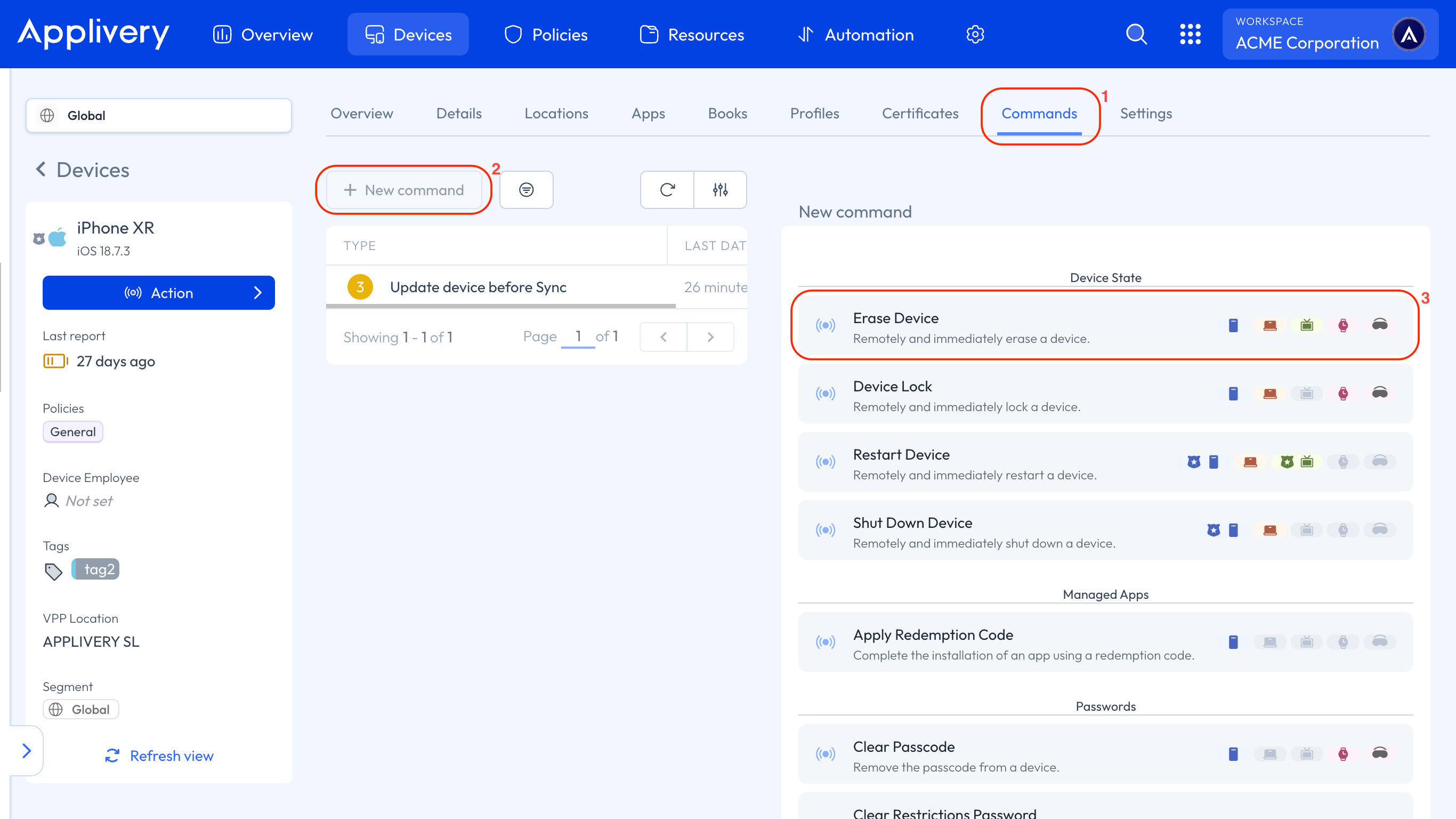
Once in the Applivery Dashboard, go to any of your Devices. Select the Commands (1) tab and click + New Command (2). From the list of available commands, choose Erase Device (3).
In the configuration options for the Erase Device command, make sure to enable the Return to Service feature.
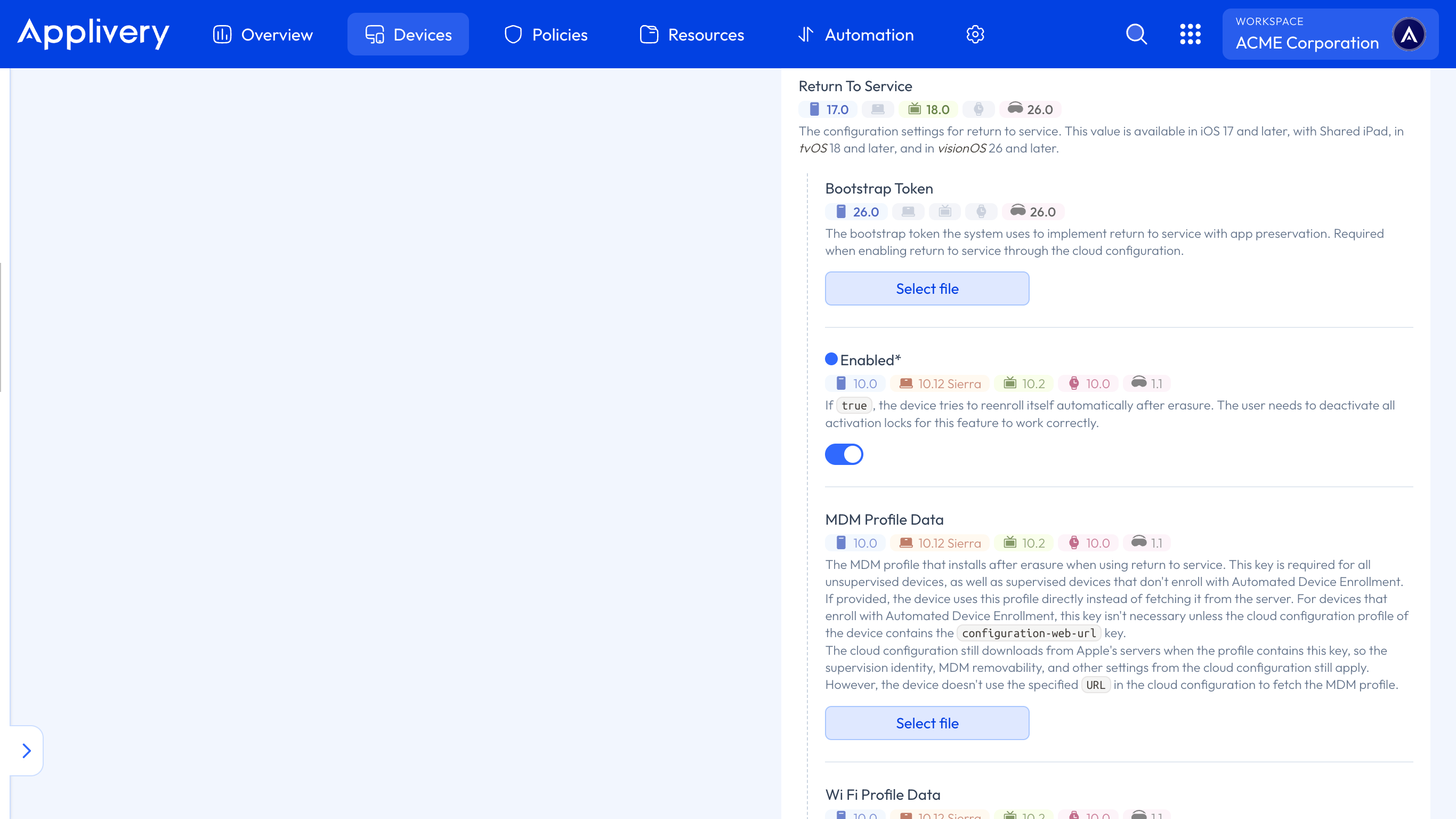
As part of this process, you’ll need to provide an enrollment .mobileconfig file, which will be automatically applied once the Device is wiped, ensuring it re-enrolls into your MDM environment without manual intervention. To generate this file, just follow the instructions outlined in the manual enrollment section of our documentation.
Optionally, you can also include a Wi-Fi .mobileconfig profile to allow the Device to reconnect to the network automatically after the reset.
Make sure your .mobileconfig files are valid and properly configured for seamless re-enrollment and network connectivity.