
What are Smart Attributes and how do they work?
Smart Attributes are dynamic Device properties that enable advanced automation, segmentation, and Device Management in Applivery MDM. They allow administrators to define custom attributes that can be assigned to Devices based on specific conditions, enabling sophisticated automation workflows and precise Device targeting.
They provide a unified and flexible way to define, store, and manage Device-specific metadata across all supported platforms (Windows, Android, iOS, and macOS). Acting as an abstraction layer between raw Device data and higher-level features—such as Policies, Automation, and Segmentation—they allow administrators to work with consistent and reusable attributes regardless of the underlying operating system.
Smart Attributes can be OS-specific (separate values for Android, iOS/macOS, and Windows) or cross-platform (single value applied across all platforms). They integrate directly with Device Audiences, allowing you to create dynamic Device groups based on attribute values.
Smart Attributes are segment-scoped, meaning they can be configured at the Workspace level (global segment) or within specific organizational segments
By combining static values, predefined selections, manual inputs, system variables, and script-based evaluations, Smart Attributes enable precise targeting and advanced conditional logic across your entire Device fleet.
Why Smart Attributes?
Managing Devices across multiple platforms often requires dealing with inconsistent data sources and OS-specific logic. Smart Attributes solve this by:
Standardizing how Device metadata is defined and consumed.
Enabling reusable and centralized logic for segmentation and automation.
Eliminating the need to duplicate platform-specific configurations.
Providing both static and dynamic data sources for maximum flexibility.
This allows organizations to scale Device Management while maintaining consistency, control, and predictability.
What types of Smart Attributes are available?
Applivery MDM offers five distinct Smart Attribute types, each designed for different use cases. However, before understanding these types, it’s important to understand their source—that is, who or what provides the value of the attribute.
Smart Attributes are defined based on this source, which determines how their values are created, updated, and maintained.
Attribute sources
IT Admin: Values managed directly from the Dashboard.
User: Values provided by the end user through the Device Agent.
Device: Values automatically obtained from the Device.
Constant: Fixed values defined by administrators.
Supported types by source
| Source | Supported types | How it works | Use case |
|---|---|---|---|
| IT Admin | Manual, Enum | Values are defined in the Dashboard. Manual allows free input, while Enum restricts values to predefined options. | Store identifiers, department names, or locations. Standardize values such as Device tiers or compliance levels |
| User | Manual, Enum | Values are provided by the end user through the Device Agent. | Collect contextual or user-provided data while ensuring consistency |
| Device | Selector, Script | Values are automatically generated from the Device. Selectors retrieve system properties, while Scripts execute logic locally. | Dynamic Device properties, computed values, compliance checks |
| Constant | Constant | Static value defined once by an administrator. | Baseline configurations, global settings |
The initial release supports all Smart Attribute sources except User. Support for the User source will be introduced in a future release, allowing end users to provide attribute values directly from the Device Agent.
This view helps quickly understand which combinations are possible when designing your Smart Attributes.
| Source ↓ / Type → | Manual | Enum | Selector | Script | Constant |
|---|---|---|---|---|---|
| IT Admin | ✅ | ✅ | ❌ | ❌ | ❌ |
| User | ✅ | ✅ | ❌ | ❌ | ❌ |
| Device | ❌ | ❌ | ✅ | ✅ | ❌ |
| Constant | ❌ | ❌ | ❌ | ❌ | ✅ |
Update behavior
The update frequency of Smart Attributes depends on how their values are generated.
| Type | Update | Behavior |
|---|---|---|
| Manual (Admin/User) | Manual input | Updated whenever the value is modified via Dashboard or Agent. |
| Enum (Admin/User) | Manual selection | Updated whenever a new option is selected. |
| Selector | System scheduler/Device updates | Re-evaluated dynamically every 15 minutes or when Device data changes. |
| Script | Agent execution | Updated each time the script runs on the Device. |
| Constant | System scheduler/Device updates | Updated every 15 minutes or when Device information changes. |
Selector type details
The Selector type uses interpolators to reference other Device properties or Smart Attributes:
Initial version: Supports interpolators and string operations.
Future versions: Will support advanced functions, including:
String manipulation (split, substring, concatenation).
Conditional logic.
Mathematical operations on numeric values.
Date/time calculations.
How do I create and configure Smart Attributes?
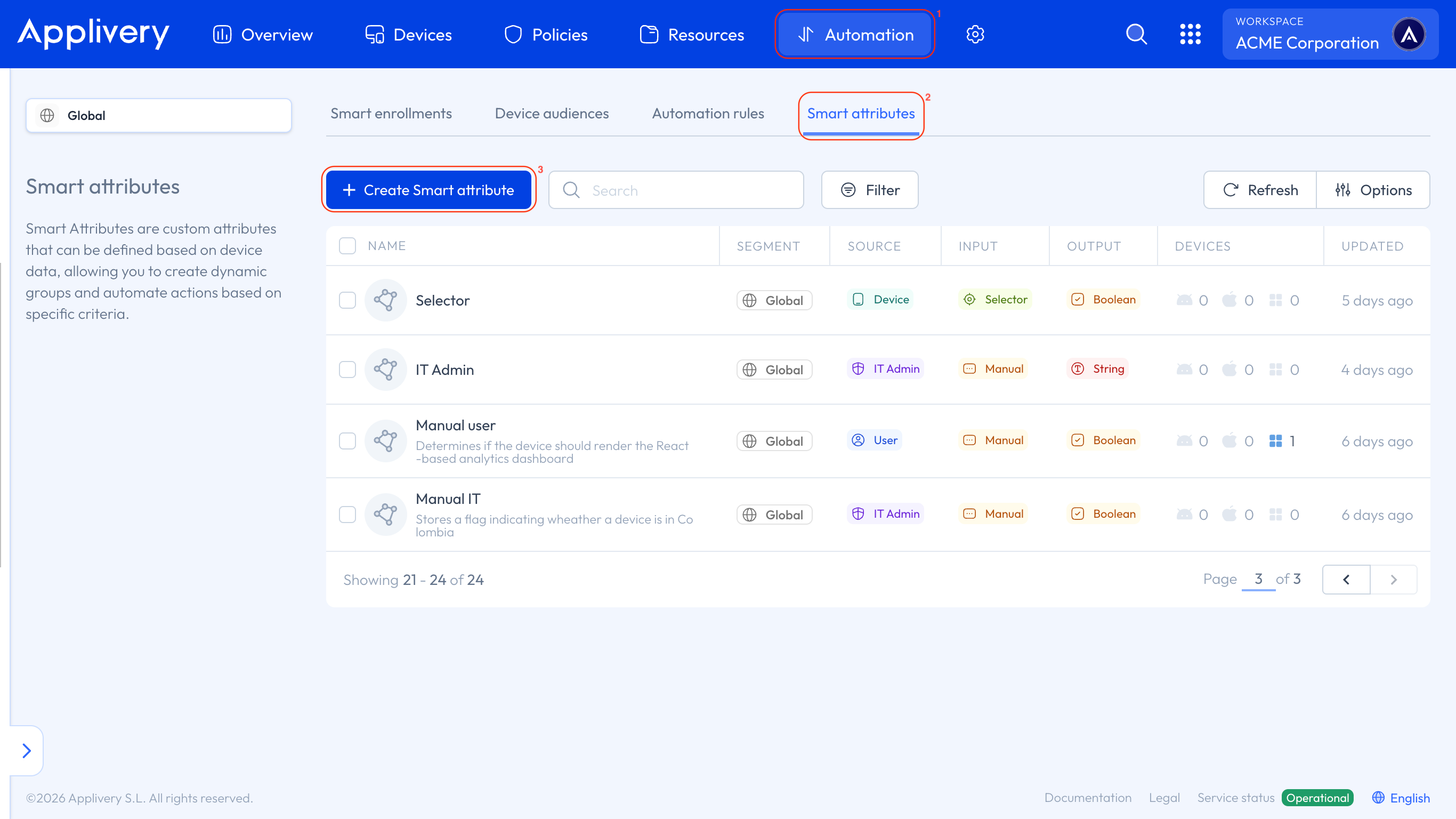
Once in the Applivery Dashboard, navigate to Automation (1) and select Smart Attributes (2).
In this section, you’ll find a table listing all existing attributes. This table provides a complete overview of each attribute, including its name, type, associated segment, scope, number of affected Devices, and last update timestamp. From here, you can also perform actions like editing, deleting, or viewing attribute details.
To create a new attribute, simply click + Create Smart Attribute (3).
Start by selecting the Smart Attribute source from the available options. Each source includes a brief description to help you understand how it works and when to use it.
Next, define the input type (how the value is provided or generated) and the output type, followed by the attribute scope:
OS-specific: Configure different values for each platform (Android, iOS/macOS, and Windows).
Cross-platform: Define a single value that applies consistently across all platforms.
When using an OS-specific scope, the system handles platform differences automatically in the backend while maintaining a unified configuration experience.
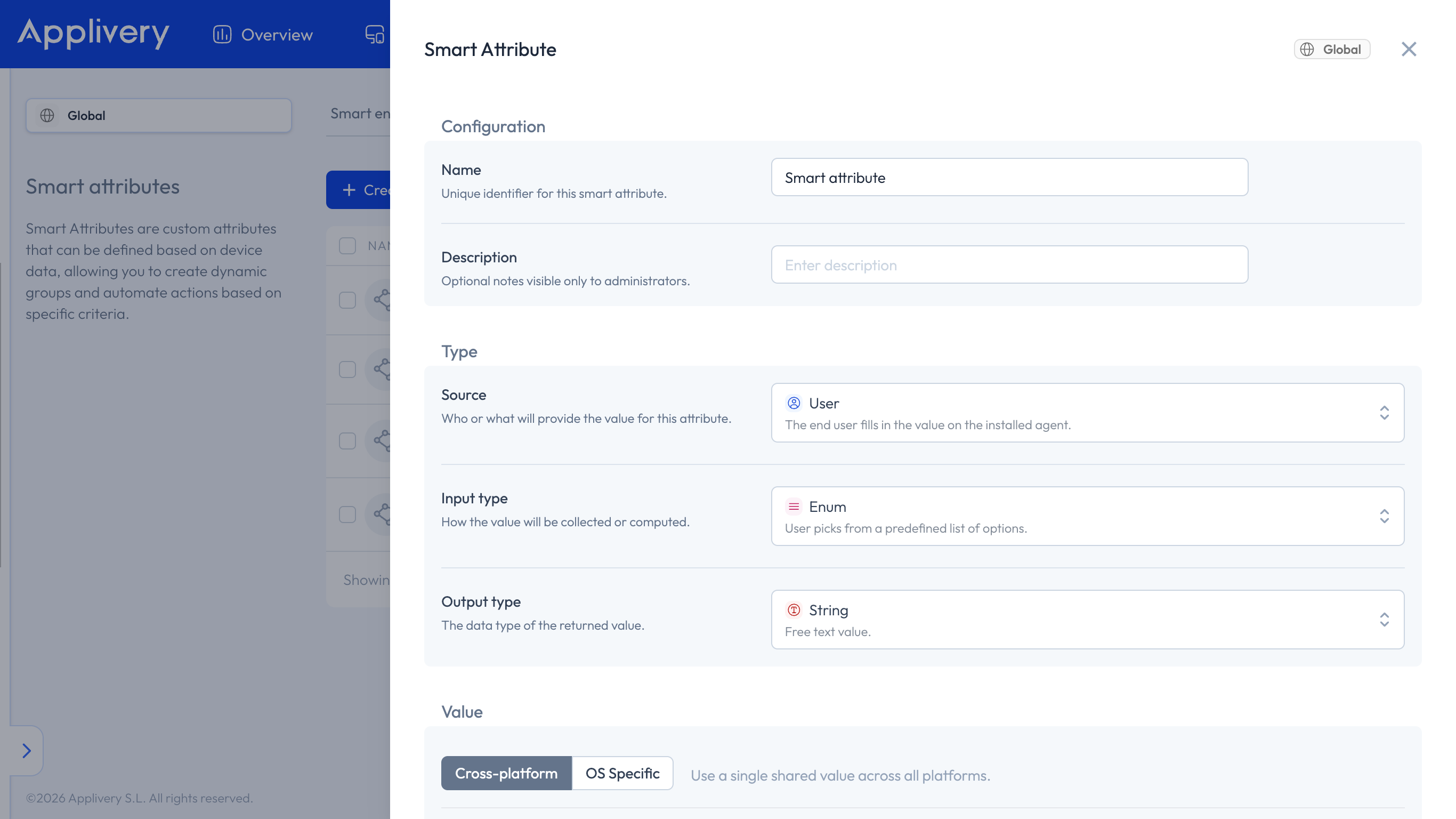
Define the core properties of your attribute:
Name: The display name shown in the UI.
You can also include an optional description to clarify the attribute’s purpose.
Depending on the selected scope:
For OS-specific attributes, provide values for each platform (Android, iOS/macOS, Windows).
For cross-platform attributes, define a single value that applies to all Devices.
Some attribute types require additional configuration depending on their behavior.
Enum attributes allow you to define a list of predefined options, ensuring consistent and structured data.
Script attributes require you to provide the script logic that will be executed on the dDvice. You can write or paste your script directly in the editor, use AI assistance if available, and test it before deployment. The script must return the value in the expected format in its final line.
Selector attributes use dynamic variables to retrieve Device or attribute data. These are defined using interpolators such as:
{{device.serial_number}}-{{device.model}}.
{{smart_attribute.department}}-{{device.os_version}}.
Finally, you can decide how the Smart Attribute is assigned to Devices.
You can assign attributes manually to specific Devices through the Device details view, or automate the process using Device Audiences, which dynamically assign attributes based on defined conditions.
This flexibility allows you to apply attributes either on a case-by-case basis or at scale through automated targeting.
How do Smart Attributes work with Device Audiences?
Smart Attributes integrate seamlessly with Device Audiences, enabling dynamic Device segmentation based on attribute values. When creating or editing a Device Audience, you can use Smart Attributes as part of your filtering criteria to target Devices more precisely.
Device Audience filter structure
Device Audience filters follow this structure:
Attribute → Operator → Value
This allows you to define conditions based on Device properties, tags, or Smart Attributes. For example, you can:
Filter Devices by tags (e.g., location or department).
Use Smart Attributes to define conditions such as OS version or security status.
Combine multiple filters to build more advanced targeting logic.
Example configurations
Device Tag filter: Devices that include specific tags such as Madrid and Barcelona.
Smart Attribute filter: Devices where a Smart Attribute like OS Version is greater than a specific value (e.g., 26.2).
Combined filters: You can combine multiple conditions, such as FileVault enabled (True AND), OS Version greater than 26.2 (OR), Devices tagged with Madrid.
Logical operators between filters
Understanding how filters are combined is key to building correct Device Audiences.
AND logic (within the same filter type): When using multiple Smart Attribute conditions, all of them must be met. For example, a Device must have OS Version > 26.2, and FileVault must be enabled.
OR logic (across different filter types): Different types of filters (e.g., Device Tags vs Smart Attributes) are evaluated independently, and a Device can match if it satisfies any of those groups.
Device Tags behavior: Device Tags use the “Includes (has all)” operator, meaning the Device must contain all specified tags to match.
Available operators by attribute type
Operators vary based on the Smart Attribute data type:
| Data Type | Available Operators |
|---|---|
| Text/String | Equals, Not equals, Contains, Not contains, Starts with, Ends with. |
| Number | Equals, Not equals, Greater than, Less than, Greater than or equal, Less than or equal, Between. |
| Boolean | Equals, Not equals. |
| Date | Equals, Not equals, Before, After, Between. |
| Enum | Equals, Not equals, In list, Not in list. |
Understanding filter logic
The Device Audience interface provides a visual formula that represents how your filters are evaluated:
(device_tag includes "Madrid" OR device_tag includes "Barcelona")
AND
(smart_attribute.os_version > 26.2 AND smart_attribute.filevault = true)
This representation helps you clearly understand how conditions are applied and ensures that your targeting behaves as expected.
What are common use cases for Smart Attributes?
Smart Attributes support a wide range of scenarios:
Static tagging: Assign fixed metadata like office location or business unit.
Dynamic data extraction: Retrieve system-level information automatically.
Custom calculations: Generate values using scripts (e.g., compliance status).
Standardized inputs: Enforce consistent values using enums.
Manual data entry: Capture information not available programmatically.