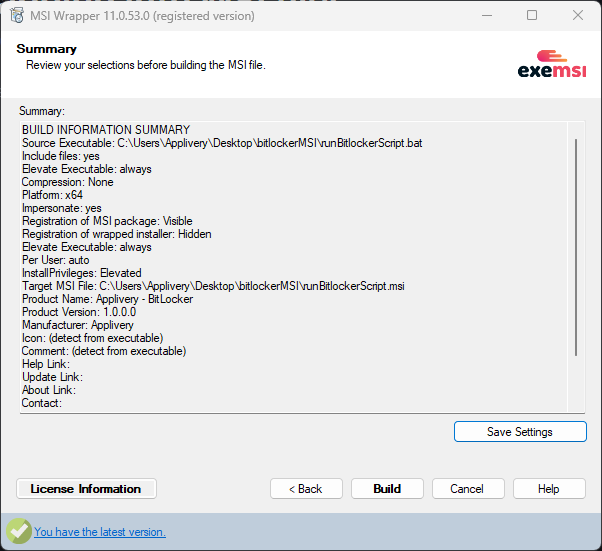
Wrapping files into a single MSI file is helpful when deploying custom applications or scripts through Applivery MDM. Once packaged, the MSI can be uploaded to Applivery and deployed like any standard application, triggering your custom scripts or installers on target Devices.
Common use cases
Wrapping into a single MSI is useful for:
Installing
.exeapplications.Installing
.msixor.msixbundlepackages.Deploying custom scripts.
MSI files deployed through Applivery are executed with administrator privileges under the SYSTEM account in Windows. Keep this in mind when deploying scripts or applications intended for user-level execution, as they will also run in the SYSTEM context.
How it works
The most straightforward approach is to include all necessary files in a folder, along with a batch file (.bat). This batch script serves as the entry point, allowing it to call PowerShell scripts or launch installers.
Example: Deploying xbox.msixbundle
@echo off
powershell.exe -ExecutionPolicy Bypass -File "%~dp0installXboxApp.ps1"
Dism /Online /Add-ProvisionedAppxPackage /PackagePath:".\xbox.msixbundle" /SkipLicense
exit 0
installXbox.batinstallXboxApp.ps1xbox.msixbundle
Creating an MSI with EXEMSI’s MSI Wrapper
There are multiple tools available to create MSI packages. In this guide, we’ll use MSI Wrapper by EXEMSI — a simple utility that offers both free and paid versions.
The free version adds a watermark to the MSI file name but does not limit functionality.
Prepare Your Files
Before wrapping, create a folder with only the necessary files (e.g., batch file, scripts, app packages).
MSI files cannot execute PowerShell scripts directly. You must use a .bat file to trigger any PowerShell logic.
In this example, the batch file is set as the primary executable. When the MSI is run, the batch script initiates the PowerShell script, which performs the actual installation.
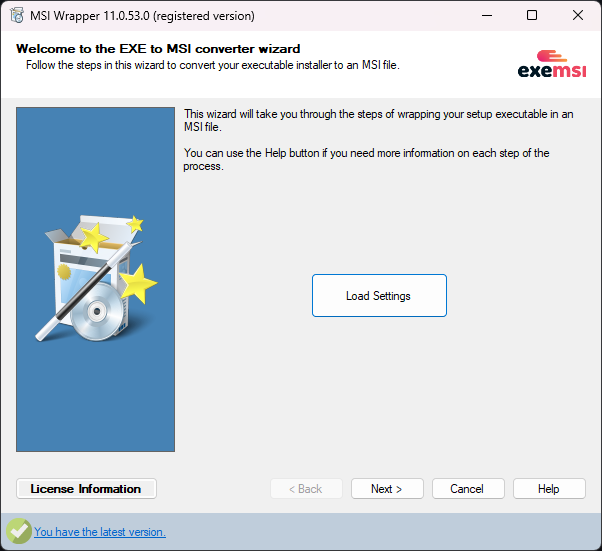
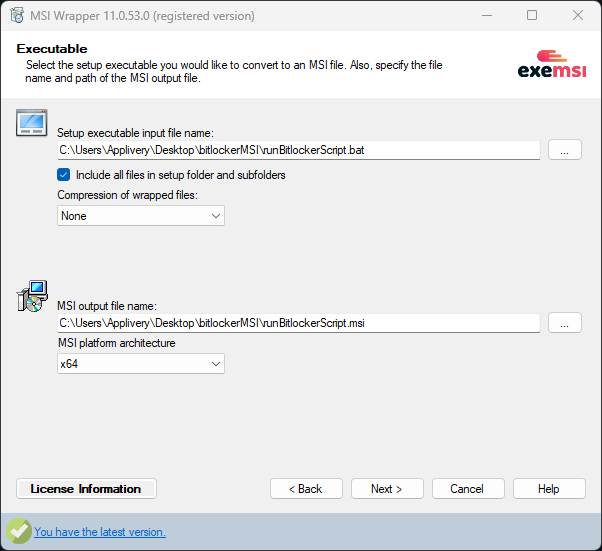
Make sure to check the box to include all files in the setup folder.
Choose the appropriate platform architecture (usually x64).
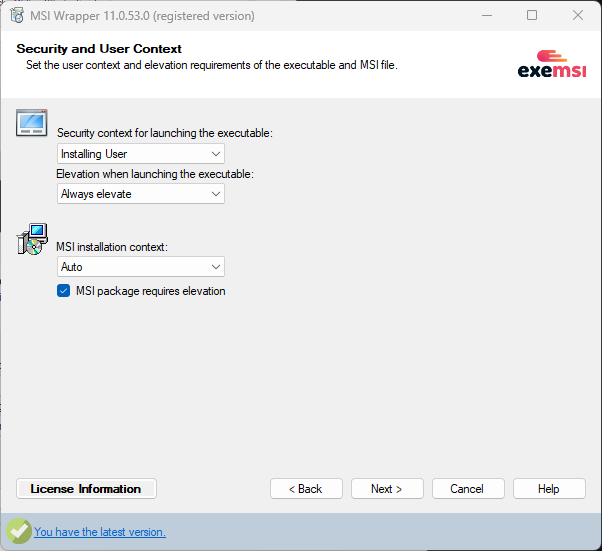
- In most cases, you’ll want to install for all users or system-wide.
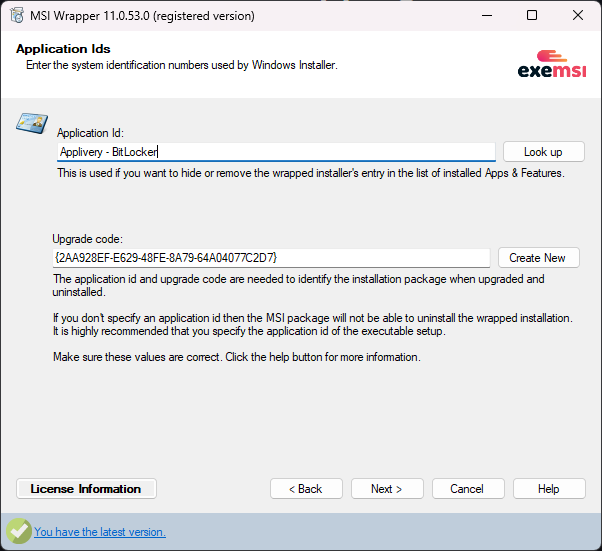
Enter an Application ID (any string of your choice).
Click to generate a new Upgrade Code.
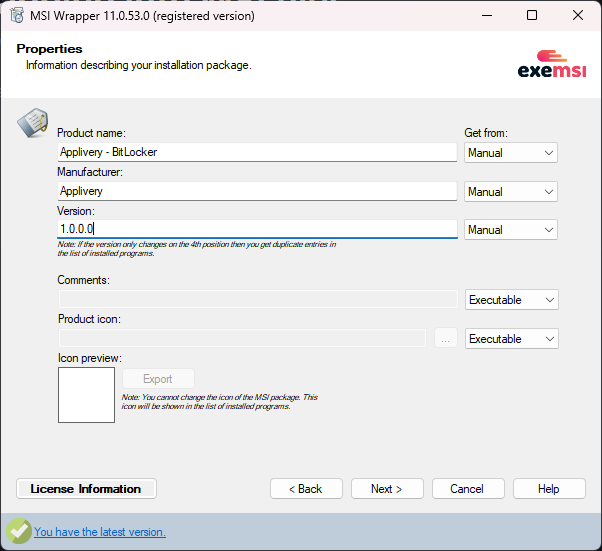
Provide the Product Name, Manufacturer, and Version.
Click Next through the remaining steps.
- The output MSI will be created in the same directory as your source files.