
With Applivery, you can also manage Android System Apps. This functionality provides greater control over any App on the Devices within your Android fleet. It is particularly useful for kiosk mode configurations, where you want users to have access only to a specific set of Apps.
In this guide, we’ll walk you through the process.
Adding System Apps to Policies
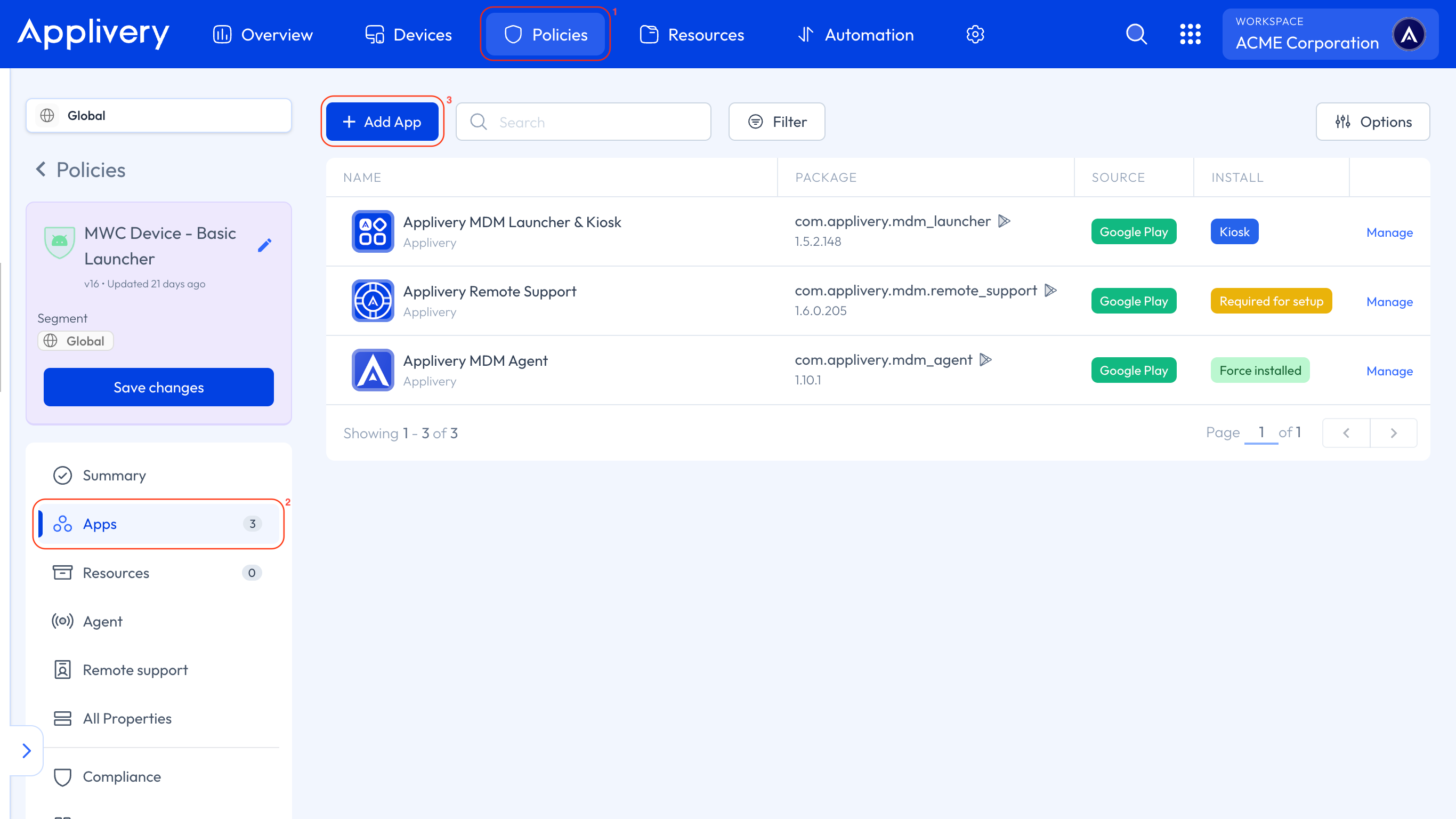
Once in the Applivery Dashboard, go to any of your Policies (1). From the left side menu, go to Apps (2) and click the + Add App button (3).
Then select the System App (4) tab. You will see a drop-down menu where you can select the system App you want to manage or paste it.
Once you enable the Application Reports Enabled configuration under the Reporting section at the Policy level, the full list of Apps—including system Apps—will be available under Devices > Apps.
This makes it easier to find the required package names.
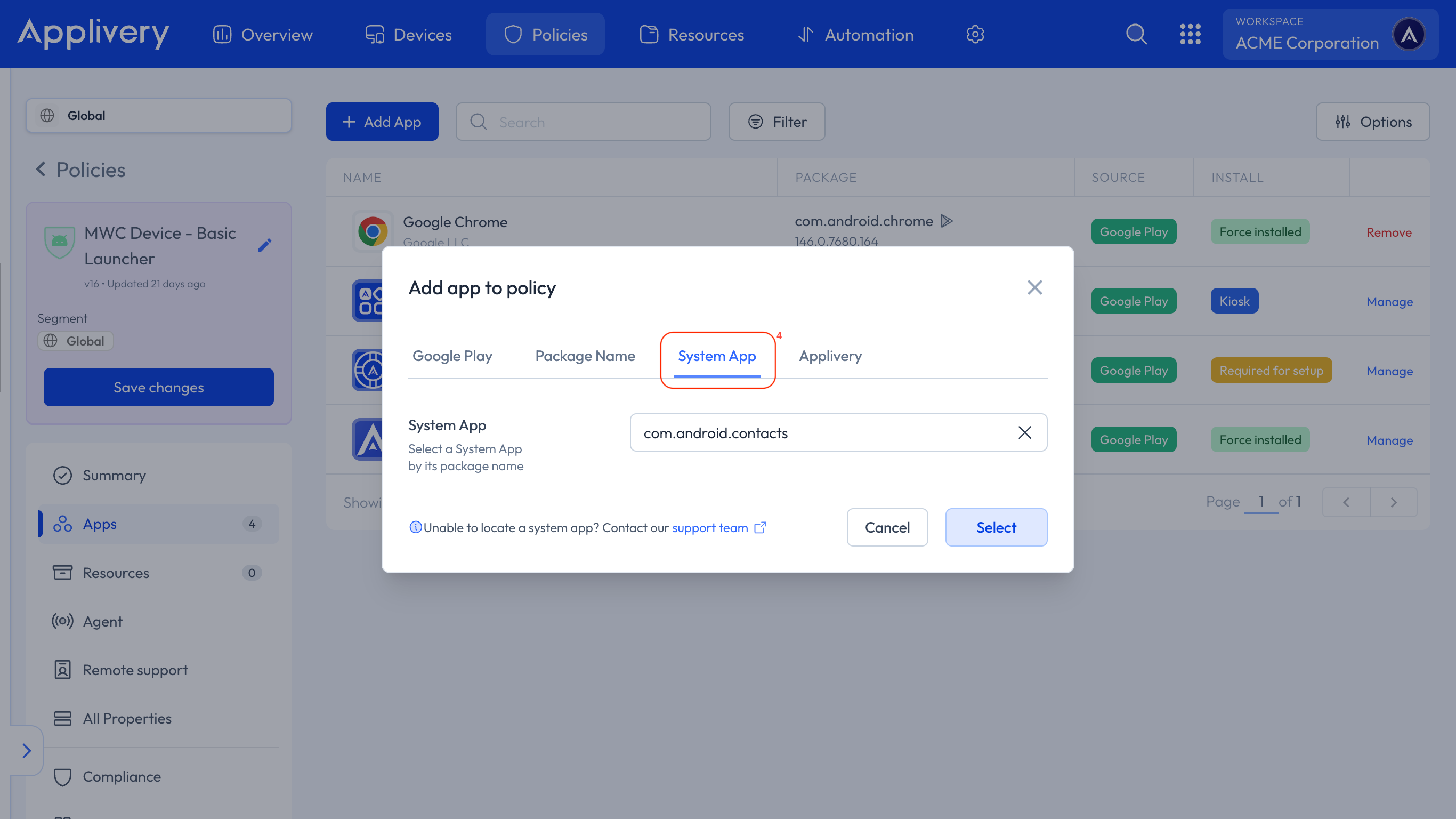
Once you’ve selected the App, click Select.
Finally, choose an installation type that suits your needs and add the App to the list of managed applications within your Policy.