
Applivery Device Management allows you to deploy a wide range of Resources—such as Apps, scripts, files, certificates, and other assets—across your managed Devices, including Android, Windows, and Apple platforms (macOS, iOS, and iPadOS).
Distribution can be performed either in bulk through Policies or individually per device, giving you full flexibility and control.
These features require the Applivery MDM Agent to be enabled in the Device policy.
Resource Types
| Resource Type | Description |
|---|---|
| Scripts | Automate operational tasks and system configurations by deploying bash scripts for macOS and powerShell scripts for Windows. |
| Apps | Deploy custom-built or third-party applications to ensure Device Employees have access to the tools they need. Supported formats include .ipa, .pkg, .msi, .msix, .appx, and .apk. |
| Books | Deploy documents in a variety of formats, including .pdf, .epub, .rtf, .rtfd, and .txt, to ensure compatibility and accessibility across Devices. |
| Images | Deploy images in .jpg or .png formats. |
| Certificates | Deploy certificates to secure device connections, supporting formats such as .p12, .der, .pem, .crt, and .cer. |
| Certificate Providers | Configure them to automate certificate issuance and lifecycle management. This allows Devices to dynamically request and renew certificates through integrated identity or certificate authorities, improving security and reducing manual administrative overhead. |
Books are only available for iOS Devices. For Shared iPad environments, books can only be assigned to user accounts, not directly to Devices.
Image deployment to Android Devices is currently not available. Importing contacts is not currently supported.
Importing contacts is not currently supported.
Resource Distribution
Depending on the operating system and asset type, Applivery allows you to define how Resources are delivered:
User-level deployment (when supported): Targets the primary or logged-in user of the Device.
Device-level (system-wide) deployment: Applies assets at the machine level, regardless of user sessions.
Policy-based deployment: Distributes assets automatically to all Devices assigned to a specific Policy.
Direct device assignment: Applies assets individually to selected Devices.
This flexibility enables tailored deployments based on your organization’s structure, compliance requirements, and operational needs.
Uploading Resources to the Dashboard
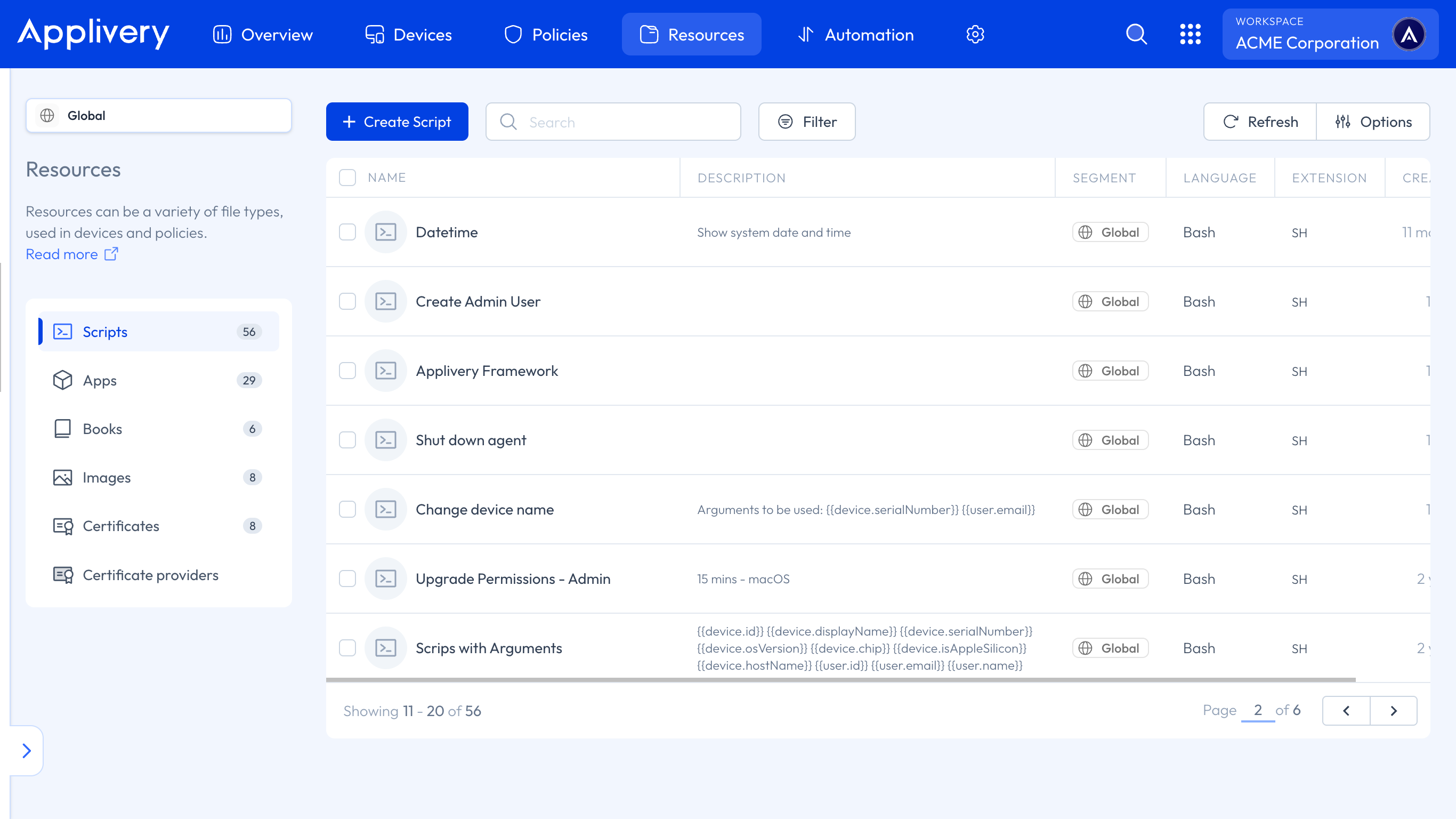
Once in the Applivery Dashboard, navigate to Resources. Use the left-hand menu to choose the asset type you wish to upload. Then, simply click the upload button to add your asset to your Workspace.
Adding Resources to Policies
Once in the Applivery Dashboard, navigate to Policies (1). Choose the Policy to which you’d like to add a Resource. Then, from the left-hand menu, click on Resources (2) and select the + Add Resource button (2) to begin the upload process.
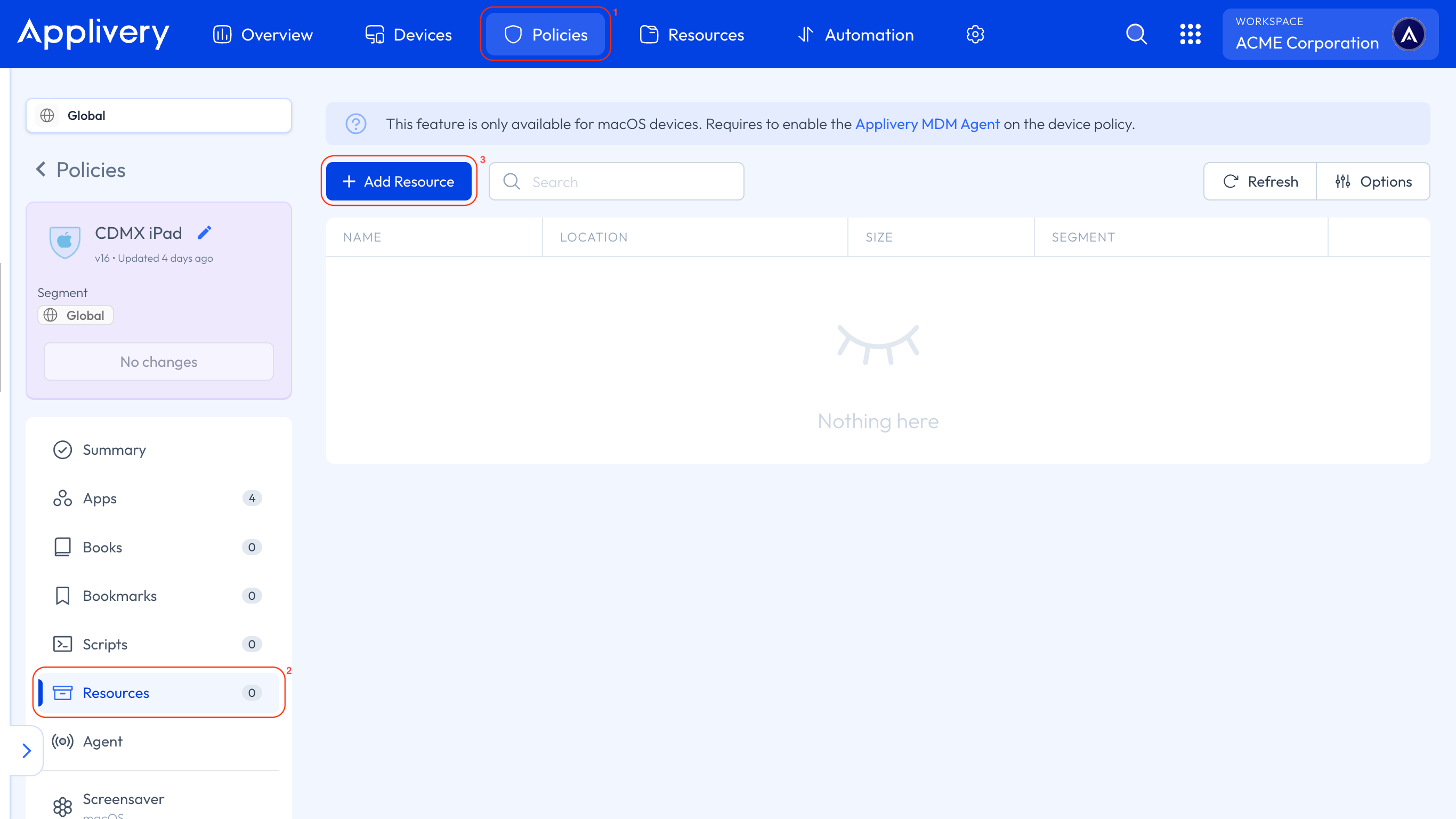
A modal window will appear where you can select the type of Resource you want to assign to the Policy.
You can choose to upload it from the Resources section (if you have previously uploaded it) or directly from your machine.
Additionally, you will be able to select the deployment scope and specify the location where the Resource will be placed on the Devices where the Policy is applied.
Assigning Resources to Devices
If you don’t want to perform a bulk deployment via a Policy, you also have the option to assign Resources individually to each Device.
Once in the Applivery Dashboard, navigate to Devices, and select the Device where you want to add the Resource.
Keep in mind that the types of Resources you can deploy depend on the Device, as explained above.