
Effectively managing multiple user accounts on a single device is essential for maintaining a company’s security Policies. While using one Device for multiple users can optimize resource allocation, poor management can lead to unauthorized access and data breaches.
For instance, the Shared iPad feature allows organizations to easily manage iOS Devices used by multiple users.
Applivery offers a seamless solution for managing user accounts on shared iPads and Macs, ensuring both security and efficient operations.
Create a user account policy
Once in the Applivery Dashboard, follow the steps to create a new Policy. Check the box for Apply to device user accounts.
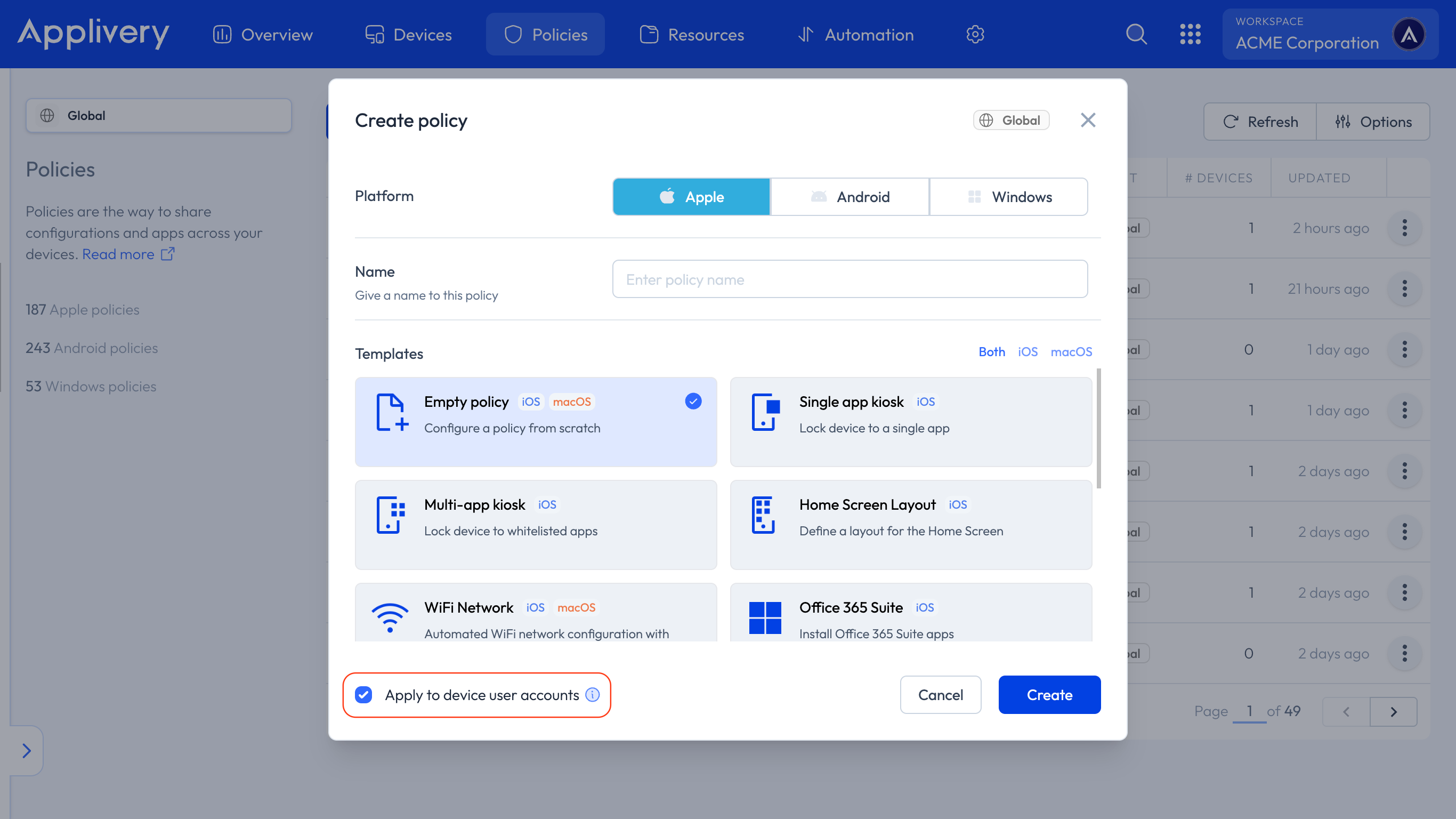
You will be redirected to its Summary page. From the + Add Configuration button, you can apply all necessary settings for your specific users.
After making these changes, you will find a list of Devices associated with users who have this Policy applied at the bottom of the page. You can also add new users by clicking the + Assign to device user button.
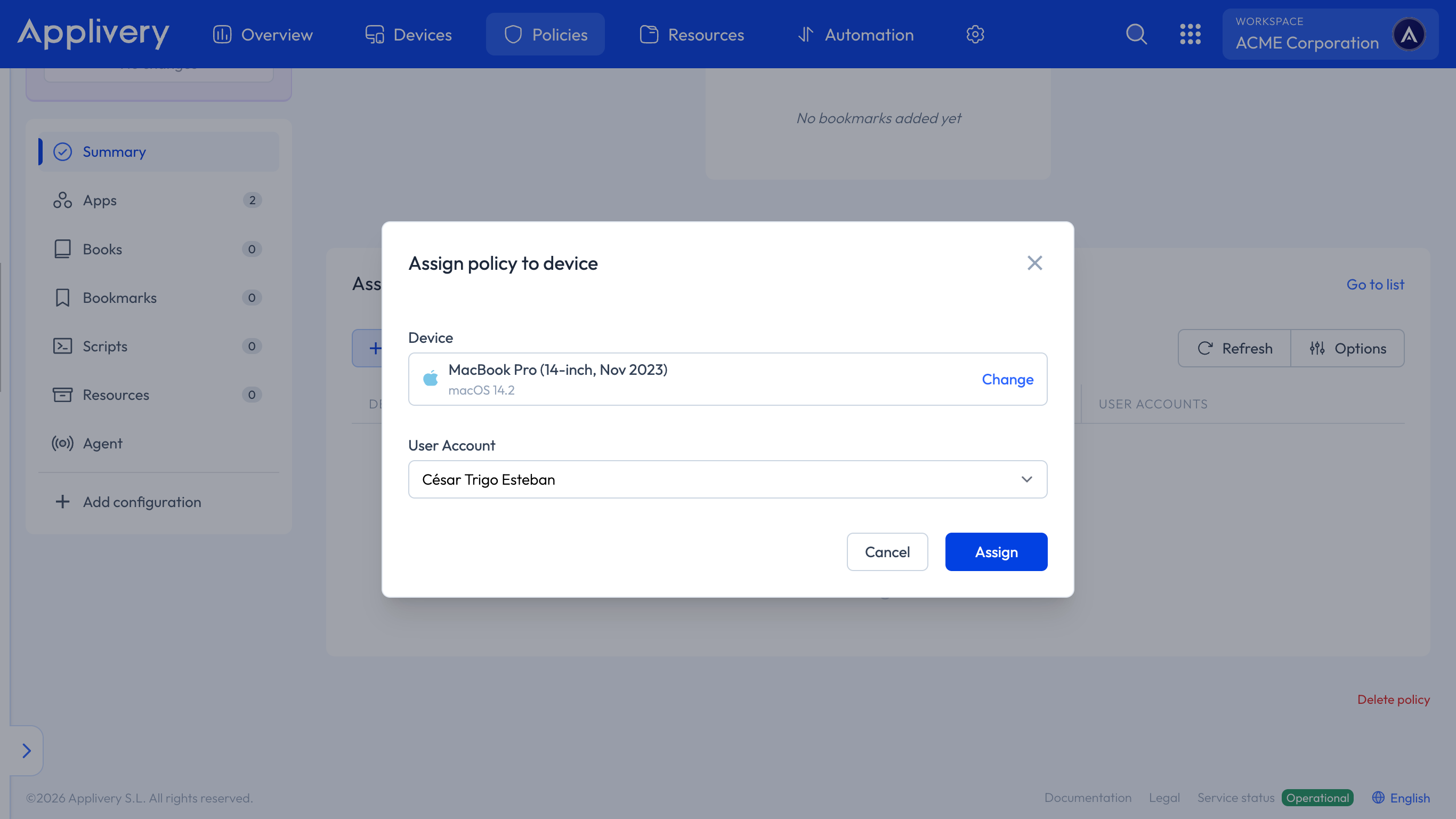
User Account Policies can only be assigned to Shared iPads and macOS Devices.