If you link Apple Business with Applivery, you can choose the default DEP Profile or Smart Enrollment assignments by device type. For example, you will be able to assign your organization’s iPhone Devices to one DEP Profile and Smart Enrollment and iPad Devices or Mac computers to different ones.
Applivery Default Assignments
Once in the Applivery Dashboard, go to your Settings section (1) and locate Apple Setup (2) in the left-hand menu.
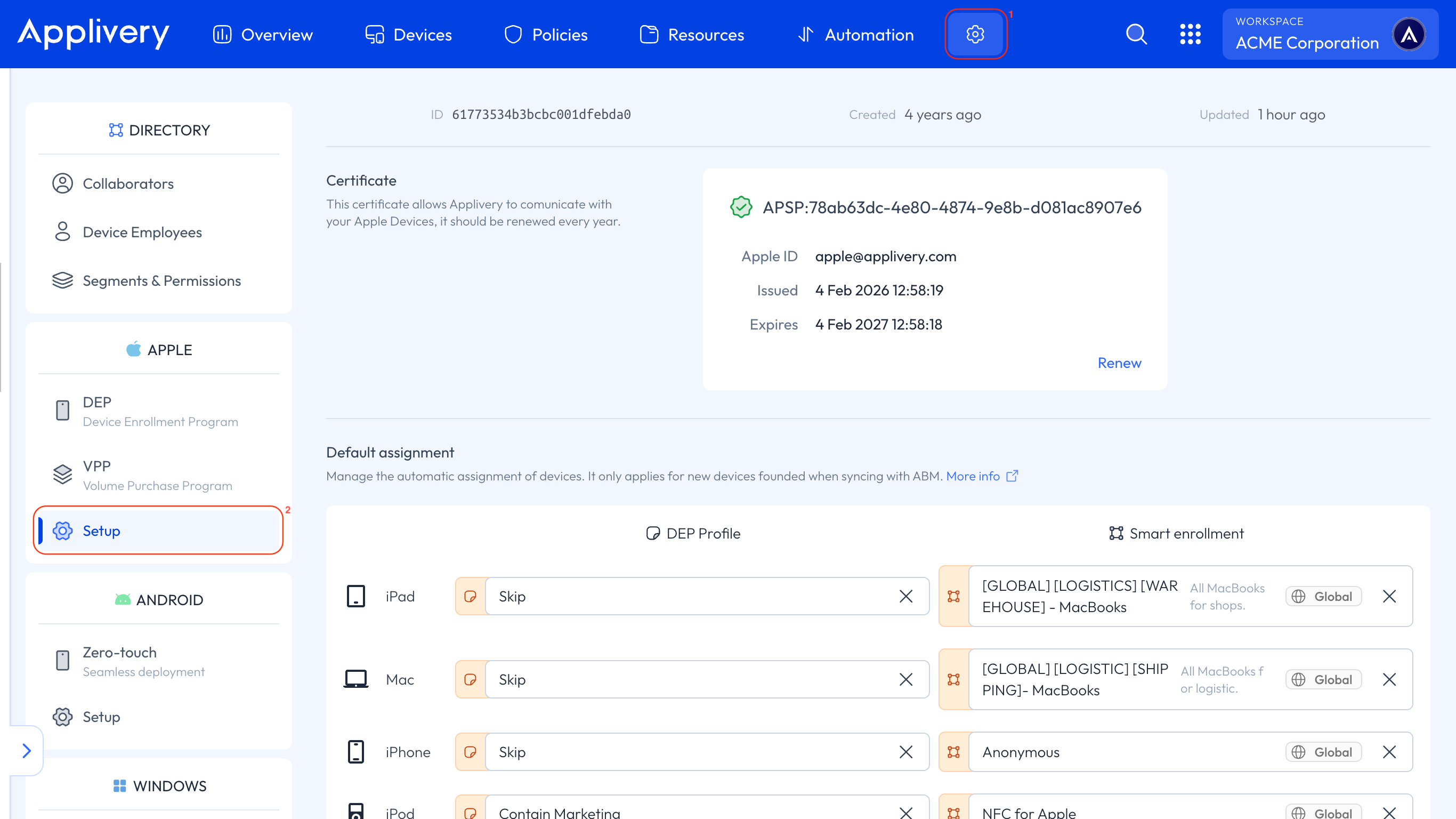
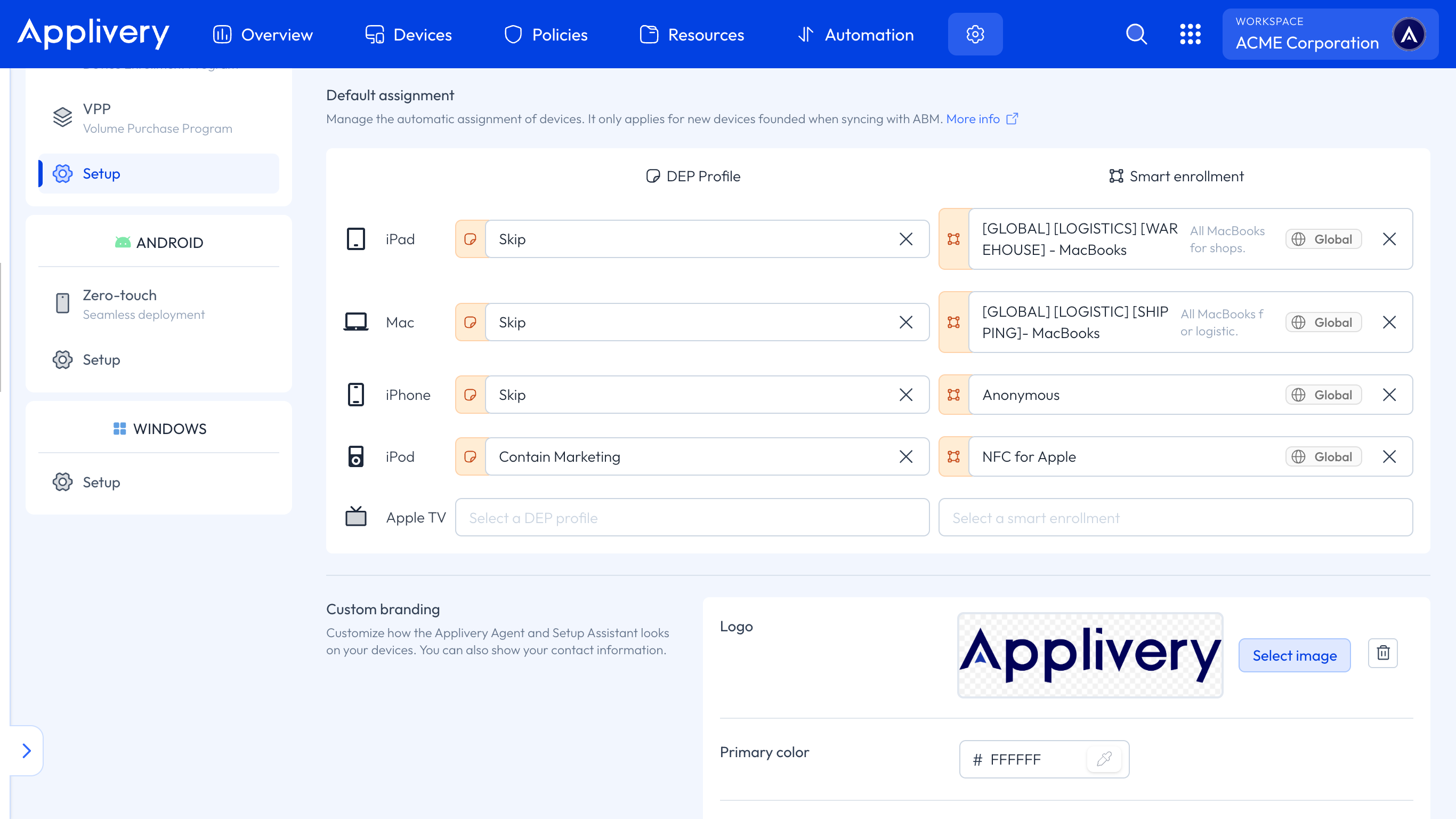
In the Default assignment section, click the Device type dropdown menus, and choose the default DEP Profile or Smart Enrollment for that Device type.
If you choose none for a Device type, you’ll need to manually assign those Devices later.
Complete the Setup with Apple Business
Before you can manage default device assignments, you need to enter your Apple Customer Numbers or the Reseller Numbers of your participating Apple Authorised Reseller or carrier.
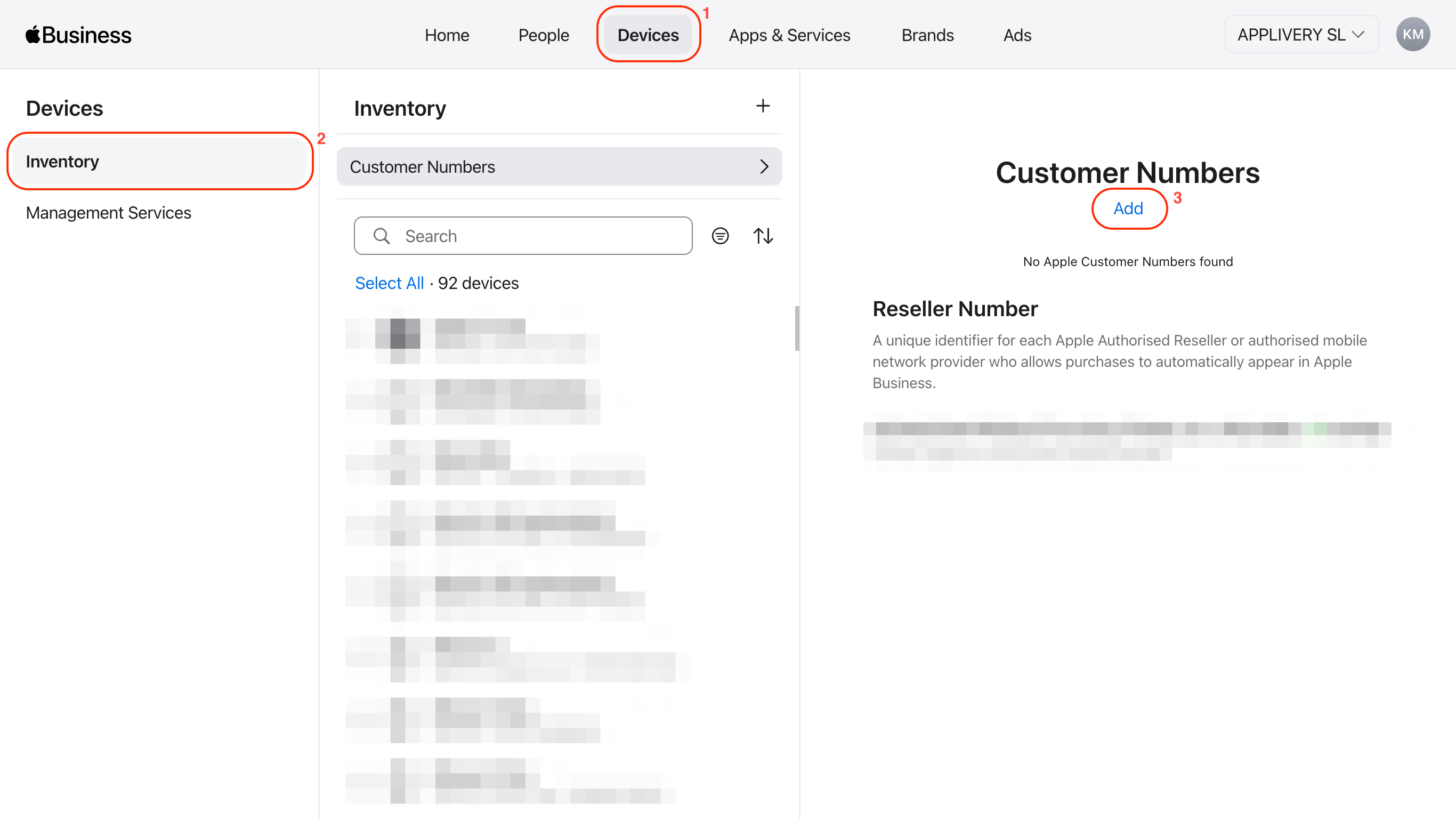
Once you’ve signed in to Apple Business, click on Devices (1) and select Inventory from the left-hand menu. Then, select Customer Numbers and click the Add (3) button.
A modal will appear where you can choose to add an Apple Customer Number or a Reseller Number.
When you enter your Apple Customer Numbers, omit any leading zeros. If the Add button is missing or dimmed, the information may already be saved.
The Apple Customer Number or Reseller Number that you entered will appear as pending. Please note that verification and approval of customer numbers may take up to five days.
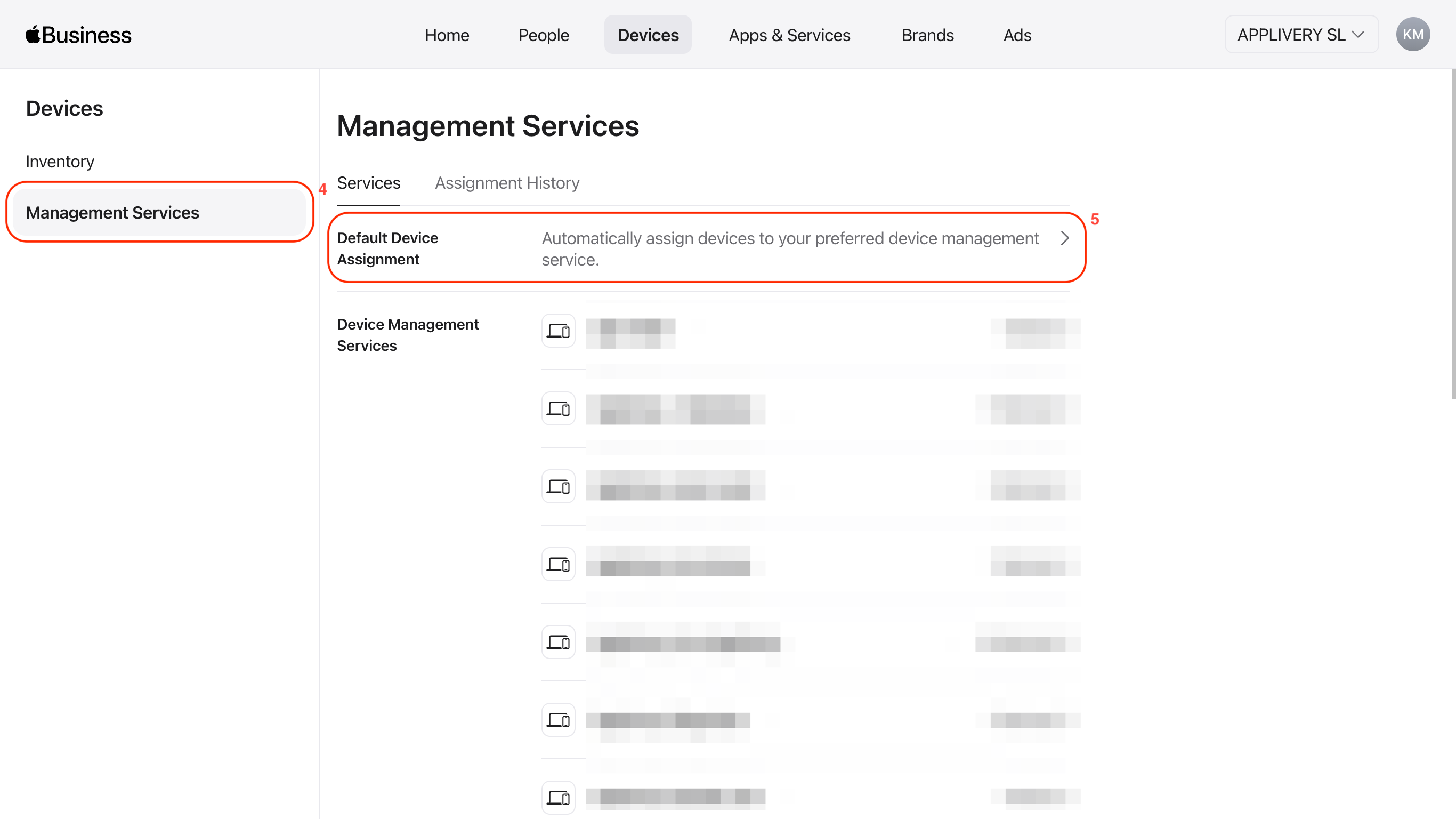
Now navigate to the Management Services (4) section and select Default Device Assignment (5).
Click the Device type dropdown menus, choose the default MDM server for that Device type.
If you choose Unassigned for a Device type, you’ll need to manually assign those Devices later.