
Effective user management is essential for securing and organizing corporate Devices. Applivery provides a centralized interface to manage both administrators (Collaborators) and end users (Device Employees) with precise access control.
In Applivery Device Management, there are two main categories of users: Collaborators and Device Employees.
Collaborators
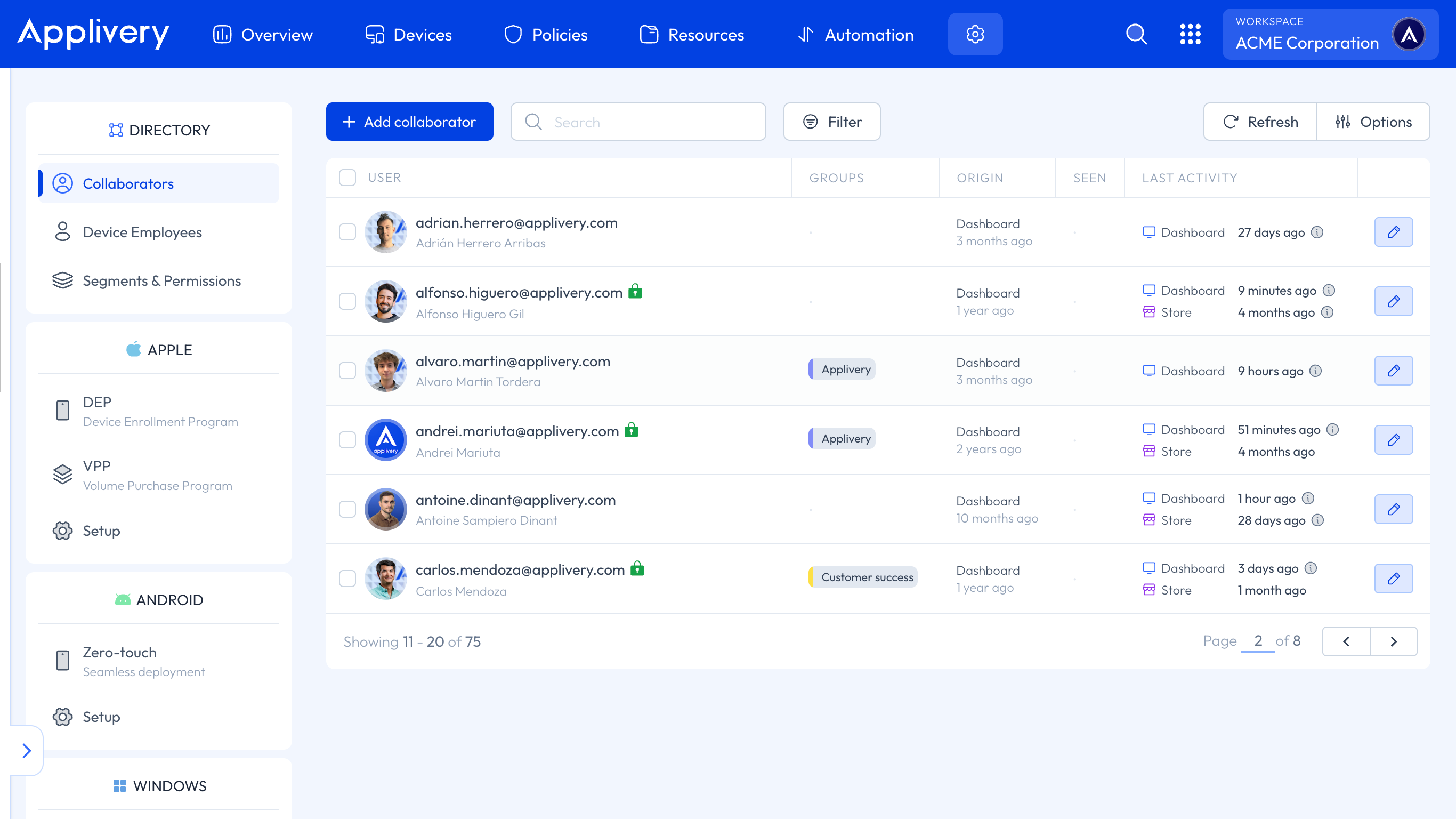
Collaborators are team members who manage Devices and Workspace configurations via the Applivery Dashboard.
Device Employees
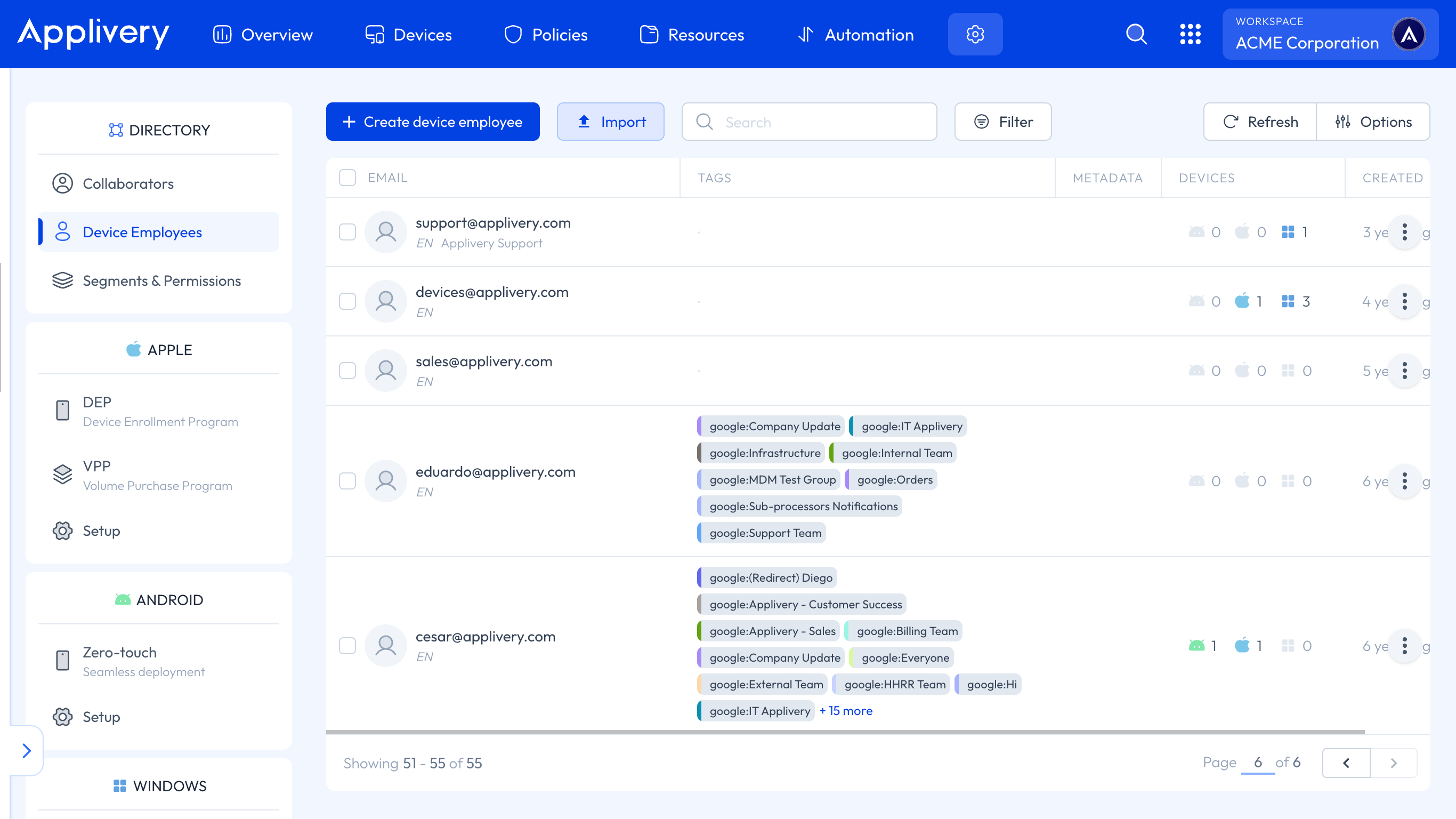
Device Employees represent end users assigned to managed Devices. They can be grouped and assigned Policies, Apps, or configurations.
Device Audiences and Segments
Device Management allows administrators to define audiences and segments to organize Devices and users for targeted Policies and deployments.
Segments: Static collections of Devices or users for access control.
Device Audiences: Dynamic groups that automatically adjust based on device attributes or criteria.
This helps ensure that Policies, Apps, and scripts are deployed to the correct users without manual intervention.
User activity overview
Applivery tracks activity for Collaborators to monitor usage and Workspace engagement. The system records:
Logins update both the last login and last action timestamps.
Other actions (policy changes, device management tasks, etc.) update the last action timestamp.
Activity tracking does not apply to Device Employees, as they do not have access to the Dashboard.
Best Practices
Use Device Audiences for dynamic management of large fleets.
Monitor Collaborator activity regularly to identify inactive accounts or potential misconfigurations.
Ensure that new Device Employees or Collaborators are assigned the appropriate segments and permissions for their responsibilities.
How to invite your team
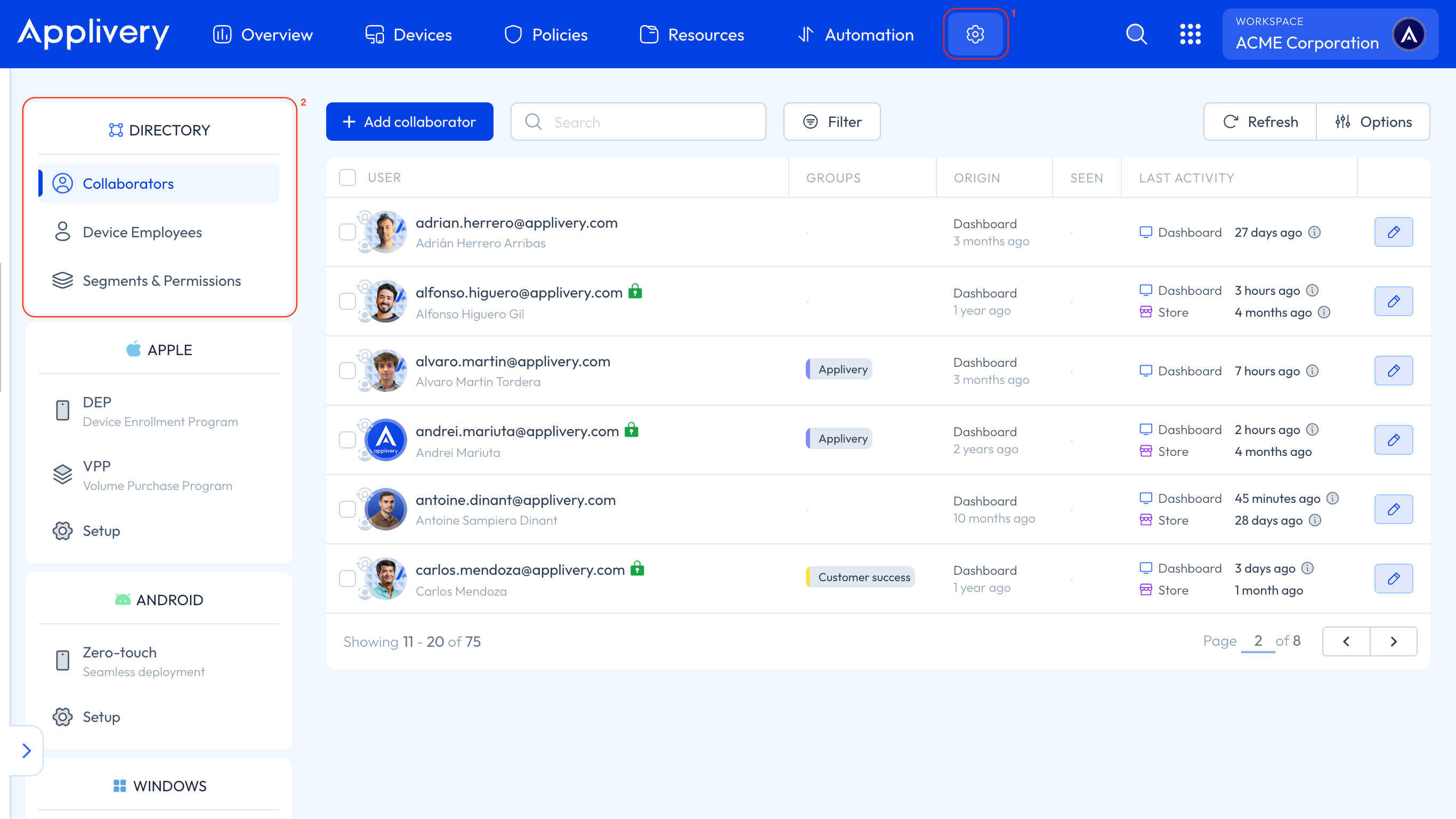
Once in the Applivery Dashboard, navigate to 1 Settings and, in the left-hand menu under the 2Directory section, select the type of user you want to add.
Invitation flow
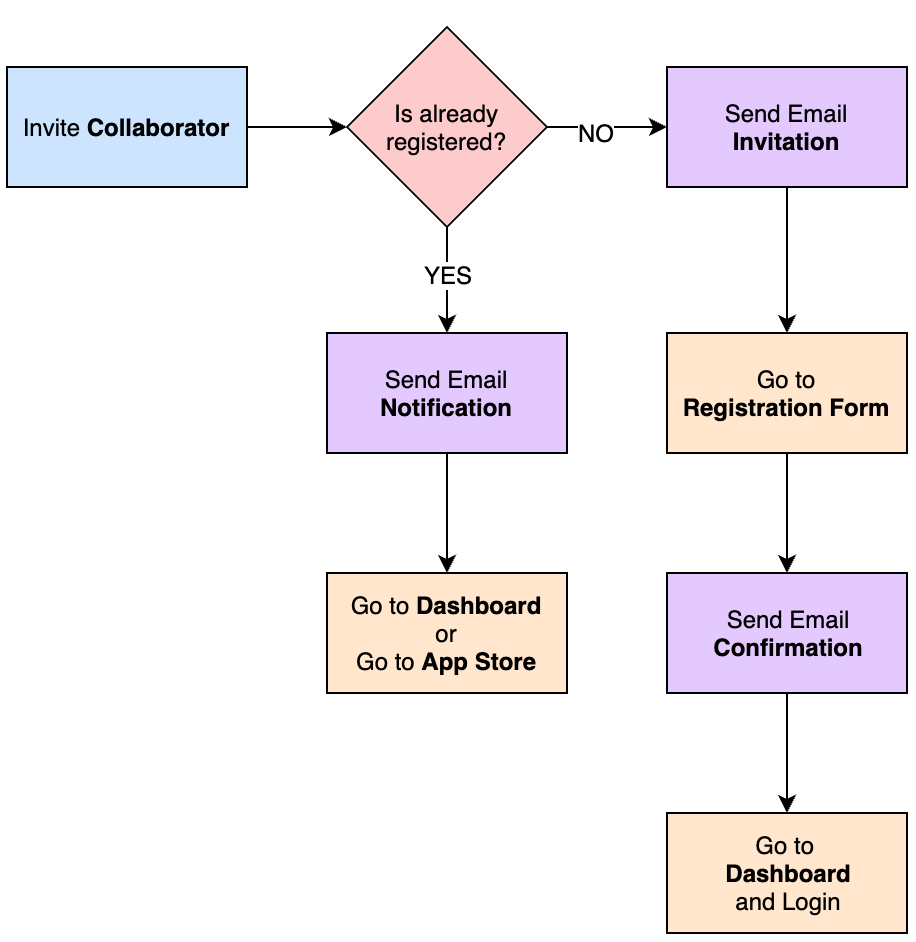
When you invite a Collaborator to join your team, they will receive an email invitation to register. In contrast, creating a Device Employee does not trigger an invitation, as these users are nominal end users tied directly to enrolled Devices.
Collaborators
When inviting a new Collaborator to your Workspace:
The user receives an email invitation to join Applivery. Their email address is pre-filled in the registration form.
After registering, they receive a second email to verify their email address.
Once verified, they are redirected to the login page to enter the credentials they just created.
Finally, they can access the Dashboard and will only see the Workspace Segments they have been assigned to.
Device Employees
Device Employees are a logical entity used to group Devices. Each Device Employee is identified by an email address, which does not require confirmation. You can use real emails or generic ones to represent individuals, teams, departments, or locations.