
Microsoft Defender for Android supports remote configuration through Managed Properties, which means you can control its behavior directly from the Applivery Dashboard — no user interaction required. The configuration is pushed to the Device before the User opens the App for the first time.
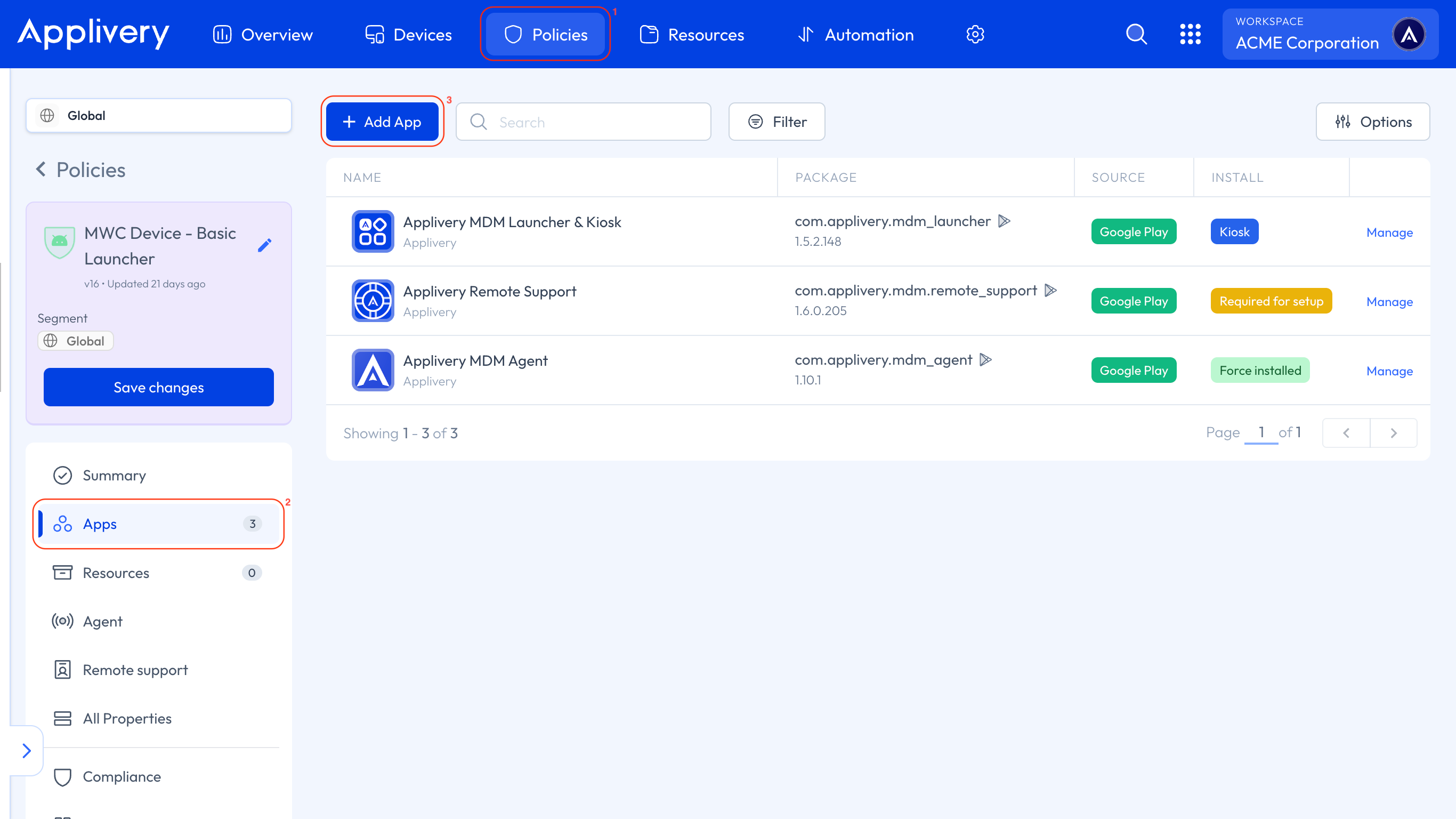
Once in the Applivery Dashboard, go to any of your Policies 1 or create a new one, and select the Apps 2 section from the left-hand menu. Click + Add App 3 and search for Microsoft Defender: Antivirus from the Managed Google Play tab.
Once you select the App, a side panel will open with all available Managed Properties.
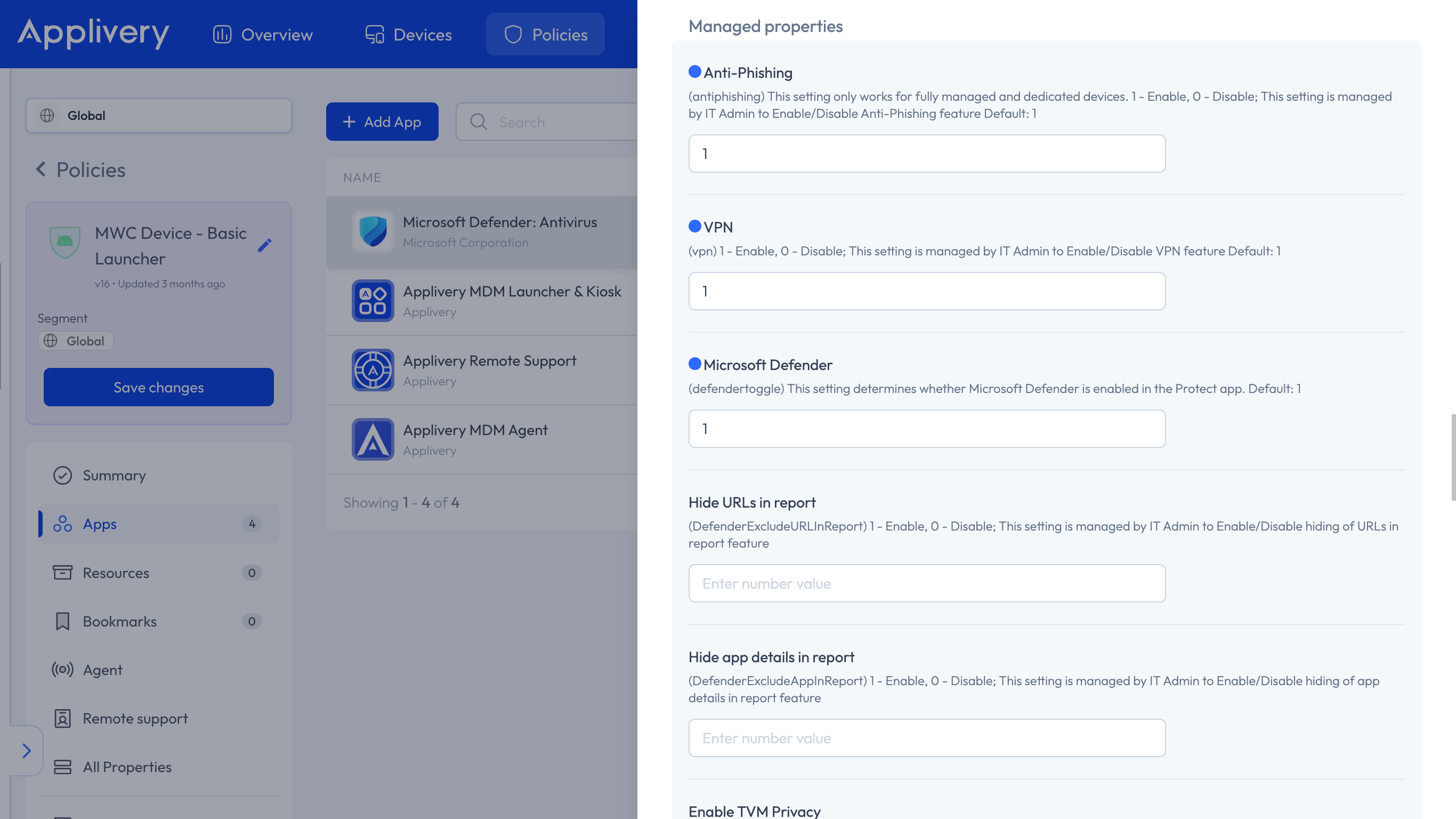
Fill in the parameters according to your organization's needs:
Parameter | Default | Description |
|---|---|---|
Anti-Phishing |
| Protects against malicious URLs. Available on Fully Managed and Dedicated Devices only. |
VPN |
| Routes Device traffic through Defender for real-time threat inspection. |
Microsoft Defender |
| Main protection toggle. Disabling this turns off all active Defender features. |
Defender on Personal Profile (COPE) | Not configured | Extends Defender protection to the personal profile on COPE-enrolled Devices. |
Hide URLs in Reports | Not configured | Prevents URLs from being logged in Defender's security reports. |
Keep Anti-Phishing and Defender Protection set to 1. Disabling either would leave Devices without active threat detection and phishing coverage.
Anti-Phishing and VPN protection only apply to Fully Managed and Dedicated Devices. On COPE Devices, use the Defender on Personal Profile setting to extend coverage to the personal profile.
Click Save changes and deploy the Policy to your target Devices. Defender will be fully configured automatically — before the user opens the App for the first time.