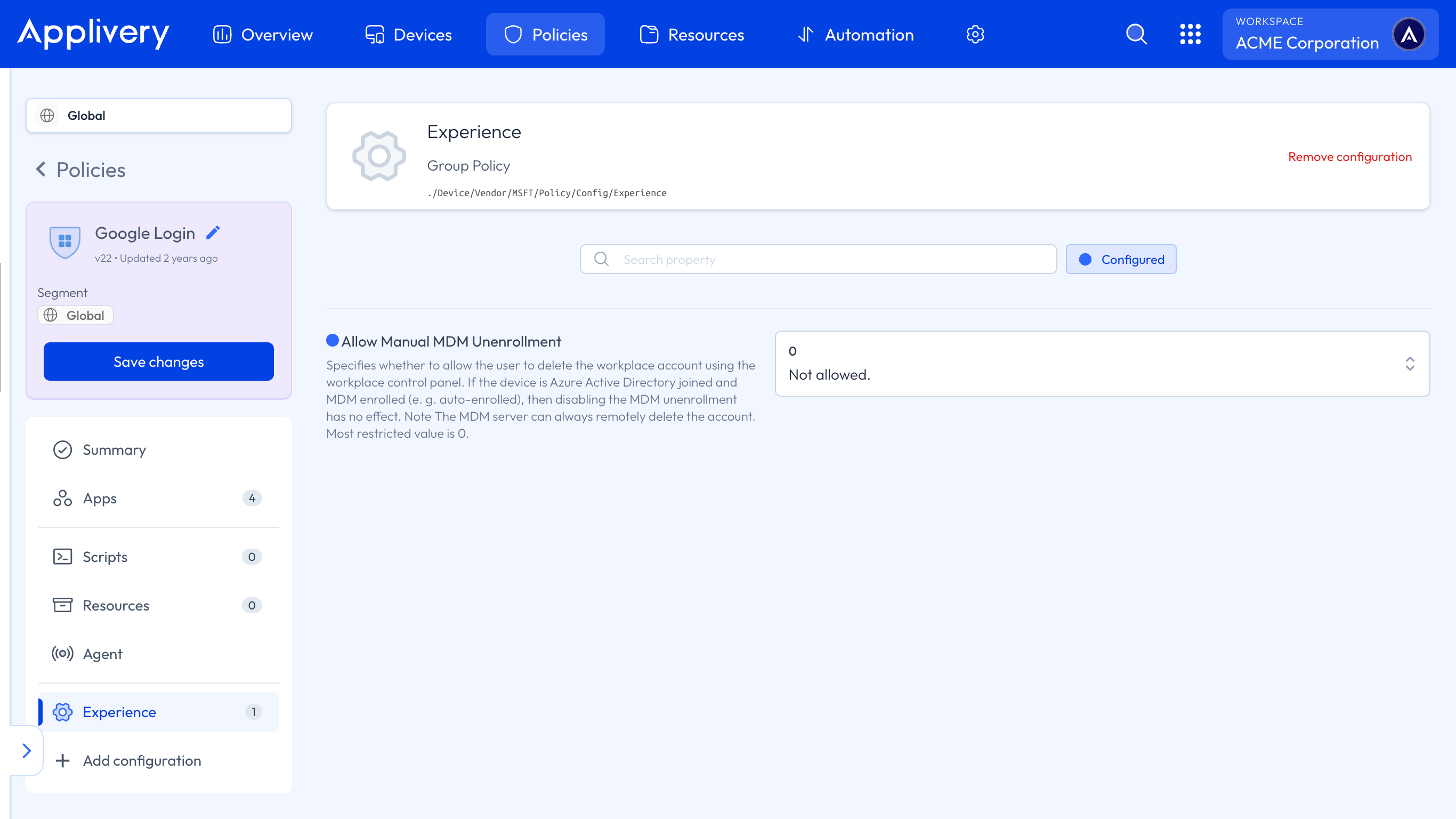
By default, Windows allows users to manually disconnect their Device from a Mobile Device Management (MDM) provider. In managed environments, this can pose a risk, as it enables end users to bypass security or compliance configurations. To maintain control and ensure persistent management, you can disable this option by configuring a Policy.
Disabling manual MDM removal
1
Navigate to Policies
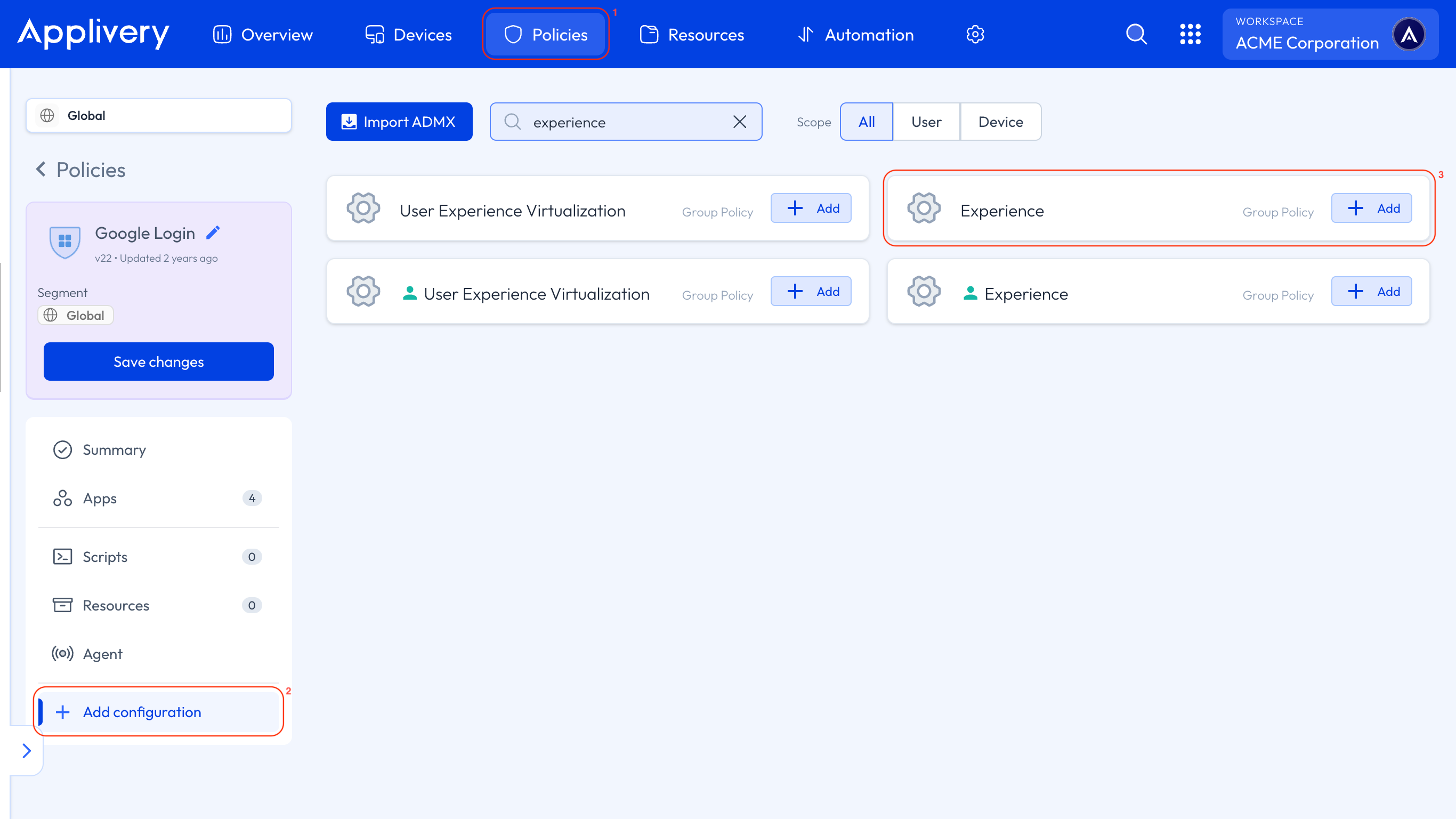
Once in the Applivery Dashboard, head to Policies (1). Choose the Policy where you want to add this configuration.
2
Add Configuration
In the left-hand menu, select + Add configuration (2), and search for Experience (3).
3
Disable Manual Unenrollment
Locate the Allow Manual MDM Unenrollment setting and set its value to 0. This will prevent users from manually unenrolling the Device from Applivery.