
Managing user accounts on macOS Devices is an essential part of enterprise Device administration. With Applivery, IT teams can automate the creation of local administrator accounts, update credentials, and optionally hide user profiles—ensuring consistent configuration, improved security, and reduced manual effort across the entire macOS fleet.
The Applivery Agent App for macOS must be enabled on the Device. You can learn more about it here.
To begin, learn how to create scripts by following this link.
Assign a descriptive name to the script and copy and paste the following script into the editor, then adjust the necessary parameters:
USERNAME (
username): The short name of the account to be created.FULLNAME (
Full Name): The full display name of the user.PASSWORD (
password): The password that will be assigned to the user.HIDDEN (
no): Change toyesif you want the user account to be hidden from the login window.
#!/bin/sh
export PATH=/usr/bin:/bin:/usr/sbin:/sbin

# User details
USERNAME="username"
FULLNAME="Full Name"
PASSWORD="password"
HIDDEN="no" # Change to "yes" if you want the user to be hidden

# Function to check if user exists
check_user_exists() {
dscl . -list /Users | grep -q "^$USERNAME#!/bin/sh
export PATH=/usr/bin:/bin:/usr/sbin:/sbin

# User details
USERNAME="username"
FULLNAME="Full Name"
PASSWORD="password"
HIDDEN="no" # Change to "yes" if you want the user to be hidden

# Function to check if user exists
check_user_exists() {
dscl . -list /Users | grep -q "^$USERNAME#!/bin/sh
export PATH=/usr/bin:/bin:/usr/sbin:/sbin

# User details
USERNAME="username"
FULLNAME="Full Name"
PASSWORD="password"
HIDDEN="no" # Change to "yes" if you want the user to be hidden

# Function to check if user exists
check_user_exists() {
dscl . -list /Users | grep -q "^$USERNAME#!/bin/sh
export PATH=/usr/bin:/bin:/usr/sbin:/sbin

# User details
USERNAME="username"
FULLNAME="Full Name"
PASSWORD="password"
HIDDEN="no" # Change to "yes" if you want the user to be hidden

# Function to check if user exists
check_user_exists() {
dscl . -list /Users | grep -q "^$USERNAME#!/bin/sh
export PATH=/usr/bin:/bin:/usr/sbin:/sbin

# User details
USERNAME="username"
FULLNAME="Full Name"
PASSWORD="password"
HIDDEN="no" # Change to "yes" if you want the user to be hidden

# Function to check if user exists
check_user_exists() {
dscl . -list /Users | grep -q "^$USERNAME#!/bin/sh
export PATH=/usr/bin:/bin:/usr/sbin:/sbin

# User details
USERNAME="username"
FULLNAME="Full Name"
PASSWORD="password"
HIDDEN="no" # Change to "yes" if you want the user to be hidden

# Function to check if user exists
check_user_exists() {
dscl . -list /Users | grep -q "^$USERNAME#!/bin/sh
export PATH=/usr/bin:/bin:/usr/sbin:/sbin

# User details
USERNAME="username"
FULLNAME="Full Name"
PASSWORD="password"
HIDDEN="no" # Change to "yes" if you want the user to be hidden

# Function to check if user exists
check_user_exists() {
dscl . -list /Users | grep -q "^$USERNAME#!/bin/sh
export PATH=/usr/bin:/bin:/usr/sbin:/sbin

# User details
USERNAME="username"
FULLNAME="Full Name"
PASSWORD="password"
HIDDEN="no" # Change to "yes" if you want the user to be hidden

# Function to check if user exists
check_user_exists() {
dscl . -list /Users | grep -q "^$USERNAME#!/bin/sh
export PATH=/usr/bin:/bin:/usr/sbin:/sbin

# User details
USERNAME="username"
FULLNAME="Full Name"
PASSWORD="password"
HIDDEN="no" # Change to "yes" if you want the user to be hidden

# Function to check if user exists
check_user_exists() {
dscl . -list /Users | grep -q "^$USERNAMEquot;
return $?
}

# Function to check if user is hidden
is_user_hidden() {
dscl . -read /Users/$USERNAME IsHidden 2>/dev/null | grep -q "1"
return $?
}

# Function to hide user
hide_user() {
sudo defaults write /Library/Preferences/com.apple.loginwindow HiddenUsersList -array-add $USERNAME
sudo chown root:wheel /Library/Preferences/com.apple.loginwindow.plist
}

# Function to unhide user
unhide_user() {
sudo defaults delete /Library/Preferences/com.apple.loginwindow HiddenUsersList
}

# Function to update password
update_password() {
sudo dscl . -passwd /Users/$USERNAME "$PASSWORD"
}

# Check if user exists
if check_user_exists; then
echo "Usuario $USERNAME ya existe."

# Update password automatically
update_password
echo "Contraseña actualizada para $USERNAME"

# Check and update hidden status if needed
current_hidden=$(is_user_hidden && echo "yes" || echo "no")
if [ "$current_hidden" != "$HIDDEN" ]; then
if [ "$HIDDEN" = "yes" ]; then
hide_user
echo "Usuario $USERNAME ha sido ocultado"
else
unhide_user
echo "Usuario $USERNAME ha sido des-ocultado"
fi
fi
else
# Create new user
if [ "$HIDDEN" = "yes" ]; then
HIDDEN_FLAG="-hidden"
else
HIDDEN_FLAG=""
fi

# Create the user with or without the hidden option
sysadminctl -addUser "$USERNAME" -fullName "$FULLNAME" -password "$PASSWORD" -admin $HIDDEN_FLAG
echo "Usuario $USERNAME creado exitosamente"
fi
quot;
return $?
}

# Function to check if user is hidden
is_user_hidden() {
dscl . -read /Users/$USERNAME IsHidden 2>/dev/null | grep -q "1"
return $?
}

# Function to hide user
hide_user() {
sudo defaults write /Library/Preferences/com.apple.loginwindow HiddenUsersList -array-add $USERNAME
sudo chown root:wheel /Library/Preferences/com.apple.loginwindow.plist
}

# Function to unhide user
unhide_user() {
sudo defaults delete /Library/Preferences/com.apple.loginwindow HiddenUsersList
}

# Function to update password
update_password() {
sudo dscl . -passwd /Users/$USERNAME "$PASSWORD"
}

# Check if user exists
if check_user_exists; then
echo "Usuario $USERNAME ya existe."

# Update password automatically
update_password
echo "Contraseña actualizada para $USERNAME"

# Check and update hidden status if needed
current_hidden=$(is_user_hidden && echo "yes" || echo "no")
if [ "$current_hidden" != "$HIDDEN" ]; then
if [ "$HIDDEN" = "yes" ]; then
hide_user
echo "Usuario $USERNAME ha sido ocultado"
else
unhide_user
echo "Usuario $USERNAME ha sido des-ocultado"
fi
fi
else
# Create new user
if [ "$HIDDEN" = "yes" ]; then
HIDDEN_FLAG="-hidden"
else
HIDDEN_FLAG=""
fi

# Create the user with or without the hidden option
sysadminctl -addUser "$USERNAME" -fullName "$FULLNAME" -password "$PASSWORD" -admin $HIDDEN_FLAG
echo "Usuario $USERNAME creado exitosamente"
fi
quot;
return $?
}

# Function to check if user is hidden
is_user_hidden() {
dscl . -read /Users/$USERNAME IsHidden 2>/dev/null | grep -q "1"
return $?
}

# Function to hide user
hide_user() {
sudo defaults write /Library/Preferences/com.apple.loginwindow HiddenUsersList -array-add $USERNAME
sudo chown root:wheel /Library/Preferences/com.apple.loginwindow.plist
}

# Function to unhide user
unhide_user() {
sudo defaults delete /Library/Preferences/com.apple.loginwindow HiddenUsersList
}

# Function to update password
update_password() {
sudo dscl . -passwd /Users/$USERNAME "$PASSWORD"
}

# Check if user exists
if check_user_exists; then
echo "Usuario $USERNAME ya existe."

# Update password automatically
update_password
echo "Contraseña actualizada para $USERNAME"

# Check and update hidden status if needed
current_hidden=$(is_user_hidden && echo "yes" || echo "no")
if [ "$current_hidden" != "$HIDDEN" ]; then
if [ "$HIDDEN" = "yes" ]; then
hide_user
echo "Usuario $USERNAME ha sido ocultado"
else
unhide_user
echo "Usuario $USERNAME ha sido des-ocultado"
fi
fi
else
# Create new user
if [ "$HIDDEN" = "yes" ]; then
HIDDEN_FLAG="-hidden"
else
HIDDEN_FLAG=""
fi

# Create the user with or without the hidden option
sysadminctl -addUser "$USERNAME" -fullName "$FULLNAME" -password "$PASSWORD" -admin $HIDDEN_FLAG
echo "Usuario $USERNAME creado exitosamente"
fi
quot;
return $?
}

# Function to check if user is hidden
is_user_hidden() {
dscl . -read /Users/$USERNAME IsHidden 2>/dev/null | grep -q "1"
return $?
}

# Function to hide user
hide_user() {
sudo defaults write /Library/Preferences/com.apple.loginwindow HiddenUsersList -array-add $USERNAME
sudo chown root:wheel /Library/Preferences/com.apple.loginwindow.plist
}

# Function to unhide user
unhide_user() {
sudo defaults delete /Library/Preferences/com.apple.loginwindow HiddenUsersList
}

# Function to update password
update_password() {
sudo dscl . -passwd /Users/$USERNAME "$PASSWORD"
}

# Check if user exists
if check_user_exists; then
echo "Usuario $USERNAME ya existe."

# Update password automatically
update_password
echo "Contraseña actualizada para $USERNAME"

# Check and update hidden status if needed
current_hidden=$(is_user_hidden && echo "yes" || echo "no")
if [ "$current_hidden" != "$HIDDEN" ]; then
if [ "$HIDDEN" = "yes" ]; then
hide_user
echo "Usuario $USERNAME ha sido ocultado"
else
unhide_user
echo "Usuario $USERNAME ha sido des-ocultado"
fi
fi
else
# Create new user
if [ "$HIDDEN" = "yes" ]; then
HIDDEN_FLAG="-hidden"
else
HIDDEN_FLAG=""
fi

# Create the user with or without the hidden option
sysadminctl -addUser "$USERNAME" -fullName "$FULLNAME" -password "$PASSWORD" -admin $HIDDEN_FLAG
echo "Usuario $USERNAME creado exitosamente"
fi
quot;
return $?
}

# Function to check if user is hidden
is_user_hidden() {
dscl . -read /Users/$USERNAME IsHidden 2>/dev/null | grep -q "1"
return $?
}

# Function to hide user
hide_user() {
sudo defaults write /Library/Preferences/com.apple.loginwindow HiddenUsersList -array-add $USERNAME
sudo chown root:wheel /Library/Preferences/com.apple.loginwindow.plist
}

# Function to unhide user
unhide_user() {
sudo defaults delete /Library/Preferences/com.apple.loginwindow HiddenUsersList
}

# Function to update password
update_password() {
sudo dscl . -passwd /Users/$USERNAME "$PASSWORD"
}

# Check if user exists
if check_user_exists; then
echo "Usuario $USERNAME ya existe."

# Update password automatically
update_password
echo "Contraseña actualizada para $USERNAME"

# Check and update hidden status if needed
current_hidden=$(is_user_hidden && echo "yes" || echo "no")
if [ "$current_hidden" != "$HIDDEN" ]; then
if [ "$HIDDEN" = "yes" ]; then
hide_user
echo "Usuario $USERNAME ha sido ocultado"
else
unhide_user
echo "Usuario $USERNAME ha sido des-ocultado"
fi
fi
else
# Create new user
if [ "$HIDDEN" = "yes" ]; then
HIDDEN_FLAG="-hidden"
else
HIDDEN_FLAG=""
fi

# Create the user with or without the hidden option
sysadminctl -addUser "$USERNAME" -fullName "$FULLNAME" -password "$PASSWORD" -admin $HIDDEN_FLAG
echo "Usuario $USERNAME creado exitosamente"
fi
quot;
return $?
}

# Function to check if user is hidden
is_user_hidden() {
dscl . -read /Users/$USERNAME IsHidden 2>/dev/null | grep -q "1"
return $?
}

# Function to hide user
hide_user() {
sudo defaults write /Library/Preferences/com.apple.loginwindow HiddenUsersList -array-add $USERNAME
sudo chown root:wheel /Library/Preferences/com.apple.loginwindow.plist
}

# Function to unhide user
unhide_user() {
sudo defaults delete /Library/Preferences/com.apple.loginwindow HiddenUsersList
}

# Function to update password
update_password() {
sudo dscl . -passwd /Users/$USERNAME "$PASSWORD"
}

# Check if user exists
if check_user_exists; then
echo "Usuario $USERNAME ya existe."

# Update password automatically
update_password
echo "Contraseña actualizada para $USERNAME"

# Check and update hidden status if needed
current_hidden=$(is_user_hidden && echo "yes" || echo "no")
if [ "$current_hidden" != "$HIDDEN" ]; then
if [ "$HIDDEN" = "yes" ]; then
hide_user
echo "Usuario $USERNAME ha sido ocultado"
else
unhide_user
echo "Usuario $USERNAME ha sido des-ocultado"
fi
fi
else
# Create new user
if [ "$HIDDEN" = "yes" ]; then
HIDDEN_FLAG="-hidden"
else
HIDDEN_FLAG=""
fi

# Create the user with or without the hidden option
sysadminctl -addUser "$USERNAME" -fullName "$FULLNAME" -password "$PASSWORD" -admin $HIDDEN_FLAG
echo "Usuario $USERNAME creado exitosamente"
fi
quot;
return $?
}

# Function to check if user is hidden
is_user_hidden() {
dscl . -read /Users/$USERNAME IsHidden 2>/dev/null | grep -q "1"
return $?
}

# Function to hide user
hide_user() {
sudo defaults write /Library/Preferences/com.apple.loginwindow HiddenUsersList -array-add $USERNAME
sudo chown root:wheel /Library/Preferences/com.apple.loginwindow.plist
}

# Function to unhide user
unhide_user() {
sudo defaults delete /Library/Preferences/com.apple.loginwindow HiddenUsersList
}

# Function to update password
update_password() {
sudo dscl . -passwd /Users/$USERNAME "$PASSWORD"
}

# Check if user exists
if check_user_exists; then
echo "Usuario $USERNAME ya existe."

# Update password automatically
update_password
echo "Contraseña actualizada para $USERNAME"

# Check and update hidden status if needed
current_hidden=$(is_user_hidden && echo "yes" || echo "no")
if [ "$current_hidden" != "$HIDDEN" ]; then
if [ "$HIDDEN" = "yes" ]; then
hide_user
echo "Usuario $USERNAME ha sido ocultado"
else
unhide_user
echo "Usuario $USERNAME ha sido des-ocultado"
fi
fi
else
# Create new user
if [ "$HIDDEN" = "yes" ]; then
HIDDEN_FLAG="-hidden"
else
HIDDEN_FLAG=""
fi

# Create the user with or without the hidden option
sysadminctl -addUser "$USERNAME" -fullName "$FULLNAME" -password "$PASSWORD" -admin $HIDDEN_FLAG
echo "Usuario $USERNAME creado exitosamente"
fi
quot;
return $?
}

# Function to check if user is hidden
is_user_hidden() {
dscl . -read /Users/$USERNAME IsHidden 2>/dev/null | grep -q "1"
return $?
}

# Function to hide user
hide_user() {
sudo defaults write /Library/Preferences/com.apple.loginwindow HiddenUsersList -array-add $USERNAME
sudo chown root:wheel /Library/Preferences/com.apple.loginwindow.plist
}

# Function to unhide user
unhide_user() {
sudo defaults delete /Library/Preferences/com.apple.loginwindow HiddenUsersList
}

# Function to update password
update_password() {
sudo dscl . -passwd /Users/$USERNAME "$PASSWORD"
}

# Check if user exists
if check_user_exists; then
echo "Usuario $USERNAME ya existe."

# Update password automatically
update_password
echo "Contraseña actualizada para $USERNAME"

# Check and update hidden status if needed
current_hidden=$(is_user_hidden && echo "yes" || echo "no")
if [ "$current_hidden" != "$HIDDEN" ]; then
if [ "$HIDDEN" = "yes" ]; then
hide_user
echo "Usuario $USERNAME ha sido ocultado"
else
unhide_user
echo "Usuario $USERNAME ha sido des-ocultado"
fi
fi
else
# Create new user
if [ "$HIDDEN" = "yes" ]; then
HIDDEN_FLAG="-hidden"
else
HIDDEN_FLAG=""
fi

# Create the user with or without the hidden option
sysadminctl -addUser "$USERNAME" -fullName "$FULLNAME" -password "$PASSWORD" -admin $HIDDEN_FLAG
echo "Usuario $USERNAME creado exitosamente"
fi
quot;
return $?
}

# Function to check if user is hidden
is_user_hidden() {
dscl . -read /Users/$USERNAME IsHidden 2>/dev/null | grep -q "1"
return $?
}

# Function to hide user
hide_user() {
sudo defaults write /Library/Preferences/com.apple.loginwindow HiddenUsersList -array-add $USERNAME
sudo chown root:wheel /Library/Preferences/com.apple.loginwindow.plist
}

# Function to unhide user
unhide_user() {
sudo defaults delete /Library/Preferences/com.apple.loginwindow HiddenUsersList
}

# Function to update password
update_password() {
sudo dscl . -passwd /Users/$USERNAME "$PASSWORD"
}

# Check if user exists
if check_user_exists; then
echo "Usuario $USERNAME ya existe."

# Update password automatically
update_password
echo "Contraseña actualizada para $USERNAME"

# Check and update hidden status if needed
current_hidden=$(is_user_hidden && echo "yes" || echo "no")
if [ "$current_hidden" != "$HIDDEN" ]; then
if [ "$HIDDEN" = "yes" ]; then
hide_user
echo "Usuario $USERNAME ha sido ocultado"
else
unhide_user
echo "Usuario $USERNAME ha sido des-ocultado"
fi
fi
else
# Create new user
if [ "$HIDDEN" = "yes" ]; then
HIDDEN_FLAG="-hidden"
else
HIDDEN_FLAG=""
fi

# Create the user with or without the hidden option
sysadminctl -addUser "$USERNAME" -fullName "$FULLNAME" -password "$PASSWORD" -admin $HIDDEN_FLAG
echo "Usuario $USERNAME creado exitosamente"
fi
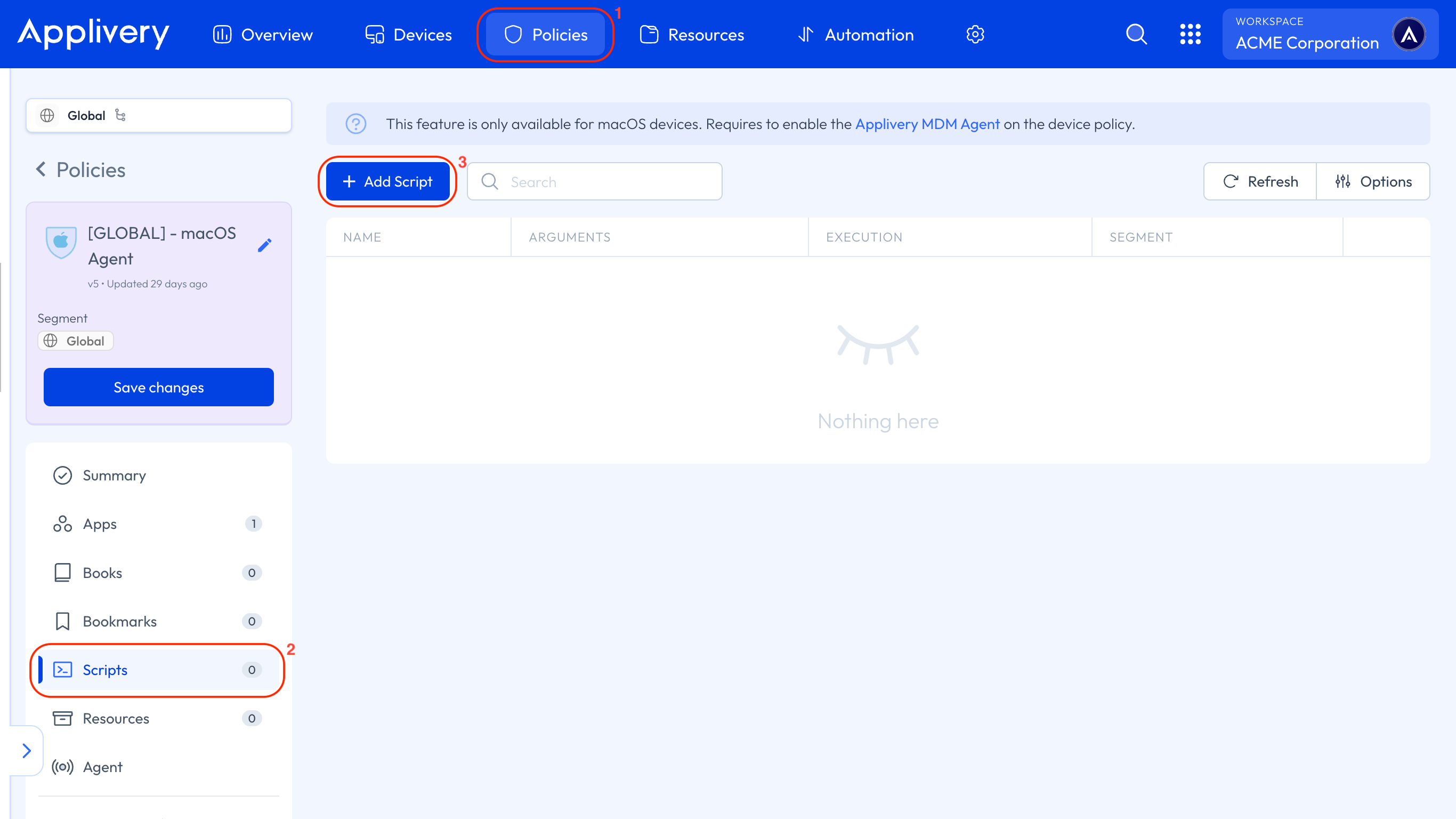
Next, go to any of your Policies (1) and select the Scripts (2) section from the left-hand menu. Click the + Add Script (3) button.
Next, select the script by typing its name, choose the execution method, and add any required arguments.
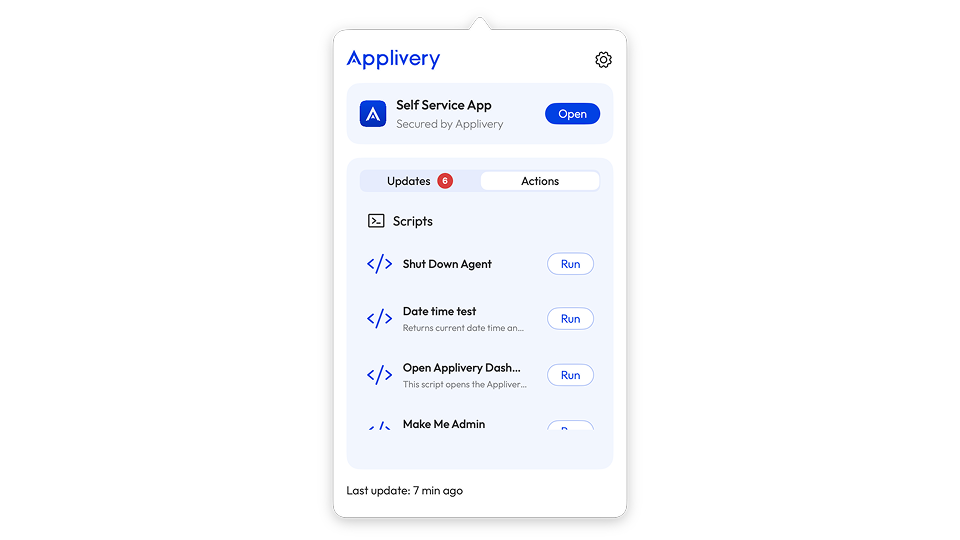
Depending on the selected execution method, the script will run automatically in Loop, or Once mode, or it can be manually triggered from the Actions section within the Applivery Agent when configured as On-demand.
This automated method for creating administrator users on macOS helps standardize device provisioning and ensures a unified security posture across the organization. The script intelligently handles both the creation of new accounts and the updating of existing ones, making it a flexible and powerful tool for multiple deployment scenarios.
By leveraging Applivery and scripted automation, IT teams can manage admin accounts efficiently at scale, reduce repetitive workload, and maintain consistent configuration across all managed macOS Devices. Whether rolling out new hardware or updating current deployments, this workflow provides a reliable, secure, and repeatable way to provision administrator users in macOS environments.