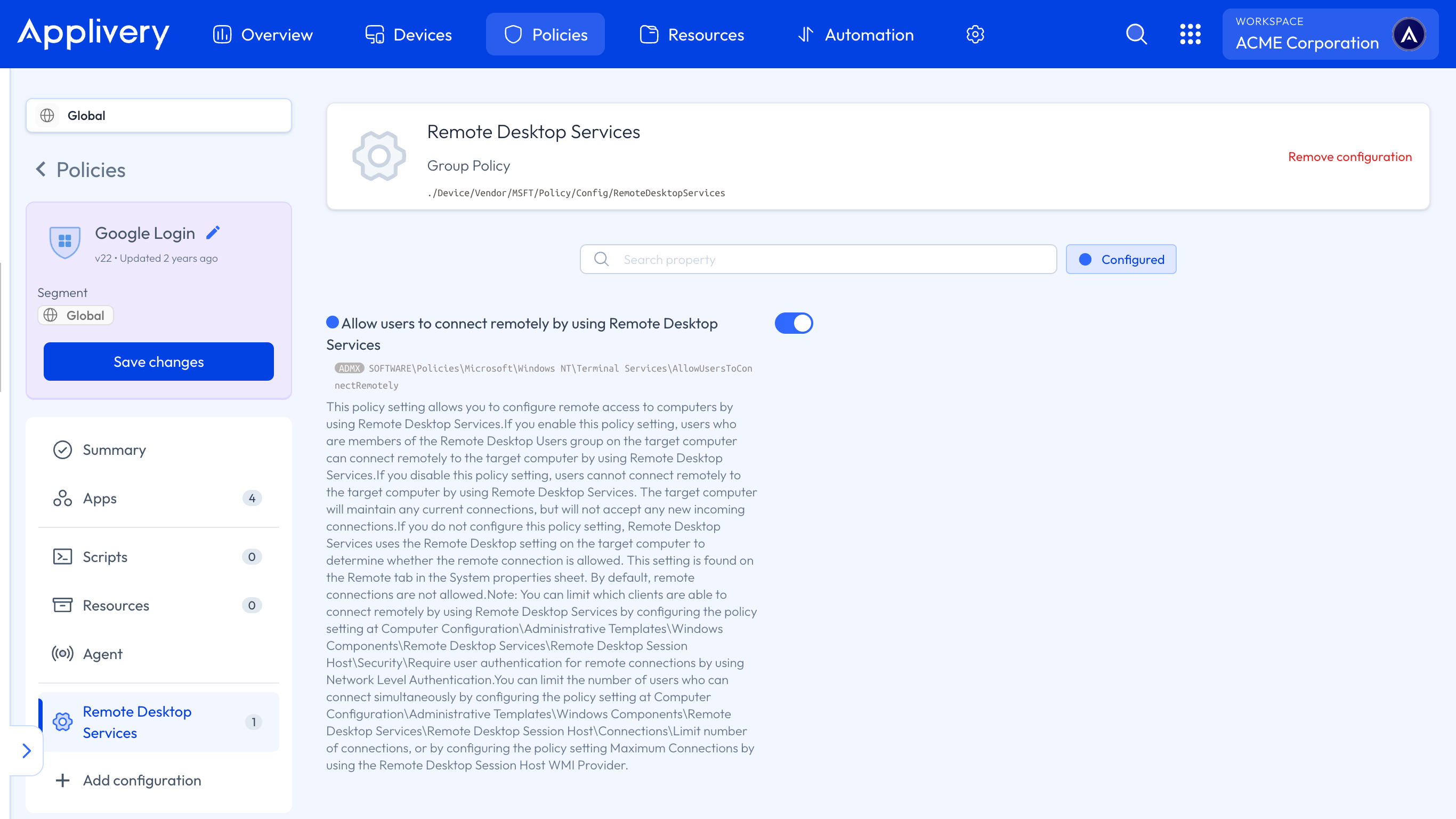
Configuring Remote Desktop through Windows Policies empowers administrators to provide secure, controlled remote access to managed Devices. Leveraging Remote Desktop Services, organizations can enable remote connections for users within the Remote Desktop Users group, ensuring authorized personnel can access corporate resources efficiently.
Applivery further simplifies centralized deployment and management of these configurations across Windows device fleets, allowing IT teams to maintain robust security, enforce company Policies, and streamline remote troubleshooting.
Enable Remote Desktop
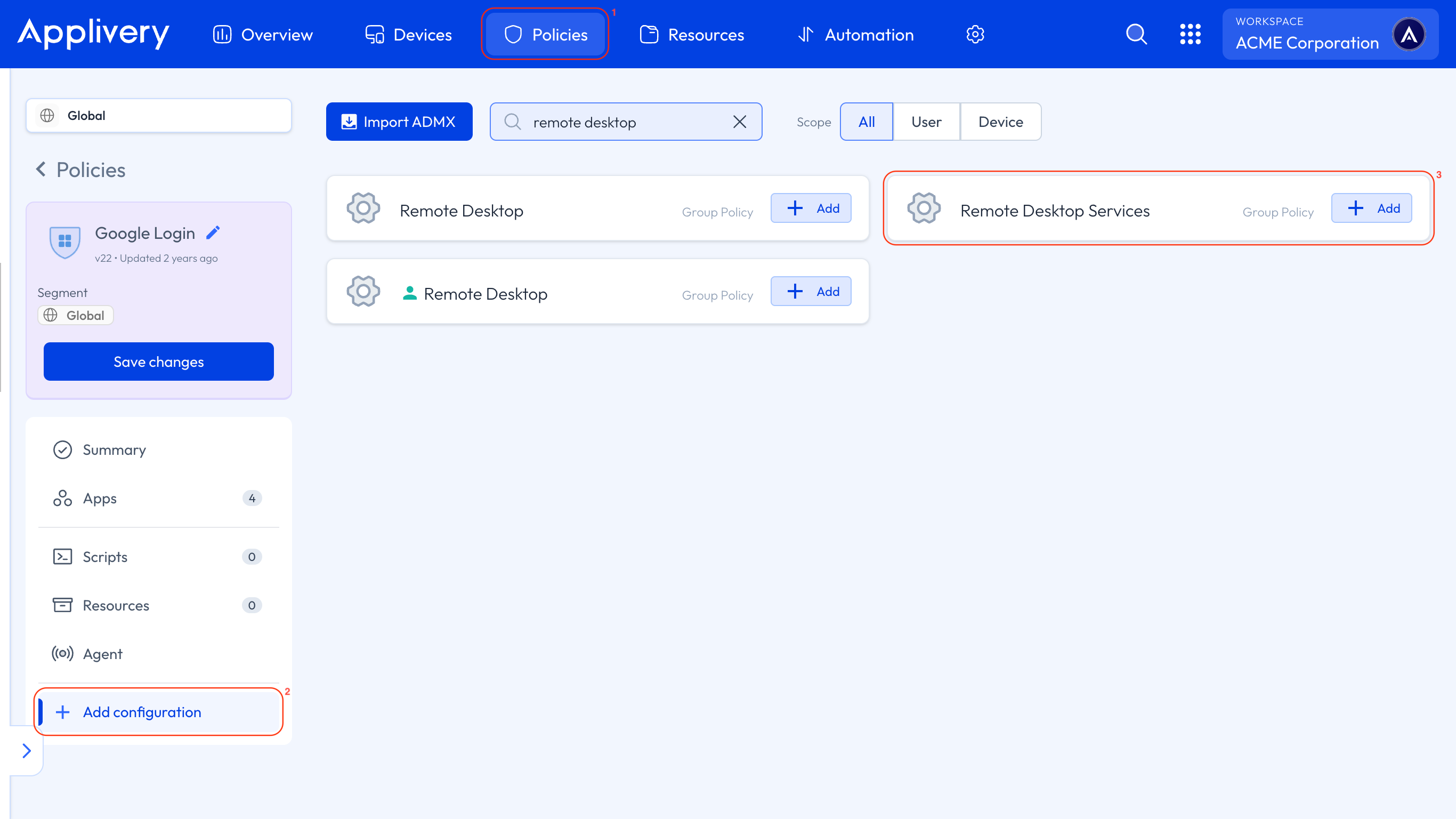
Once in the Applivery dashboard, head to Policies (1). Choose the Policy where you want to add this configuration.
Next, in the left-hand menu, select + Add configuration (2), and search for Remote Desktop Services (3).
Locate the Allow users to connect remotely by using Remote Desktop Services setting and choose either to enable or disable it, as needed.