
The Dock is the application launcher bar that appears at the bottom (or sides) of the macOS screen by default. Through Applivery, you can configure and lock down the Dock across your entire managed Mac fleet — controlling which Apps appear, where the Dock is positioned, how it behaves, and whether users can modify it at all.
This is particularly useful for standardizing the user environment on shared or corporate-issued Macs, ensuring that key organizational tools are always visible and accessible.
Requirements
macOS: 10.12 or later (most settings). Some keys require newer versions — noted where relevant.
Supervision: Not required for Dock configuration payloads.
Enrollment type: Applies to device-level enrolment and user-channel profiles.
Dock configuration
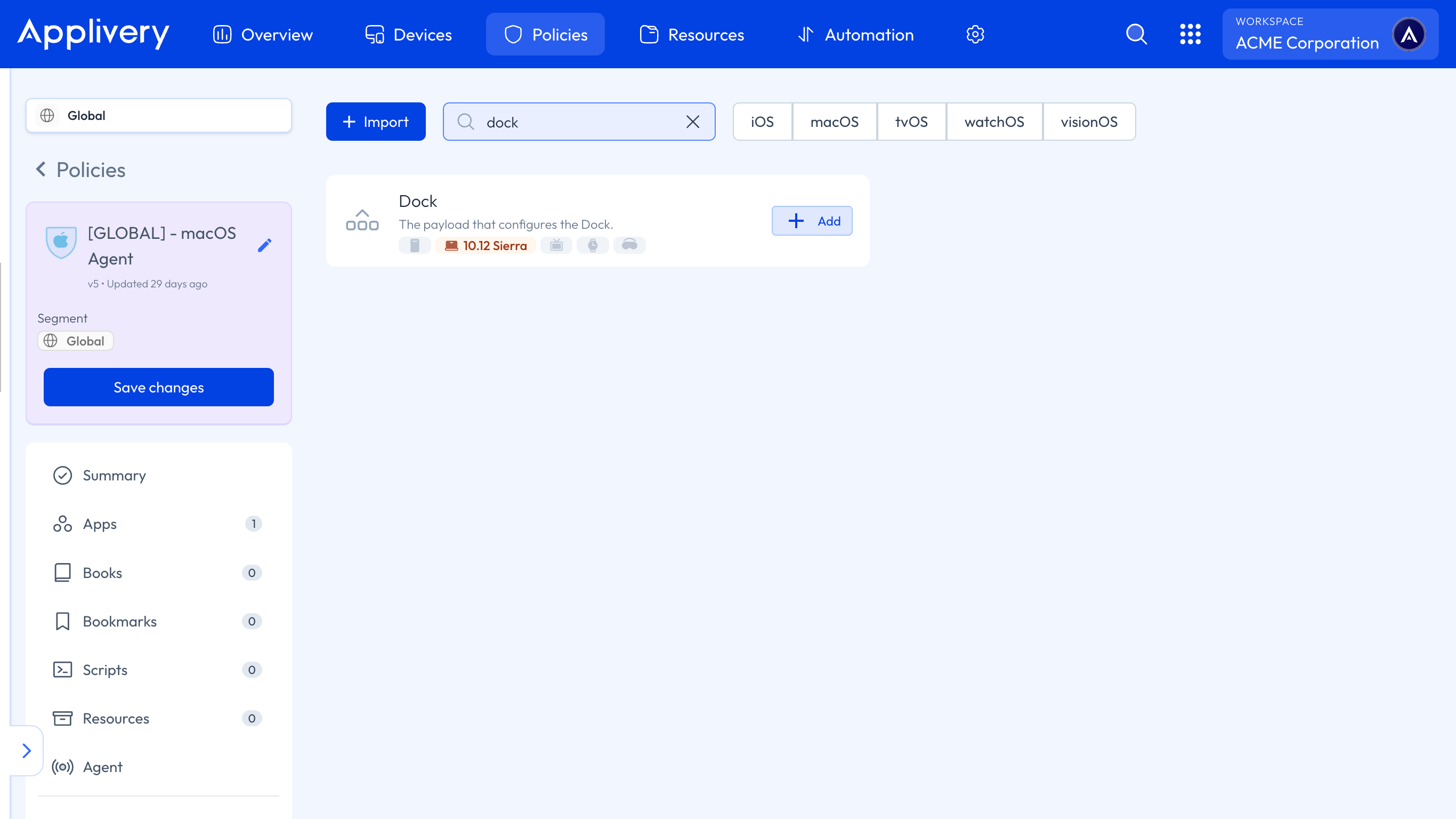
Once in the Applivery Dashboard, head to any of your Policies or create a new one. From the left-hand menu, navigate to the + Add configuration option and then choose Dock.
The Dock configuration allows you to define which items appear in the Dock and in what order. Items are organized into two main sections — Apps (left side of the divider) and others (right side of the divider, for folders and files) — and each item type requires a different configuration.
When adding applications to the Dock, you must choose one of two modes for each App:
| Mode | Key | Behavior |
|---|---|---|
| Persistent Apps | persistent-Apps |
The App appears in the Dock, but users can remove it by dragging it out. |
| Static Apps | static-Apps |
The App is permanently pinned to the Dock. Users cannot remove it. |
Use static-apps for mandatory organizational tools (e.g., your VPN client, ticketing system, or company portal). Use persistent-apps for recommended Apps where some user flexibility is acceptable.
Equally, for non-application items (Folders, Files, URLs):
| Mode | Key | Behavior |
|---|---|---|
| Persistent Others | persistent-others |
Folders and files that the user can remove. |
| Static Others | static-others |
Folders and files permanently fixed in the Dock. |
Every item added to the Dock — whether an App, Folder, or File — requires a Tile Data dictionary that tells macOS how to identify and render it. The required keys vary depending on the tile type.
| Key | Type | Description |
|---|---|---|
file-data |
Dictionary | Contains the _CFURLString key with the full path to the application. |
_CFURLString |
String | Absolute path to the .app bundle. Example: /Applications/Safari.app |
_CFURLStringType |
Integer | Always 0 for local file paths. |
tile-type |
String | Must be application-tile. |
label |
String | Optional. Display name shown under the icon. If omitted, the App's default name is used. |
Example: Adding Safari
<dict>
  <key>tile-data</key>
  <dict>
    <key>file-data</key>
    <dict>
      <key>_CFURLString</key>
      <string>/Applications/Safari.app</string>
      <key>_CFURLStringType</key>
      <integer>0</integer>
    </dict>
    <key>label</key>
    <string>Safari</string>
  </dict>
  <key>tile-type</key>
  <string>application-tile</string>
</dict>
Used to add Folders (such as the Downloads folder or a shared network volume) to the right side of the Dock.
| Key | Type | Description |
|---|---|---|
file-data |
Dictionary | Contains _CFURLString with the full path to the Folder. |
_CFURLString |
String | Absolute path to the Folder. Example: ~/Downloads or /Users/Shared |
_CFURLStringType |
Integer | 0 for local paths. |
tile-type |
String | Must be directory-tile. |
displayas |
Integer | How the folder is shown: 0 = Stack, 1 = Folder. |
showas |
Integer | How contents are revealed: 0 = Automatic, 1 = Fan, 2 = Grid, 3 = List. |
arrangement |
Integer | Sort order of Folder contents: 1 = Name, 2 = Date Added, 3 = Date Modified, 4 = Date Created, 5 = Kind. |
label |
String | Optional display label. |
Example: Adding the Downloads folder as a grid stack
<dict>
  <key>tile-data</key>
  <dict>
    <key>file-data</key>
    <dict>
      <key>_CFURLString</key>
      <string>/Users/username/Downloads</string>
      <key>_CFURLStringType</key>
      <integer>0</integer>
    </dict>
    <key>label</key>
    <string>Downloads</string>
    <key>displayas</key>
    <integer>0</integer>
    <key>showas</key>
    <integer>2</integer>
    <key>arrangement</key>
    <integer>2</integer>
  </dict>
  <key>tile-type</key>
  <string>directory-tile</string>
</dict>
Adds a web URL directly to the Dock. Clicking it opens the URL in the default browser.
| Key | Type | Description |
|---|---|---|
url |
String | The URL to open. Example: https://intranet.company.com |
label |
String | Display name shown under the icon. |
tile-type |
String | Must be url-tile. |
Beyond the items in the Dock, the configuration supports a full set of appearance and behavior settings.
Position and size
| Key | Type | Values / Description |
|---|---|---|
orientation |
String | Position of the Dock on screen: bottom (default), left, right. |
tilesize |
Integer | Size of Dock icons in points. Range: 16–128. Default: 64. |
magnification |
Boolean | If true, icons magnify when hovered. |
largesize |
Integer | Maximum icon size when magnification is enabled. Range: 16–128. Only effective if magnification is true. |
Auto-hide and show
| Key | Type | Description |
|---|---|---|
autohide |
Boolean | If true, the Dock hides automatically when not in use and reappears on hover. |
autohide-delay |
Real | Delay in seconds before the Dock hides (default: 0.5). Example: 0.0 for instant. |
autohide-time-modifier |
Real | Duration multiplier for the hide/show animation. 0.0 = instant, 1.0 = default speed, 0.5 = twice as fast. |
Animations and visual effects
| Key | Type | Description |
|---|---|---|
launchanim |
Boolean | If true, Apps animate (bounce) when opened from the Dock. |
mineffect |
String | Animation style when windows are minimized into the Dock: genie (default) or scale. |
minimize-to-application |
Boolean | If true, minimized windows collapse into the App icon rather than into the Dock tray. |
show-recents |
Boolean | If false, the "Recent Applications" section is hidden from the Dock. Requires macOS 10.14+. |
Window and App Management
| Key | Type | Description |
|---|---|---|
expose-group-Apps |
Boolean | If true, Mission Control groups windows by application. |
mru-spaces |
Boolean | If false, Spaces are not automatically reordered based on recent use. Useful for keeping a fixed space layout. |
show-process-indicators |
Boolean | If true (default), a dot appears under running application icons. Set to false to hide these indicators. |
The Dock configuration includes several lock keys that prevent users from modifying the Dock configuration set by MDM. These are particularly important in standardized or shared-device environments.
| Key | Type | Description |
|---|---|---|
contents-immutable |
Boolean | If true, users cannot add, remove, or rearrange items in the Dock. The Dock is fully locked. |
size-immutable |
Boolean | If true, users cannot resize the Dock. |
position-immutable |
Boolean | If true, users cannot change the Dock's position on screen. |
autohide-immutable |
Boolean | If true, users cannot toggle the auto-hide setting. |
magnify-immutable |
Boolean | If true, users cannot toggle magnification. |
magsize-immutable |
Boolean | If true, users cannot change the magnification size. |
mineffect-immutable |
Boolean | If true, users cannot change the minimize animation style. |
Setting contents-immutable to true is the most common approach for locked-down Devices. It prevents users from adding, removing, or rearranging items, but does not restrict the Dock's visual settings unless the corresponding *-immutable keys are also enabled.
Common configuration examples
A corporate Mac with a fixed set of mandatory Apps. Users cannot modify the Dock at all.
Set
contents-immutabletotrue.Add required Apps under
static-apps.Set
show-recentstofalseto hide the Recent Apps section.Set
position-immutableandsize-immutabletotrueif you also want to lock visual settings.
Apps the organization wants visible by default, but allows users to customize from there.
Add Apps under
persistent-apps(notstatic-apps).Leave all
*-immutablekeys atfalse.Set
tilesizeto a comfortable default for your hardware.
A shared Device where the Dock must always look the same, regardless of who logs in.
Set
contents-immutable,size-immutable,position-immutable,autohide-immutableall totrue.Use
static-appsandstatic-othersexclusively.Set
autohidetofalseto keep the Dock always visible.Set
show-recentstofalse.
Important behaviors and limitations
Payload updates apply at the next login or Policy sync. Changes to the Dock payload are applied when the MDM profile is refreshed. In some cases, the user may need to log out and back in for changes to fully take effect.
static-appsvs.persistent-appstake effect together. If you define both,static-appsitems appear first and are locked;persistent-appsitems follow and are flexible.User-added items may persist between MDM updates if
contents-immutableis not set. When a new profile is pushed without this lock, previously user-added items may remain in the Dock.App paths must be exact. If an application is not installed at the path specified in
_CFURLString, the Dock will show a broken icon. Ensure the App is installed on the Device before or alongside the Dock payload.~(tilde) expansion in paths may not work reliably in MDM payloads. Use absolute paths (e.g.,/Users/Shared/) instead of user-relative paths where possible, or use dynamic variables.The Dock configuration does not install Apps. It only configures what appears in the Dock. Apps must be separately deployed via App Management before being added to the Dock configuration.