
Effective password management is essential for maintaining security and operational efficiency in corporate macOS environments. Using Applivery, IT teams can remotely update user passwords across all managed Mac Devices, ensuring consistent configuration, improved compliance, and reduced manual workload.
The Applivery Agent App for macOS must be enabled on the Device. You can learn more about the macOS Agent here.
To begin, learn how to create scripts by following this link.
Assign a descriptive name to the script and copy and paste the following script into the editor, then adjust the necessary parameters:
USERNAME (
user): Enter the macOS account username whose password you want to update.NEWPASSWORD (
new_password): Set the new password for the specified user.
#!/bin/bash

# Define the username and the new password
USERNAME="username"  # Replace 'username' with the actual username
NEWPASSWORD="new_password"  # Replace 'new_password' with the desired password

# Change the user's password using dscl
dscl . -passwd /Users/"$USERNAME" "$NEWPASSWORD"

# Check if the change was successful
if [ $? -eq 0 ]; then
    echo "The password for user $USERNAME has been successfully changed."
else
    echo "There was an error trying to change the password for user $USERNAME."
fi
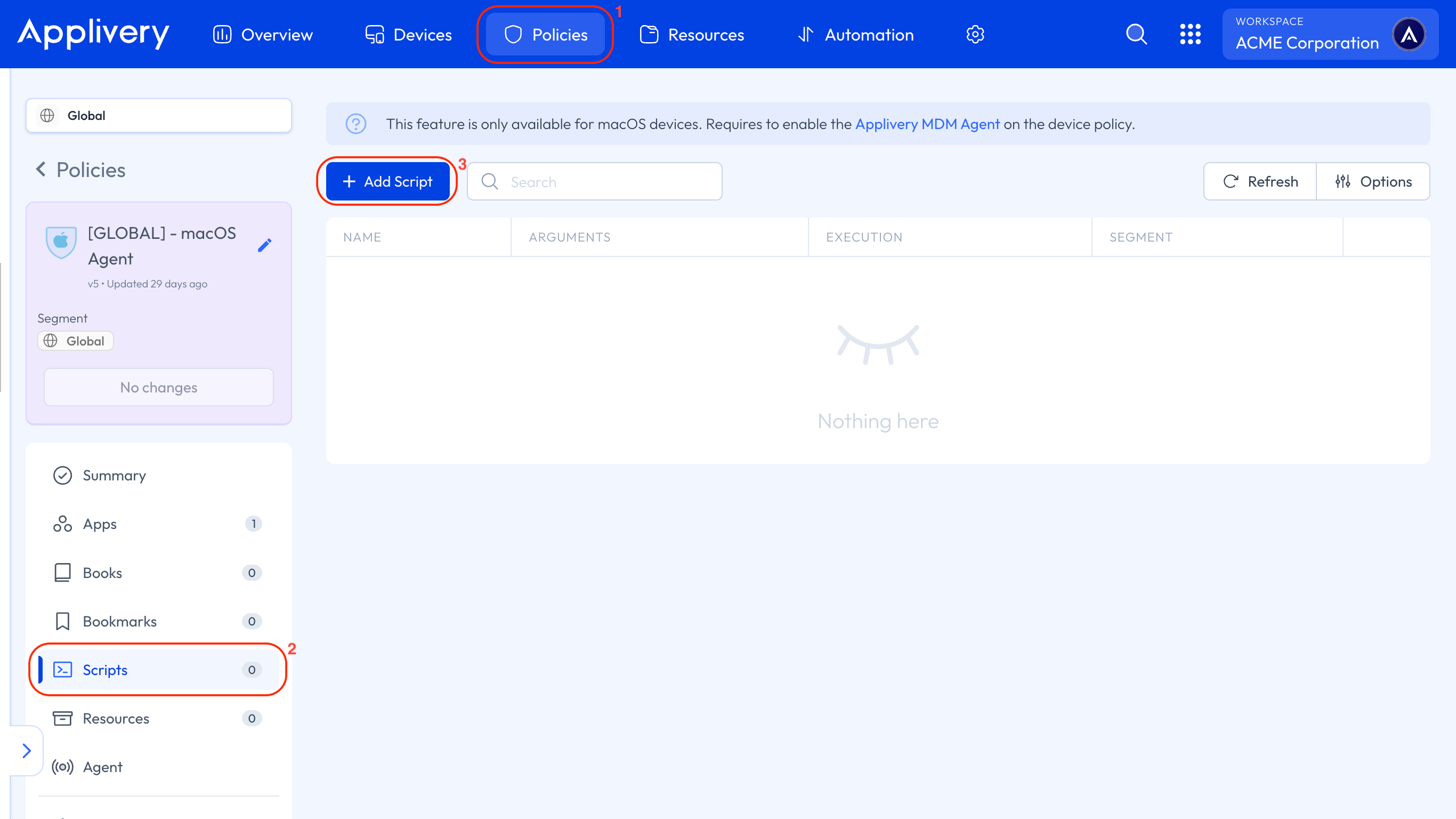
Next, go to any of your Policies (1) or create a new one. Select the Scripts (2) section from the left-hand menu and click the + Add Script (3) button.
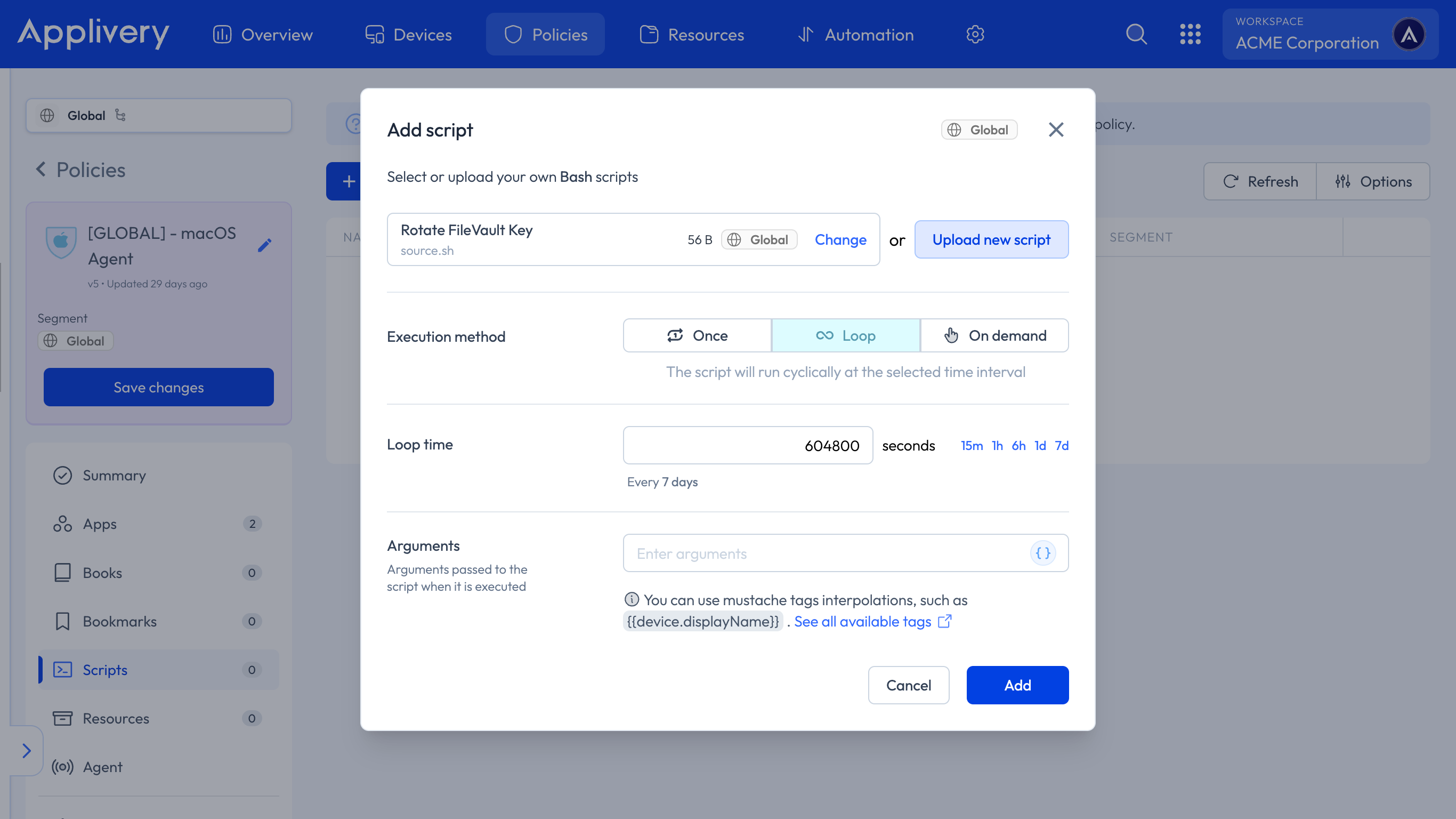
Next, select the script, choose the execution method, and add any required arguments. Depending on the selected execution method, the script will run automatically in Loop, or Once mode, or it can be manually triggered from the Actions section within the Applivery Agent when configured as On-demand.
Regularly updating user passwords is a critical cybersecurity practice. Automating this task through Applivery ensures fast, secure, and consistent credential updates, reducing risks associated with outdated passwords and keeping all macOS Devices aligned with corporate security standards.