
This is a premium feature that might not be available in your current plan. Check the availability on our pricing page.
UDID is the abbreviation for Unique Device Identifier. It is a value of 40 alphanumeric characters and is used by Apple for device registration. UDIDs are required if you want to install alpha or beta versions of iOS Apps before they are released to the official Apple Store.
Developers require these identifiers to include them in the Provisioning Profiles of the alpha and beta Apps before they are signed and distributed to you. You can always connect your iPhone / iPad to your computer and get the UDID, IMEI, and other details using iTunes. However, Applivery provides an easy and friendly way to collect UDIDs through the Applivery Enterprise App Stores, in a fully-branded and guided web-based environment.
Applivery provides the feature of UDID collection. Once collected, you must add the UDIDs to the provisioning profile, and you are responsible for code signing and package generation.
How it works
Once the UDID collection feature is enabled in your organization, you can start collecting UDIDs from your Enterprise App Store URL, depending on whether you use a custom domain or subdomain:
{workspace_slug}.applivery.io/collectyour-apps-tore-domain.com/collectyour.app-store-subdomain.com/collect
Users will be requested to use Safari to browse this site since this is mandatory to install the required Profiles.
Once there, users just have to follow the different steps:
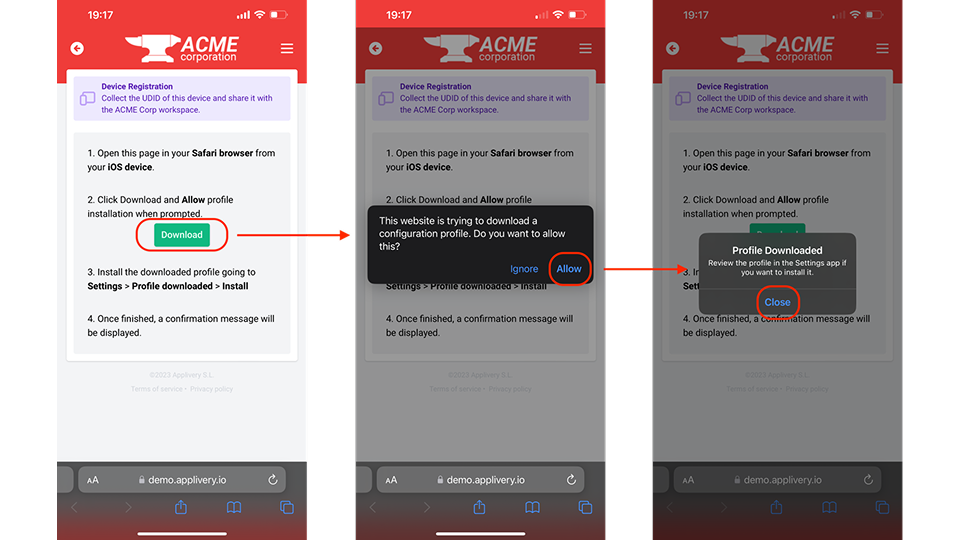
Click the Download button to start the profile download.
Allow Profile Download when prompted.
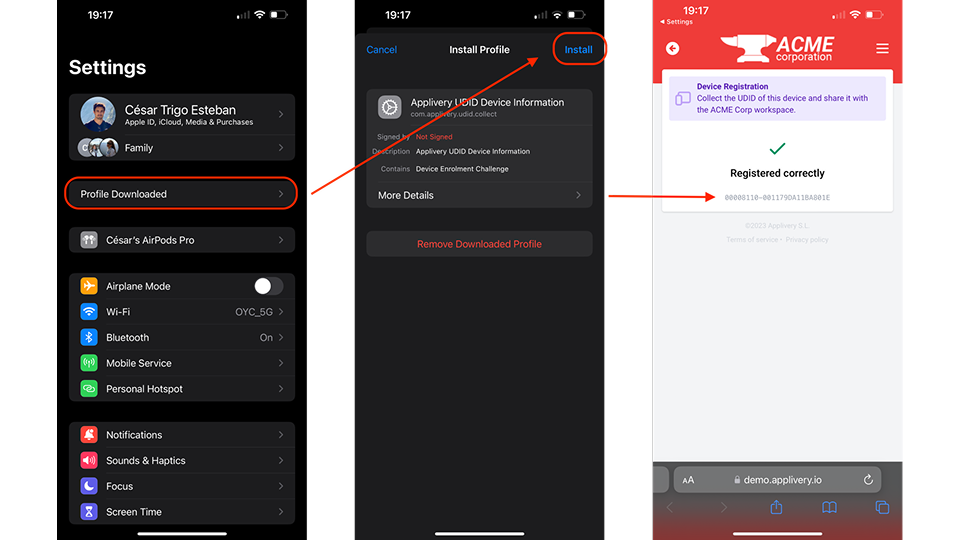
Go to Settings > Profile downloaded and click Install.
Below you can see the entire process:
Retrieving UDIDs
All registered UDIDs will be automatically stored in your account under the Inventory section. The records will provide the following information:
Device name.
Serial number.
UDID.
Collection date.
In the cases where authentication is enforced at the Store level, the records will also come with the email address of the user who authorized the collection.
You can also use the Download CSV button to trigger the download of all the records in a single CSV file.
Additionally, you can take a look at the GET method of the Inventory API entity.