Two-factor authentication adds a second layer of security to your Applivery account. Even if someone gets hold of your password, they can't access your account without also having the one-time code generated on your phone. Once enabled, every login to the Applivery Dashboard or App Store will require both your password and a code from your authenticator app.
Applivery uses TOTP (Time-Based One-Time Password) — the same standard used by Google, GitHub, and most modern platforms. Any compatible authenticator app will work, including Google Authenticator and Microsoft Authenticator.
Once you have TOTP set up, you can also add a hardware security key (fingerprint reader, Windows Hello, or a physical key like YubiKey) as an additional authenticator. This uses WebAuthn, the modern standard supported by all major browsers.
Enabling 2FA
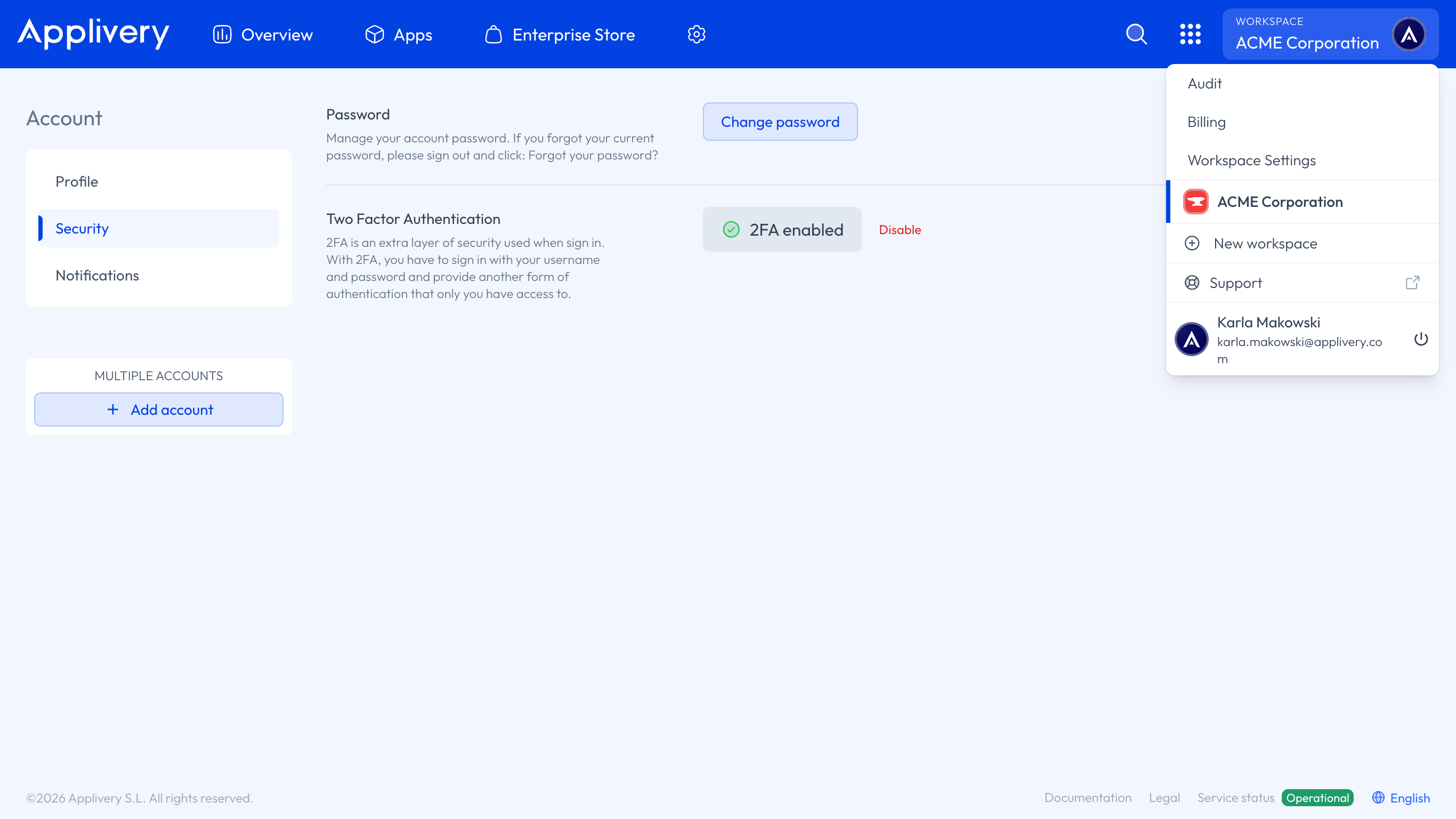
Once in the Applivery Dashboard, go to your account configuration from the top dropdown menu, then select Security from the left-hand menu. Click Enable 2FA to start the setup.
Open your authenticator app and scan the QR code shown on screen. If you can't scan the QR code, tap the option to enter a code manually — Applivery will show the alphanumeric key you can type in directly. Your authenticator app will create a new entry called Applivery: [email protected] and start generating 6-digit codes that refresh every 30 seconds.
Enter the current code from your App into the confirmation field on screen and click Enable before the code expires. A confirmation message will appear once 2FA is active on your account.
Applivery sends an email notification whenever a security change is made to your account — including enabling or disabling 2FA. If you receive one of these emails unexpectedly, change your password immediately and contact support at [email protected].
Logging in with 2FA
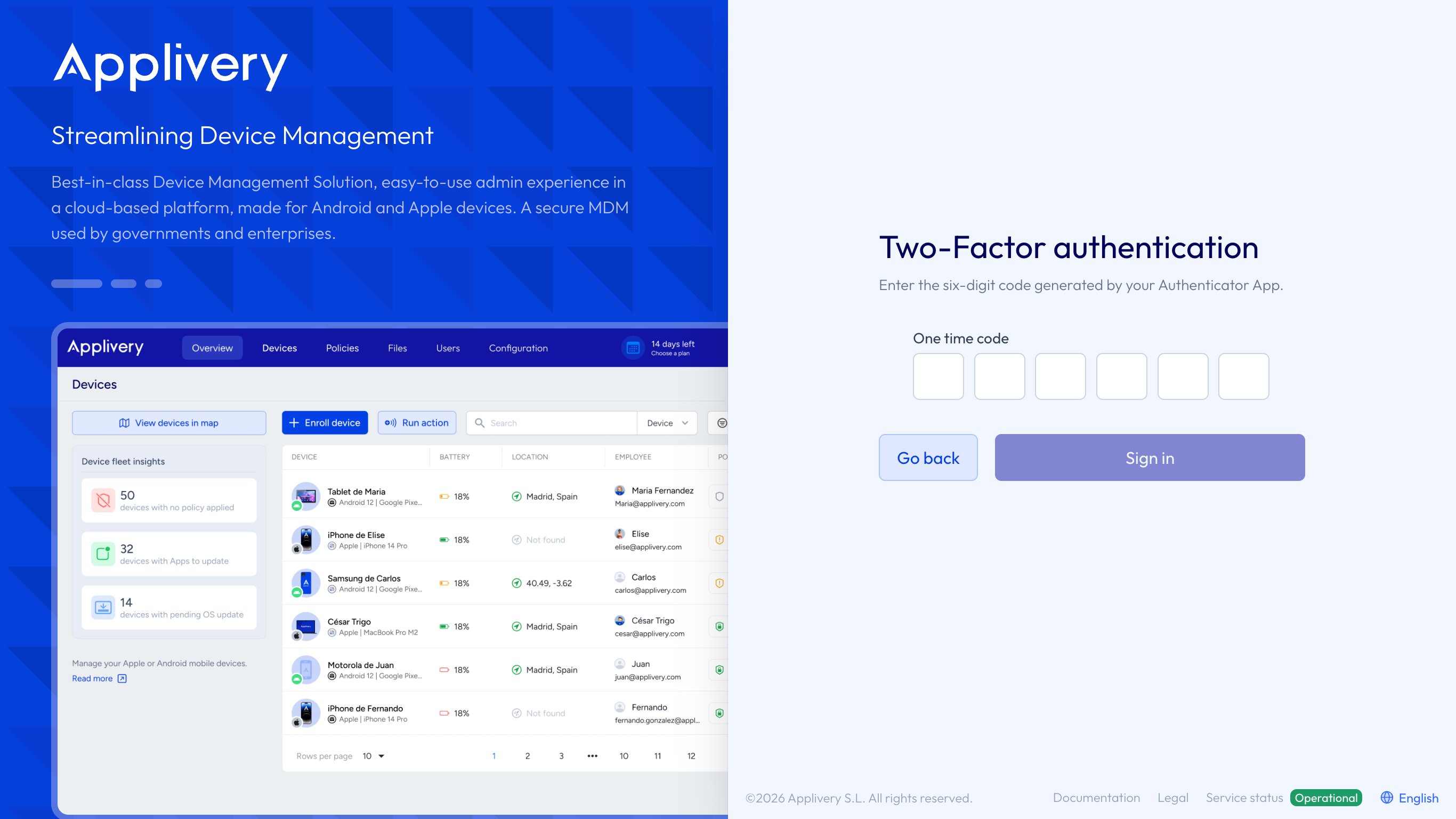
After enabling 2FA, every login will have a second step. Once you enter your email and password, Applivery will prompt you for a one-time code. Open your authenticator app, copy the current 6-digit code for the Applivery entry, and enter it before it expires.
Disabling 2FA
We strongly recommend keeping 2FA active at all times. Disabling it reduces the security of your account.
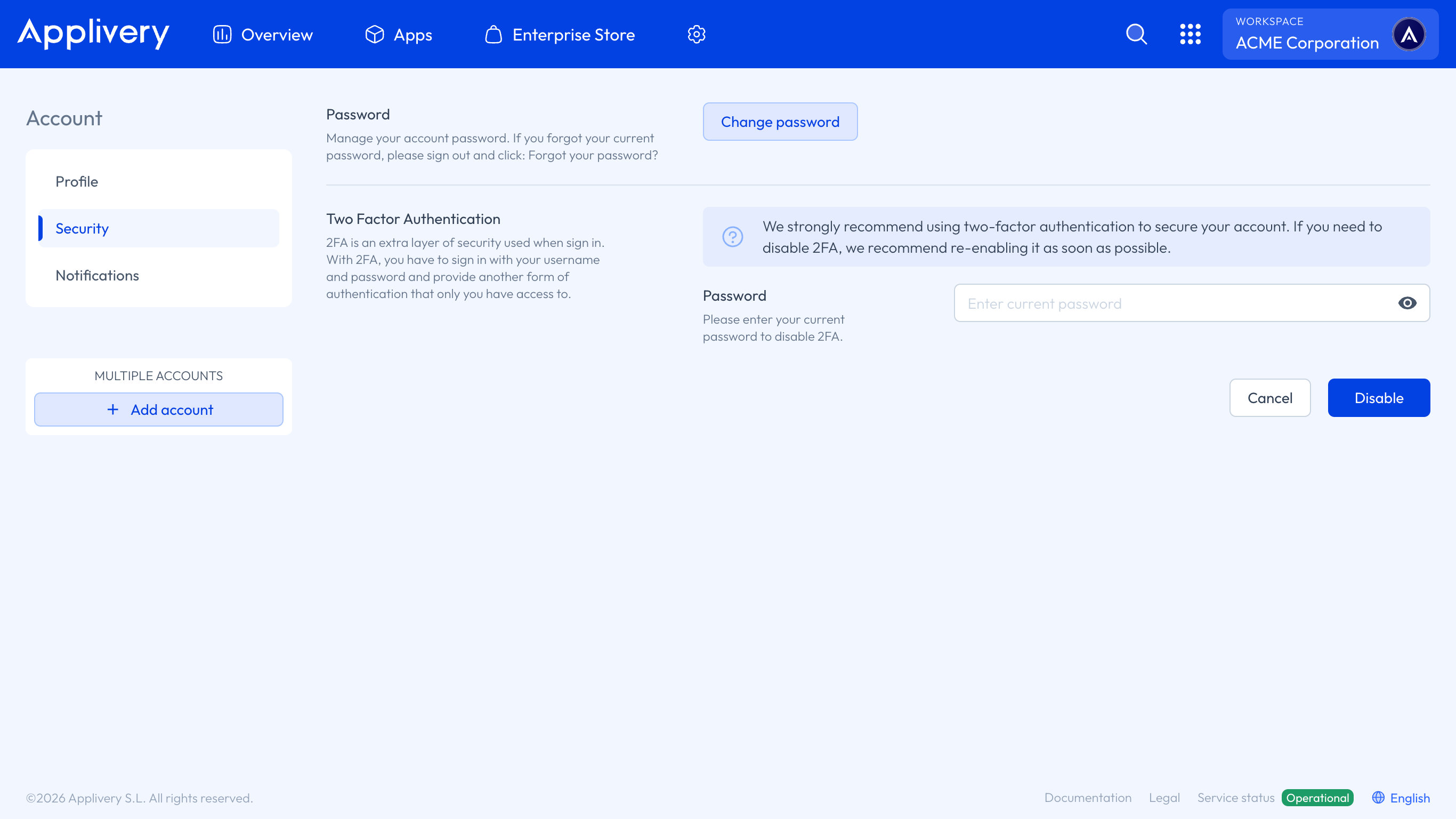
If you need to disable 2FA, go to your account configuration from the top dropdown menu, then select Security from the left-hand menu, and click Disable next to Two Factor Authentication. For security reasons, Applivery will ask you to confirm your current password before the change takes effect.