
This is a premium feature that may not be available on your current plan. Check availability on the Applivery pricing page.
The setup involves two sides: first, you collect the Service Provider metadata from Applivery, then you configure a SAML application in Ping Identity, and finally, you complete the configuration back in Applivery with the Identity Provider metadata.
If you plan to use a custom domain for your App Store or MDM Portal, configure it in Applivery before starting this guide. Custom domains change the callback URLs in the SAML metadata, so the order matters.
Prerequisites
Administrator access to your Applivery Workspace.
Administrator access to your Ping Identity console.
If you are using a custom domain, make sure it is configured first in Applivery under the Settings section, then navigate to Store Customization from the left-hand menu.
Applivery acts as the SAML Service Provider (SP). The first step is to collect its metadata to import into Ping Identity.
Once in the Applivery Dashboard, go to your Workspace Settings from the top dropdown menu, then open Login providers in the left-hand menu. Find the SAML row and click Configure for the portal you want to protect — Dashboard, App Store, or MDM Portal.
It’s generally recommended to set up each portal separately, using a dedicated Ping Identity application per portal, since the User Groups and access requirements typically differ across them.
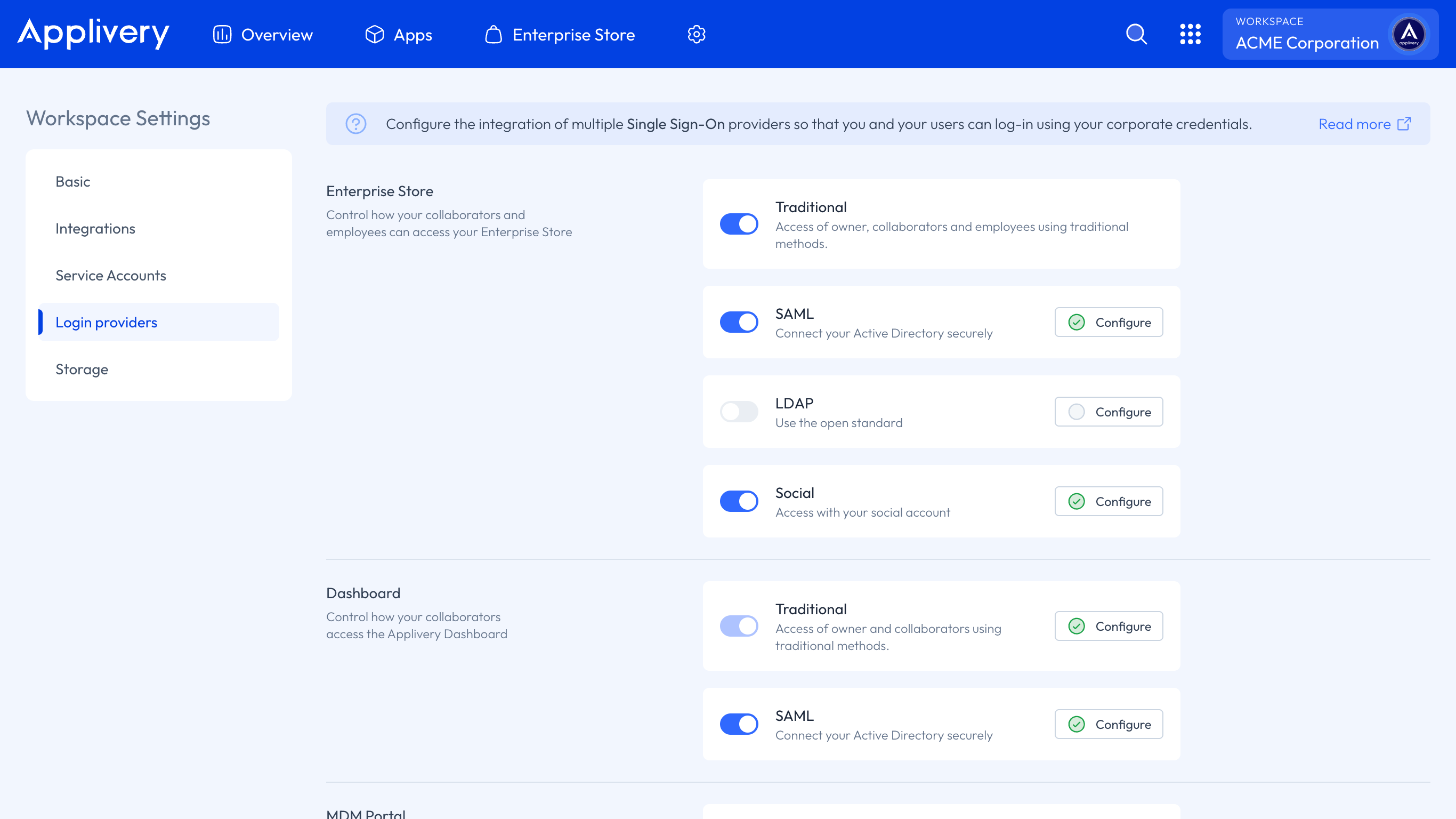
Once selected, download the SAML metadata XML from step 1 and keep it at hand — you will upload it to Ping Identity in the next step.
Create the application
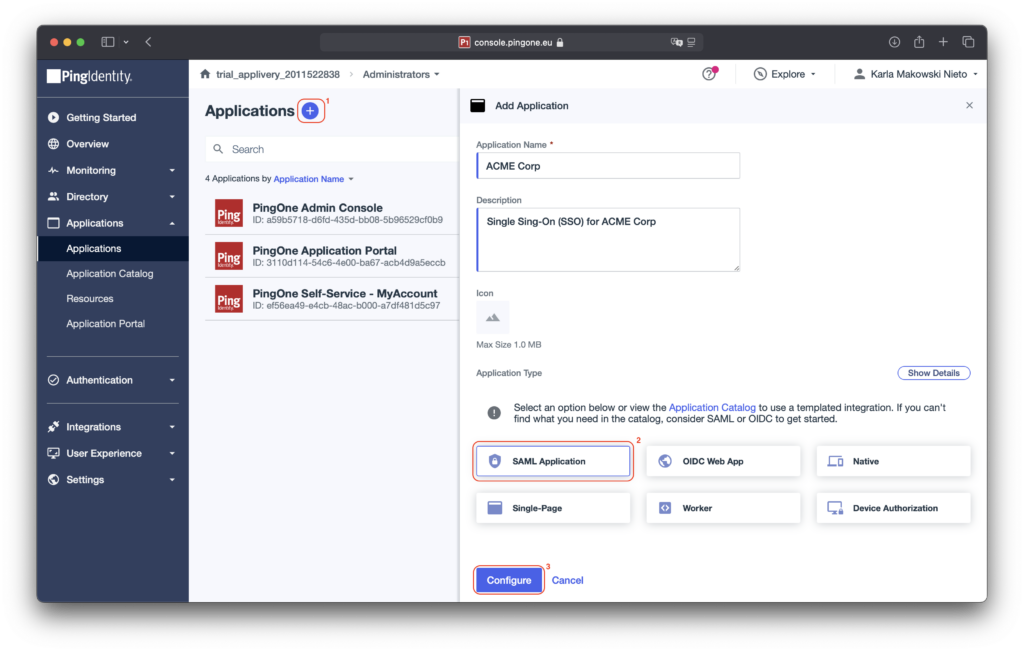
Log in to your Ping Identity console, then navigate to Applications and click the + 1 button at the top of the page to create a new application.
Provide a descriptive name (for example, Applivery) and select SAML Application 2 as the application type.
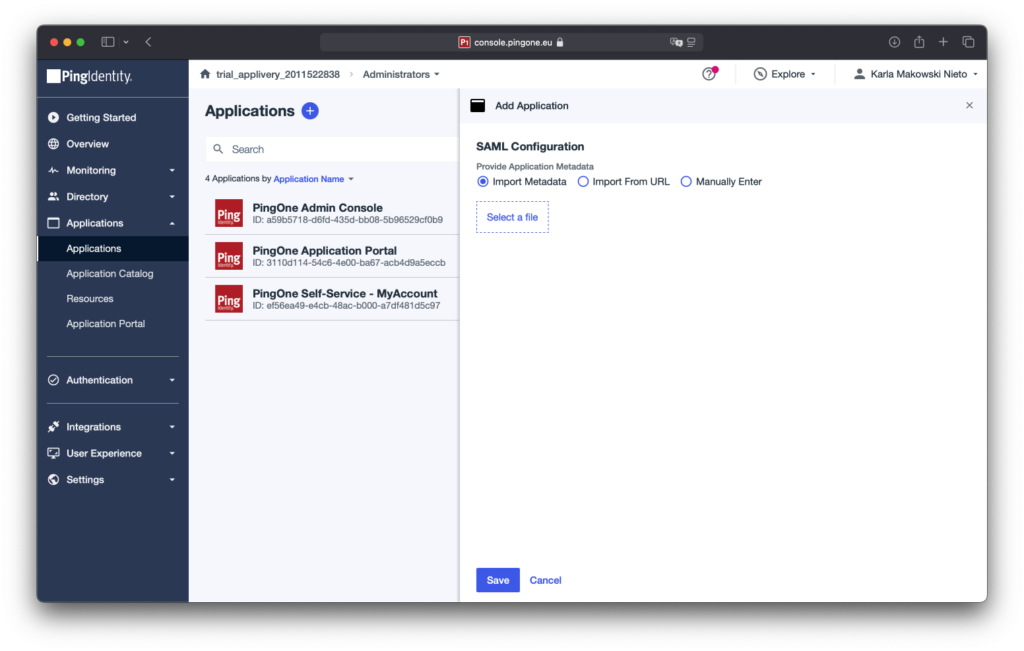
Click Configure, then in the SAML configuration dialog, choose Import Metadata and upload the SAML Metadata XML file downloaded from Applivery in step 1. Finally, click Save to complete the setup.
Enable the application
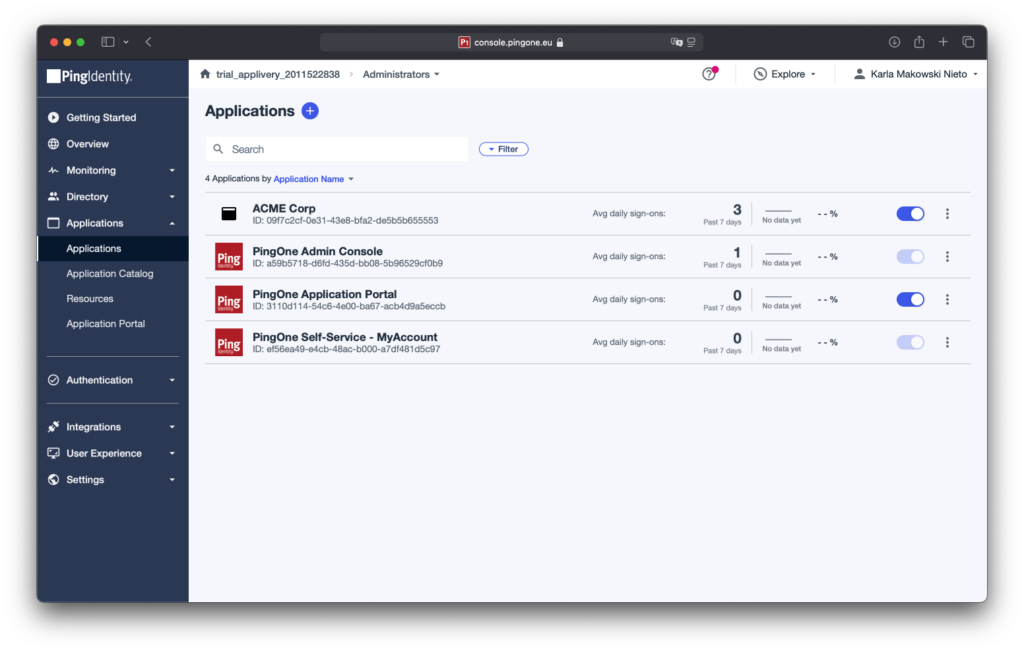
Once the application is created, locate it in the Applications list and enable the toggle switch to activate it. The application must be enabled for SSO to work.
Configure attribute mappings
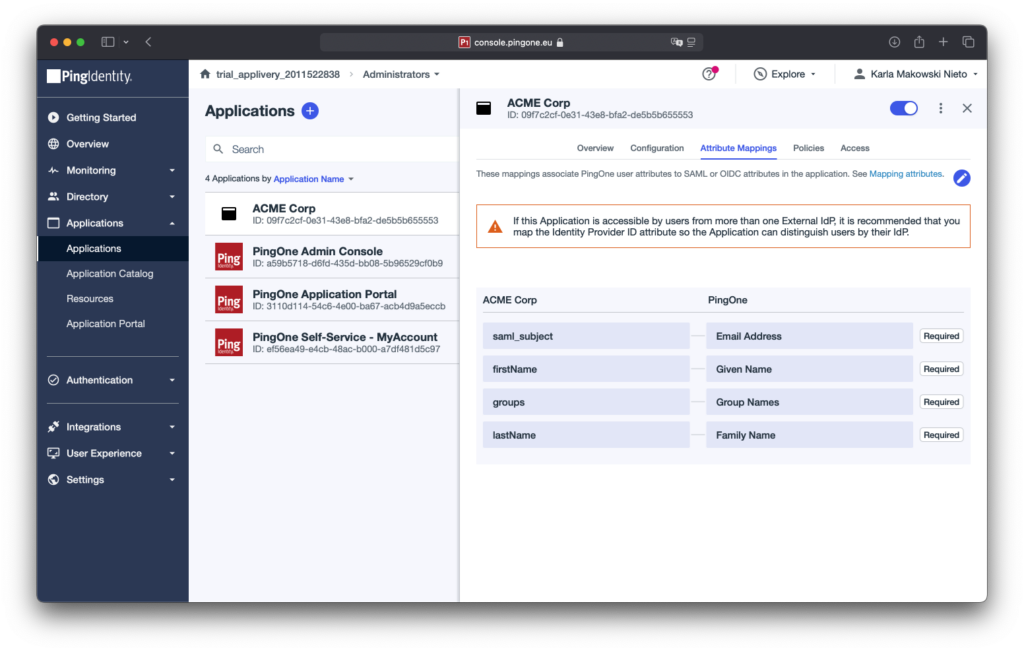
Applivery requires specific SAML attributes to identify users and assign group memberships. Go to the Attribute Mapping tab of your new application and click the pencil icon to edit.
Add the following four mappings:
| Applivery attribute | PingOne mapping | Notes |
|---|---|---|
saml_subject |
Email Address | The primary user identifier. Required. |
firstName |
Given Name | User's first name. |
lastName |
Family Name | User's last name. |
groups |
Group Names | Used to sync Ping Identity groups into Applivery for access control. |
For each mapping: type the attribute name in the left field, select the corresponding PingOne mapping from the dropdown, and click + Add. Once all four are added, click Save.
Set the signing option
Go to the Configuration tab and click the pencil icon to edit.
Under signing options, select Sign Assertion & Response. This ensures both the SAML assertion and the response envelope are signed, which Applivery requires.
Click Save to apply.
Download the Identity Provider metadata
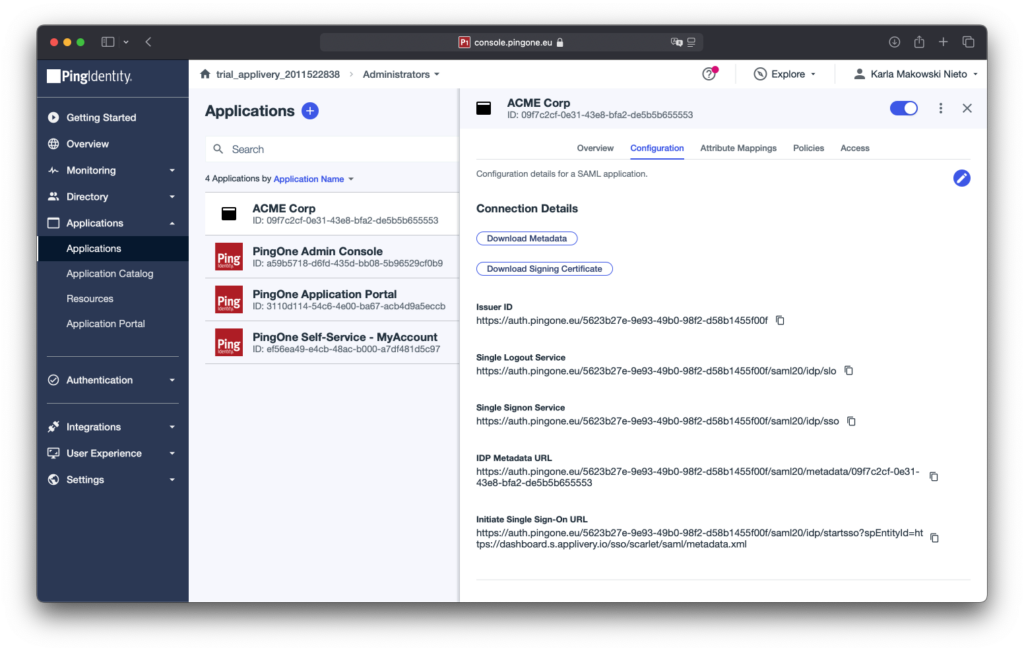
Still on the Configuration tab, click Download Metadata to download the Federation Metadata XML file from Ping Identity.
This file contains the Identity Provider information (issuer URL, signing certificate, SSO endpoint) that Applivery needs to validate incoming SAML assertions.
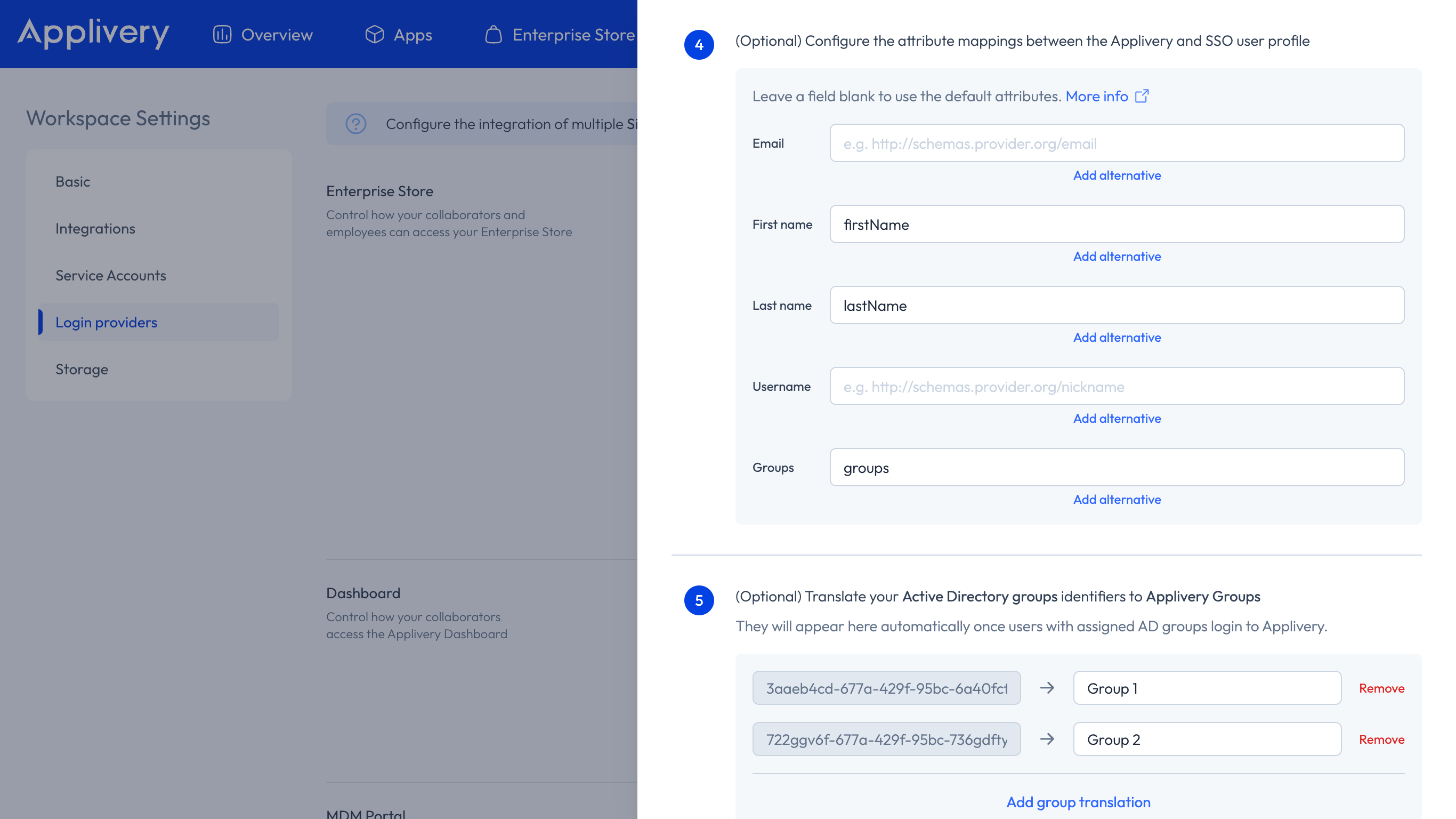
Go back to the Applivery Dashboard. Under Step 2 of the SAML form, upload the Federation Metadata XML file you downloaded from Ping Identity.
Configure the attribute mappings to match what you set in Ping Identity under step 4:
First name attribute:
firstName.Last name attribute:
lastName.Group’s attribute:
groups.
Click Save and use the toggle switch to enable the SAML integration for your organization.
Before users can log in via SSO, they must be assigned to the Applivery application in Ping Identity.
Go to Directory → Users in your Ping Identity console and assign the users or groups who should have access to Applivery.
Once both sides are configured and the integration is enabled, test it with an assigned user:
Dashboard: Go to https://dashboard.applivery.io/welcome/sso and enter the user's email. You will be redirected to Ping Identity for authentication.
App Store / MDM Portal: Navigate to your App Store or MDM Portal URL. Users with SAML configured will be redirected to Ping Identity for authentication before accessing the portal.
If authentication fails, verify that the attribute names in Applivery match exactly those configured in Ping Identity's attribute mapping (case-sensitive), and that the Sign Assertion & Response option is set correctly in Ping Identity.