Threema Work is a secure enterprise messaging solution designed for professional use in organizations that prioritize data protection and privacy. Unlike conventional messaging Apps, Threema Work ensures end-to-end encryption for all communications, including messages, voice calls, and files. It complies with strict privacy regulations such as GDPR and does not require a phone number or email address, preserving user anonymity.
Designed for corporate environments, Threema Work offers centralized user and Policy management. IT admins can preconfigure the App, enforce usage Policies, and distribute it at scale across managed Devices.
Create the MDM licenses in Threema Work
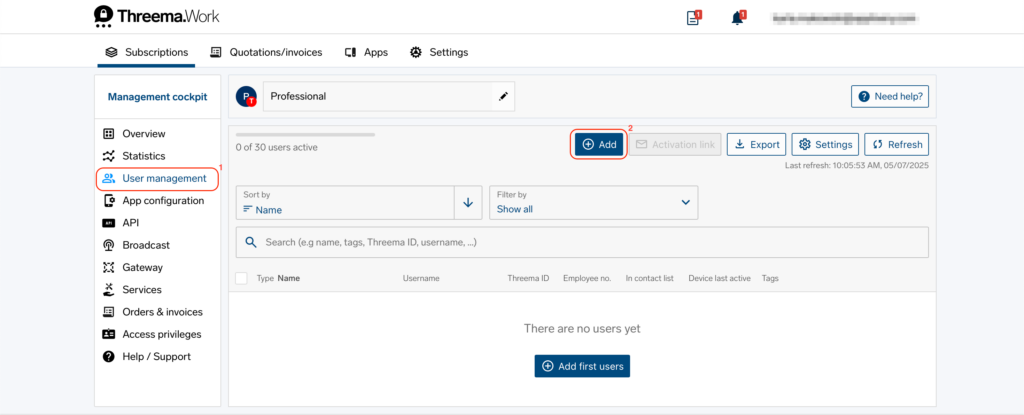
To begin, log in to the Threema Work and select your active subscription. Navigate to the User management (1) section and click + Add (2) to begin assigning MDM licenses to your subscription.
Choose the option License for MDM system (3) and specify a username and password—these credentials will later be used to integrate the licenses with Applivery. You can choose to store the password either in plain text or as a hash. If you opt for a hashed password, be sure to save the link displayed after clicking Save, as hashed passwords cannot be retrieved later.
If saved in plain text, the credentials will remain visible and can be copied at any time by clicking the three dots next to the license entry.
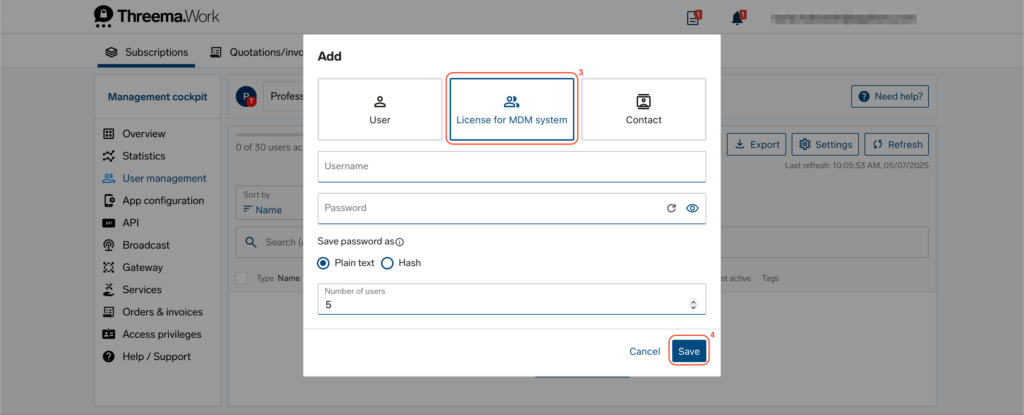
Select the desired number of licenses for Applivery Device Management and hit Save (4).
Create a Policy for Threema Work in Applivery
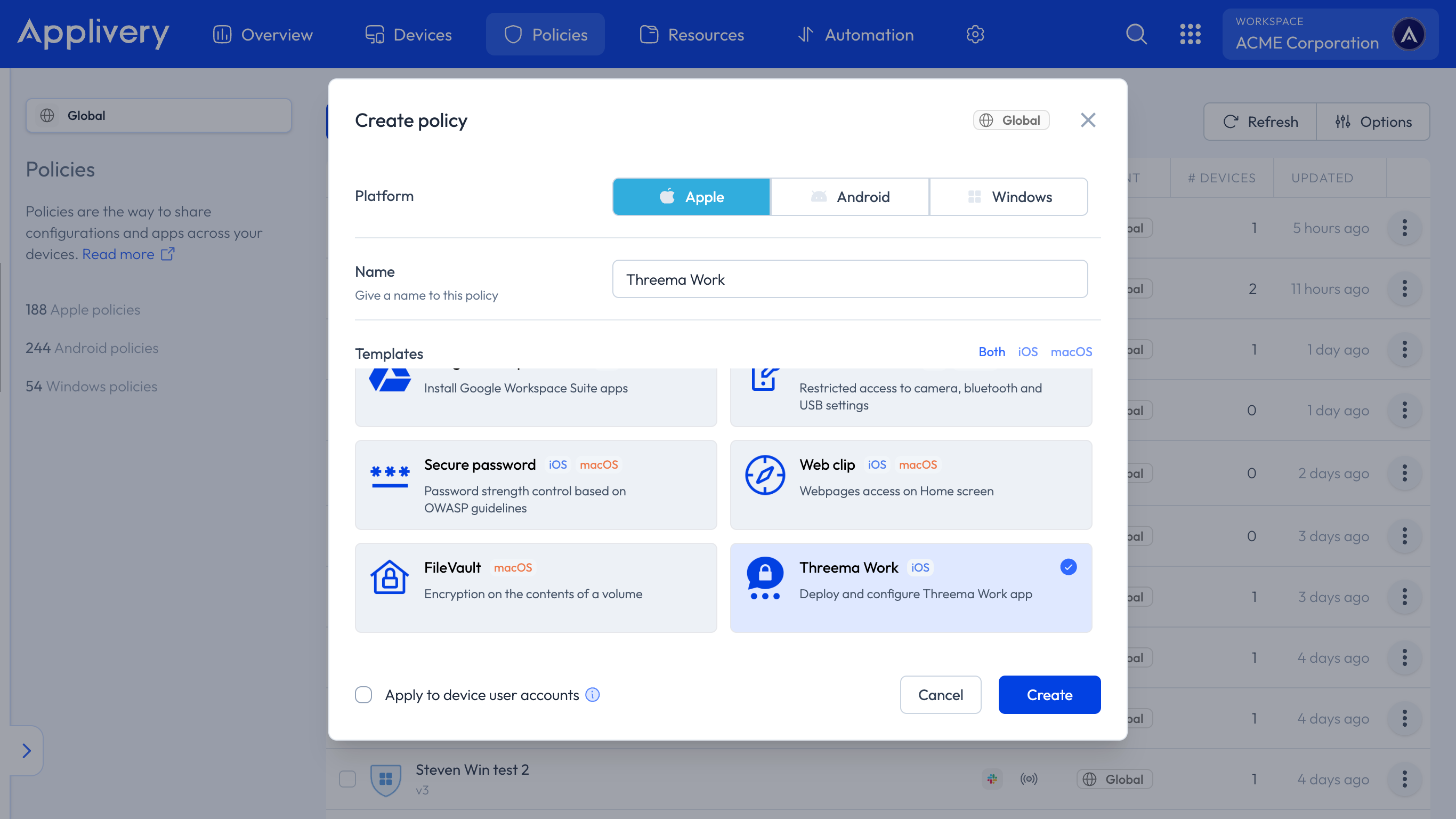
Once in the Applivery Dashboard, go to the Policies section and create a new one. Click the + Create Policy button.
Select the desired operating system, then choose the Threema Work template, which comes with a predefined configuration Policy that includes the following parameters:
| Configuration keys | Value type | Description |
|---|---|---|
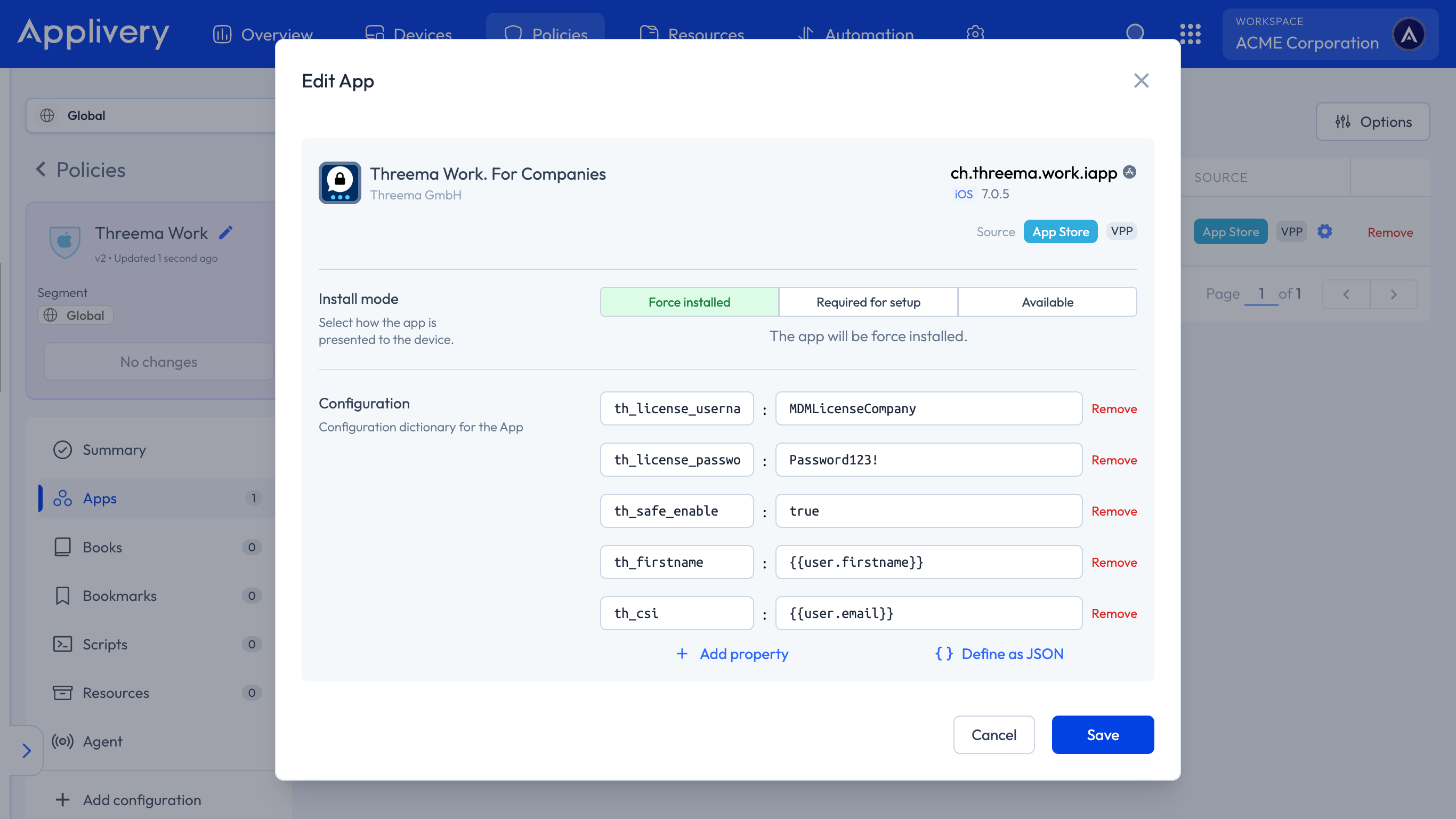
| th_license_username | String | MDMLicenseCompany |
| th_license_password | String | Password123! |
| th_firstname | String | {{user.firstname}} |
| th_csi | String | {{use.email}} |
| th_safe_enable | Boolean | True |
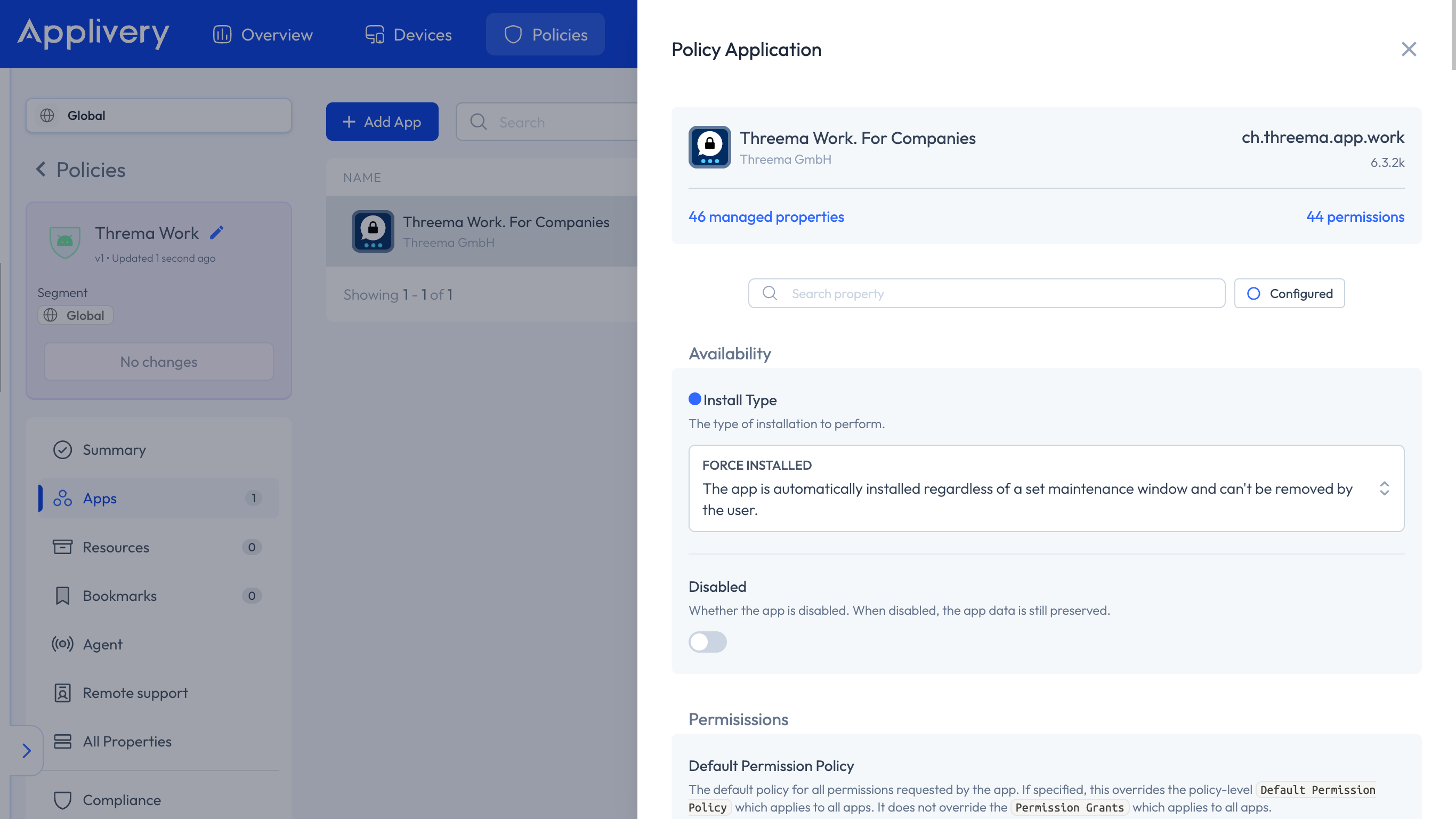
If you selected Apple, go to the Apps section from the left-hand menu, find the Threema Work App, and click the settings icon at the end of its row.
You can now configure the App using the parameters provided below:
If you selected Android, navigate to the Apps section and click on the Threema Work App. A menu will appear on the right side, displaying the available managed properties.