
The Windows Auto-Discovery Domain allows corporate Windows devices to automatically locate the Applivery MDM server during the enrollment process — no manual server URLs or enrollment tokens required. Users simply enter their corporate email address, and Windows queries your company's public DNS records to discover the path to Applivery.
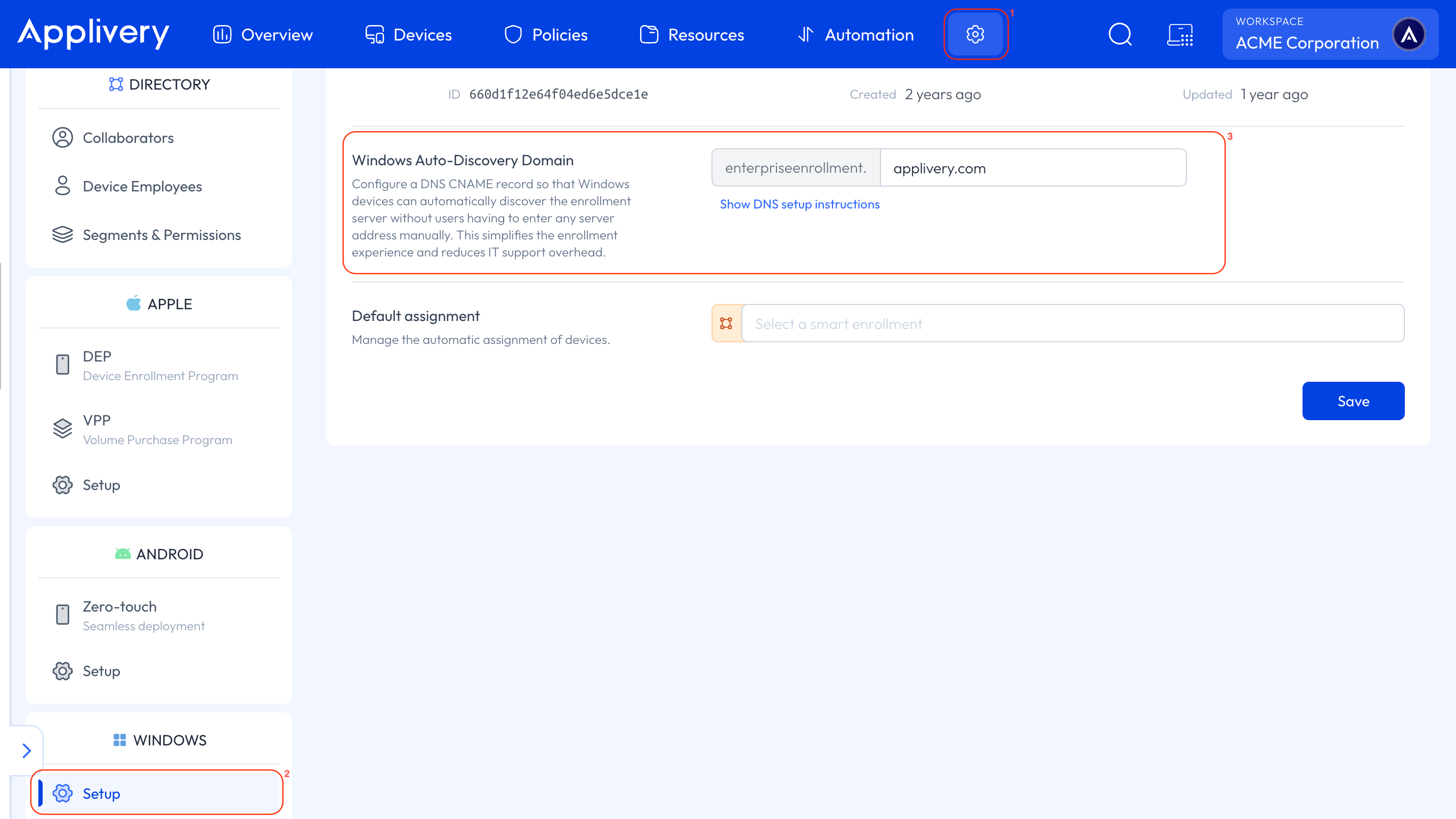
Once in the Applivery Dashboard, navigate to the Settings section 1 and select Windows Setup 2 in the left-hand menu.
Locate the Windows Auto-Discovery Domain section 3 and find the text input field next to enterpriseenrollment.. Enter your organization's root corporate domain — for example, if your domain is applivery.com, the resulting string will read enterpriseenrollment.applivery.com.
A network administrator must create a CNAME record in the management panel of your public DNS hosting provider. Use these exact values:
Parameter | Required Value |
|---|---|
Type |
|
Name / Host |
|
Value / Target |
|
TTL |
|
Once the record is saved in your DNS provider, go back to the Applivery Dashboard and click Save.
DNS changes are often nearly instantaneous, but full validation by Windows client devices can take up to 24 hours to take effect worldwide.