
Customizing the desktop wallpaper is often seen as a way to reinforce corporate branding on Devices managed by the organization. macOS wallpaper settings allow businesses to ensure that every company-owned Device displays the enterprise’s logo or trademark.
Administrators can configure the wallpaper with the organization’s logo or any image they choose and apply it to an entire fleet of Devices. This customization also allows them to set wallpapers for all users on a Device and decide if they should be updated periodically.
Policy configuration
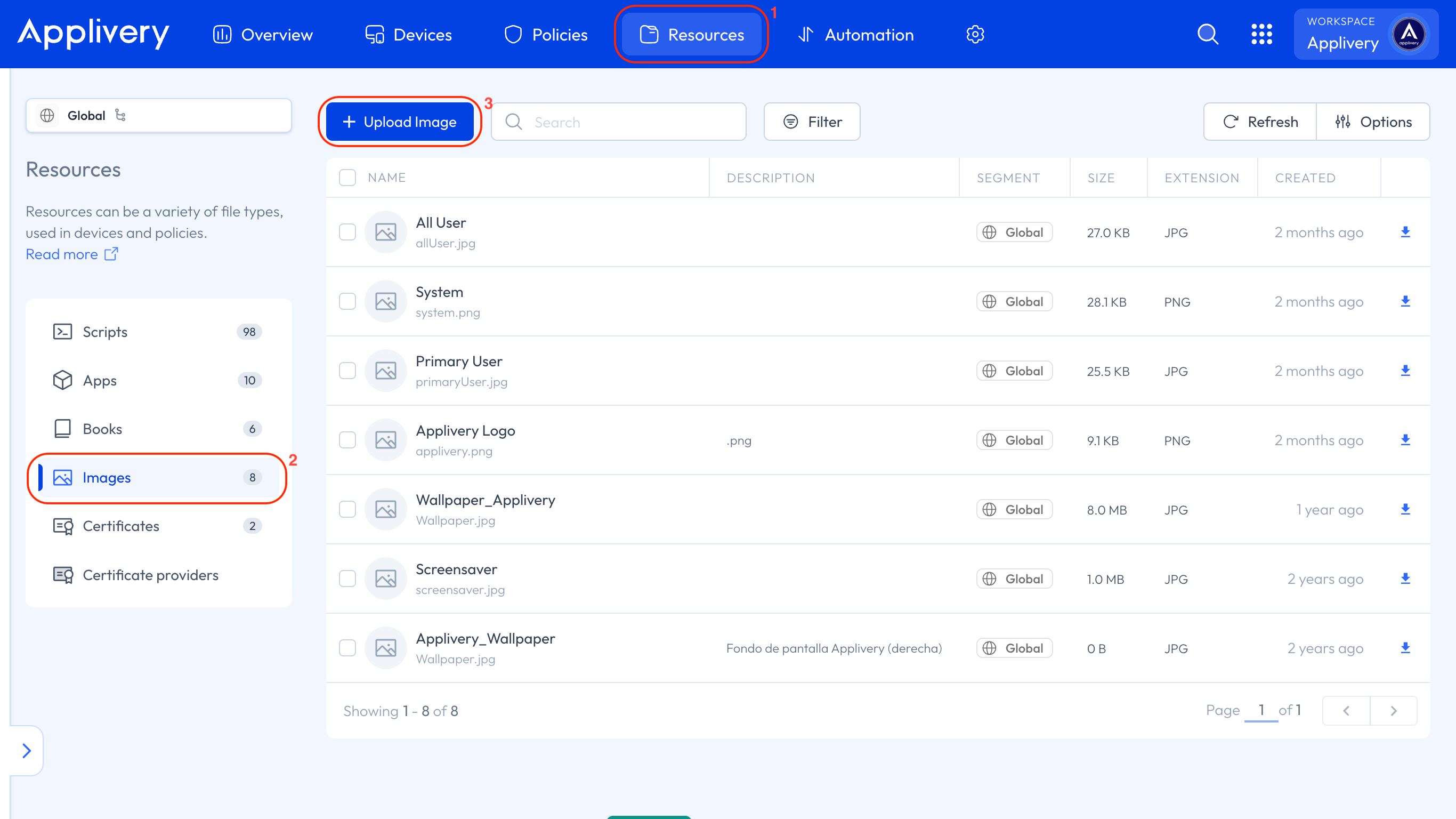
Once in the Applivery Dashboard, head to the Resources section (1). Then, go to the Images (2) tab and click the + Upload Image (3) button.
A modal view will appear, allowing you to upload images in .jpg and .png formats.
After uploading the image, navigate to any of your Policies (4) or create a new one. Head to the Resources (5) section from the left-hand menu, and click the + Add Resource button.
In the modal, go to the Image (6) tab. Here, you can either select an image you uploaded earlier or upload a new one. Then, choose the scope: Primary user, All users, or System.
Click the Use recommended location (7) button for a suggested configuration.
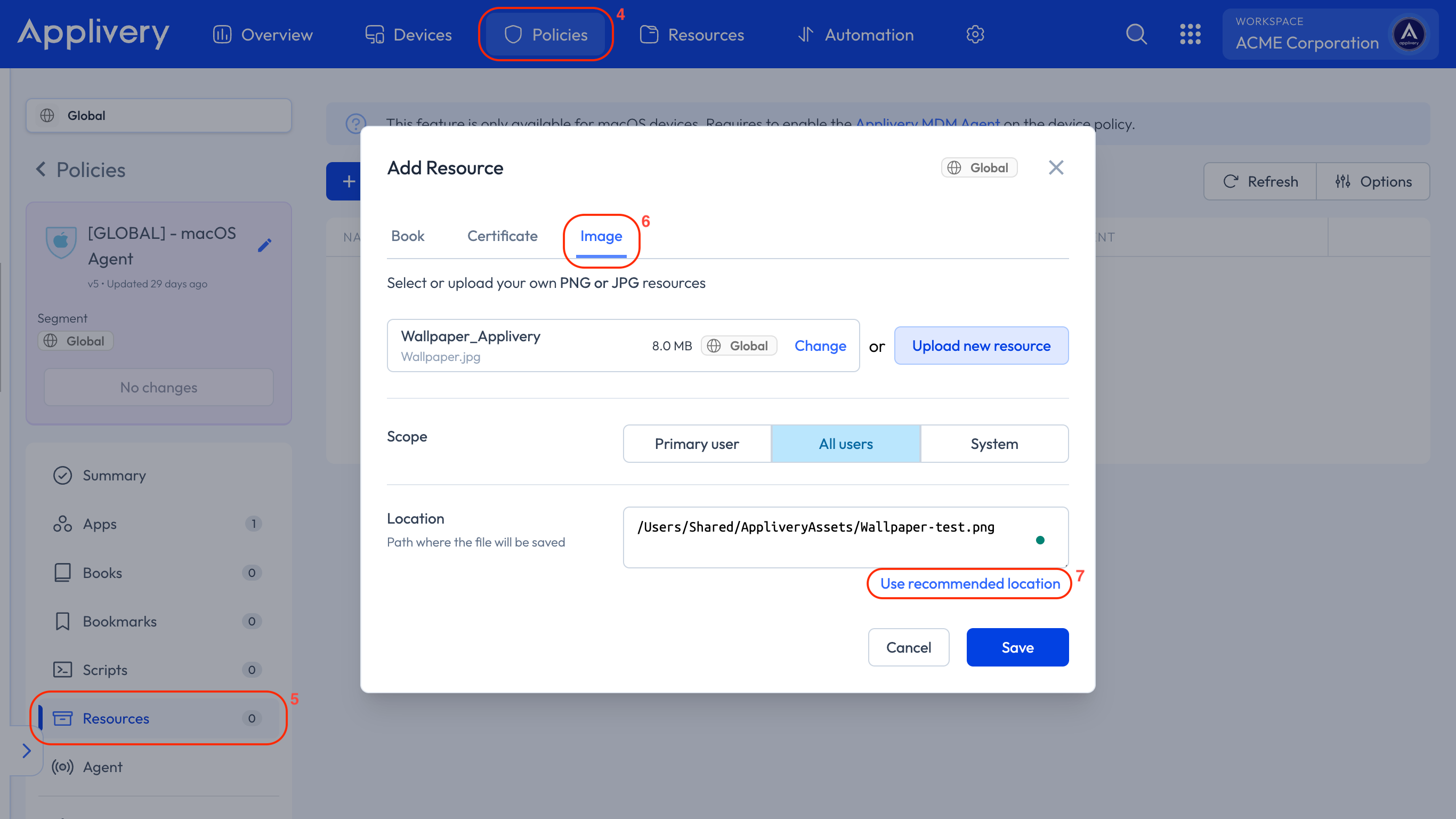
We recommend applying the configuration to All users and using the default path to ensure the wallpaper is consistently applied across the entire system.
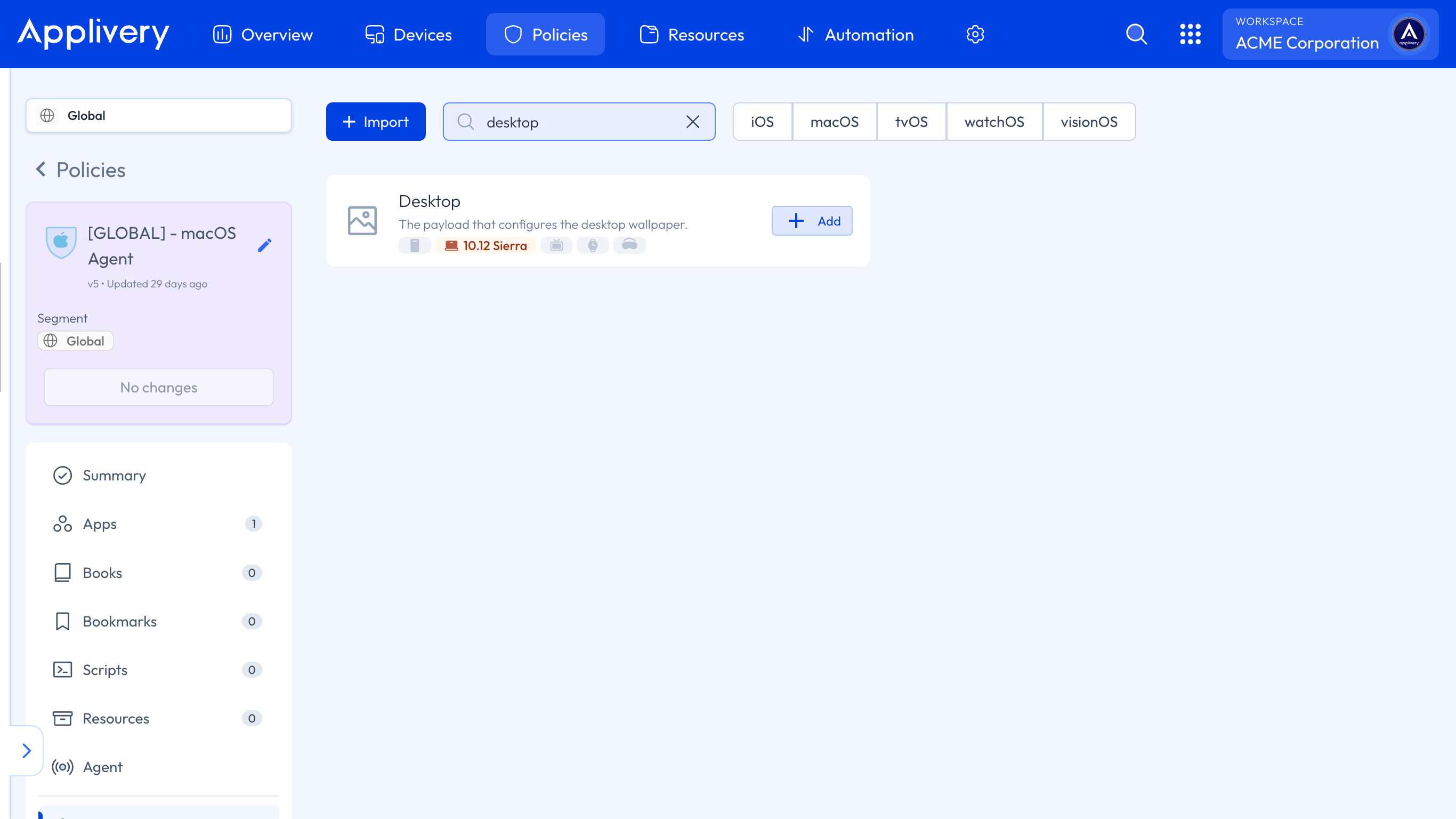
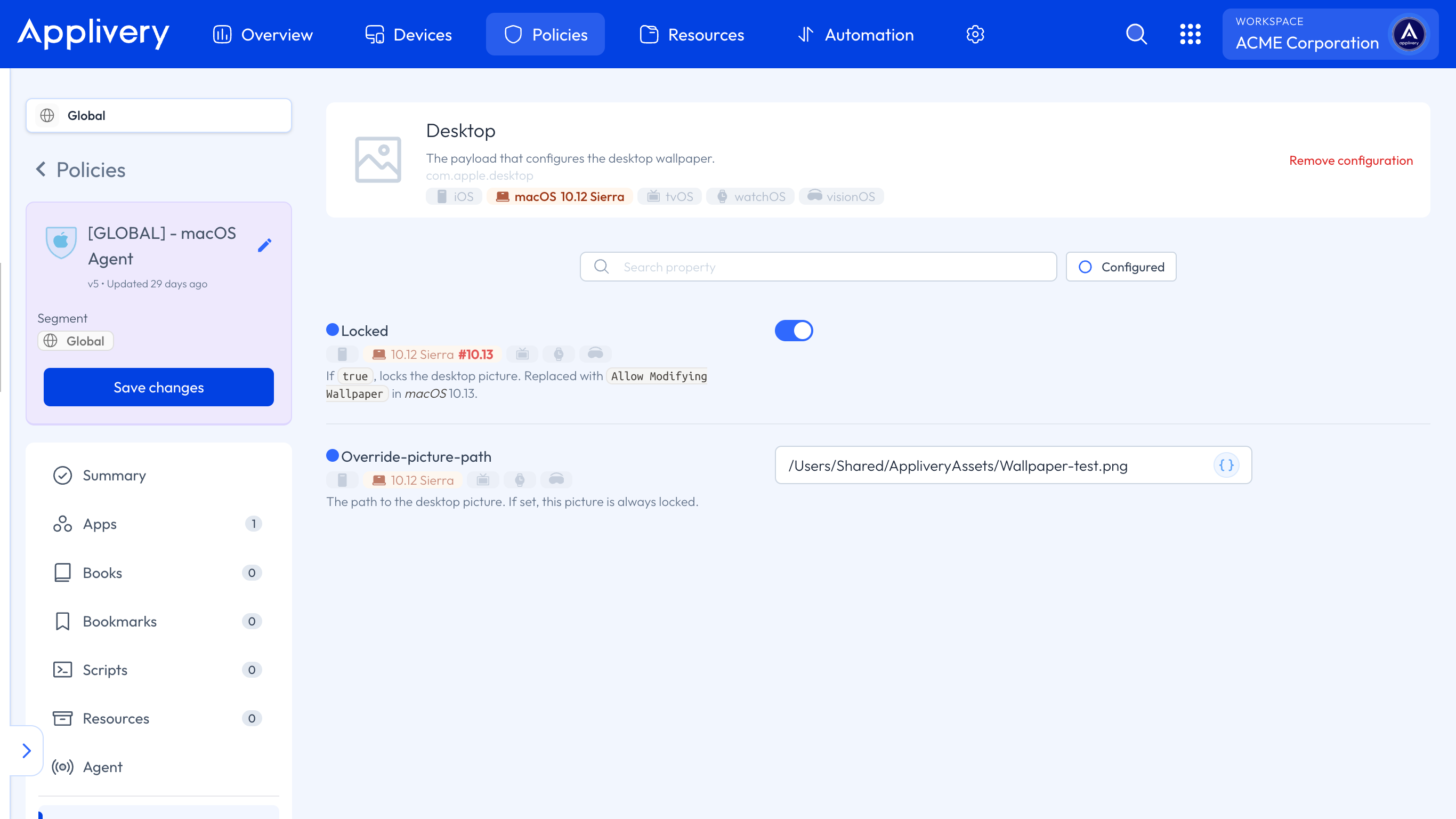
Once the image is uploaded, click the + Add configuration button in the left-hand menu and select Desktop from the available configuration options. You only need to add the path you set when uploading the image (whether you used the recommended path or created one manually).
Additionally, you can enable the Locked setting to prevent users from changing the wallpaper.
Once configured, you will only need to Save changes.
What happens on the Device?
After the Policy is applied, the wallpaper on the macOS Device will update based on the configurations you set. All users on the Device will see the new wallpaper, and if the option is locked, they won’t be able to change it. This ensures that all managed Devices maintain a consistent appearance in line with your corporate identity.