
Managing and updating Zebra Devices running Android 11 or earlier presents specific challenges for mobility and IT administrators.
The Legacy Zebra OEMConfig, integrated with Applivery, enables centralized and reliable firmware updates, configuration management, and device control.
Note that this version of the Zebra OEMConfig app requires Android 11 or lower. If your Devices run a higher Android version, use the latest Zebra OEMConfig app instead.
Getting started
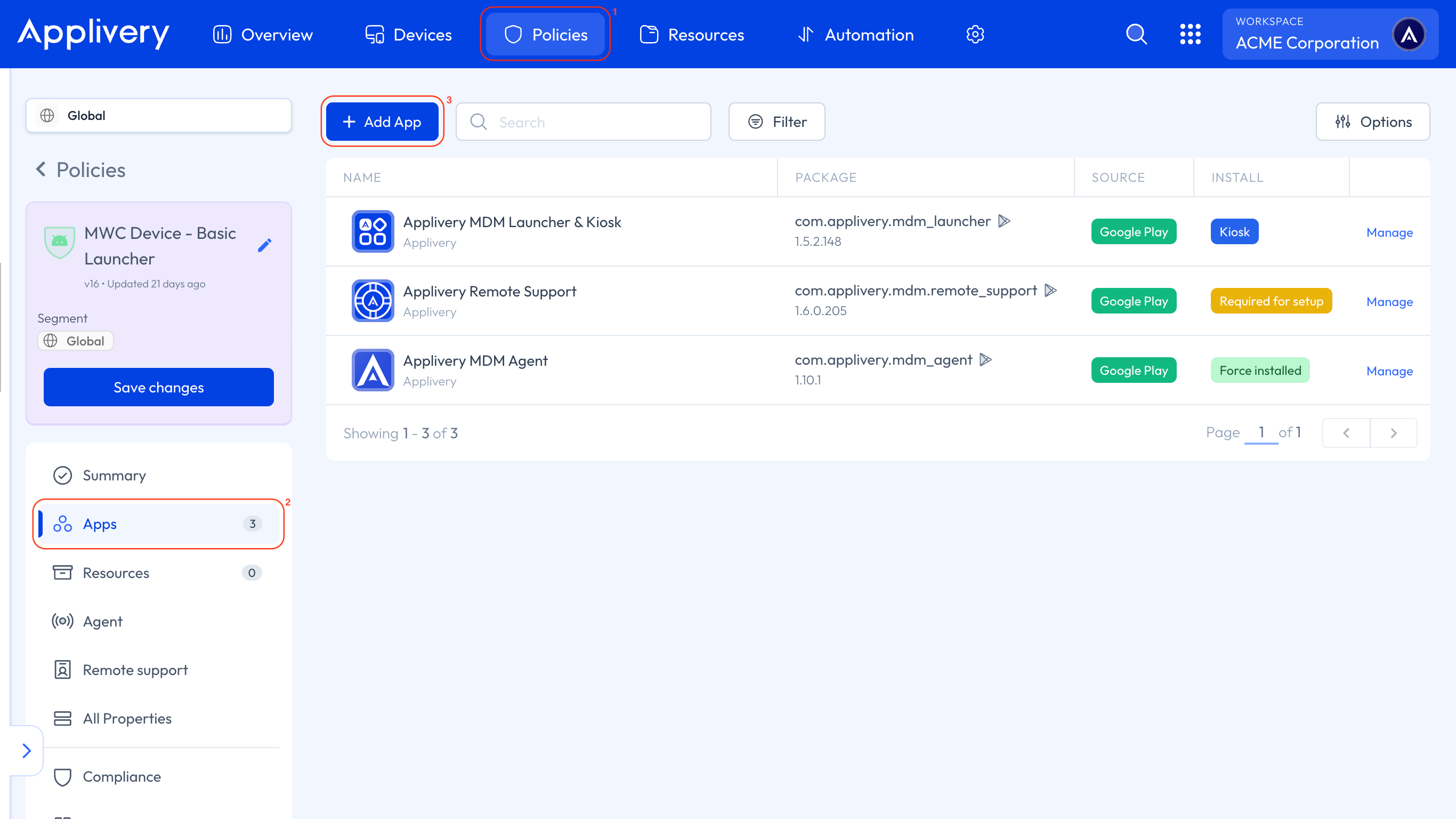
Once in the Applivery Dashboard, go to any of your Policies (1). From the left side menu, go to Apps (2) and click the + Add App button (3).
Add the App Legacy Zebra OEMConfig (com.zebra.oemconfig.common) to your Policy through the Managed Google Play iFrame.
Once the App has been added, open its managed properties and click + Add element under the Steps section.
Locate the Files Step section and configure the fields as follows:
Download Destination Path and File Name: Specify the path and name of the update file (e.g.,
/data/tmp/public/Android14AT_FULL_UPDATE_14-28-03.00-UG-U133-STD-ATH-04.zip).Download File Source URI: Enter the URL of the hosted update file.
Ensure it’s a private hosting service that supports direct downloads (e.g., for Amazon S3:
https://your-bucket-name.s3.amazonaws.com/Android14AT_FULL_UPDATE_14-28-03.00-UG-U133-STD-ATH-04.zip).
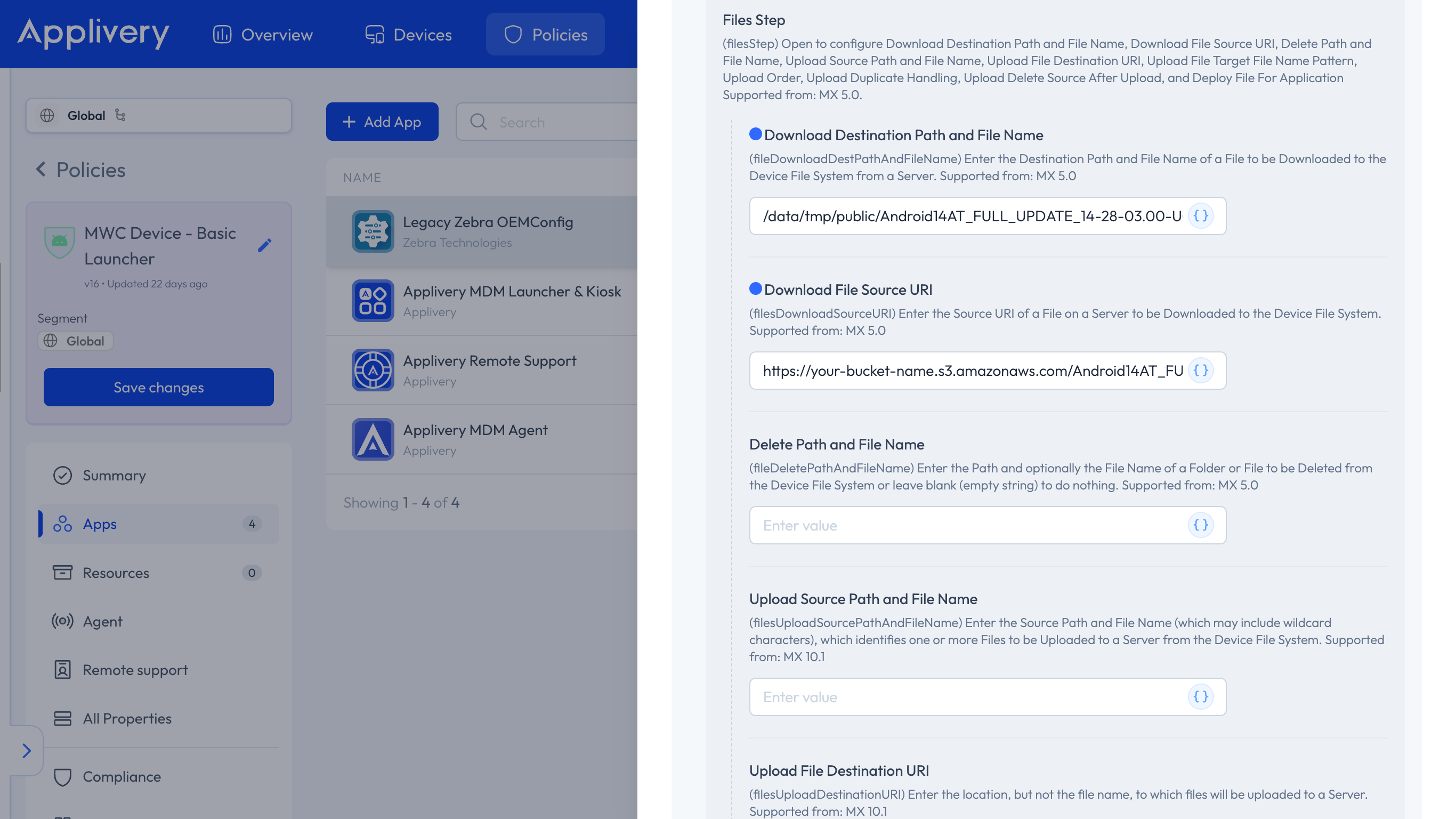
Once configured, the Legacy Zebra OEMConfig app will automatically download the update ZIP package to the specified path.
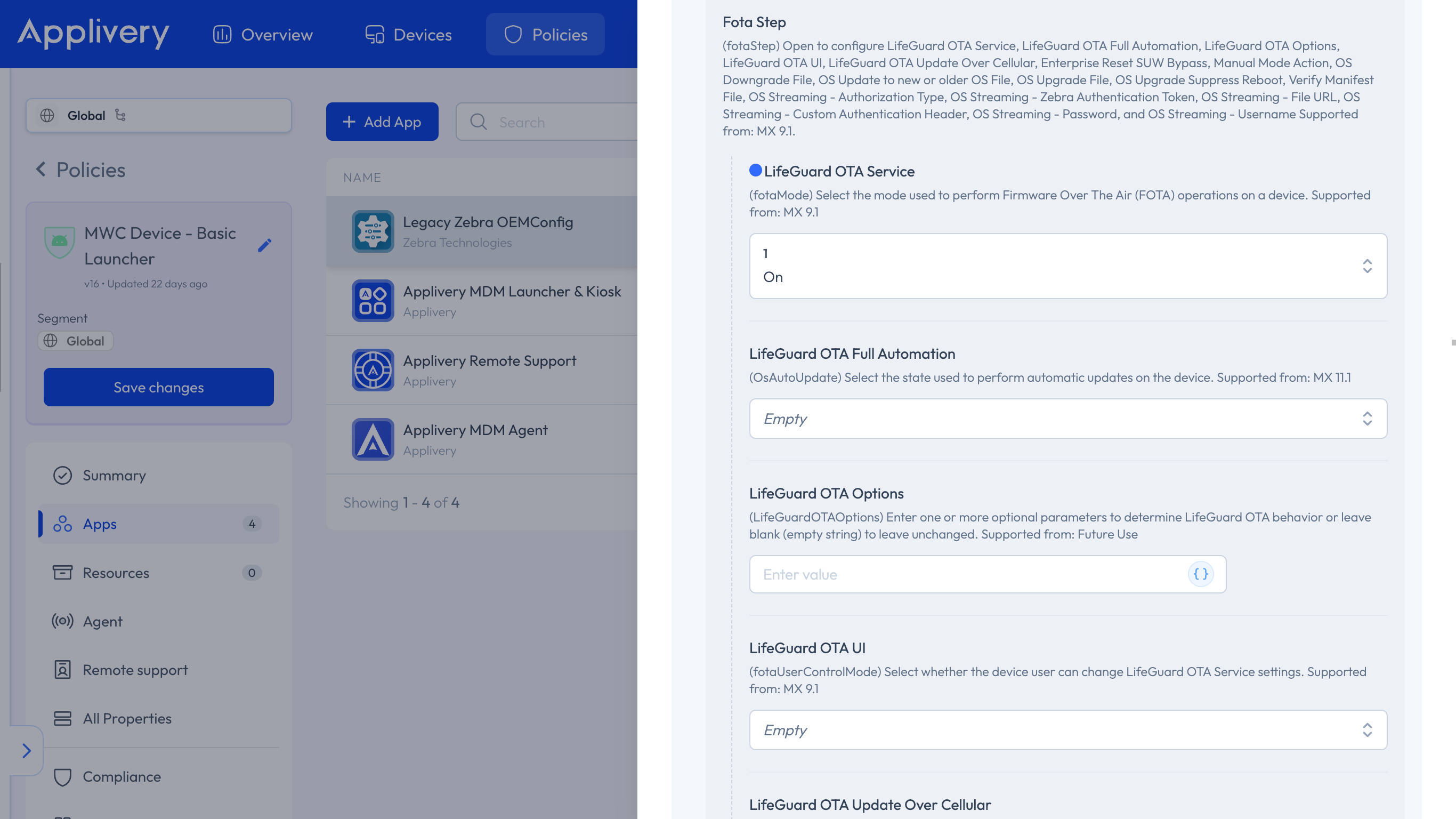
Next, locate the FOTA Step section and configure the fields as follows:
LifeGuard OTA Service: On.
OS Upgrade File: Specify the same path and file name as above.
OS Upgrade Suppress Reboot: Decide whether to prevent automatic reboot after the update.
Depending on the Device model, updating from Android 10 or earlier to Android 13 or higher may trigger an automatic factory reset.
Learn more in the official Zebra documentation.
Once these parameters are configured and the ZIP package is fully downloaded to the path specified in the Files Step section, the Zebra device will automatically begin the update process silently.
You can verify this through a silent notification that appears in the Device’s notification panel.
When the update completes, if OS Upgrade Suppress Reboot is set to True, the user must manually restart the Device to finalize the installation.
By following the outlined steps—from configuring managed properties to defining update parameters and reboot options—you ensure a smooth, reliable, and error-free update process.