In addition to the many features the Managed Play Store provides to manage your Private Apps, you can also manage and distribute the Apps you have hosted in Applivery or another platform. There are a few requirements and steps that you should follow to enable this feature:
You must have an active Android Developer License.
You can not use the Google Play Managed accounts that are generated automatically when uploading Apps through your Managed Play Store since these accounts are not – and can not be – linked with an active Android Developer Account.
Self-hosted private Apps must be configured in the Google Play Account with an active Android Developer License.
Once you are sure you meet them, you can proceed with the following configuration steps:
Create and configure a new App in your Google Play Console
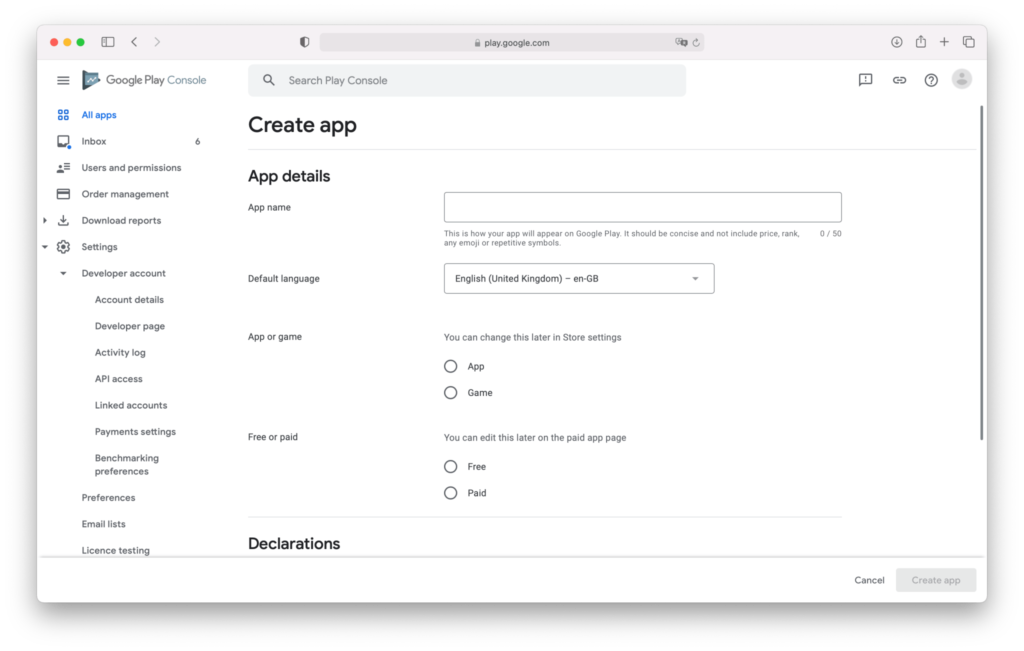
Go to the Google Play Console and log in with your Android Developer account. Once inside, click the Create app button and fill out the form.
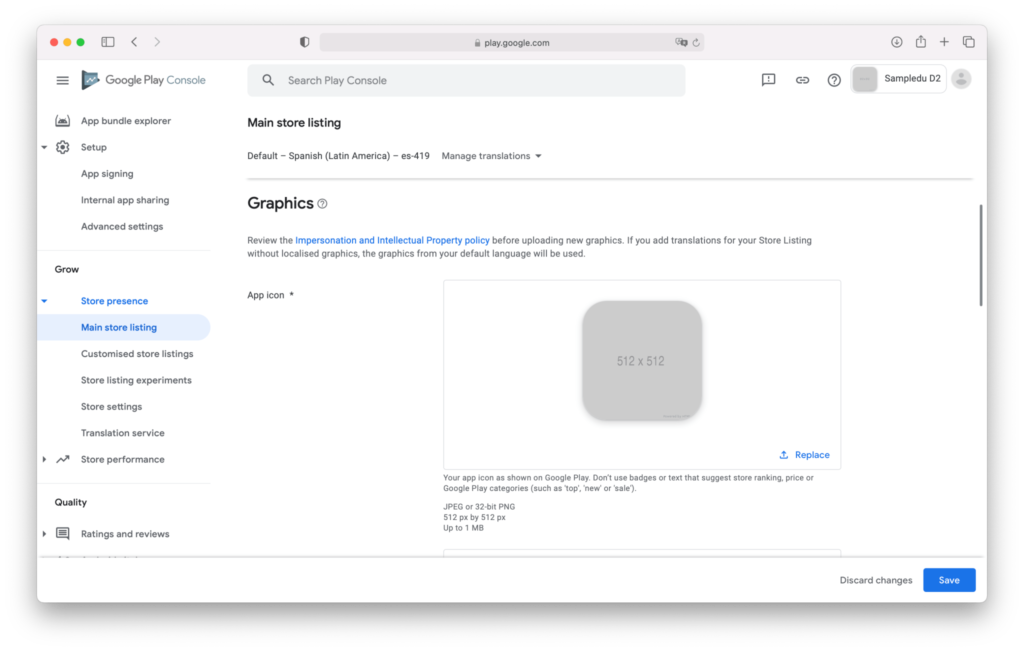
Once created, you will be required to complete the App listing information with all the details of the App, including icons, screenshots, descriptions, etc.
You should remember that you are creating and uploading an App into your Google Play Account, which is not the same account that you have configured in Applivery, so the next step is quite important:
Make your App Private.
Share it with the Applivery Managed Play Store.
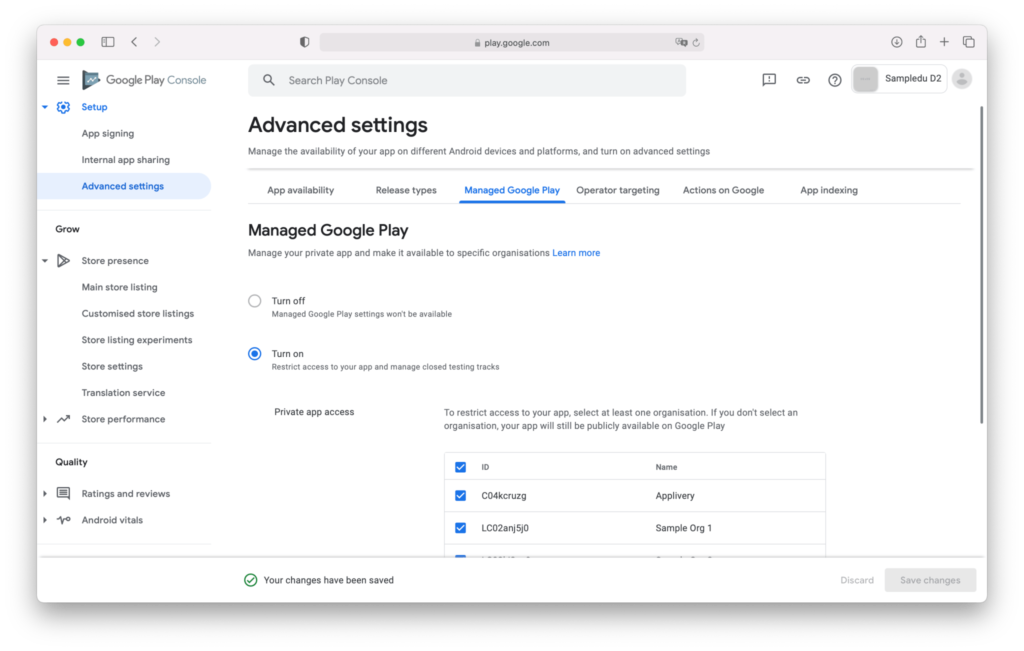
Going back to the Google Play Console and inside your App, navigate to the Setup > Advanced settings section, go to the Managed Google Play tab, and enable the Restricted access to your App and manage closed testing tracks option.
Below will appear a new section that will restrict which organizations will have access to your App.
Click the Add organization button and enter your Applivery Android MDM organization ID. You can find it in your Applivery Dashboard by navigating to Settings, from the left-hand menu, select Android Setup. At the top of that section, you’ll find the Enterprise ID.
Make sure you Save the changes. Once done, your App will be available only to the users of your Applivery MDM.
Configure the Applivery Project
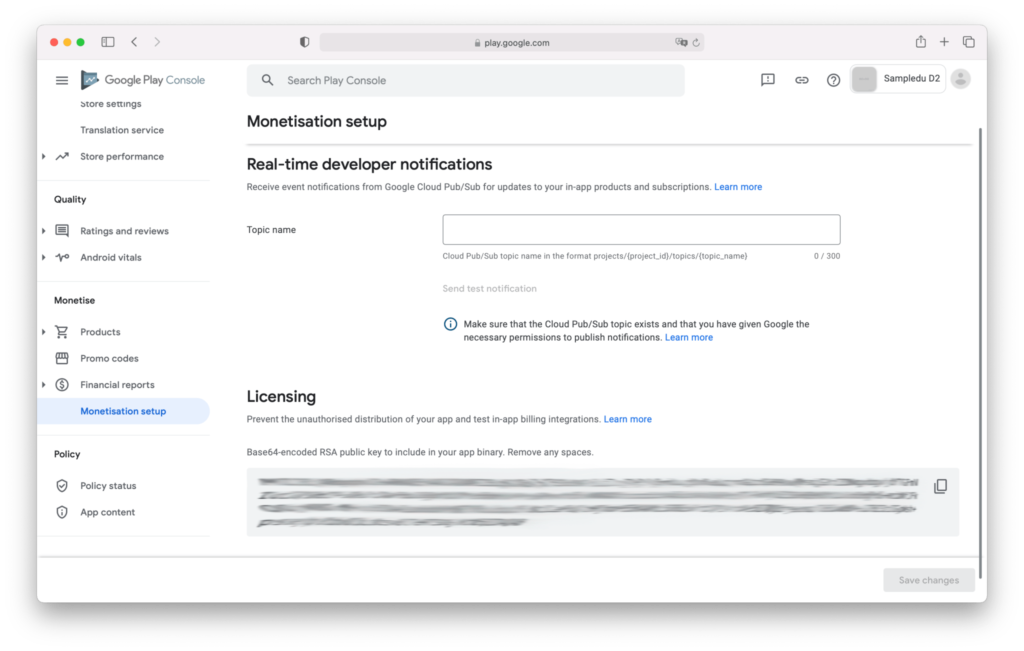
Now that your App listing is completed, go to the Monetisation setup > Licensing section. There you will find the Base64-encoded RSA Public Key of your App that Applivery will use to secure and verify the origin of the downloads from your Managed Play Store. Copy the string. You will need it in the next step.
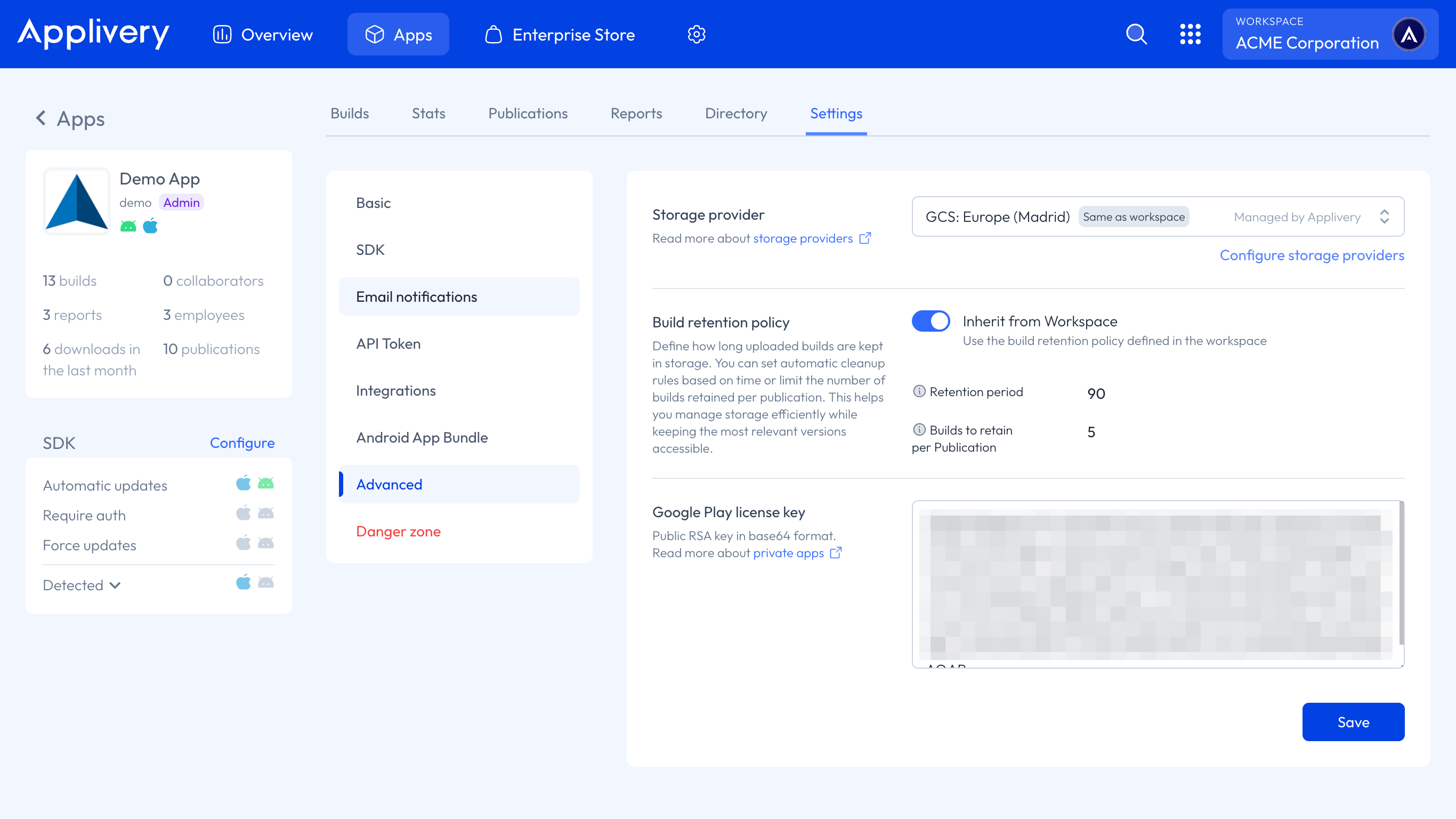
Once in the Applivery Dashboard, navigate to your App. Once there, go to the Settings > Advanced section. Paste the RSA Public Key under the Google Play license key text area.
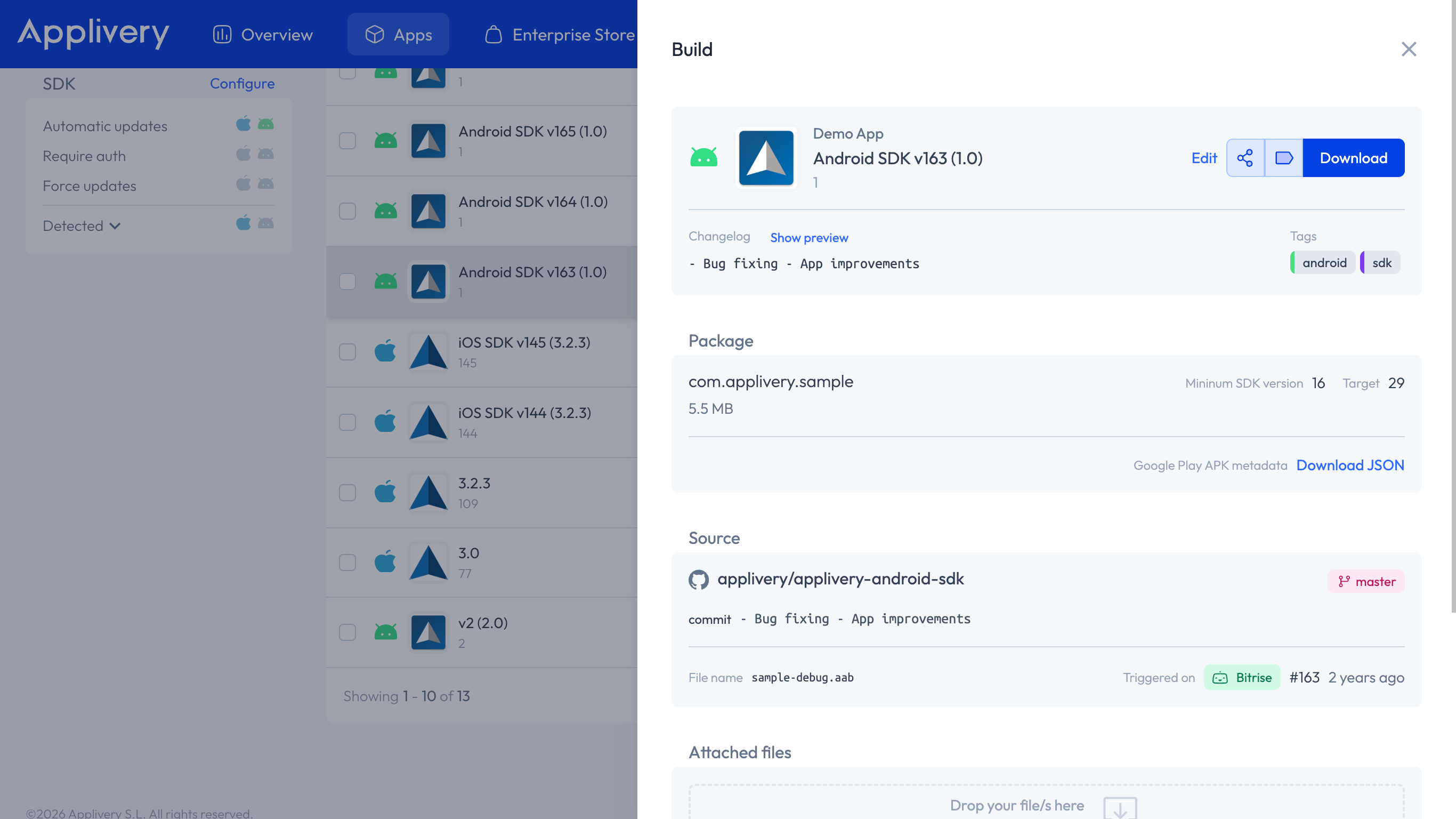
Upload a new Android build to your App. Applivery will automatically generate a JSON file that contains all the information of your App. Once the upload is finished, click the Build and Download JSON file.
Upload and release the App
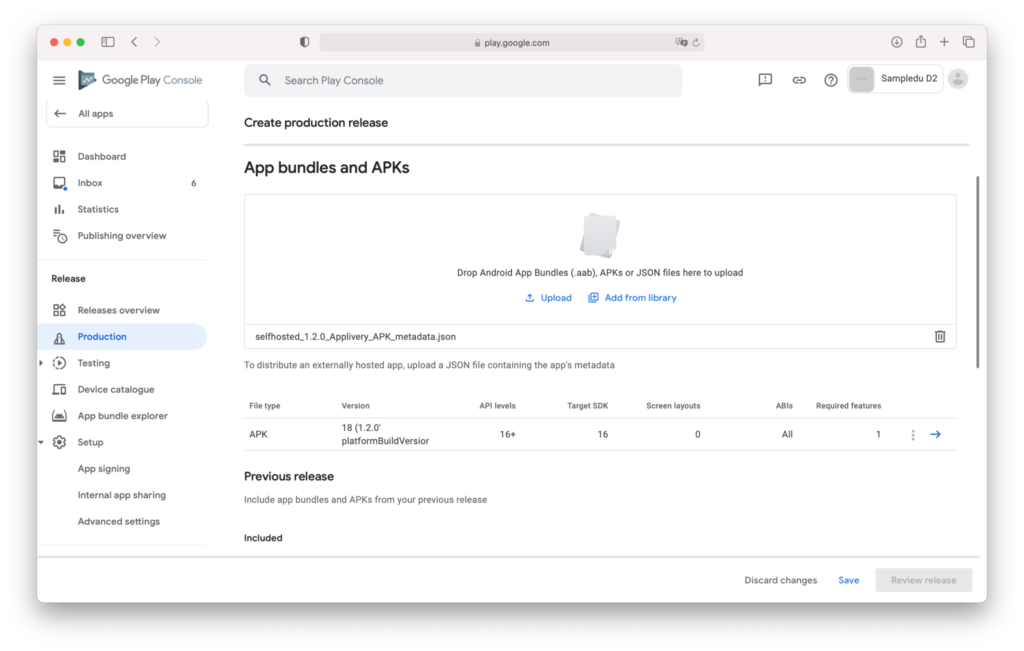
Now that everything is set and still in the Google Play Console, start a new Production release. Choose the JSON file you just downloaded in the previous step and upload it under the App Bundles and APKs section. Complete the rest of the fields. Once ready, click Save and Review release to complete the process.
Review all the information in the next screen and, once ready, click Start roll-out to Production to release your App.
Please note that although there is no review by Google of the Self-hosted Private Apps, it will take a few hours for the App to be available to users.