
Favicon

You are here: Home > Device Management > Windows > Get Started > Provisioning Package Enrollment

How to Enroll Windows Devices Using a Provisioning Package

Enroll Windows devices at scale using a Provisioning Package generated from a Smart Enrollment in Applivery — no user interaction required.

3 min read

TL;DR

From a Smart Enrollment in Applivery, click the vertical dots, select View instructions, choose Provisioning Package, and click Create provisioning to generate a PPKG file ready to deploy on Windows devices.

A Provisioning Package (PPKG) is a deployment method that lets you enroll Windows devices automatically using a file generated directly from a Windows Smart Enrollment. It is ideal for bulk or zero-touch deployments, since no manual URL entry or user credentials are needed on the device.

How to generate and deploy a Provisioning Package

Note

Before you start, make sure you have a Windows Smart Enrollment already configured.
1
Open the Smart Enrollment instructions

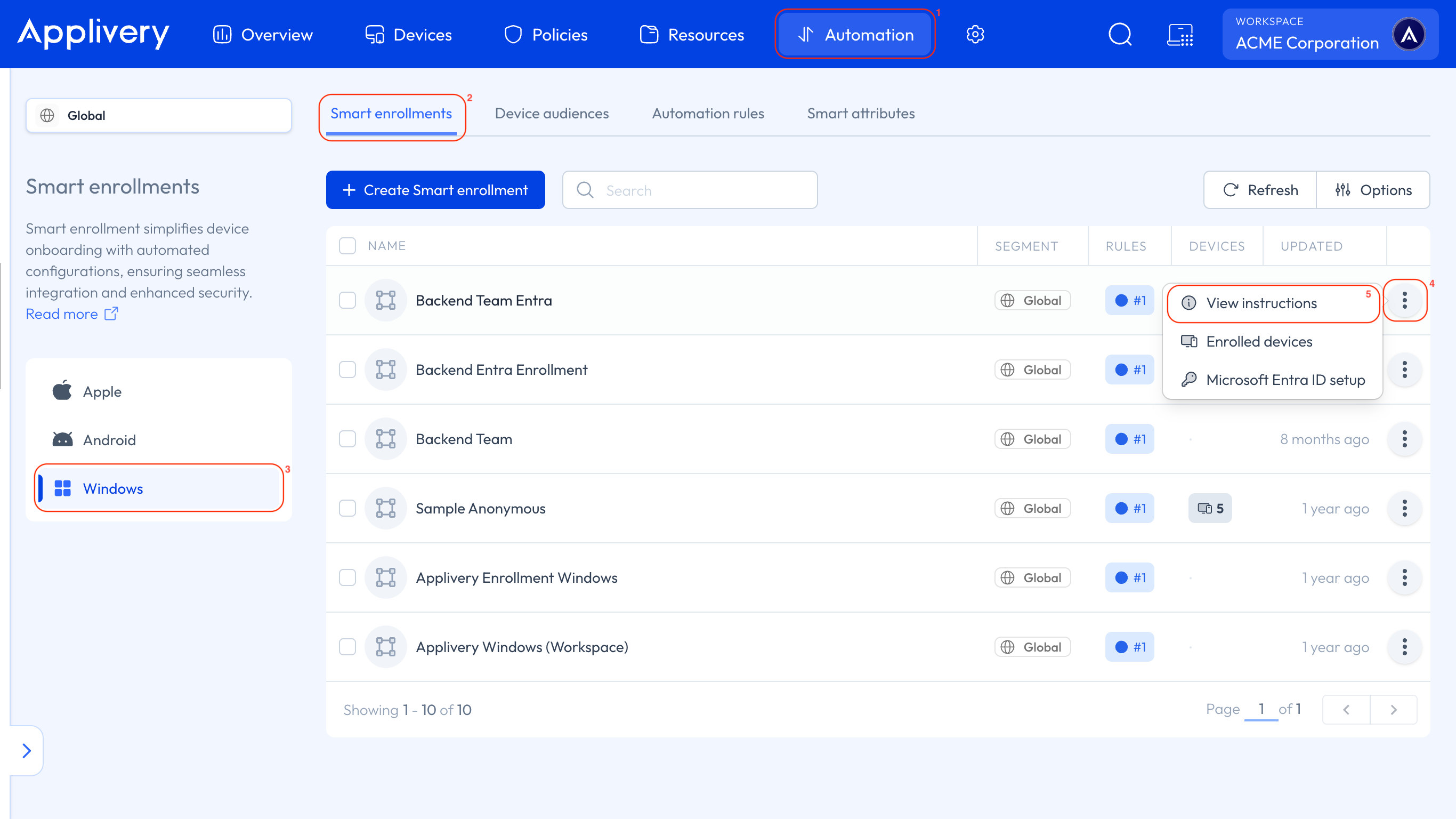
In the Applivery Dashboard, go to the Automation section 1 and select Smart Enrollments 2. From the left-hand menu, choose Windows 3 as the platform.

Click the three vertical dots 4 next to the Smart Enrollment you want to use and select View instructions 5.

provisioning package
2
Generate the Provisioning Package

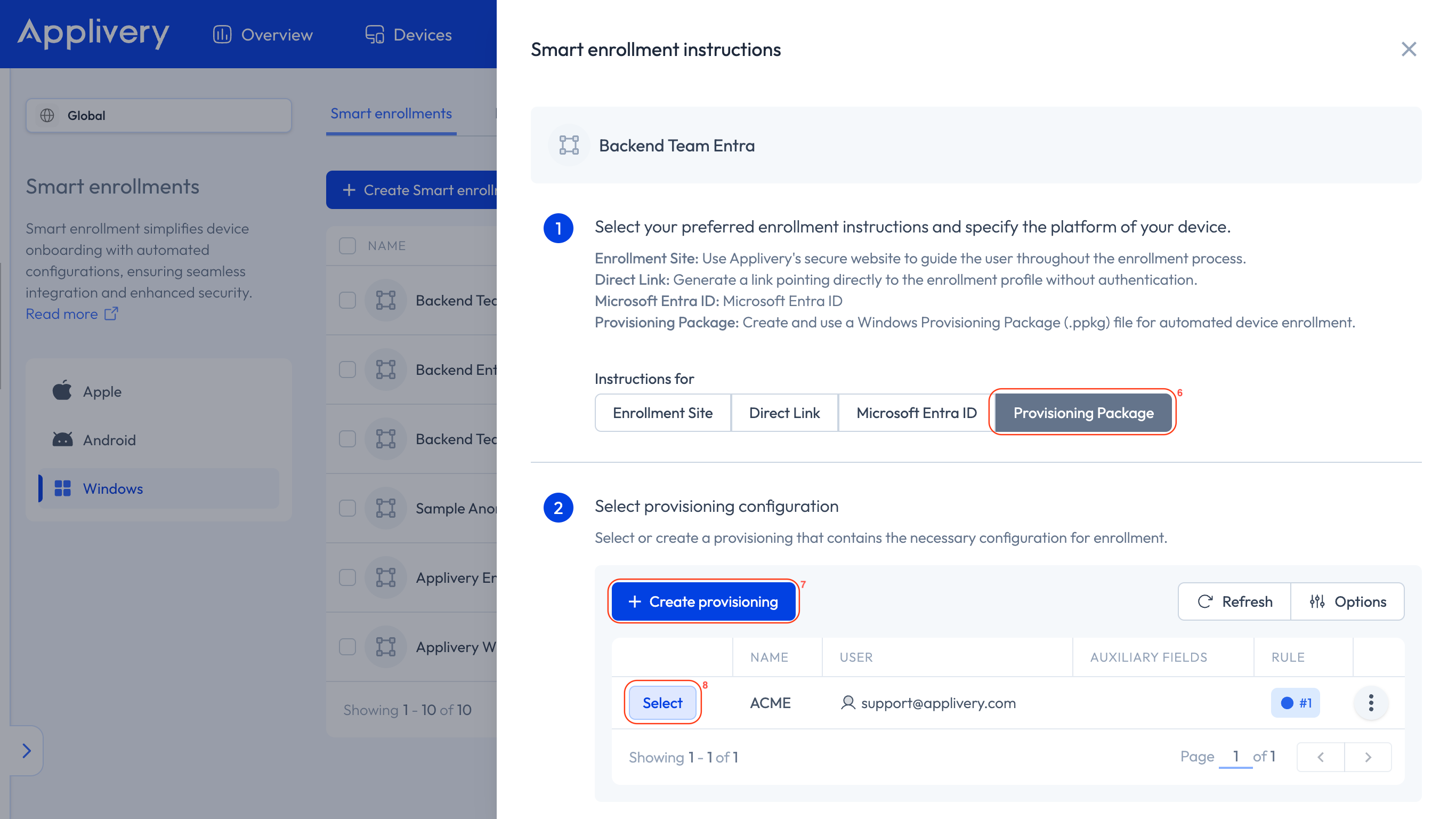
In the side panel, select Provisioning Package 6 and click the + Create provisioning button 7.

Warning

Devices enrolled through this package will be initially linked to a single user or department. You can reassign them later using a script. You can create as many Provisioning Packages as you need from the same enrollment.

3
Apply the package to your devices

Once the package is generated, click Select 8.
create and select ppkg

The on-screen instructions will guide you through applying the PPKG file to your Windows devices.

Key Takeaways

  • A Provisioning Package is generated directly from a Windows Smart Enrollment — no separate tool required.
  • Devices enrolled via PPKG are initially linked to a single user or department, which can be reassigned later using a script.
  • You can create as many Provisioning Packages as needed from the same enrollment.