
Integrating Check Point Harmony Mobile VPN within your Applivery Workspace strengthens device protection by ensuring all network traffic is securely routed through Check Point’s trusted infrastructure.
The VPN feature adds a critical security layer to Harmony Mobile’s threat prevention capabilities, helping protect users from malicious or unsafe connections even when they’re outside corporate networks.
By combining Harmony Mobile’s Zero-touch deployment with automated VPN configuration, organizations can deliver consistent, always-on protection for mobile Devices without requiring any manual setup from end users.
Implementation steps
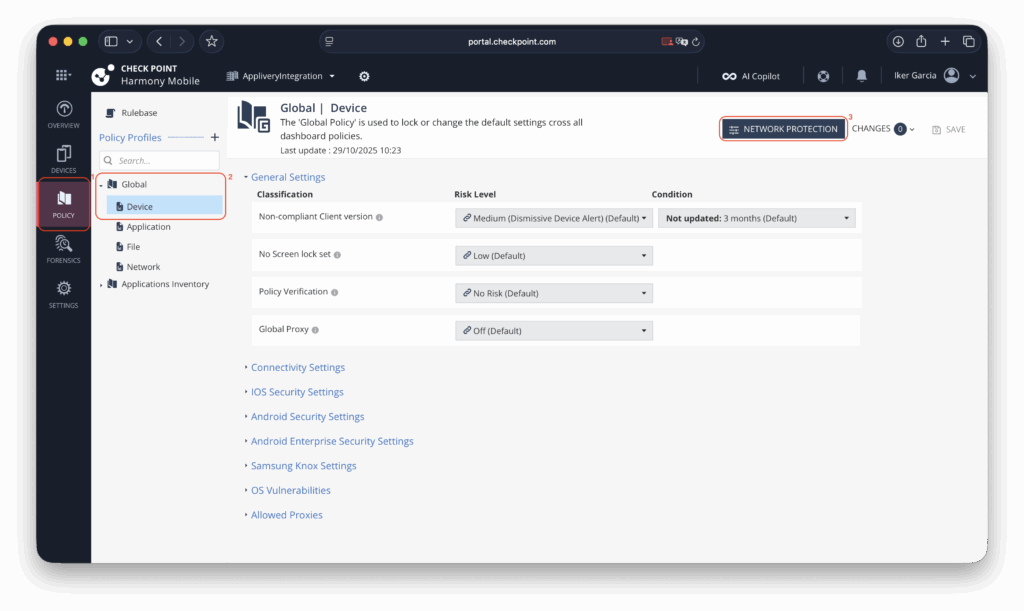
To begin, access the Check Point Portal and open the Policy (1) section. Expand the Global Policy (2) (or the workspace policy relevant to your environment) and navigate to the Network Protection (3) settings.
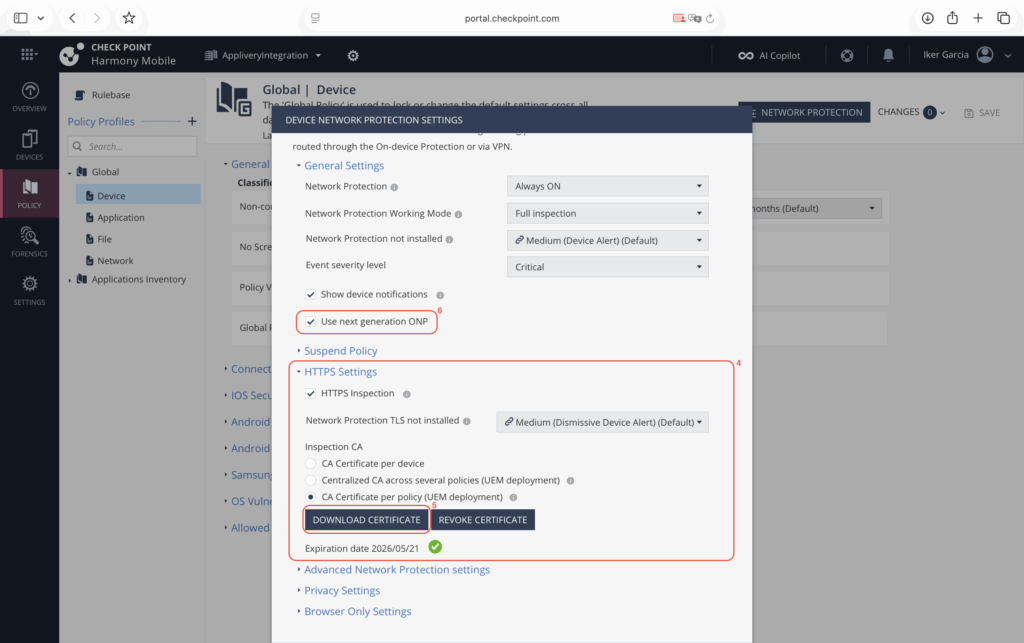
Within this section, locate the HTTPS Settings (4) panel and generate a new network policy certificate (5). Be sure to save this certificate securely, as it will be required later when configuring the Policy in Applivery.
Before leaving this page, it is also recommended to enable the Use next generation ONP (6) option to ensure the most up-to-date protection features are applied.
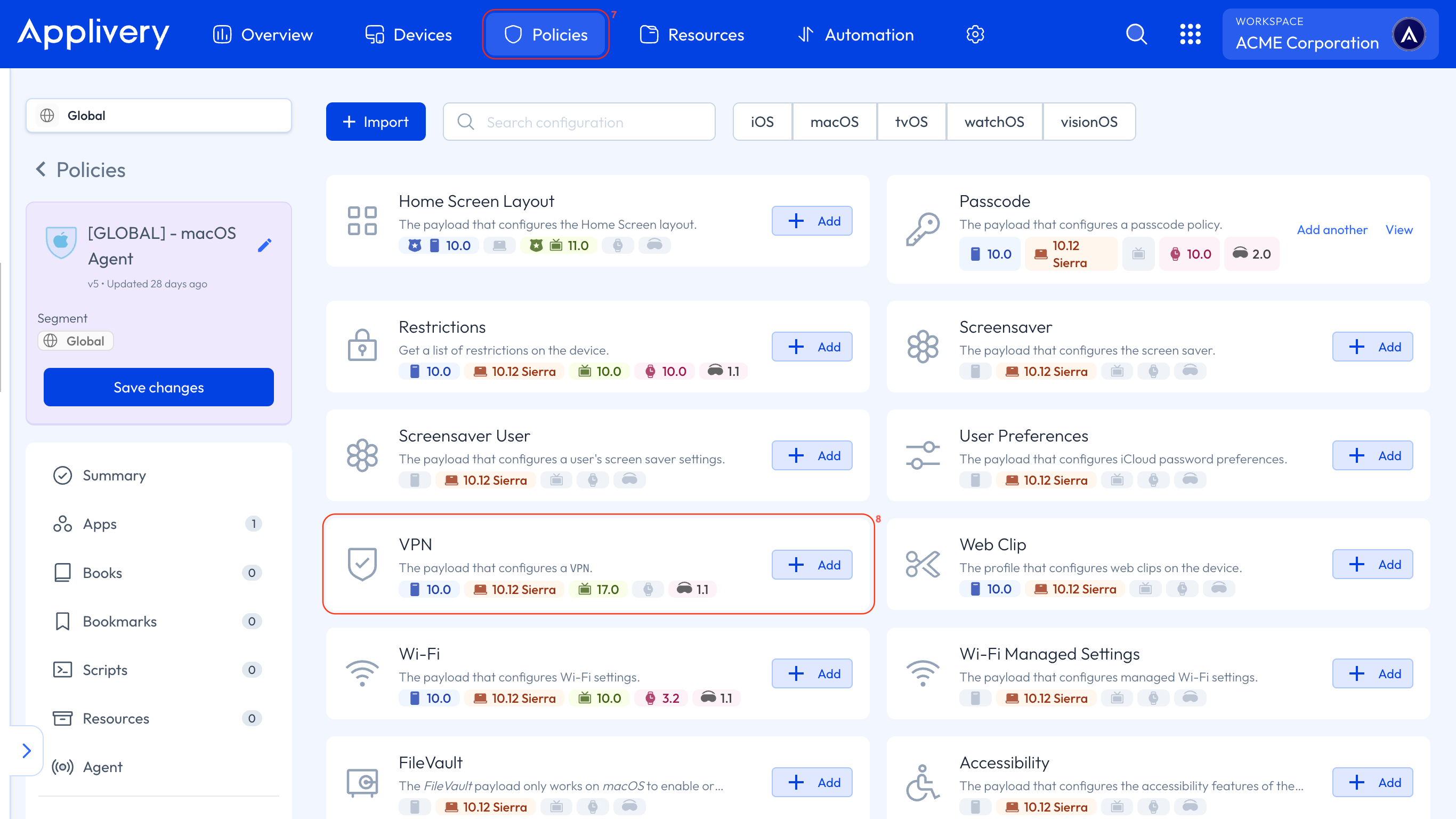
Once in the Applivery Dashboard, go to any of your Policies (7). Choose the Policy where you want to configure the VPN. From the left-hand menu, navigate to the + Add configuration option and then choose VPN (8).
If you haven’t yet integrated Check Point Harmony Mobile into your Workspace, or haven’t added the App to your Policy, you can learn how by following this link.
You will need to make the following configurations:
Authentication Method: Password.
Provider Type: Packet-tunnel.
Enable HTTPS: 0.
User Defined Name: Check Point Local Tunnel.
VPN Subtype:
com.checkpoint.capsuleprotect.Type: VPN.
Vendor Config:
{ "zero_touch": "true" }.Remote Address: www.checkpoint.com
Enable VPN On Demand: 1.
Within the On-Demand Rules section:
Add rules for Connect + Wi-Fi and Connect + Mobile.
Optionally, you can include Connect + Ethernet for wired connections by selecting Connect in the On-Demand Action field and Ethernet in the Interface Type Match field.
Within the VPN section:
Account Username:
{{device.serialnumber}}.Authentication Method: Certificate.
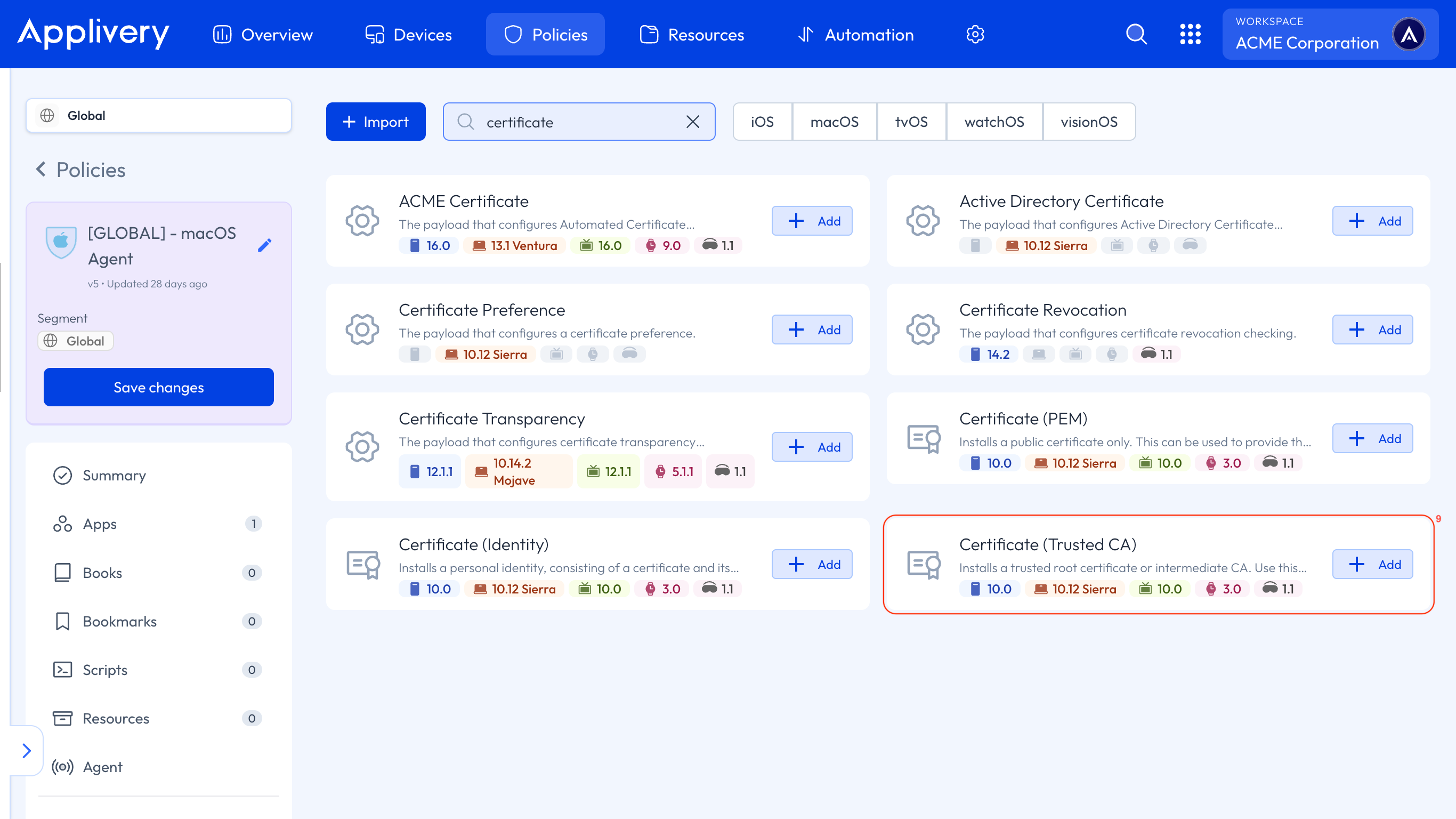
From the left-hand menu, navigate to the + Add configuration option and then choose Certificate (Trusted CA) (9).
In the Payload Content field, upload the certificate you previously downloaded from the Check Point portal. Once uploaded, the certificate will appear in the Policy list, ready for deployment.
Finally, save the Policy and deploy it.