
Kiosk mode is one of the most powerful tools available to IT administrators managing Apple device fleets. It allows you to dedicate Devices to a single purpose — locking them down to one App, a curated set of Apps, or a fully controlled home screen layout — preventing users from accessing anything outside of what the organization has defined.
Applivery provides two distinct kiosk modes for Apple Devices, each suited to different deployment scenarios.
Kiosk mode is only available on supervised Devices. See our Apple Supervised Devices article for more information on how to supervise your fleet.
Available Kiosk Modes
| Mode | Apps allowed | Best for |
|---|---|---|
| App Lock | Single app | Dedicated-purpose Devices locked to one application. |
| Home Screen Layout | Multiple Apps | Controlled multi-app environments with a curated interface. |
App Lock
App Lock restricts the Device to a single application. Once active, users cannot exit the App or access any other part of the Device — it is the most restrictive kiosk mode available and the go-to choice for point-of-sale terminals, self-service kiosks, digital signage, or any single-purpose deployment.
How to Configure App Lock
App Lock is configured at the Policy level:
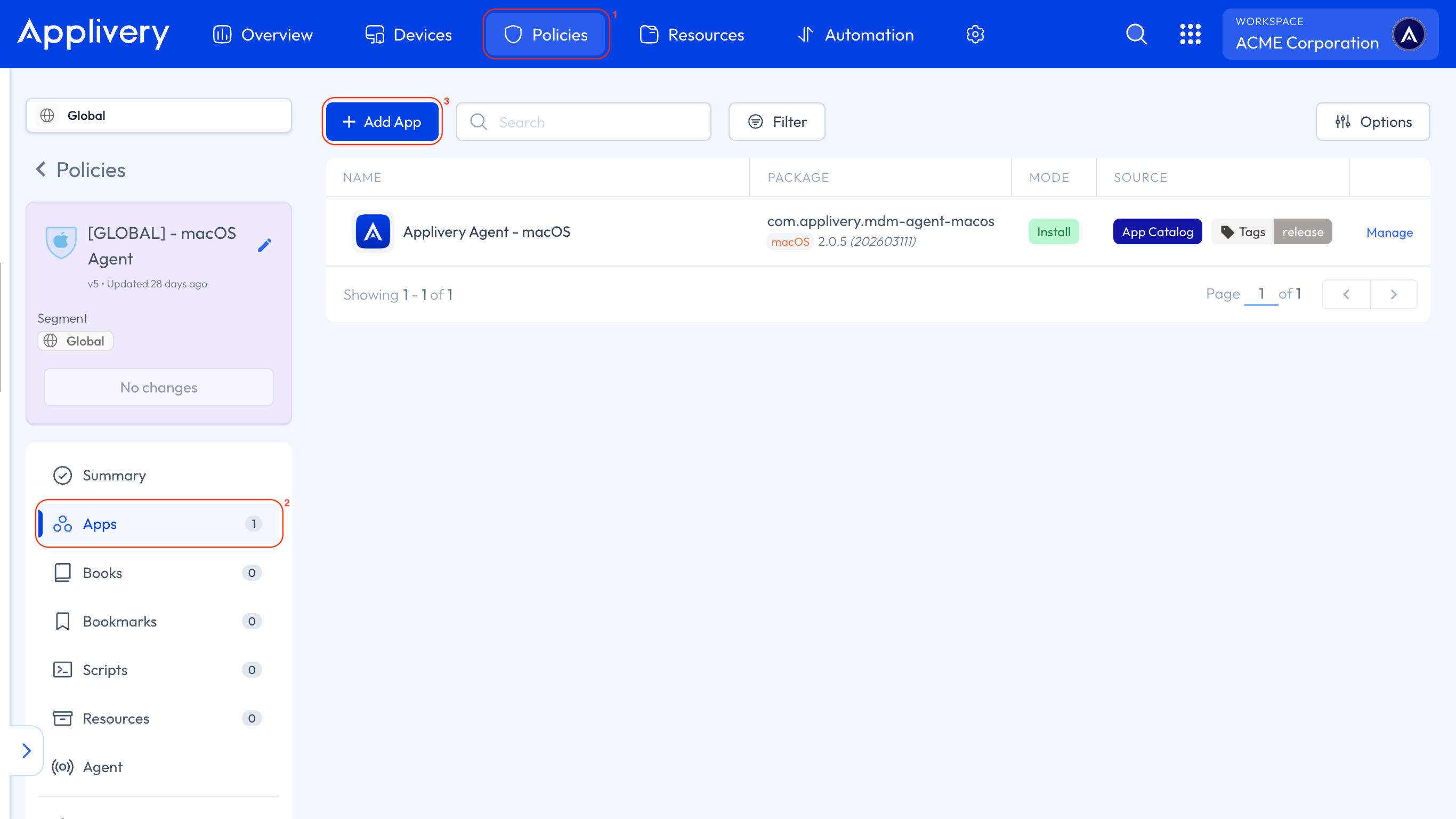
Once in the Applivery Dashboard, go to any of your Policies (1). From the left side menu, go to Apps (2) and click the + Add App button (3).
Search for the App using the App Store or Applivery tabs, choose iOS, and indicate whether the App uses a VPP license (see Apple Volume Purchase Program for details).
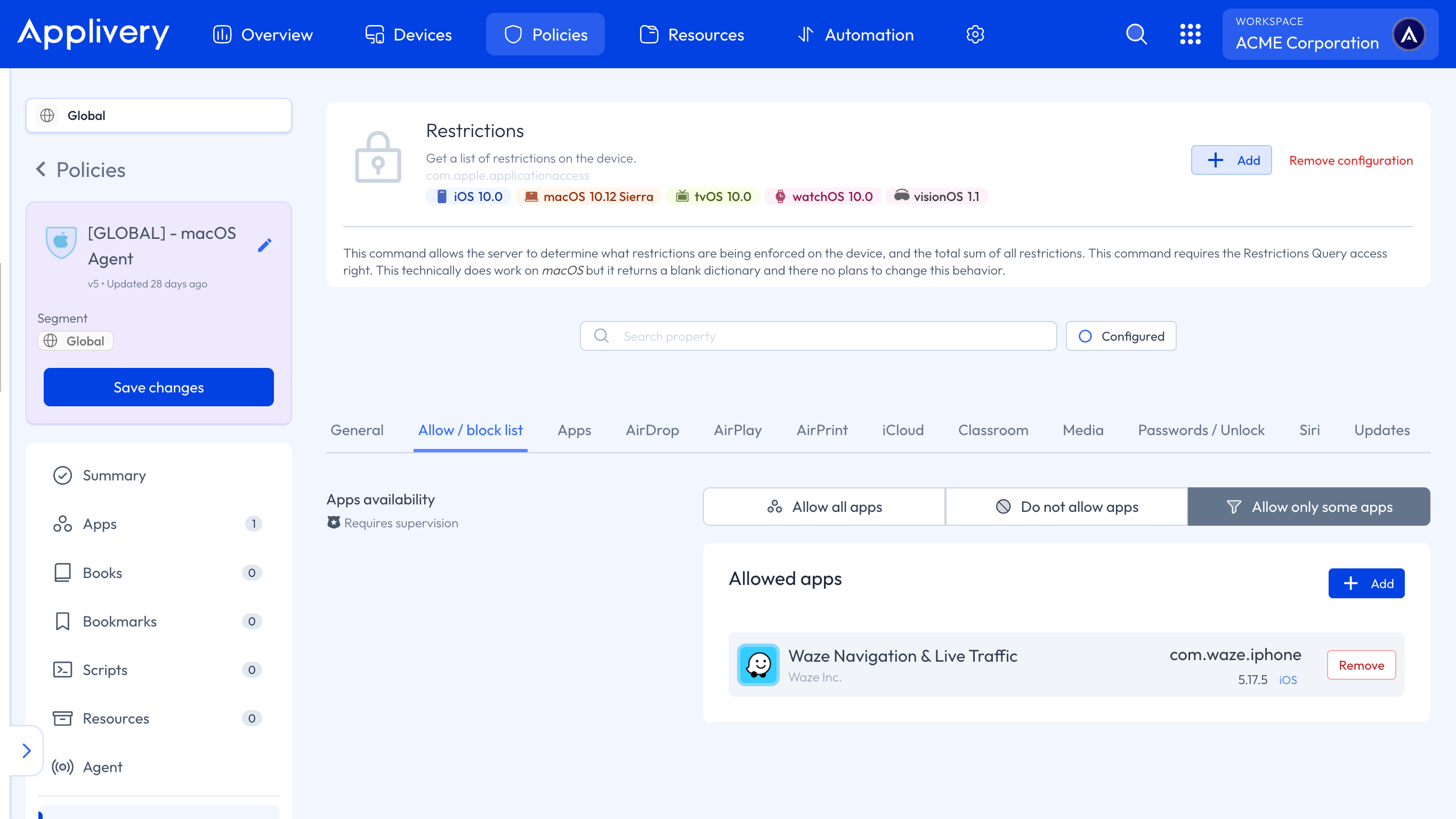
Follow the steps described in the following article to configure an allow list of Apps to ensure no other application can be accessed on the Device.
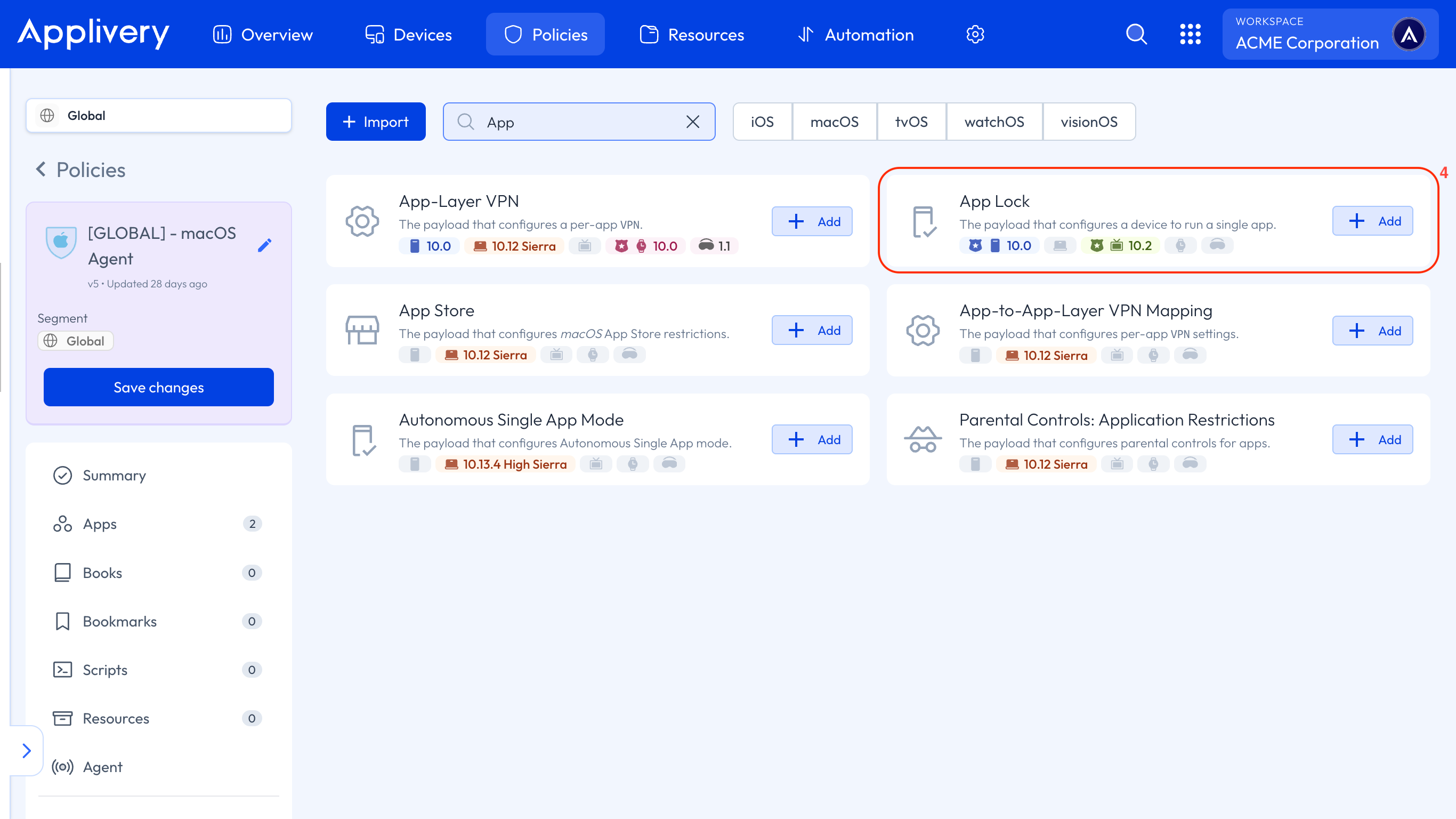
From the left-hand menu, click + Add Configuration and select App Lock (4).
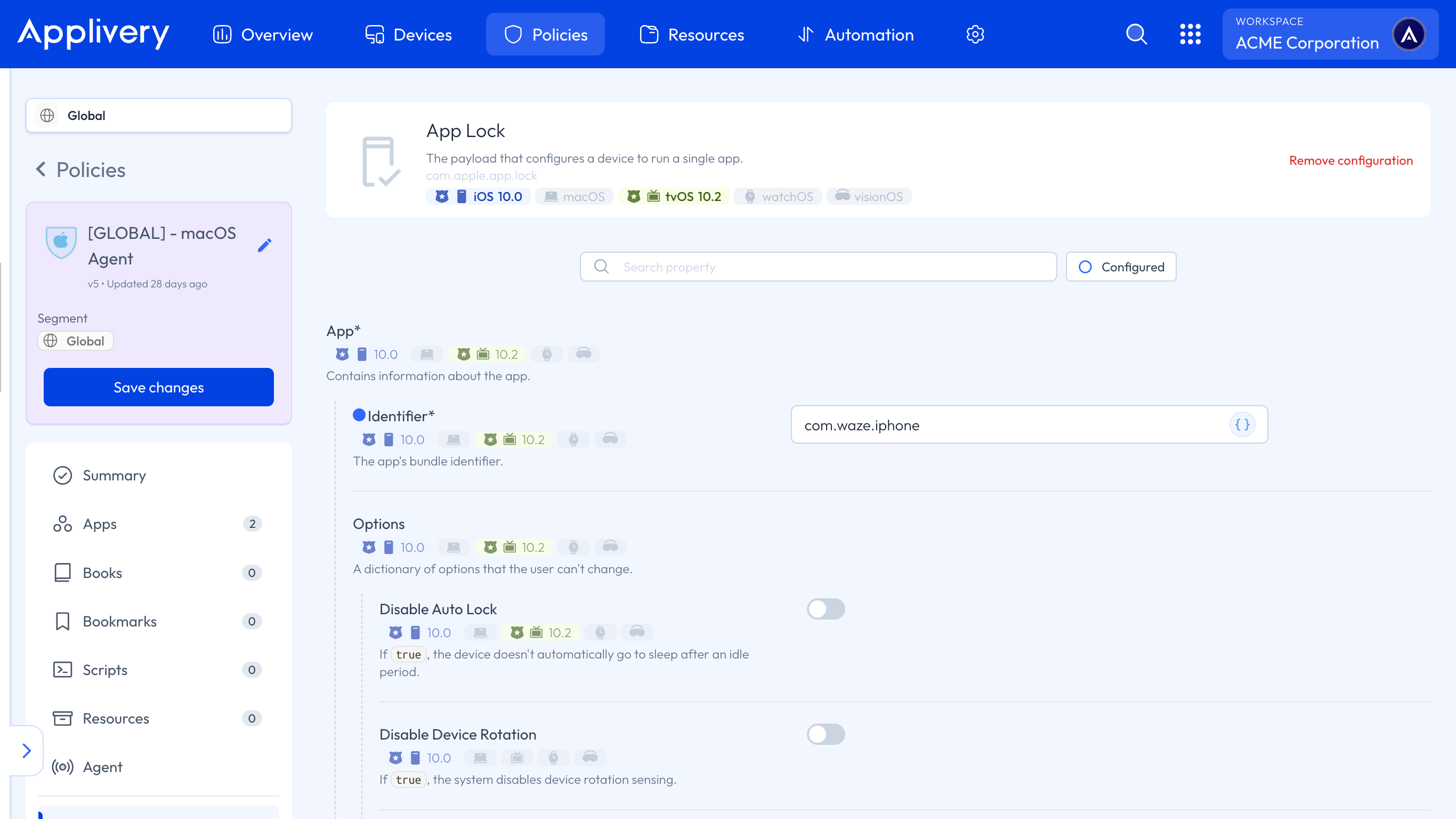
Enter the Bundle ID of the application you want to lock the Device to and configure any additional settings as required (see options below).
Save and deploy the Policy.
App Lock configuration options
When setting up App Lock, you can fine-tune the user experience and hardware behavior through the following options:
Touch and interaction
| Option | Description |
|---|---|
| Disable touch | Disables the touchscreen entirely. Useful for display-only Devices. |
| Disable device rotation | Locks the screen orientation, preventing rotation when the Device moves. |
| Disable volume buttons | Prevents the user from changing the Device volume. |
| Disable ringer switch | Disables the ringer/silent toggle switch. |
| Disable sleep/wake button | Prevents the user from putting the Device to sleep or waking it manually. |
| Disable auto lock | Keeps the screen on permanently, overriding the auto-lock setting. |
| Enable touch | Explicitly enables touch (useful when combined with other restrictions). |
| Enable AssistiveTouch | Enables Apple's AssistiveTouch accessibility overlay. |
| Enable zoom | Enables the zoom accessibility feature. |
| Enable VoiceOver | Enables the VoiceOver screen reader. |
| Enable Invert Colors | Enables the Invert Colors accessibility option. |
Home Screen Layout
Home Screen Layout allows administrators to define exactly which Apps, web clips, and folders appear on the Device's home screen, and in what arrangement. Unlike App Lock, users can switch between the allowed Apps — but they cannot access anything outside the curated layout.
This mode is ideal for corporate-owned Devices where employees need access to a controlled set of tools: a field worker's device with only approved productivity Apps, a shared iPad in a meeting room, or a retail device with customer-facing and operational Apps side by side.
How to configure Home Screen Layout
Like App Lock, Home Screen Layout is configured at the Policy level.
Follow the steps described in the following article to configure an allow list of Apps to ensure no other application can be accessed on the Device.
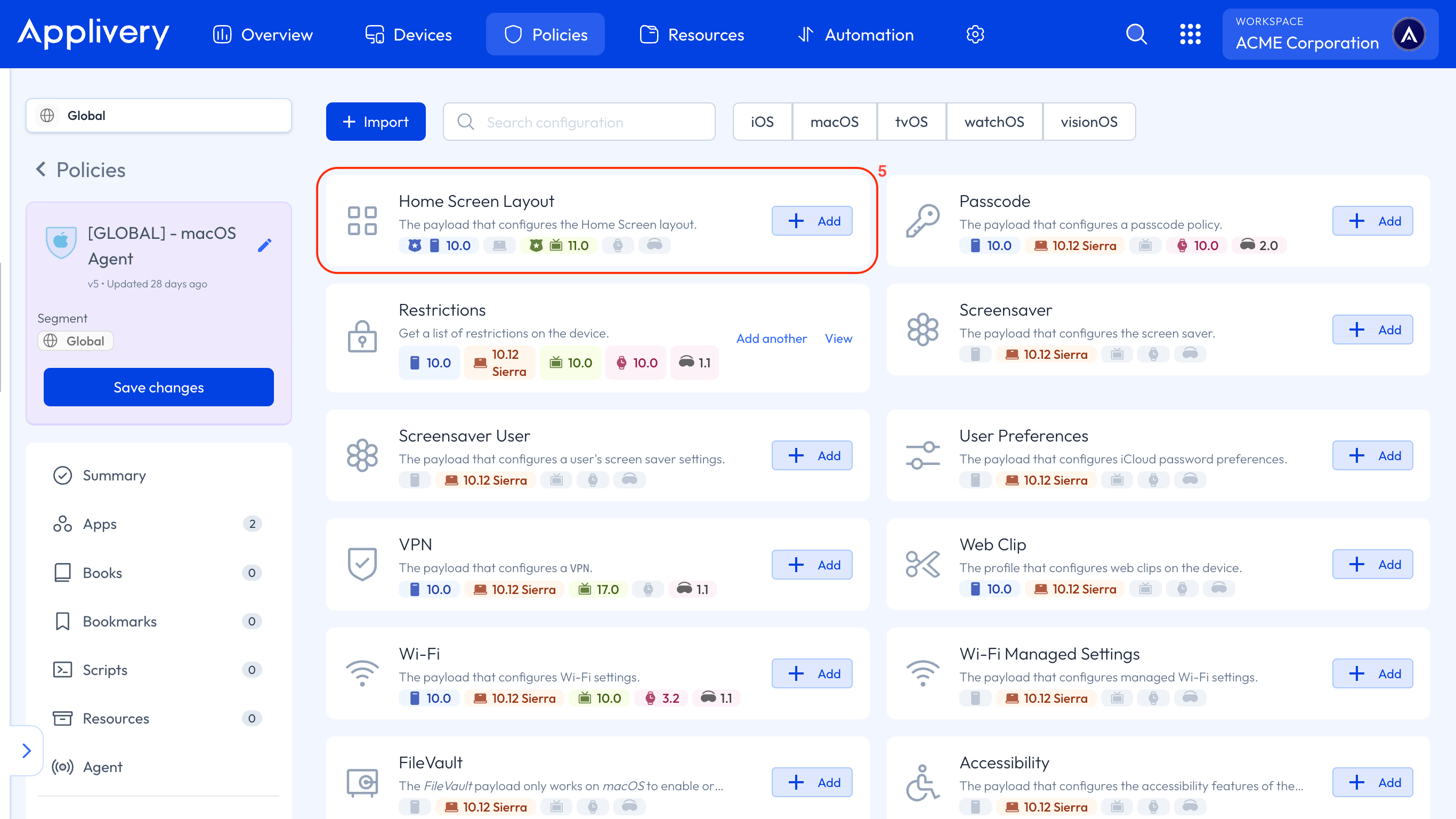
From the left-hand menu, click + Add Configuration and select Home Screen Layout (5).
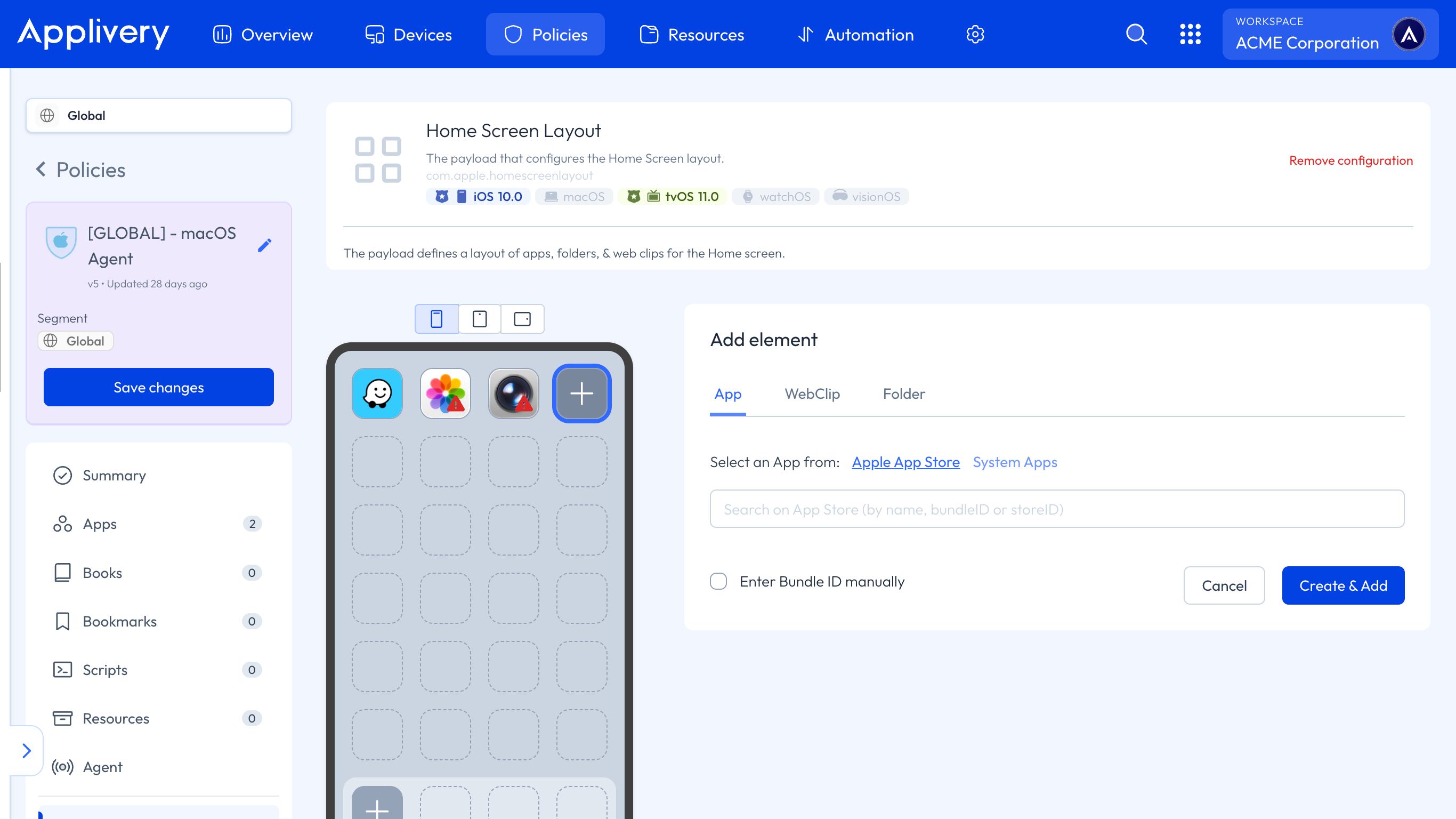
A Device-like visual editor appears. Use it to add Apps, web clips, and folders, and arrange them as they should appear on the Device's home screen.
Save and deploy the Policy.
The Settings app cannot be blocked — it will always remain accessible to users regardless of the Home Screen Layout configuration.
Choosing the right mode
| Scenario | Recommended mode |
|---|---|
| Point-of-sale terminal locked to a single POS app | App Lock |
| Self-service kiosk or information display | App Lock |
| Shared device with a curated set of work tools | Home Screen Layout |
| Field worker device with approved Apps only | Home Screen Layout |
| Digital signage or a display-only screen | App Lock (with touch disabled) |
| Retail device with customer-facing and back-office Apps | Home Screen Layout |