
Managing user access issues is an essential part of maintaining smooth operations and security across corporate macOS Devices.
Occasionally, a user account may become blocked after exceeding the allowed number of failed login attempts—typically due to password Policies enforced. When this occurs, users may see the message “Your account has been disabled” after waiting and entering the correct password.
Users cannot attempt to enter the password again until the lockout period has fully expired. If the next password entered is incorrect, the lockout duration will increase.
This lockout cannot be removed using any command or script due to macOS security restrictions.
However, if the lockout period ends and the next password entered is correct, the user will still receive the “Your account has been disabled” message.
To restore access, you can remotely unlock the affected user account directly from the Applivery dashboard.
How to unlock a user account
Once in the Applivery Dashboard, go to any of your Devices 1 and open the Commands 2 tab.
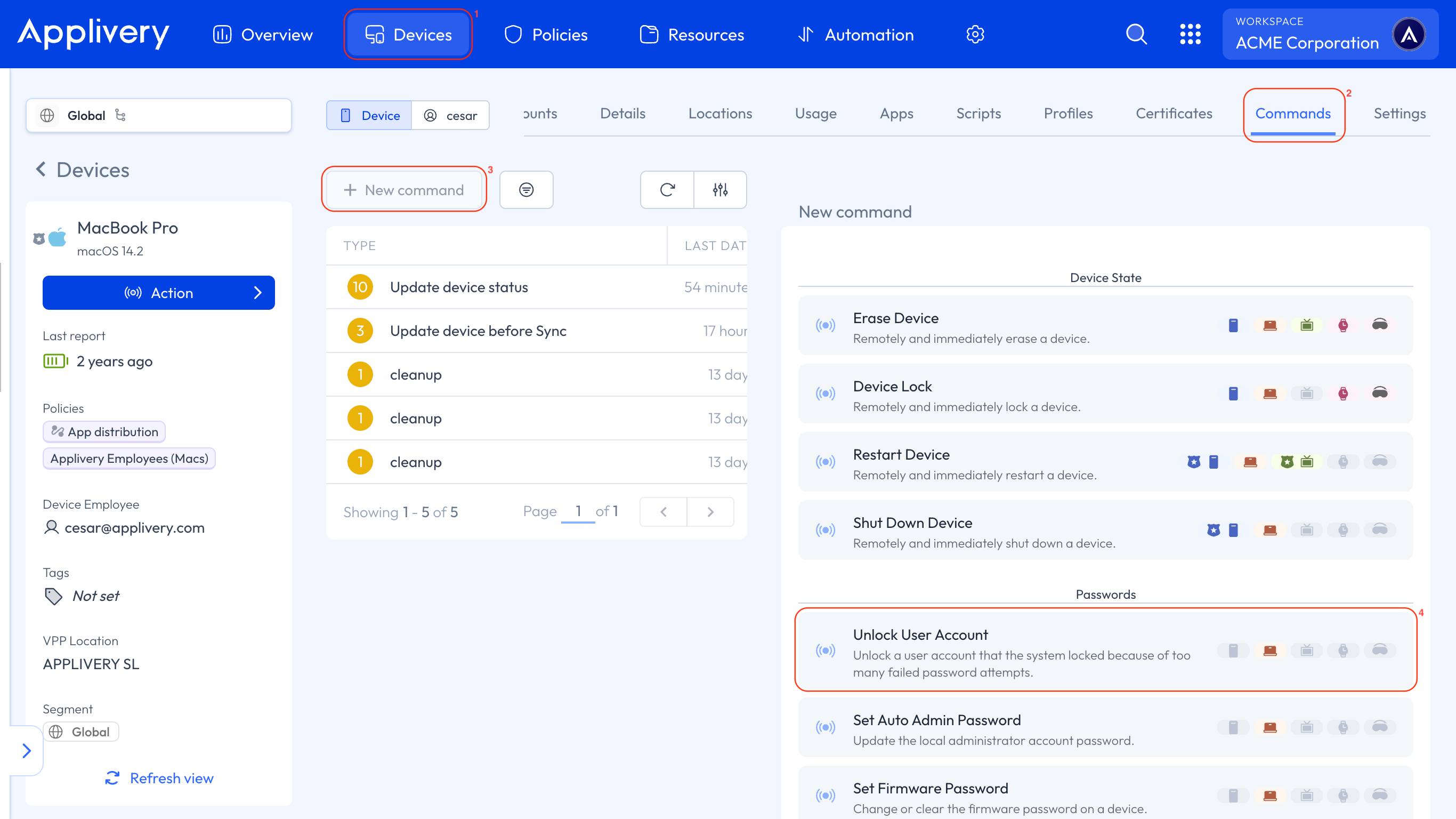
The command status should change to Done within a few minutes, after which you can notify the user so they can attempt to log in again.
If the command remains Pending or does not change, check the following:
The Mac is connected to a valid, managed Wi-Fi network.
The MDM profile is correctly installed and has the required permissions for user management.
Special cases: Devices with FileVault enabled
If FileVault is active:
The unlock command will not work until the disk is unlocked at login using the user password or the FileVault recovery key.
If the user cannot unlock the disk, the only solution is to reset the password through Recovery Mode using the FileVault Recovery Key.
Recommendations
To maintain efficient and secure account management:
Periodically review password Policies and lockout thresholds applied via Applivery.
Communicate expected wait times and unlock procedures to users to reduce confusion.
Document each unlock request or support action for proper traceability.
By keeping these practices in place and maintaining clear communication with users, you can quickly and proactively resolve account lockouts, reinforcing security and improving the user experience across your macOS fleet.