
By default, your Applivery App Store is accessible at {your-organization}.applivery.io. Custom domains let you replace this with a subdomain of your own — for example, apps.yourcompany.com — giving employees a branded, recognizable URL when they access internal app builds.
Custom domains apply to the App Store (Enterprise Store) only. The Applivery Dashboard and MDM Portal are not affected.
Setup
Before configuring anything in Applivery, you need to point your subdomain to Applivery's servers. In your DNS provider, create a new CNAME record for the subdomain you want to use:
Type | Name | Value |
|---|---|---|
|
|
|
DNS propagation can take a few minutes to several hours, depending on your provider and TTL settings. You can verify it has propagated using a tool like dnschecker.org before proceeding.
Custom domains only work with subdomains (e.g., apps.yourcompany.com). Apex domains (e.g., yourcompany.com without a subdomain prefix) are not supported, as they require an A record rather than a CNAME.
In the Applivery Dashboard, navigate to the Settings (1) section and select Store Customization (2) from the left-hand menu. Locate the Custom domain (3) field, type your subdomain (e.g., apps.yourcompany.com), and click Save.
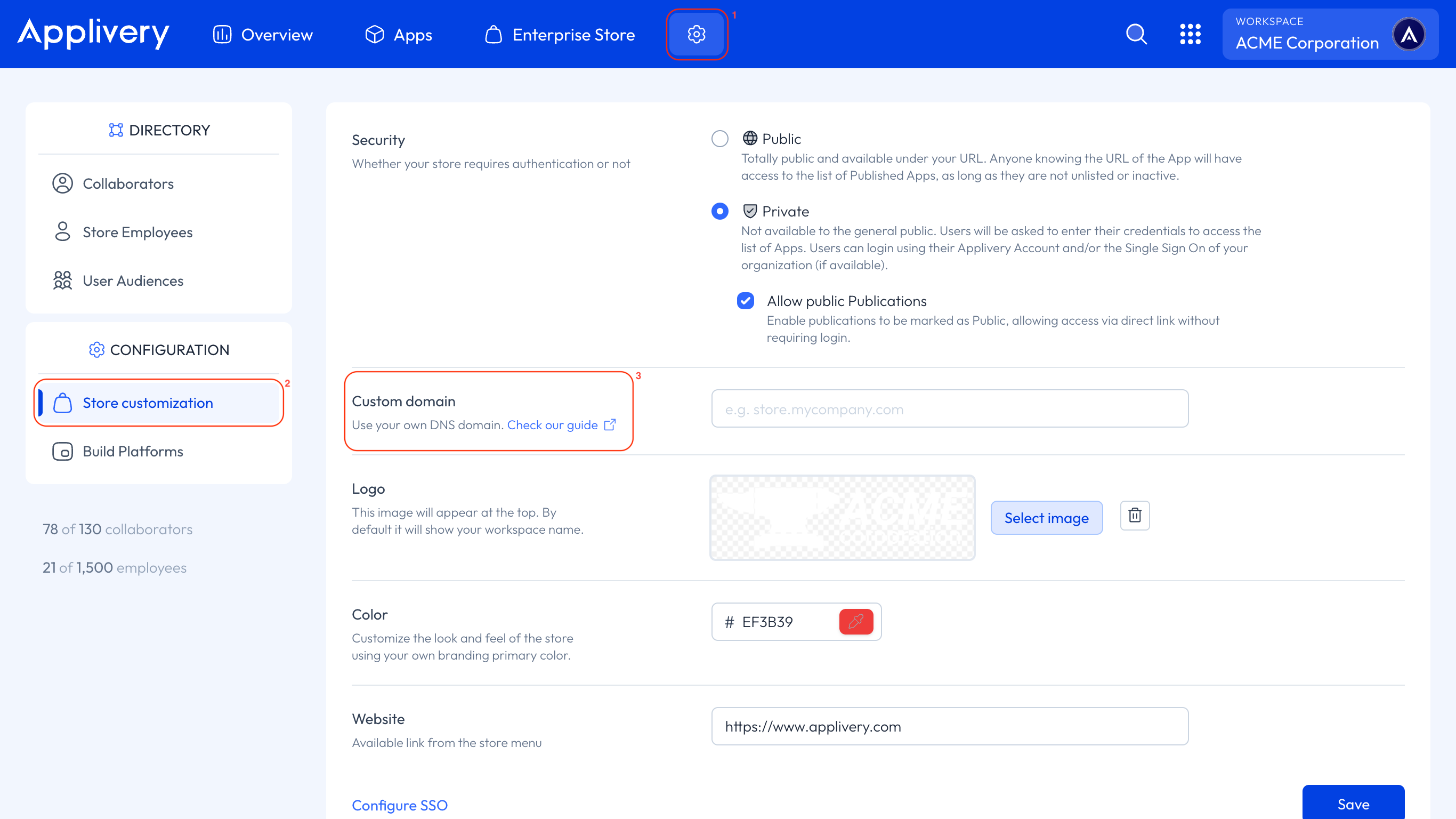
Applivery will verify that the CNAME record is correctly configured and activate the custom domain for your App Store. Once active, your employees can access the App Store at the new URL.
What changes after enabling a custom domain
Your original URL keeps working. The default {your-organization}.applivery.io URL remains active after you enable a custom domain — both URLs work simultaneously. You don't need to communicate a migration deadline to your users.
SSO configuration may need to be updated. If you have Single Sign-On configured via SAML (Azure AD, Okta, Ping Identity, or any other SAML-based provider), the callback URLs embedded in the SAML metadata will change when a custom domain is active. You may need to reconfigure the SAML integration from scratch with the updated metadata to restore SSO functionality.
Always configure your custom domain before setting up SAML SSO. The SAML metadata Applivery generates includes the App Store URL as a callback endpoint — if you add a custom domain after configuring SSO, you will need to regenerate the metadata and update your Identity Provider.
SSL certificate and CAA records
Applivery automatically provisions and manages an SSL certificate for your custom domain. No manual certificate configuration is required on your side.
If your domain uses CAA (Certification Authority Authorization) DNS records to restrict which Certificate Authorities can issue certificates for it, you need to authorize Google Trust Services — the CA Applivery uses. Add the following CAA record to your DNS:
Type | Name | Value |
|---|---|---|
|
|
|
If you don't have any CAA records configured, all CAs are permitted by default, and no action is needed. You can use SSLMate's CAA Record Generator to generate the correct record for your setup.