
PPPC profiles (or Privacy Preferences Policy Control) enable IT admins to remotely manage privacy settings on macOS Devices (version 10.14 Mojave and later). With these profiles, you can pre-authorize or deny specific applications access to macOS services such as Contacts, Camera, Microphone, and more. This streamlines workflows by removing permission prompts for users and enhances security by preventing unauthorized access.
Identifying App Permissions
Before creating a PPPC profile, it’s important to identify the specific permissions an application requires:
Test environment: Install the App on a dedicated test Mac or virtual machine.
Monitor user prompts: Launch the App and take note of any pop-up prompts requesting access to services like the Camera or Documents.
Check System Preferences: Go to System Preferences > Security & Privacy > Privacy. Look for the App under services such as Contacts or Camera. If the App appears, it requires access to that service.
Creating and assigning a PPPC profile
Once in the Applivery Dashboard, go to any of your Policies or create a new one. Click the + Add configuration button and locate the Privacy Preferences Policy Control option.
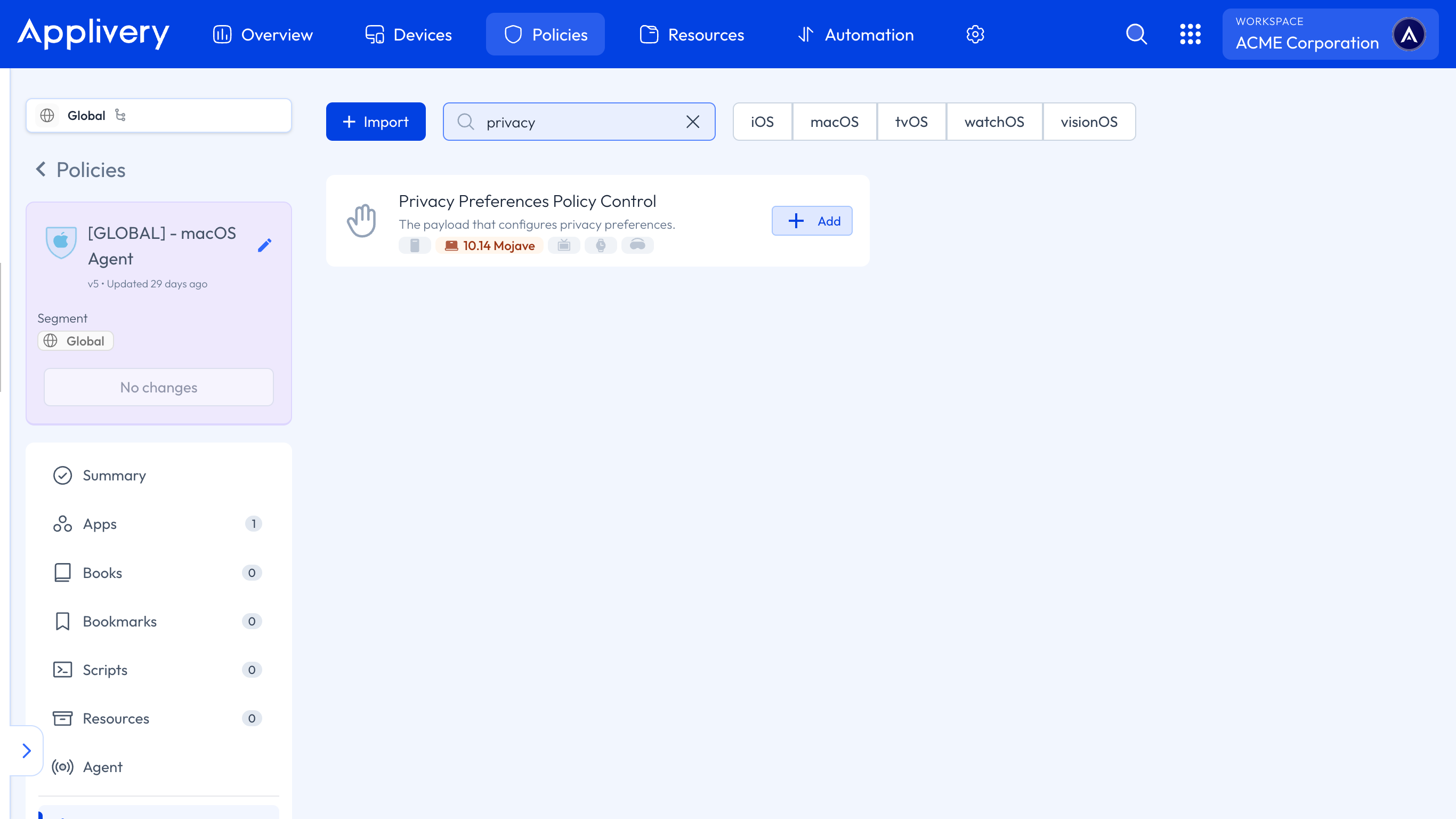
You will need to click the + Add element button for the Apps where you want to configure permissions.
You can also choose to Allow or deny specific App access to each service.
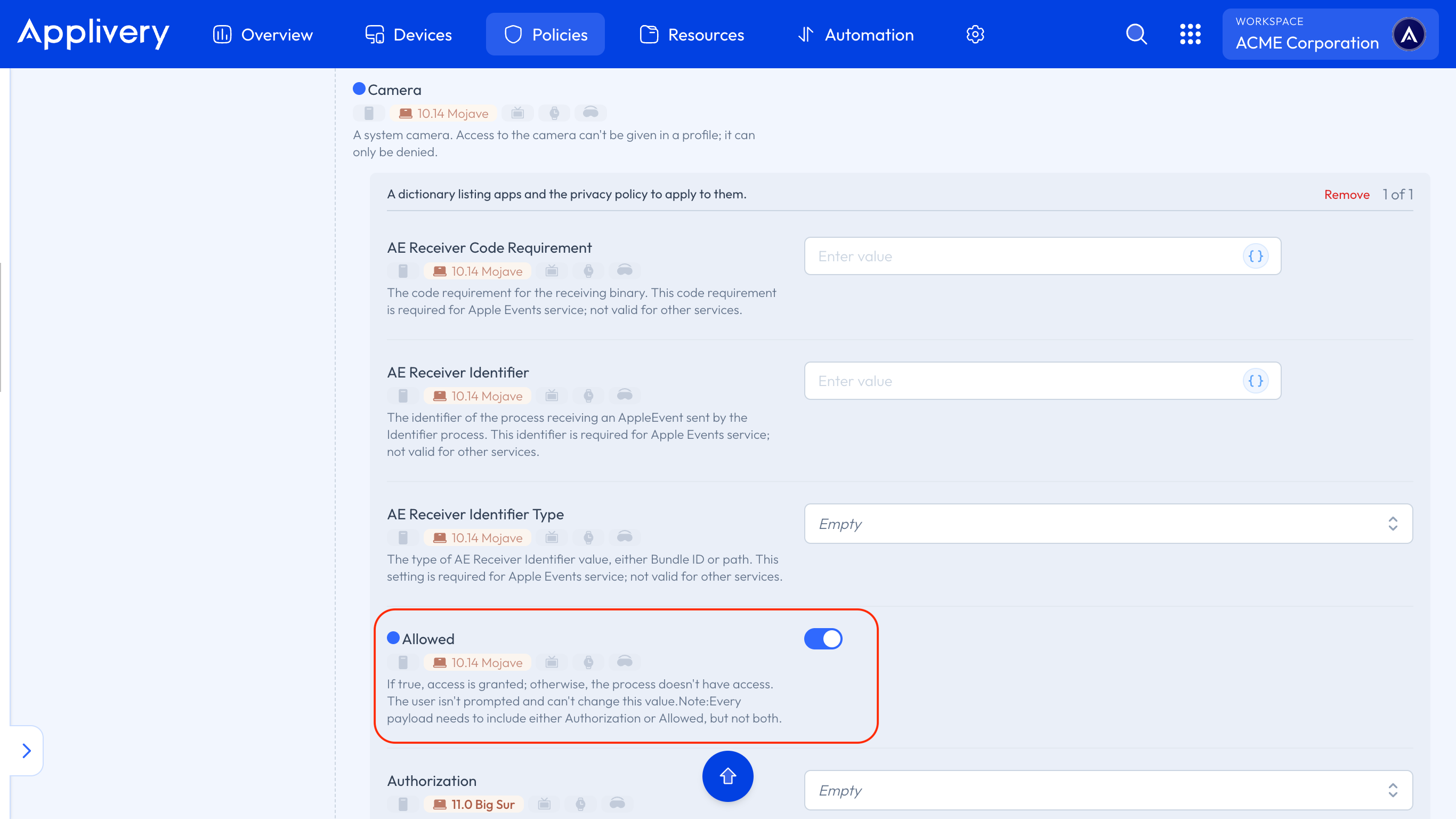
You will need to define the App to which you are granting permissions by specifying the Identifier type (4) and the Bundle ID or the App’s path identifier. Additionally, you must add the App’s Code Requirement.
Validate code requirement. Check this option to ensure the App complies with the code signing requirements.
Important considerations
Conflicting Policies: If multiple PPPC profiles with conflicting settings are applied, the most restrictive setting (deny) will take precedence.
User control: Although Policies pre-configure App permissions, users can still access certain settings in Apple-developed Apps like Photo Booth or FaceTime.
Device update: Users must relaunch the configured Apps after Policy deployment for the changes to take effect.