
Access & Login
Sometimes you will be required to authenticate in order to access the App Store or a given App. Depending on your organization's configuration, there will be one or multiple Authentication options:
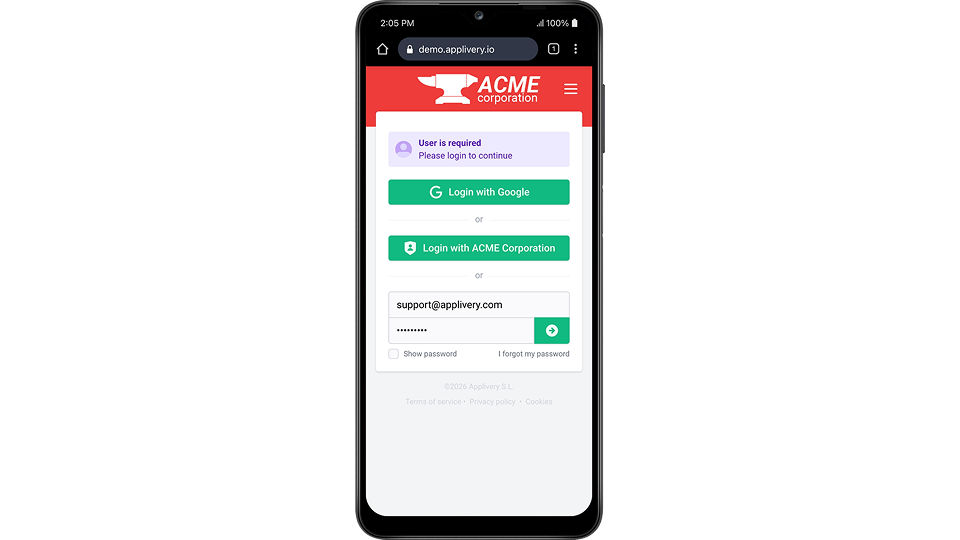
Traditional login or LDAP: Enter your email or corporate user name and password. Then click the green Next button to proceed.
Single-Sign On: If available, a green button with the text Login with Company Name will be displayed at the top of the login screen. Click on it, and you will be redirected to the Single-Sign-On screen where you can securely enter your corporate login credentials.
Recovery password
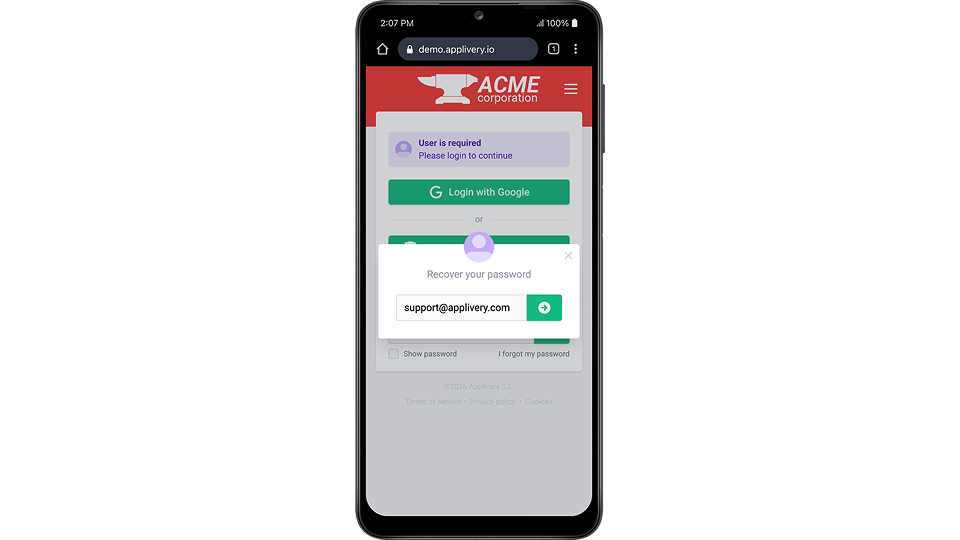
In case you have lost your password, click the I forgot my password link from the login screen and type your email address in the prompted pop-up. You will receive an email with the instructions to reset your password.
Navigation, Search, Language, and Sharing
Navigation
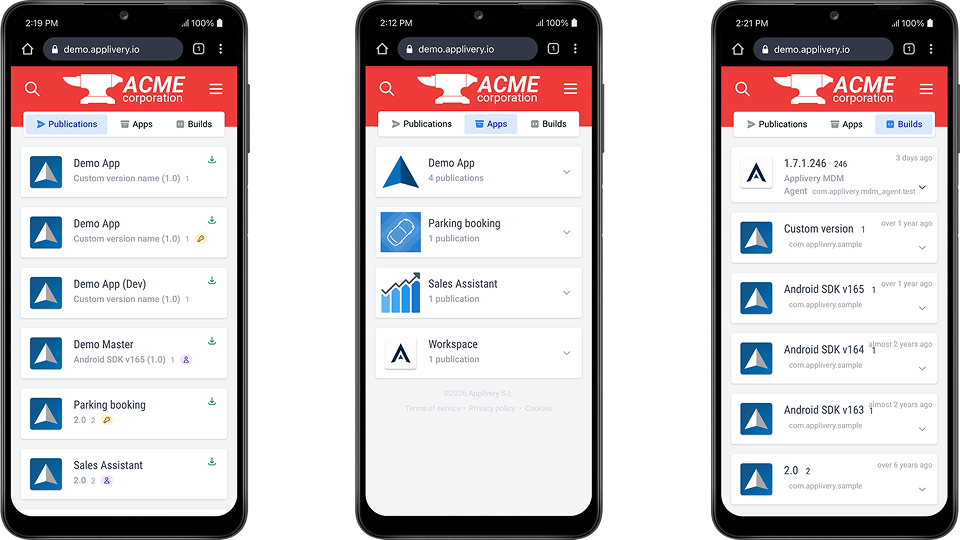
Once you access the App Store, all Publications you have permission to view will be listed under the Apps section. You can adjust how they are displayed—by Publication, App, or Build.
Searching Apps
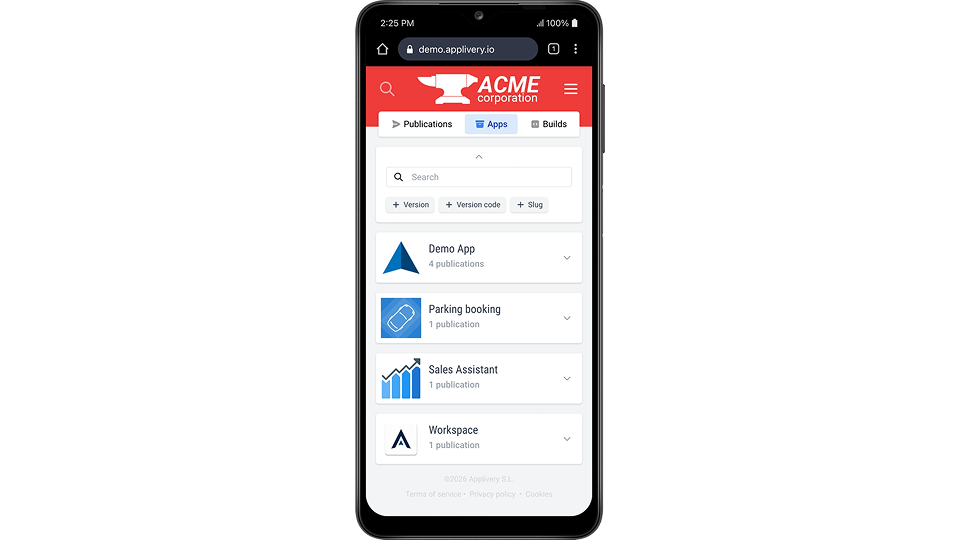
You can filter the list of apps by clicking the magnifier icon at the top. Depending on the tab you are in, you’ll find several filter options, including version, version code, slug, tags, package name, and changelog.
Change language
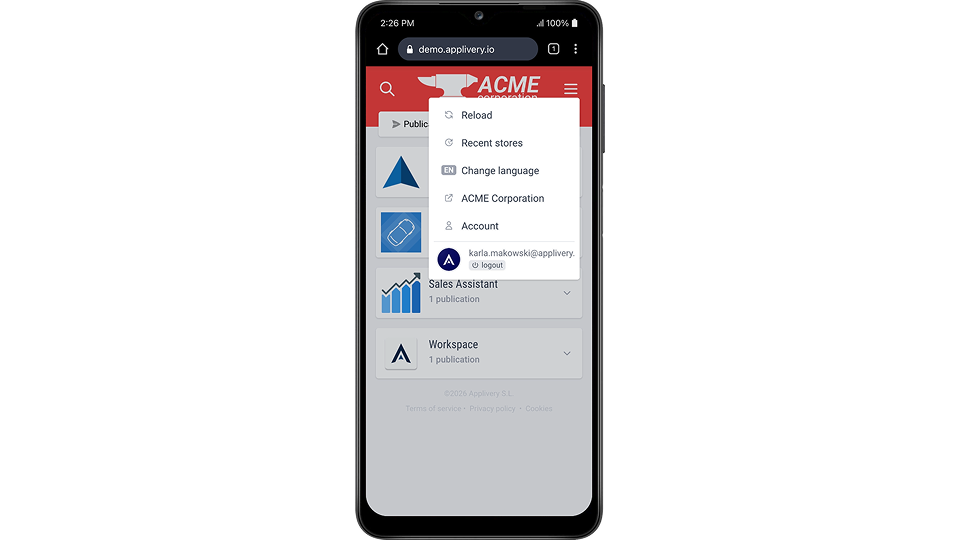
Applivery is available in 10 different languages. It automatically detects your operating system's default language and applies it if available. If not, the default language (English) will be automatically selected. You can change the language at any time from the More options > Change language menu located at the top right of the App Store.
Sharing options
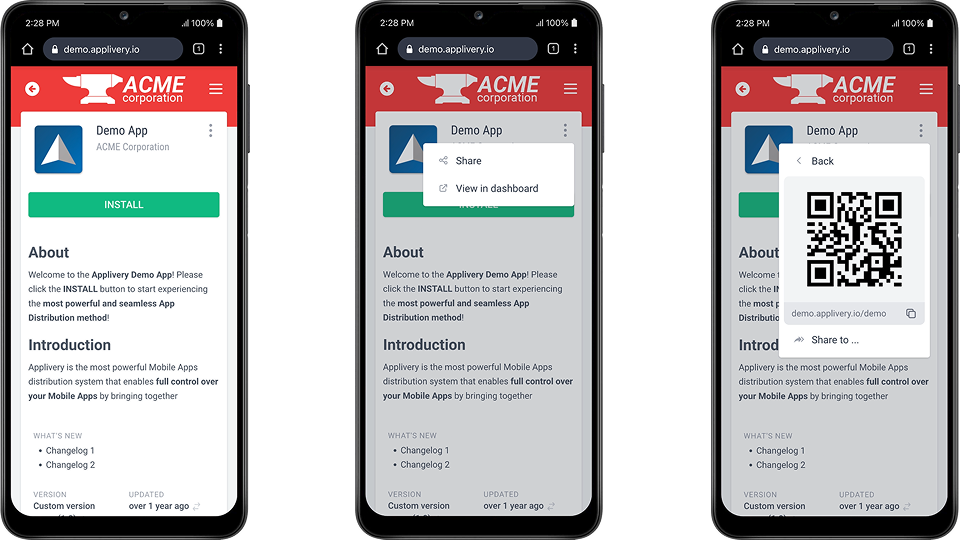
You can share the link to a given App with others in many different ways (QR Code, URL, or through your favourite native Apps). Once inside an App follow these steps:
Tap the More options in the top right menu.
From the drop-down menu, select the Share option.
All sharing options will be displayed next, including a unique URL and QR code. You can also tap the Share to… option to display the native sharing options to share the App with others through the social Apps installed on your Device.
Installing Apps
Once inside an App in the App Store:
Tap the Install green button.
An alert will be shown from the bottom of the screen requesting confirmation to download the APK file. Click the OK button.
Once downloaded, click Open.
An alert will be shown asking if you want to install the App. Click Install.
Another alert will be displayed, noting that the App has not been recognized by Google Play. Click INSTALL ANYWAY.
Additionally, a third alert could be displayed requesting permission to scan the application through Google Play Protect. We always recommend SEND for scanning.
Unknown sources & Unknown Apps
If Unknown sources are disabled in your phone, a new alert will be displayed.
Click the Settings button.
Enable the Allow from this source check and click back to continue.
Add to Home Screen
You can add your organization's App Store directly as a standard App in the Home Screen to simplify accessing your company's Apps in a faster way.
Open your organization's App Store URL (i.e., demo.applivery.com) using Google Chrome.
Tap the More options button at the top right bar.
Tap the Add to Home screen option from the drop-down menu.
Choose a name for the App and click the Add button.
Drag & Drop the App icon or tap the Add automatically button to finish.
You will find your organization's App Store added to the Home Screen of your phone. It will remember your login settings and open in full-screen mode for a better user experience.