Audiences are a feature in Applivery that helps manage access and visibility of Publications in a scalable way. They provide more control when sending email notifications for new builds, leading users to Publications more accurately.
Audiences allow you to define a list of users based on conditions, such as the groups they belong to or individual emails. This is especially useful as audiences change dynamically as new users matching those groups are added to the Workspace or App, for instance, from a SSO integration when SCIM is enabled.
They also allow you to add users individually through their email address, thus assigning them directly or inviting them in just one click if they don’t belong yet to the Workspace or App.
In short, audiences represent a set of users who have access and visibility over one or multiple Publications and who, therefore, can access and download builds.
Note that belonging or not to an audience does not determine the Role of these users as Collaborators or Employees of the App. Audiences can never contain roles (Admin, developer, viewer). These permissions must be assigned individually and specifically at Workspace or App level. See managing users here.
Definitions
Audience scope: Defines how the audience can be managed and where it will be available for assignment. Workspace scoped audiences will be available across the entire Workspace (although you will be able to restrict which apps can make use of this audience) while App scoped audiences will only be available under a given App.
Users search scope: Determines from where the users are located and added to the audience (Workspace or just a single App).
Creating an audience
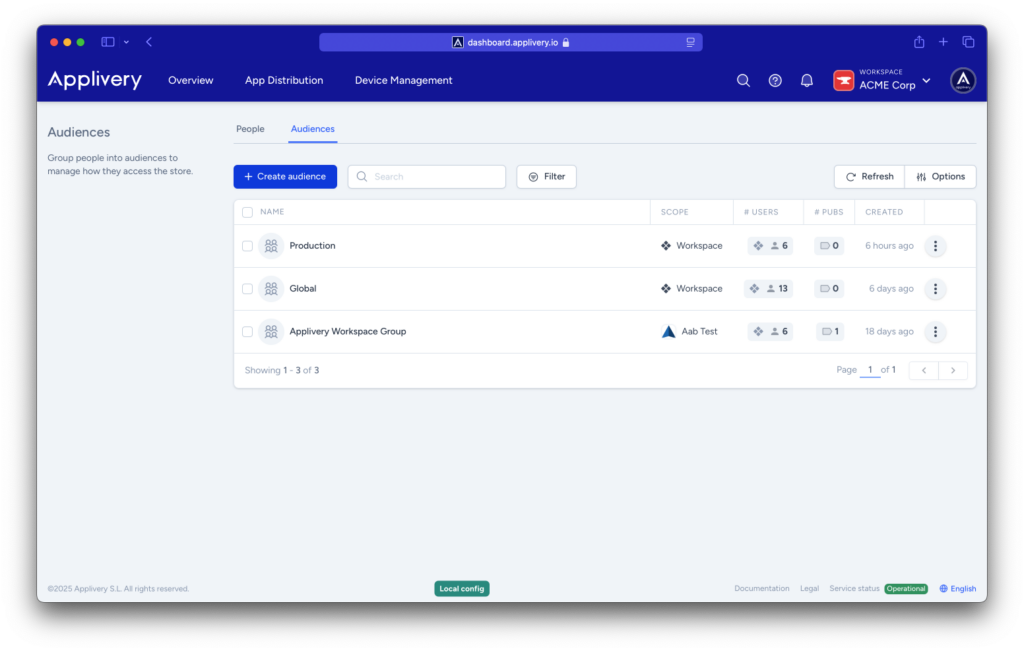
Audiences can be created either from the Workspace > People > Audiences section or at App level, from App > Audiences.
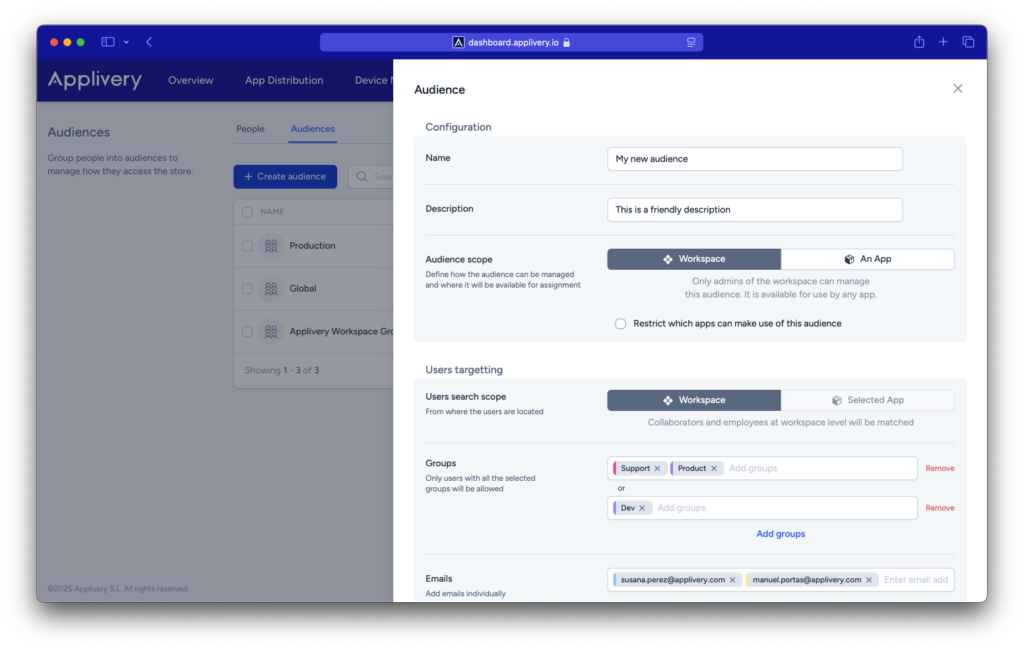
- Click the + Create audience button.
- Configuration:
- Name and Description: Give a name to your audience. Optionally you can also define a description.
- Audience scope: Choose the scope of the audience. In case of choosing "Workspace" you will be able to also restrict in which apps this audience will be available to be assigned.
- Users targeting:
- User search scope: Choose between Workspace or App. When creating Workspace scoped audiences, you will only be able to choose the entire Workspace for the searching of users. However, when creating App scoped audiences, you will able to configure the audience to look for users inside of the App but also outside of it (by choosing Workspace as the user search scope).
- Groups: Define the groups of users that will have access. You can define them based on logical operators (AND / OR).
- Emails: Define the list of individual users that will have access. You can add email addresses from both pre-existing users or new ones.
Note that when adding non-existing users, you will have to use the buttons below to invite them.
Once done, please don’t forget to click Save.
Note that as you add conditions to an audience, you will see which users match at the lower side of the screen.
Exploring users within an audience
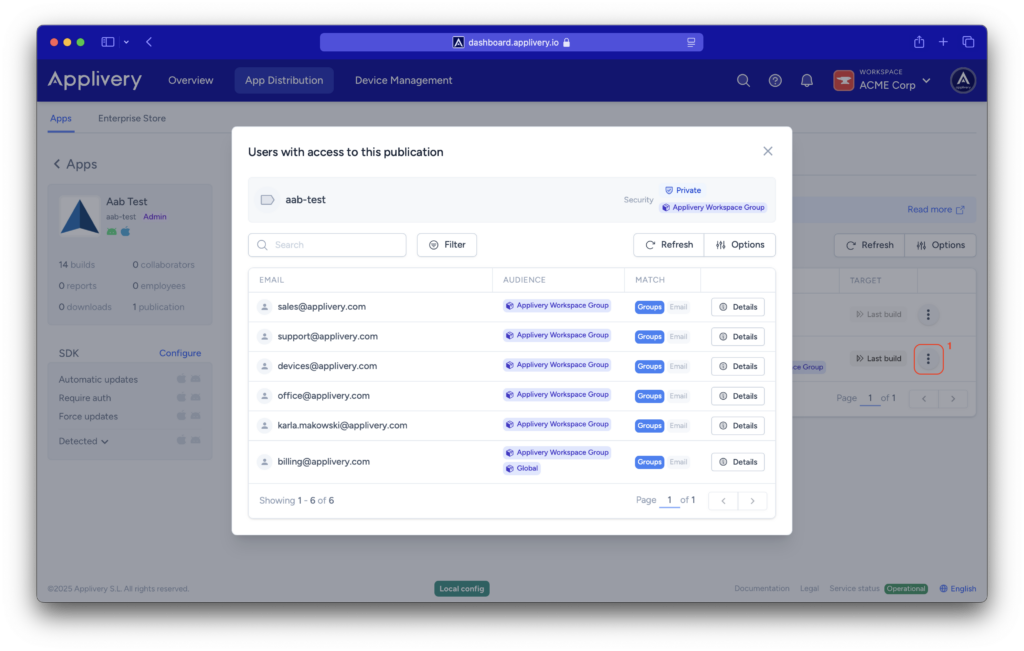
You can see which users match a given audience by clicking the three vertical dots (1) menu and selecting View users. This will display a list of users who meet the audience conditions.
Assigning audiences to Publications
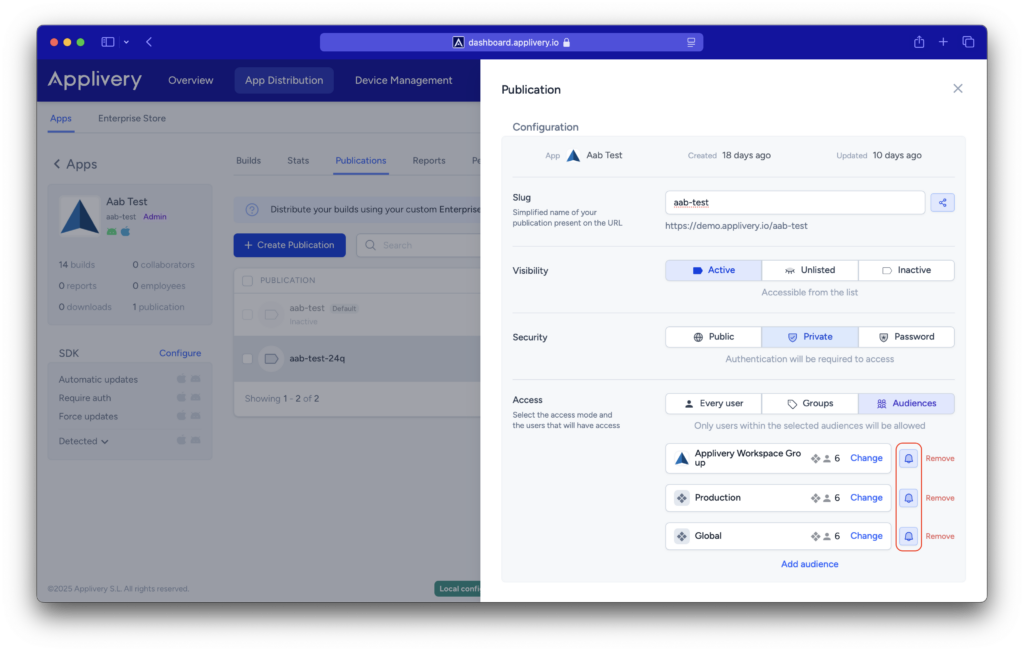
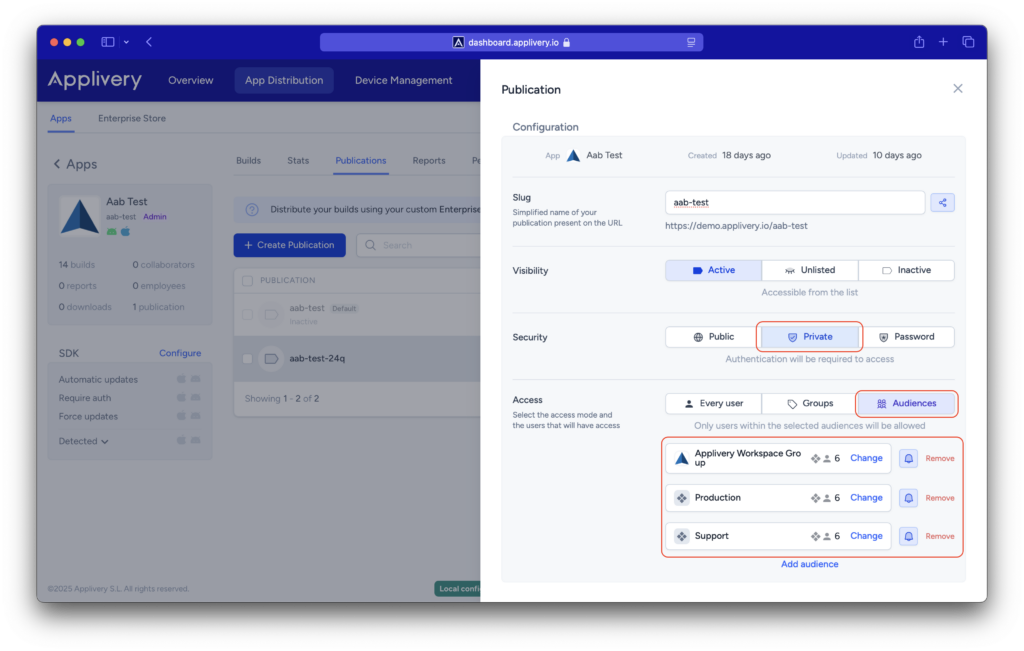
When creating or editing a Publication, first make sure to choose Private as the Security and then, under the Access section, choose Audiences. This will allow you to add one or multiple audiences to the publication.
Viewing publications associated with an audience
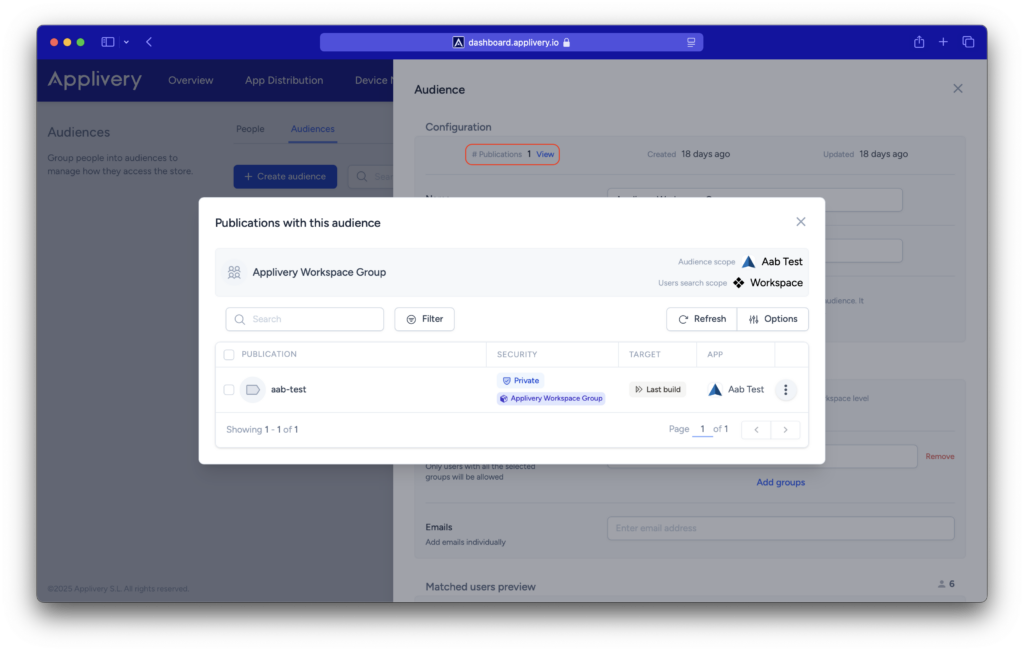
Once the audience has been created, you can explore which publications are using it. To do this, open the detail of an audience and click on the number of publications at the top.
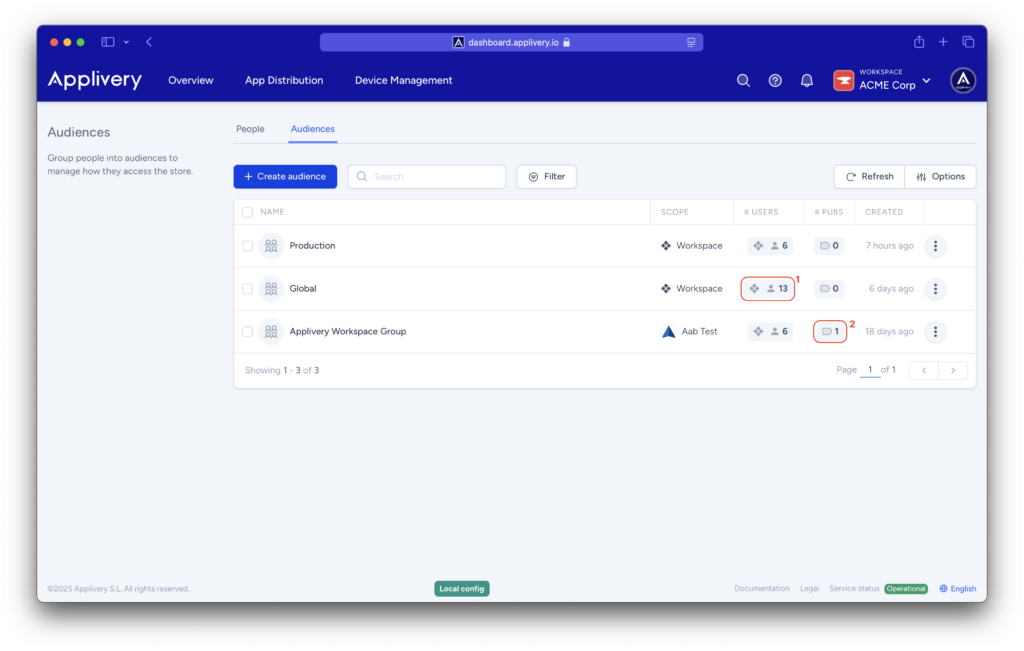
You can also access the same list from the list of audiences and the list of publications. Click the Users (1) field to see the users targetted by the audience, or click the Pubs (2) field to see the associated Publications.
Notifications
When creating or editing an audience, you can now specify whether users in that audience will be notified when new builds are released. Use the bell (🔔) icon next to the audience name to enable or disable notifications.
Keep in mind that a user’s personal settings will override this configuration. You can still disable notifications entirely for Collaborators or Employees at the app level by going to App > Settings > Notifications.