
Windows Clipboard History is a powerful productivity feature that allows users to store multiple copied items—such as text, images, and links—in a history accessible via a simple keyboard shortcut. This feature supports pinning frequently used items for quick access and syncing clipboard data across devices through Microsoft accounts, enabling seamless workflows on multiple Windows devices.
From an IT management perspective, controlling Clipboard History centrally is essential to balance user productivity with security. Administrators can enable or disable this feature to prevent sensitive data from being stored or shared unintentionally.
Understanding and managing Windows Clipboard History empowers organizations to enhance user efficiency while safeguarding information, making it a key component in enterprise device management.
Configuring your policy
Once in the Applivery dashboard, head to the Device Management section and select Policies (1). Choose the policy where you want to add this configuration.
Go to the Device Management section in the Applivery dashboard.
Choose Policies from the Device Management menu.
Select the specific policy you want to modify.
Next, in the left-hand menu, select + Add configuration (2), and search for Experience (3).
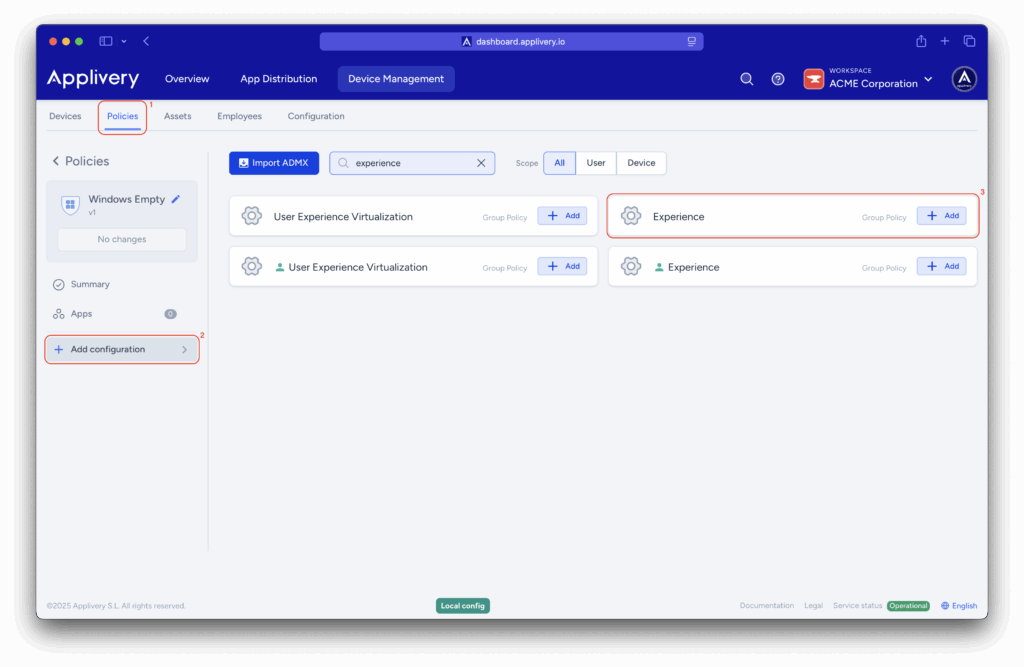
Locate the Allow Clipboard History setting to determine whether history of Clipboard contents can be stored in memory.
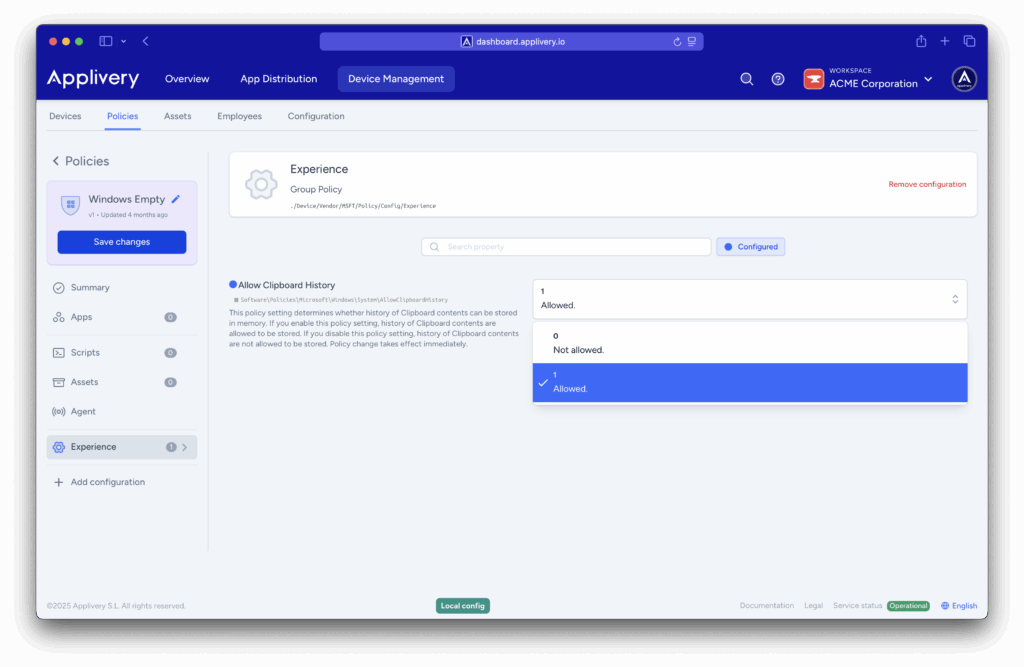
Regularly review and update your Clipboard History policies to adapt to changing security needs and user workflows.