

Zebra OEMConfig is Zebra’s enterprise-grade configuration solution that empowers IT administrators to remotely manage and customize Zebra Android devices at a system level. By leveraging Android Enterprise’s managed configurations framework, Zebra OEMConfig enables precise control over Zebra-specific hardware, software, and device settings — all without requiring custom applications or additional agents.
Through integration with Applivery, administrators can seamlessly define, deploy, and enforce advanced device policies such as network configurations, app management, security controls, display behavior, and kiosk mode restrictions.
This integration ensures full compliance with organizational standards, optimizes device performance, and delivers consistent, streamlined management across the entire Zebra device fleet.
To install the Zebra OEMConfig Powered by MX app via Applivery, Zebra devices must be running Android 11 or higher. For devices that do not meet this requirement, an alternative version — Legacy Zebra OEMConfig — is available to configure managed properties on older Android versions.
Getting started
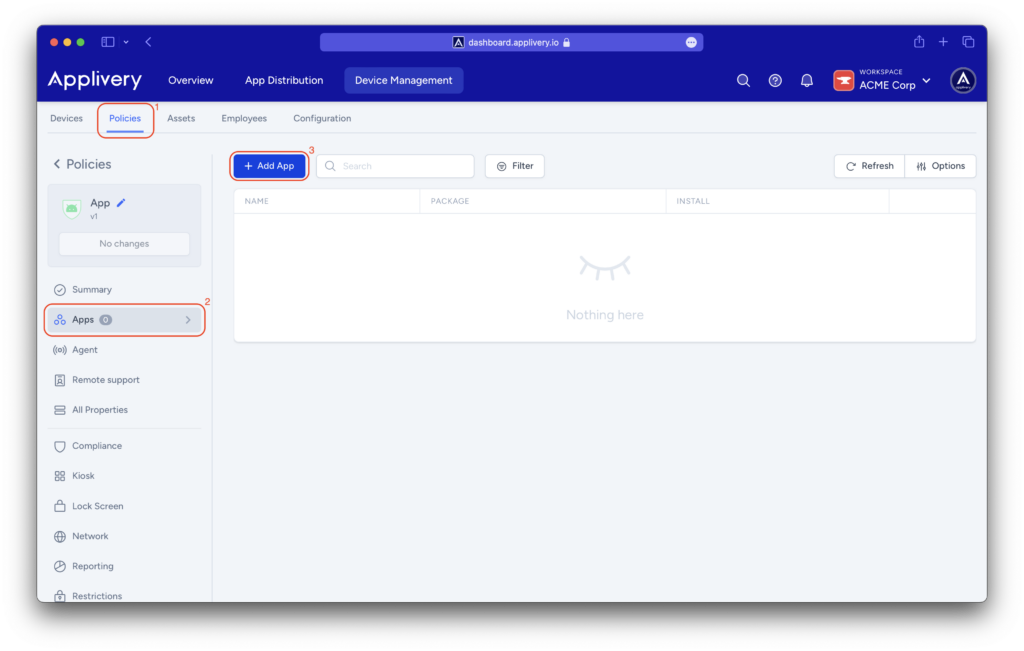
Once in the Applivery Dashboard, go to any of your Policies (1) (under Device Management > Policies). From the left side menu, go to Apps (2) and click the + Add App button (3).
Search for the Zebra OEMConfig Powered by MX app and select the one from Zebra Technologies (package name: com.zebra.oemconfig.release). Set the Install Type to Force Installed to ensure the app is automatically installed on any device associated with the policy.
Once the app appears in the list, click on it to expand all the managed properties and configure them according to your requirements.
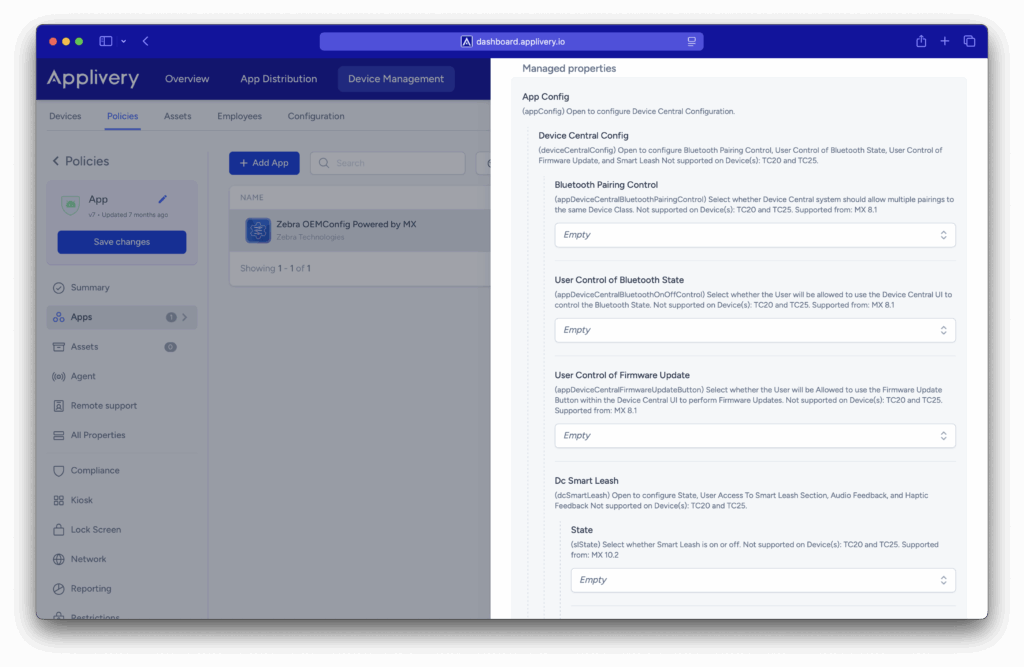
The OEM-specific settings described in this document are defined and maintained by their respective OEM vendors, and may change periodically. Since these configurations are managed externally, the options and values displayed in the Applivery dashboard may occasionally differ slightly from those shown in this documentation.
Zebra OEMConfig Managed Properties
This section describes the configurable managed properties available through Zebra OEMConfig.
Device Central Config
Device Central Config. Not supported on TC20 and TC25.
Define how the Device Central subsystem manages Bluetooth pairing. Choose one of the following options:
Single Pairing per Device Class: Allows only one active pairing at a time for each Bluetooth device class.
Multiple Pairings per Device Class: Allows multiple simultaneous pairings for each Bluetooth device class.
Supported from MX 8.1.
Select whether users are permitted to use the Device Central UI to turn Bluetooth on or off.
Supported from MX 8.1.
Select whether users are allowed to use the Firmware Update Button to perform firmware updates through the Device Central subsystem.
Supported from MX 8.1.
Select whether Smart Leash is enabled or disabled. Supported from MX 10.2.
Select whether the device user is allowed to access the Device Central UI to configure Smart Leash settings.
Supported from MX 10.2.
Select whether Smart Leash Audio Feedback is enabled or disabled.
Supported from MX 10.2.
Specify an existing ringtone or the path to an audio file to play when Smart Leash Audio Feedback is enabled.
Supported from MX 10.2.
Specify the volume level (percentage) for the sound when Smart Leash Audio Feedback is enabled.
Supported from MX 10.2.
Enter the number of times the sound should repeat when Smart Leash Audio Feedback is enabled.
Supported from MX 10.2.
Select whether Smart Leash Haptic Feedback is enabled or disabled.
Supported from MX 10.2.
Specify the vibration duration when Smart Leash Haptic Feedback is enabled.
Supported from MX 10.2.
File Config
Settings | Description |
|---|---|
Device Path And Name | Specify the path and file name within the device file system, or the target application package name, of the single file to be managed on the device. Not supported on devices TC20 and TC25. |
Files Config Download Options | Add one or more download option elements to configure how files are downloaded to the device. Select the type of download option to be applied when downloading a single file. The available options are On Server, On Server but Not on Device. |
Download Server URI | Specify the server URI from which a single file can be downloaded to the device file system. Not supported on devices TC20 and TC25. |
Download Application Signature | Enter the digital signature of the target application associated with the download. |
Download File Persistence | Select whether the downloaded file should remain stored on the device after an enterprise reset. |
Files Config Upload Options | Add one or more upload option elements to configure how files are uploaded from the device. Select the type of upload option to be applied when managing a single file in the device file system. The available options are Not on Server, Sorted by Name. |
Upload File Name Pattern | Enter a naming pattern to be used for files uploaded from the device file system to the server. |
Upload Server URI | Specify the server URI where files from the device file system will be uploaded. |
Files Config Delete Options | Add one or more delete option elements to configure how files are deleted from the device file system. Select the type of delete option to be applied when managing a single file. The available options are Always, After Reboot. |
Keyboard Mappings
Keyboard Mappings. Not supported on devices TC20 and TC25.
Settings | Description |
|---|---|
Key ID | Select the key identifier that uniquely corresponds to a physical key on the device’s hardware keyboard to be remapped. |
Keymapping Behaviors | Add one or more behavior elements to define the desired key remapping behavior. |
License Management
Settings | Description |
|---|---|
Enterprise Reset Persistence | Select whether all Zebra licenses should remain stored locally on the device after an Enterprise Reset. |
License Server Proxy URL | Enter the proxy server URL used to manage licensing requests. (Optional — requires ZLicenseMgr v14.0.). |
Badge Licenses Cloud Server Type | Select the source server from which a Zebra capability license will be obtained. The available options are Production Cloud, Test Cloud. |
Badge Licenses ID | Enter the Zebra-issued Badge ID for the license pool from which licenses will be issued. |
Products | Add license details to be deployed to the device. |
LLS License | Open this section to configure the Local Server URL and License Information. Requires ZLicenseMgr v14.5. |
Licenses | Add one or more License Configuration – Licenses – License elements. |
Features | Add one or more License Configuration – Features – Feature elements. |
PKG Config
Settings | Description |
|---|---|
Class Name | Enter the class name within the Android package for which one or more non-default, class-specific behaviors should be configured. |
Package Name | Enter the package name of the Android application for which one or more non-default behaviors should be configured. |
Package Signing Certificate | Enter the package signing certificate used to verify that the Android package identified by the Package Name is a genuine and trusted instance of that package. |
Package Permissions | Add one or more permission elements to configure permissions for the specified package. |
Package Class Variances | Add one or more class variance elements to configure class-specific behavioral variations. |
Package Feature Variances | Add one or more feature variance elements to configure feature-specific behavioral variations. |
Package Allowed Services | Add one or more allowed service elements to define the services that the package is permitted to access. |
Security And Privacy Config
Settings | Description |
|---|---|
Encrypt Config: Configure encryption keys and the SD Card encryption key name. Not supported on devices TC20 and TC25. | |
Security Encryption Keys | Add one or more encryption key elements to configure encryption keys. |
Key Name | Enter the key name of a defined (named) encryption key. |
Key Value | Enter the key value associated with the specified encryption key name. |
SD Card Encrypt Key Name | Enter the key name of the encryption key used to encrypt the removable SD card. |
Screen Lock Config. Not supported on devices TC20 and TC25. | |
Instant Screen Lock on Power Key | Select whether the device should instantly lock when the Power Key is used to turn off the display. |
Lock Screen Wallpaper | Select the wallpaper image to be displayed on the lock screen. The available options are Restore to default and Custom. |
Custom Lock Screen Wallpaper | Enter the path and file name of a custom image file (`.jpg` or `.png`) stored on the device to use as the lock screen wallpaper. |
Screen Lock Type | Select the type of screen lock used to protect the device from unauthorized access. The available options are None, Swipe, PIN, Password, and Pattern. |
Notifications on Lock Screen | Select the type of notification content to display on the lock screen. The available options are Show all content, Show only non-sensitive content, and Hide notifications. |
RC Lock Screen Visibility | Select whether the Android lock screen should be visible in the remote console when the device is being remotely controlled. |
Screen Lock Timeout | Select what action the device should take when the display turns off due to a timeout.The available options are Inmediately after Display Timeout, 5 seconds after Display Timeout, 15 seconds after Display Timeout, 30 seconds after Display Timeout, 1 minute after Display Timeout, 2 minutes after Display Timeout, 5 minutes after Display Timeout, 10 minutes after Display Timeout, and 30 minutes after Display Timeout. |
User Selection of Secure Start-up | Select whether the user is allowed to enable Secure Start-up when changing their PIN, password, or pattern. |
Secondary Keyguard | Select whether to activate a secondary keyguard (e.g., Identity Guardian) on the device. |
Reboot | Select whether the device should reboot immediately after applying the Secondary Keyguard setting, or suppress the reboot to apply the change later. |
Double-line Clock on Lock Screen | Select whether the lock screen clock should be displayed on a single line or across two lines in a larger font (when space allows). |
SD Card Setup Notification | Select whether to display a notification to the user when an SD card is inserted into the device. |
System Config
Settings | Description |
|---|---|
Analytics Config | |
Analytics State | Select whether the Analytics Client is allowed to collect device data and send it to Zebra. |
User Control of Analytics State | Select whether the user is allowed to control the Analytics Client’s ability to collect and transmit device data to Zebra. |
Clock Config | |
Time Mode | Select whether the time mode is Automatic (time set using information obtained from a time server) or Rule-Based (time set using specified rules and parameters). |
Auto NTP Server Address | Select the allowed drift threshold at which the device will automatically attempt to reacquire and reset the time and date when Time Mode is set to Automatic. |
Auto NTP Drift Interval | Select the allowed drift threshold at which the device will automatically attempt to reacquire and reset the time and date when Time Mode is set to Automatic. |
Auto NTP Sync Interval | Select the interval at which the device will automatically attempt to synchronize the time and date when Time Mode is set to Automatic. |
Time Zone Mode | Select whether the time zone is set manually (explicitly defined) or automatically (based on information obtained from the carrier network). |
Manual Time Zone | Enter the time zone to be applied when Time Zone Mode is set to Manual. |