Certificates play a crucial role in identifying and authenticating mobile devices, enabling secure access to corporate resources like G Suite and enterprise WiFi hotspots.
Some organizations require devices to be on-premises and behind a firewall to distribute device certificates. However, as some users can no longer access corporate locations and networks, there is a need for a way to issue these certificates remotely.
With this feature, organizations can ensure their users remain connected and productive, even while working remotely.
Adding a certificate to a policy
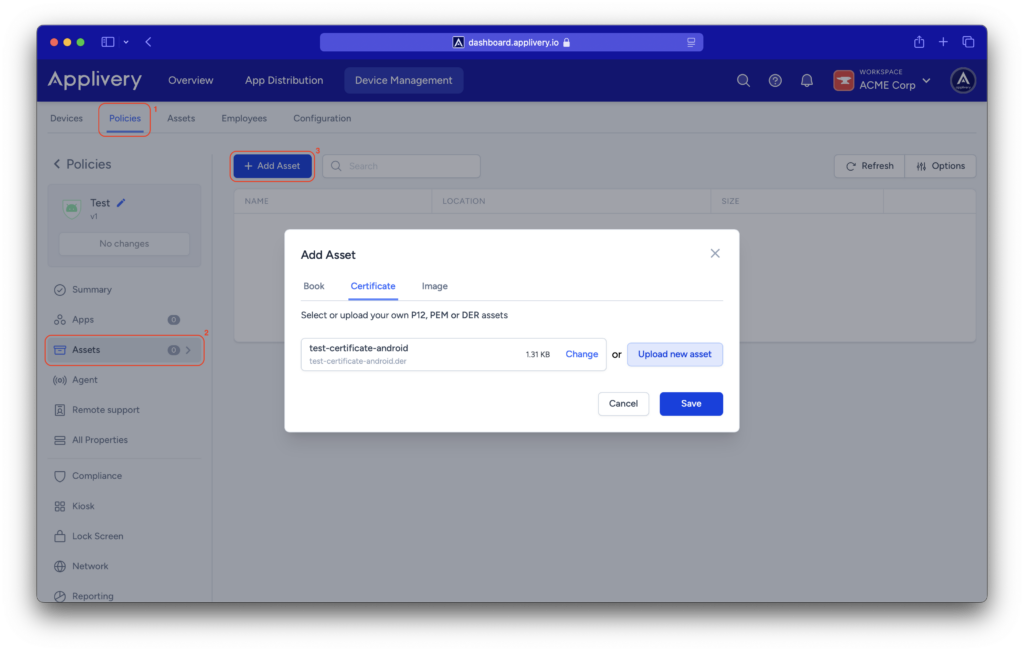
Once in the Applivery Dashboard, navigate to Device Management > Policies (1).
Select the Android policy where you want to add a certificate.
In the left-hand menu, click on the Assets (2) section, then click the + Add Asset button (3).
A modal view will be displayed, allowing you to select the type of file you want to add to the policy.
Click on the Certificate tab to select an existing certificate from the Assets section or Upload new asset. Certificates must be uploaded in .p12, .pem or .der format.
Once you’ve completed the necessary configurations in your policy, Save changes.