
Configuring the homepage allows IT admins to control the content displayed when users launch the browser.
Use the following Plist to set a homepage URL for the Google Chrome browser. Copy the contents from below and import them into the relevant macOS policy.
<?xml version="1.0" encoding="UTF-8"?>
<!DOCTYPE plist PUBLIC "-//Apple//DTD PLIST 1.0//EN" "http://www.apple.com/DTDs/PropertyList-1.0.dtd">
<plist version="1.0">
<dict>
	<key>PayloadContent</key>
	<array>
		<dict>
			<key>HomepageLocation</key>
			<string>https://www.applivery.com</string>
			<key>NewTabPageLocation</key>
			<string>https://www.applivery.com/docs</string>
			<key>PayloadDisplayName</key>
			<string>Google Chrome</string>
			<key>PayloadIdentifier</key>
			<string>com.google.Chrome.F8C05D93-31F5-416E-AF46-2E54F2578F9A</string>
			<key>PayloadType</key>
			<string>com.google.Chrome</string>
			<key>PayloadUUID</key>
			<string>B98A135C-3F21-40E9-9D0C-CD9E4A5A46A6</string>
			<key>PayloadVersion</key>
			<integer>1</integer>
		</dict>
	</array>
</dict>
</plist>
Replace the home page URL with the URL that you would like to use in the above Payload. For example:
<key>HomepageLocation</key>
<string>https://www.applivery.com</string>
<key>NewTabPageLocation</key>
<string>https://www.applivery.com/docs</string>
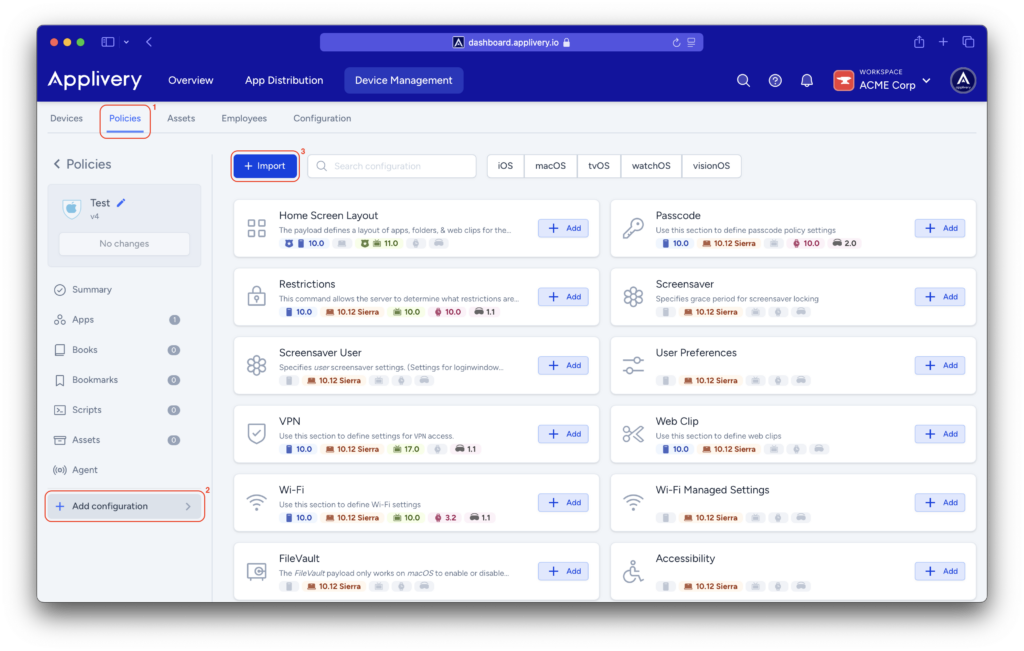
Once in the Applivery dashboard, head to Device Management > Policies (1) and select the policy where you want to set the homepage URL.
Click the + Add configuration (2) button on the left-hand menu, then click the + Import (3) button.
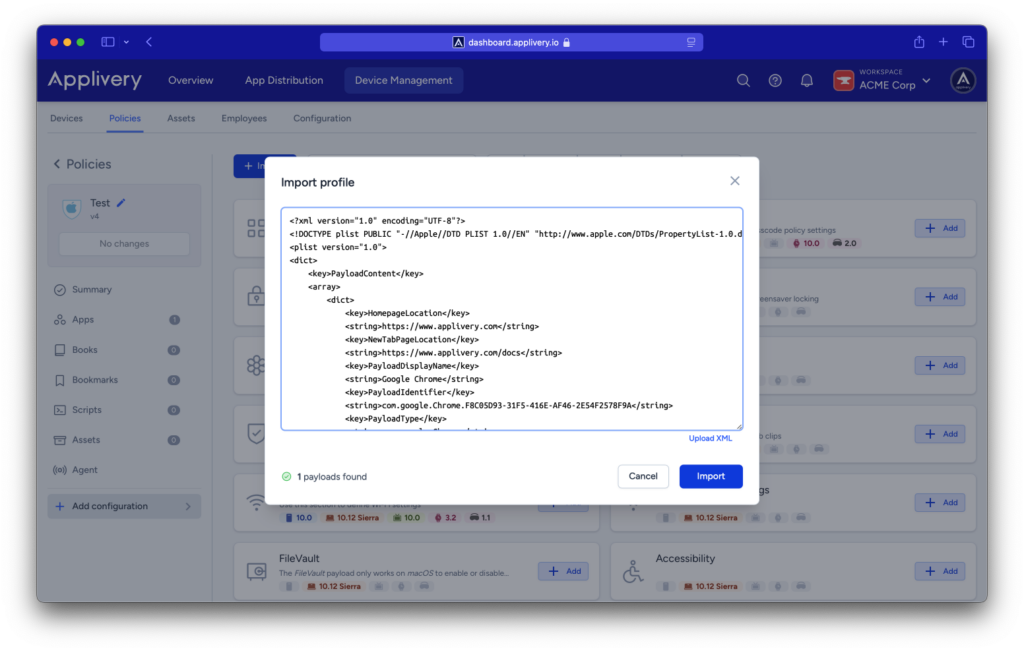
You can either copy the Plist above or use the Upload XML button to upload a new one.
Restart Google Chrome to verify that the configuration has been applied correctly.