This feature is designed to help IT administrators enforce consistent naming conventions across Apple devices. It offers flexibility and complete control over device names, simplifying device management.
Administrators can create standardized naming schemes using customizable patterns, incorporating variables like usernames, serial numbers, and custom text for a more personalized approach to device naming.
Renaming of iOS devices using smart enrollments
This method is ideal for automatically enrolling all devices integrated through Apple Business Manager (ABM) and the Device Enrollment Program (DEP) into the MDM system.
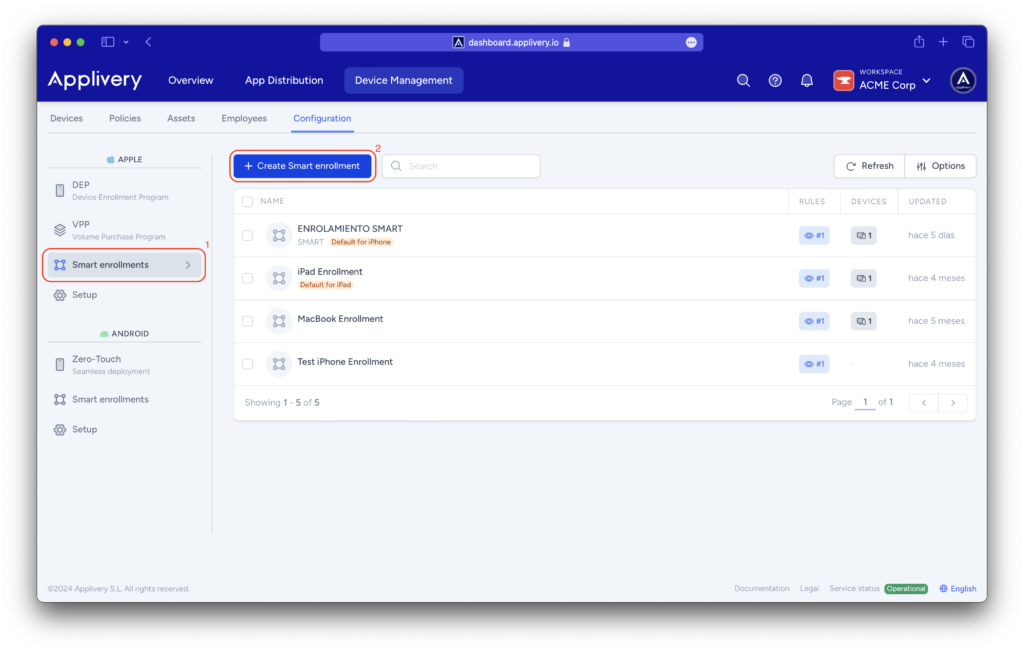
Once in the Applivery dashboard, head to Device Management > Configuration and choose Smart Enrollments (1) from the Apple left menu.
Then click the + Create Smart enrollment (2) button.
Configure the Auxiliary fields (3) to customize device names by creating useful labels that help organize and name the devices in the Display name pattern (4) field.
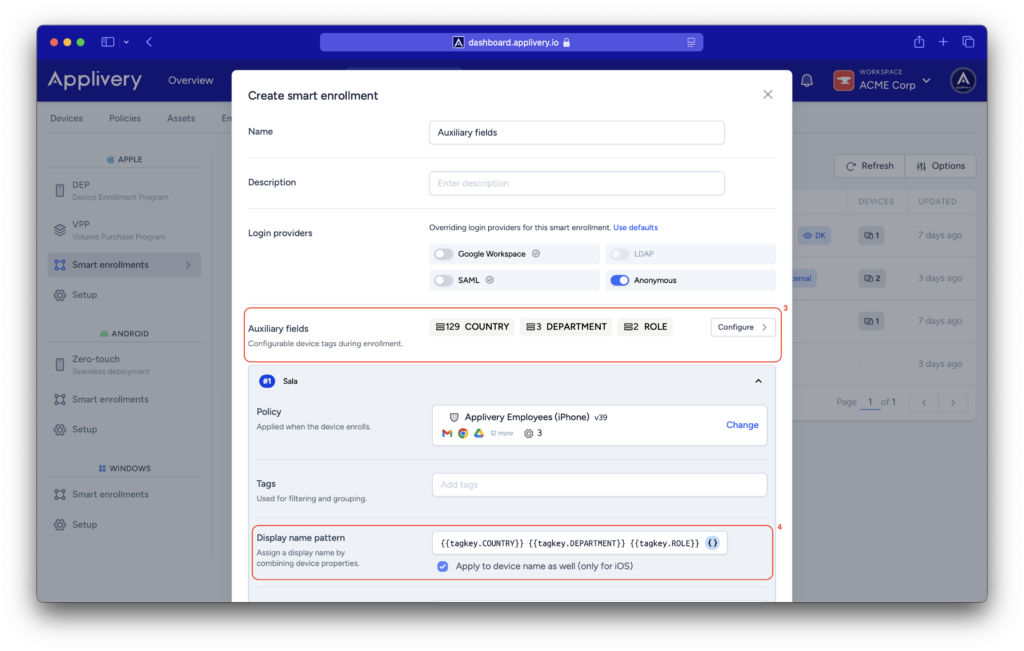
To ensure that the configured display name is also synchronized with the device name, simply check the box for Apply to device name as well (only for iOS).
Renaming of iOS devices using commands
You can also use commands for specific changes to a device name. This method is flexible and allows for both individual and bulk modifications.
Once in the Applivery dashboard, head to Device Management > Devices and select the device you want to synchronize the display name with the device name.
In the left-hand summary, click the Action button and choose Sync device name.
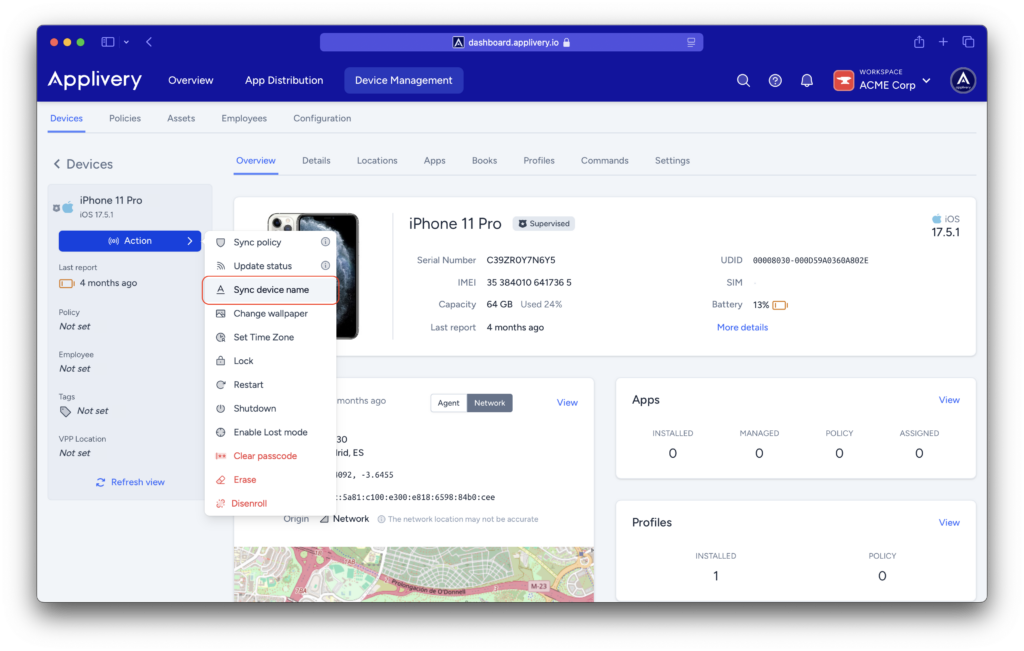
Additionally, you can sync the display name with the device name in bulk from the devices list by clicking the Action button, selecting Apple as the platform, and choosing the Sync device name command.
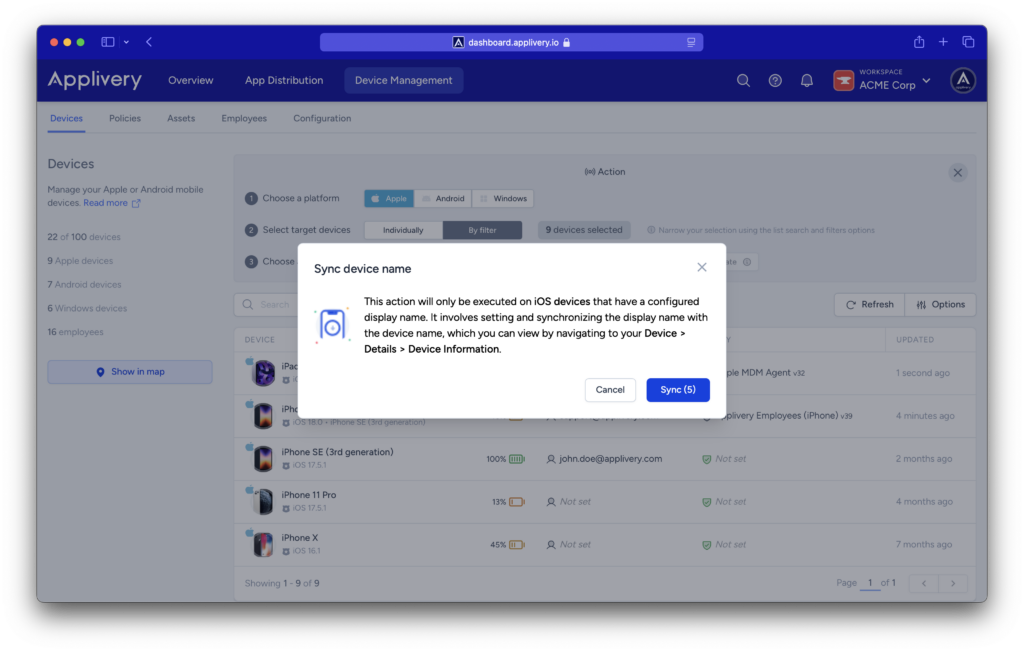
The Sync device name command requires the device to be online and responsive.
Renaming of macOS devices using scripts
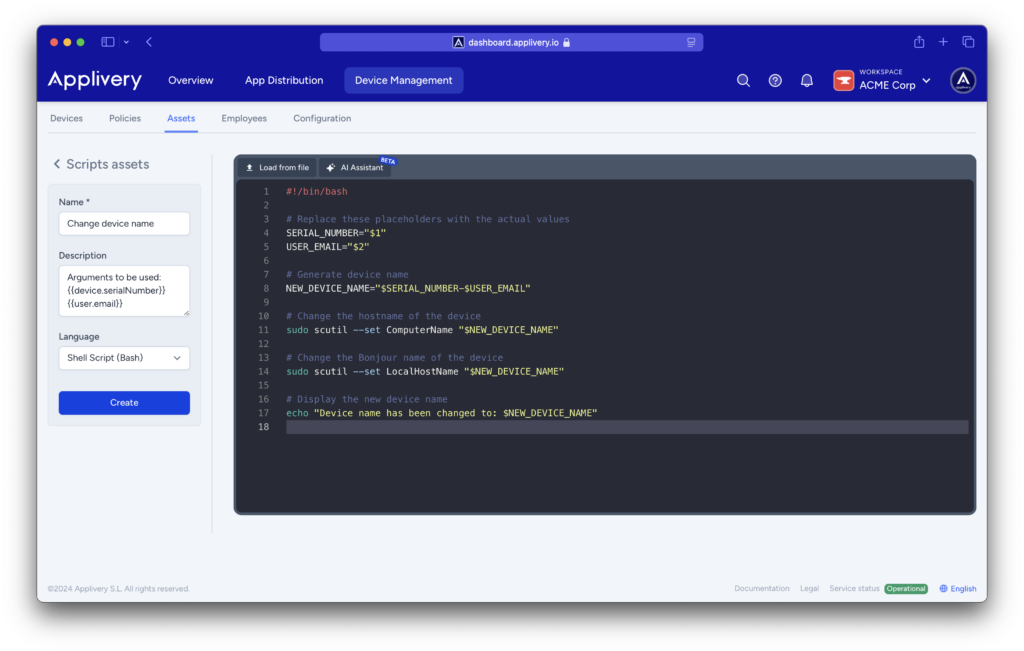
For macOS devices, Applivery provides the option to create scripts with specific arguments to configure personalized names for each device.
These scripts enable IT admins to leverage their fleet information effectively, ensuring the establishment of unique and descriptive names.
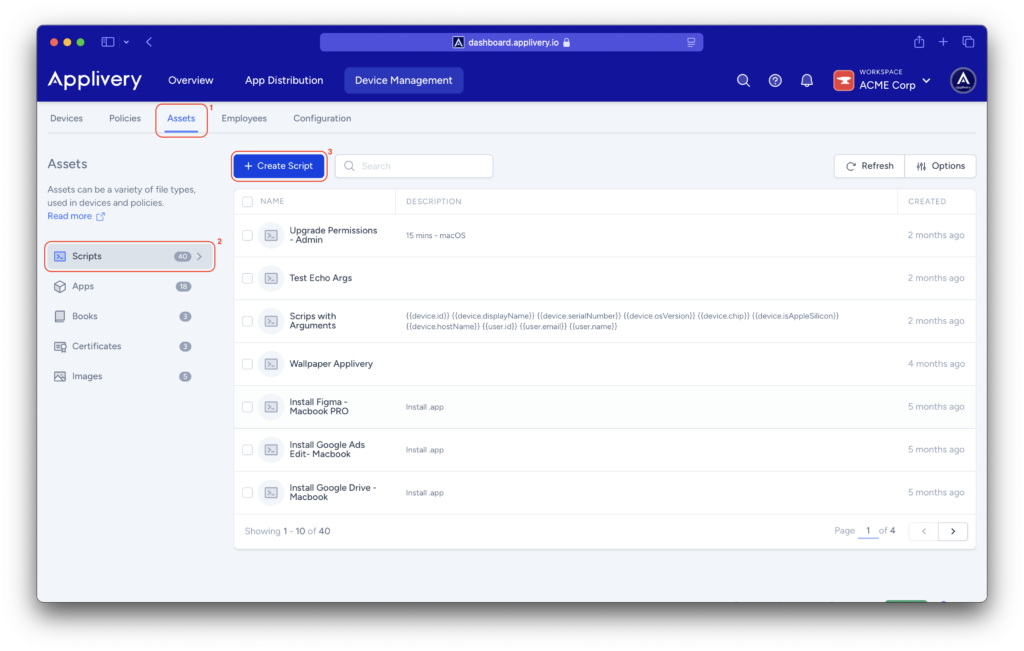
Once in the Applivery dashboard, head to Device Management > Assets (1) > Scripts (2).
Click the + Create Script (3) button.
The script should include arguments that extract specific information from each device according to your needs, such as the serial number or the assigned employee’s name.
Use this extracted information to create unique and descriptive device names.