Note Books (.epub, .pdf) are managed differently based on the device they are deployed on. On iPhone and iPad, books must be deployed through the device channel, meaning they will be available throughout the entire device for all users. Please note that books cannot be assigned to macOS devices.
Deploying books to a single device
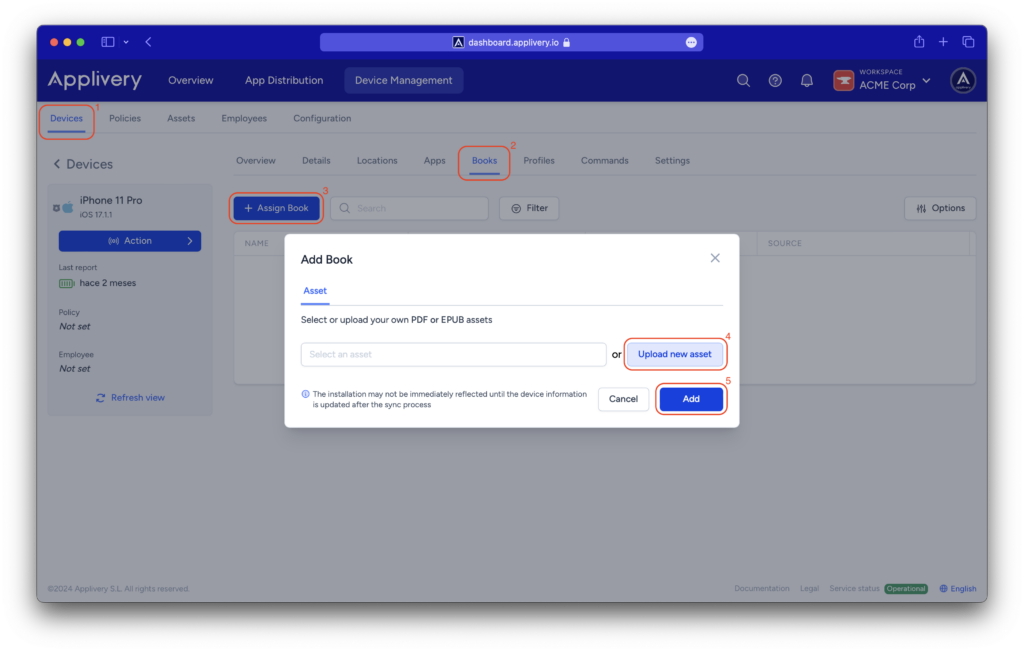
Through the Applivery dashboard, navigate to any of your devices from Device Management > Devices (1). Then go to the Books (2) tab and click the + Assign Book (3) button. You can either select an existing book from the list of assets or upload a new one by clicking the Upload new asset (4) button. Choose the asset that you want from the dropdown list and then click Add (5).
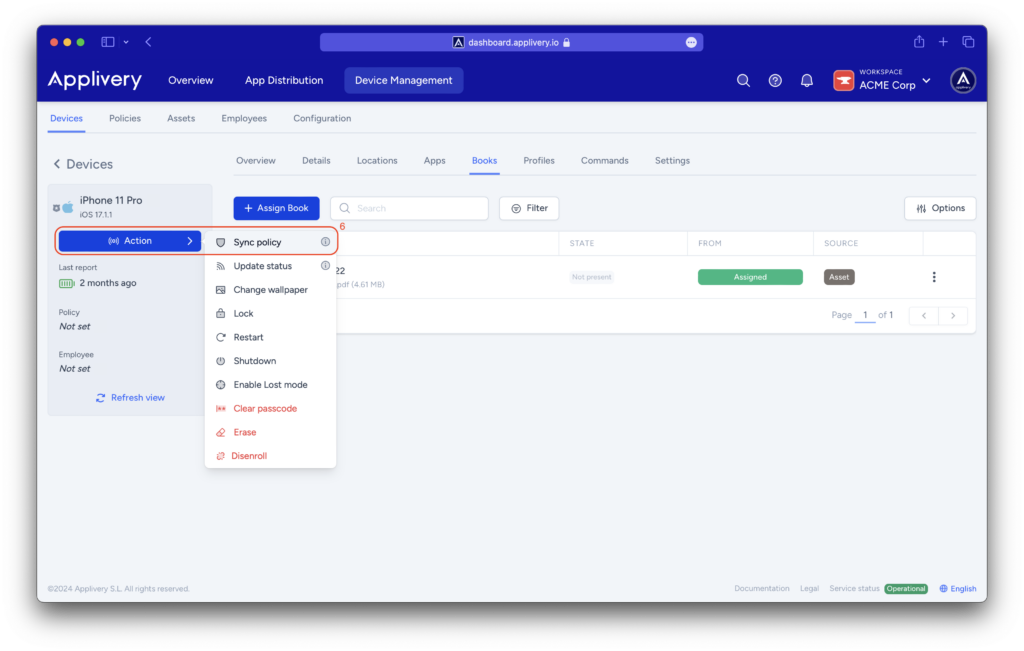
The book will be automatically deployed to your device. You can check the installation status from the list of Books. You can force the Sync process by clicking Action > Sync policy (6).
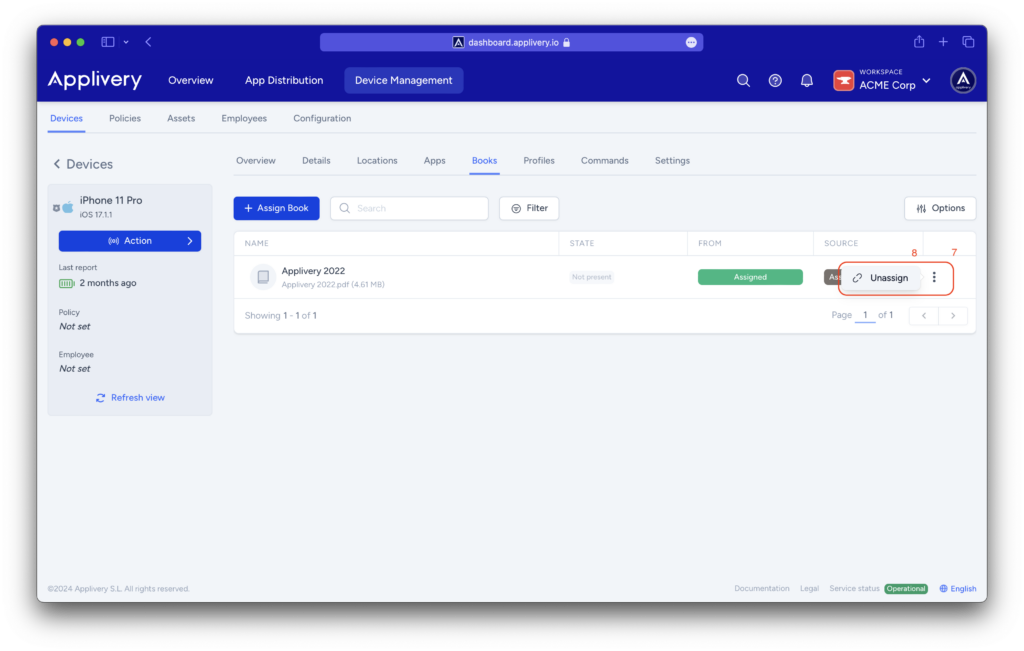
To remove books from the device, simply click the three dots (7) at the end of each book and choose Unassign (8).
Deploying books to multiple devices at once using policies
You can also manage Books, deploy them to multiple devices, and maintain them synced by using Policies. Just go to any of your policies from the Policies (1) top menu and then navigate to the Books (2) left-side option. Then click the + Add book (3) button.
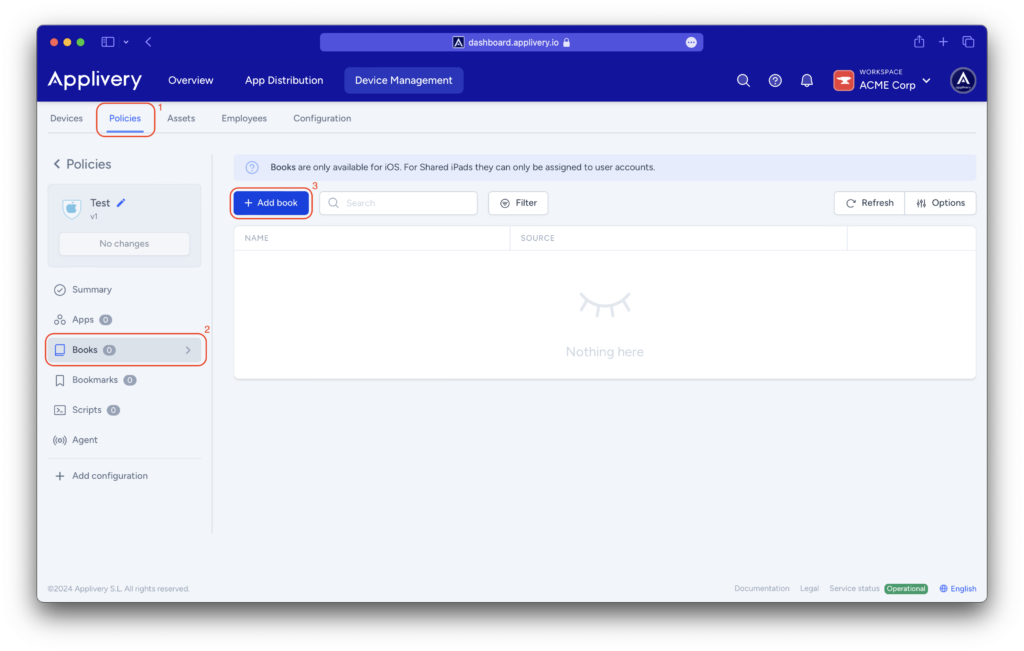
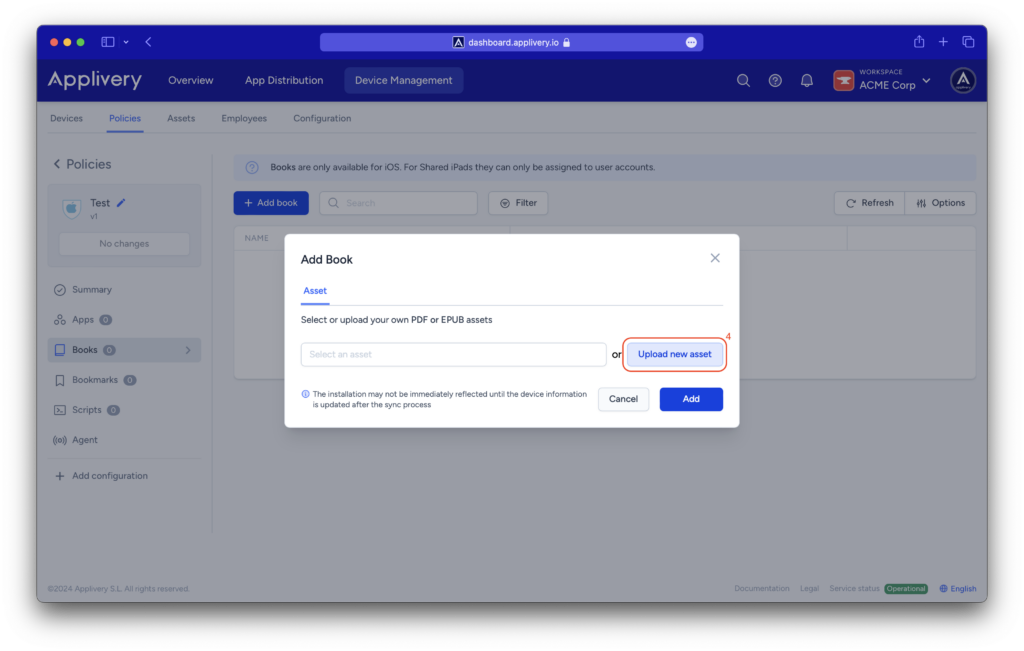
As mentioned before, you can either select an existing book from the list of assets or upload a new one by clicking Upload new asset (4) button. Click the button and select a .pdf or .epub file from your files.
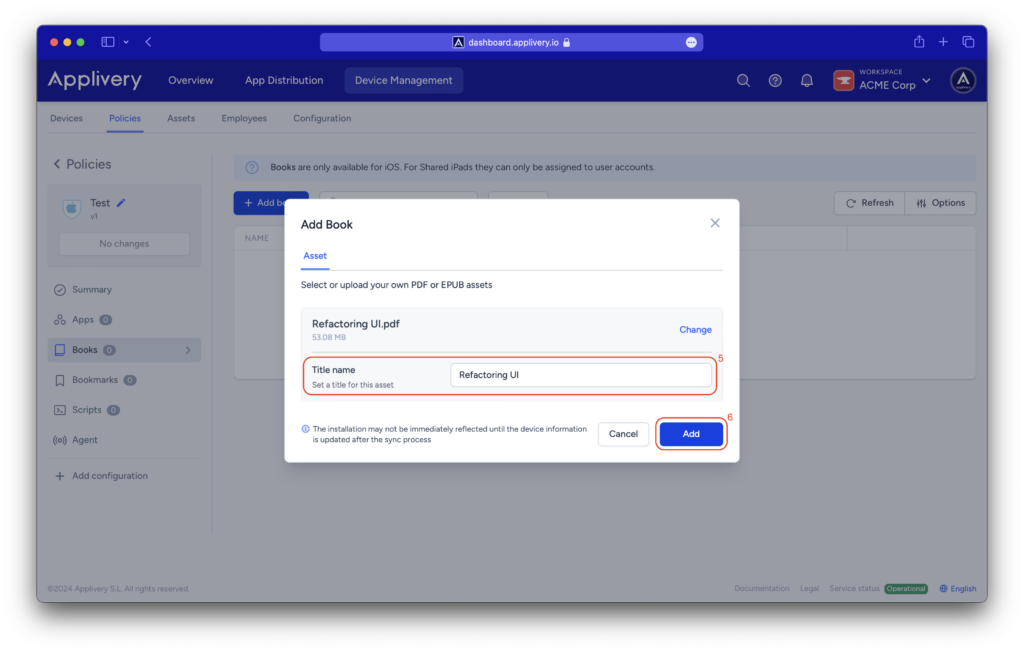
Now just type the Title Name (5) of the book and click the Add (6) button to upload it. Last, don’t forget to click Save changes to save and deploy these changes to all the devices associated with that policy!
Managing your Books
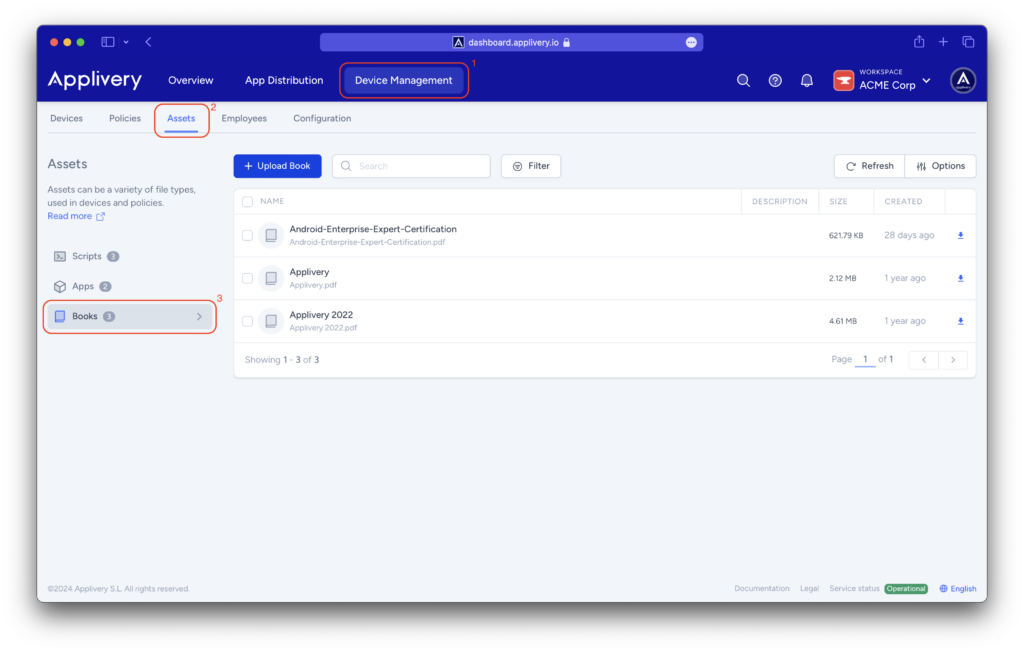
You can see, manage, and download the entire list of books that you have uploaded by going to Device Management (1) > Assets (2) > Books (3).