
Disabling mobile data on Windows devices is an essential step for organizations aiming to optimize connectivity, control data usage costs, and enforce network security policies. With growing reliance on Windows laptops, tablets, and hybrid devices that support cellular connections, managing mobile data access remotely is crucial to prevent unauthorized usage and reduce unexpected charges.
Windows provides built-in settings and policy controls to allow IT administrators to disable or restrict mobile data usage across corporate devices. By leveraging these capabilities through Applivery, organizations can centrally configure mobile data restrictions, ensuring devices adhere to corporate policies while minimizing disruption to user workflows.
Disabling mobile data enhances security by limiting devices to approved networks, reducing risks associated with unsecured cellular connections. It also supports compliance requirements by preventing data leaks and controlling network traffic. Furthermore, managing mobile data effectively helps extend battery life and ensures predictable network performance.
Disabling mobile data
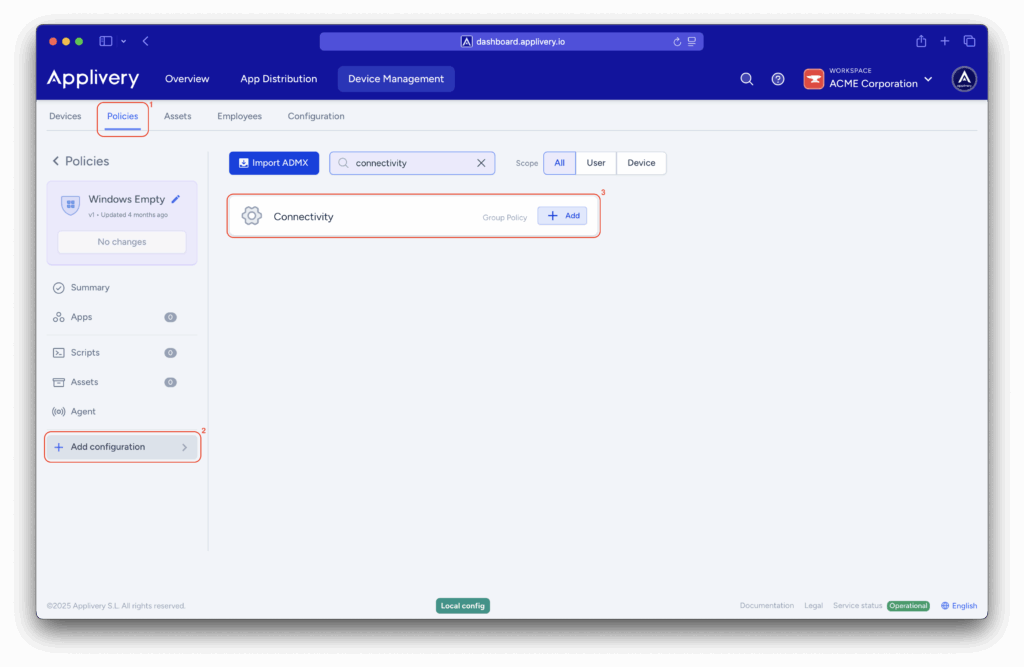
Once in the Applivery dashboard, head to the Device Management section and select Policies (1). Choose the policy where you want to add this configuration.
Next, in the left-hand menu, select + Add configuration (2), and search for Connectivity (3).
Locate the Allow cellular data setting and set its value according to your specific requirements.
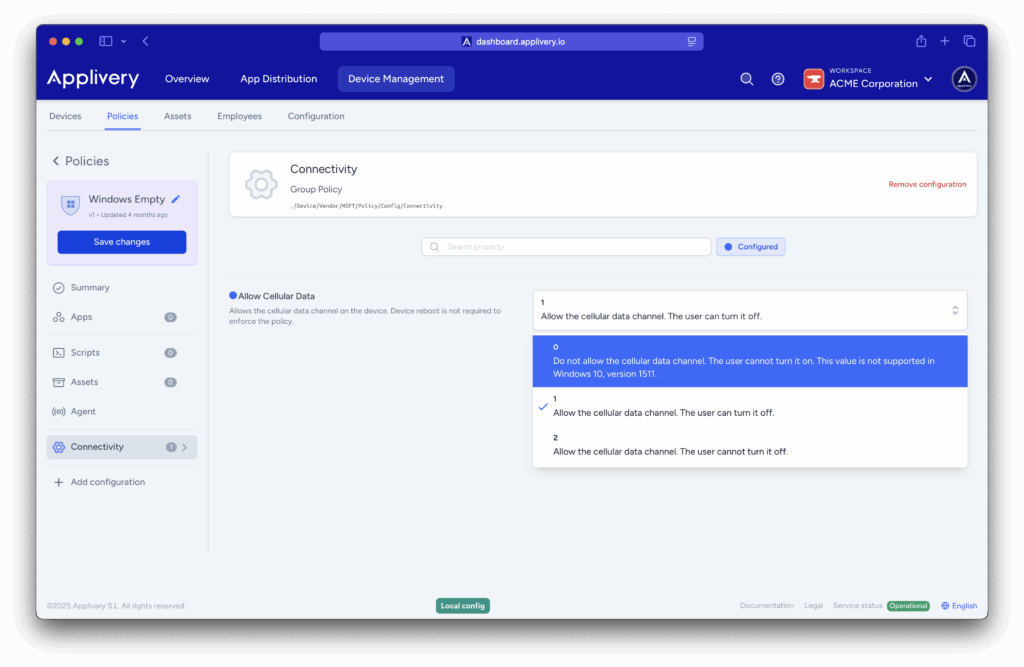
Remember to save the policy after making changes to apply the new settings to the enrolled Windows devices.