
In the management of enterprise Android devices, it is essential not only to define security and usage policies but also to ensure that these policies are effectively enforced. Policy Enforcement Rules are designed to automatically detect and respond to policy violations, helping organizations maintain compliance and protect their device fleet.
The main purpose of this configuration is to provide administrators with a flexible mechanism to automate corrective actions when a device falls out of compliance. Depending on the type or severity of the violation, the system can execute predefined responses—such as blocking device access, performing a remote wipe, or notifying the user—to immediately mitigate risks and restore compliance.
By implementing Policy Enforcement Rules, organizations can ensure continuous protection, real-time control, and operational efficiency across all managed Android devices, minimizing security gaps and reducing the need for manual intervention.
Configuring Policy Enforcement Rules
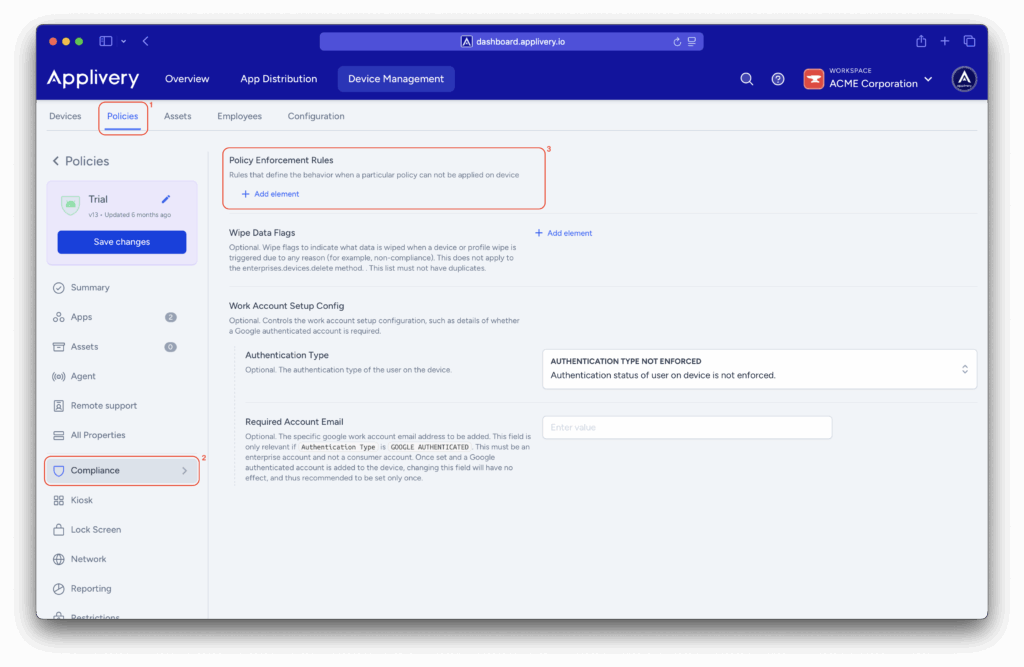
Once in the Applivery Dashboard, navigate to Device Management > Policies (1).
Select the Android policy where you want to make this configuration.
Then, go to the Compliance (2) section in the left-hand menu.
Locate the Policy Enforcement Rules (3) configuration, then click the + Add element button.
Block Action
Defines an automatic action that restricts access to applications and data on a managed device or work profile when it fails to comply with the selected policy.
It is also recommended to configure the Wipe Action to complete the full compliance enforcement cycle.
- Block After Days: Specifies the number of days a device or profile may remain non-compliant before the block is applied. A value of 0 applies the block immediately. If configured with a delay, access will be restricted once that period elapses.
- Block Scope: Determines the scope of the block, typically whether it applies to the entire device or only the work profile. For example, selecting WORK PROFILE limits the block to corporate apps and data, leaving personal content unaffected.
Setting Name
Specifies the name of the top-level policy to enforce (for example: passwordPolicies). This helps identify which policy governs the rule and simplifies tracking and management.
Wipe Action
Defines an automatic action that either performs a factory reset or removes the work profile if compliance is not restored within the specified timeframe.
It is recommended to configure this action together with Block Action.
- Preserve FRP: Indicates whether Factory Reset Protection (FRP) by Google should remain enabled after a wipe. Applicable only to fully managed devices, not work profiles.
- Wipe After Days: Defines the number of days of non-compliance before the device or profile is wiped. This value should be greater than the one set for Block After Days, ensuring that blocking occurs first, followed by a wipe if compliance is not reestablished.
These configuration options give administrators fine-grained control over how devices respond to policy violations. By defining specific actions, time thresholds, and enforcement scopes, each rule can be precisely aligned with the organization’s operational and security needs.
Together, these settings transform compliance management into a predictable, transparent process—where administrators know exactly what will happen, when, and why. This structured approach simplifies oversight, improves consistency across devices, and helps maintain a stable, policy-driven environment for all managed Android devices.