
Windows Kiosk in Multi-App mode is designed for scenarios where a device must run more than one approved application under strict control.
Unlike traditional single-app kiosks, this configuration supports multiple apps while enforcing restrictions that prevent unauthorized use.
Administrators can define the app set and manage user access consistently across devices. This ensures a locked-down environment that is secure and aligned with organizational requirements.
Configuration for a multi-app kiosk
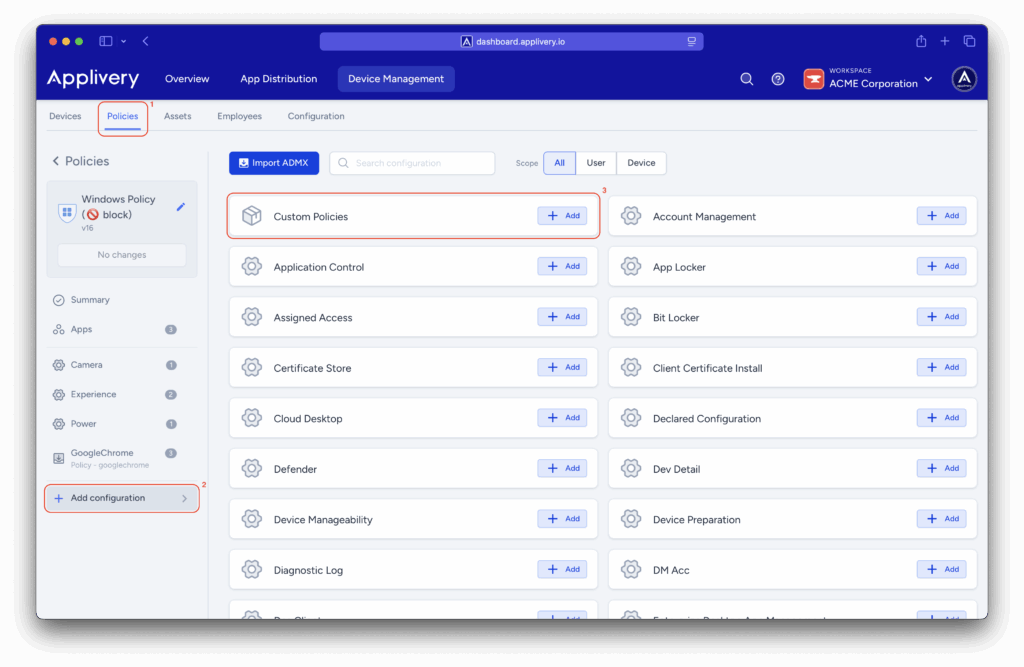
Once in the Applivery dashboard, head to the Device Management section and select Policies (1). Select the policy you want to configure for a multi-app kiosk.
Next, in the left-hand menu, select + Add configuration (2), search for Custom Policies (3), and then click + Add Value to create the new configuration.
Use the following OMA-URI to create a kiosk user:
OMA-URI:
./Device/Vendor/MSFT/Accounts/Users/$USERNAME/Password.Replace the
$USERNAMEvariable in the OMA-URI with the desired username.Format: String (chr).
Value: This value sets the password for the kiosk user.
Use the following OMA-URI to enable Shared PC Mode:
OMA-URI:
./Vendor/MSFT/SharedPC/EnableSharedPCMode.Format: Boolean (bool).
Value: true.
Enables Shared PC Mode, optimizing the device for multiple users with restricted access.
Defines the account model in Shared PC Mode:
- OMA-URI:
./Vendor/MSFT/SharedPC/AccountModel. - Format: Integer (int).
- Value: 2 (this indicates a mode with disposable or restricted accounts).
Defines the account model in Shared PC Mode:
- OMA-URI:
./Vendor/MSFT/AssignedAccess/Configuration. - Format: String (chr).
- Value:
<?xml version="1.0" encoding="utf-8"?>
<AssignedAccessConfiguration xmlns:xs="http://www.w3.org/2001/XMLSchema" xmlns="http://schemas.microsoft.com/AssignedAccess/2017/config" xmlns:default="http://schemas.microsoft.com/AssignedAccess/2017/config" xmlns:rs5="http://schemas.microsoft.com/AssignedAccess/201810/config" xmlns:v3="http://schemas.microsoft.com/AssignedAccess/2020/config" xmlns:v5="http://schemas.microsoft.com/AssignedAccess/2022/config">
  <Profiles>
    <Profile Id="{9A2A490F-10F6-4764-974A-43B19E722C23}">
      <AllAppsList>
        <AllowedApps>
          <App AppUserModelId="Microsoft.WindowsCalculator_8wekyb3d8bbwe!App" />
          <App AppUserModelId="Microsoft.Windows.Photos_8wekyb3d8bbwe!App" />
          <App AppUserModelId="Microsoft.BingWeather_8wekyb3d8bbwe!App" />
          <App DesktopAppPath="C:\Windows\system32\cmd.exe" />
          <App DesktopAppPath="%windir%\System32\WindowsPowerShell\v1.0\Powershell.exe" />
          <App DesktopAppPath="%windir%\explorer.exe" />
          <App AppUserModelId="windows.immersivecontrolpanel_cw5n1h2txyewy!microsoft.windows.immersivecontrolpanel" />
          <App AppUserModelId="%ProgramFiles(x86)%\Microsoft\Edge\Application\msedge.exe" />
        </AllowedApps>
      </AllAppsList>
      <rs5:FileExplorerNamespaceRestrictions>
        <rs5:AllowedNamespace Name="Downloads" />
        <v3:AllowRemovableDrives />
      </rs5:FileExplorerNamespaceRestrictions>
      <v5:StartPins><![CDATA[{ "pinnedList":[ {"packagedAppId":"Microsoft.WindowsCalculator_8wekyb3d8bbwe!App"}, {"packagedAppId":"Microsoft.Windows.Photos_8wekyb3d8bbwe!App"}, {"packagedAppId":"Microsoft.BingWeather_8wekyb3d8bbwe!App"}, {"desktopAppLink":"%APPDATA%\Microsoft\Windows\Start Menu\Programs\System Tools\Command Prompt.lnk"}, {"desktopAppLink":"%APPDATA%\Microsoft\Windows\Start Menu\Programs\Windows PowerShell\Windows PowerShell.lnk"}, {"desktopAppLink":"%APPDATA%\Microsoft\Windows\Start Menu\Programs\File Explorer.lnk"}, {"packagedAppId": "windows.immersivecontrolpanel_cw5n1h2txyewy!microsoft.windows.immersivecontrolpanel"}, {"desktopAppLink": "%ALLUSERSPROFILE%\Microsoft\Windows\Start Menu\Programs\Microsoft Edge.lnk"} ] }]]></v5:StartPins>
      <Taskbar ShowTaskbar="true" />
    </Profile>
  </Profiles>
  <Configs>
    <Config>
      <AutoLogonAccount rs5:DisplayName="$USERNAME" />
      <DefaultProfile Id="{9A2A490F-10F6-4764-974A-43B19E722C23}" />
    </Config>
  </Configs>
</AssignedAccessConfiguration>