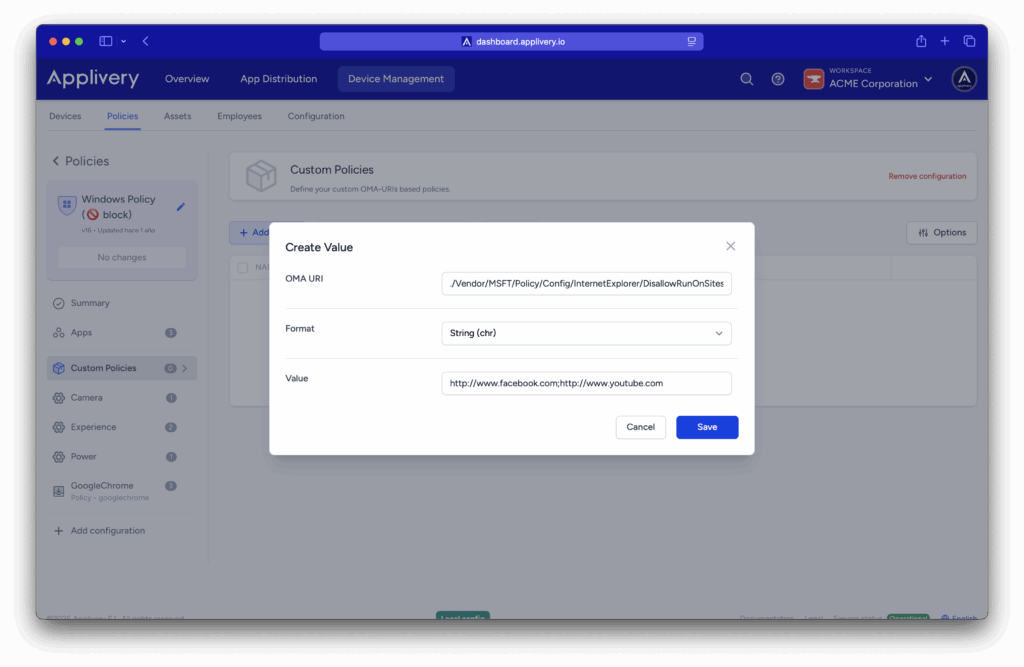
Blocking URLs in Internet Explorer and Microsoft Edge is a useful way to control web access on managed devices. Whether to improve productivity, limit distractions, or enhance security, restricting access to particular websites can help organizations enforce browsing policies effectively.
With Applivery, administrators can centrally configure these restrictions to ensure that users only access approved content, creating a safer and more controlled browsing environment.
Controlling Web Access
Once in the Applivery dashboard, head to the Device Management section and select Policies (1). Choose the policy where you want to add this configuration.
Next, in the left-hand menu, select + Add configuration (2), search for Custom Policies (3), and then click + Add Value to create the new configuration.
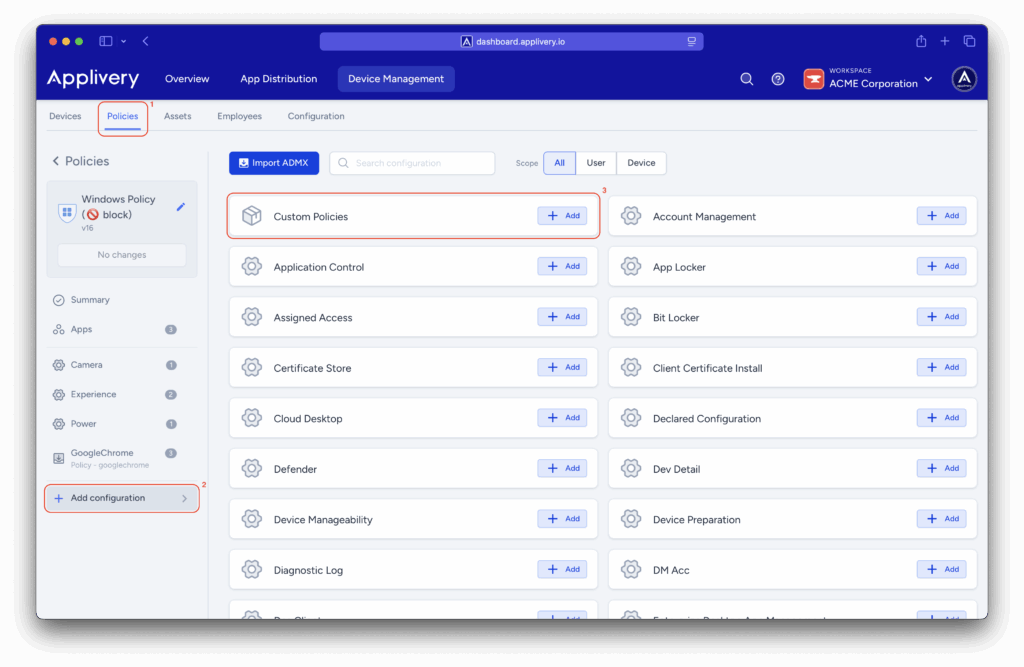
Use the following OMA-URI to block websites:
- OMA-URI:
./Vendor/MSFT/Policy/Config/InternetExplorer/DisallowRunOnSites. - Format: String (chr).
- Value: Configure a list of blocked URLs separated by semicolons.