
import { Steps, Step } from '@rocket.chat/fuselage-ui-kit';
import { Card, CardGroup } from 'components/Card';
import { Tabs, Tab } from 'components/Tabs';
import { Accordion } from 'components/Accordion';
import BrowserMockup from 'components/BrowserMockup';

BOS™ OEMConfig is Bluebird’s enterprise-grade configuration tool that enables IT administrators to remotely manage and fine-tune device behavior at a system level. Through integration with Applivery, BOS™ OEMConfig leverages Android Enterprise’s managed configurations framework to apply granular controls over Bluebird-specific hardware and software components.
Administrators can define and enforce advanced device policies — including network parameters, application management, security restrictions, and kiosk mode behavior — all from a centralized management console. This integration ensures full compliance, consistent device performance, and streamlined control across the entire Bluebird device fleet.
Getting started
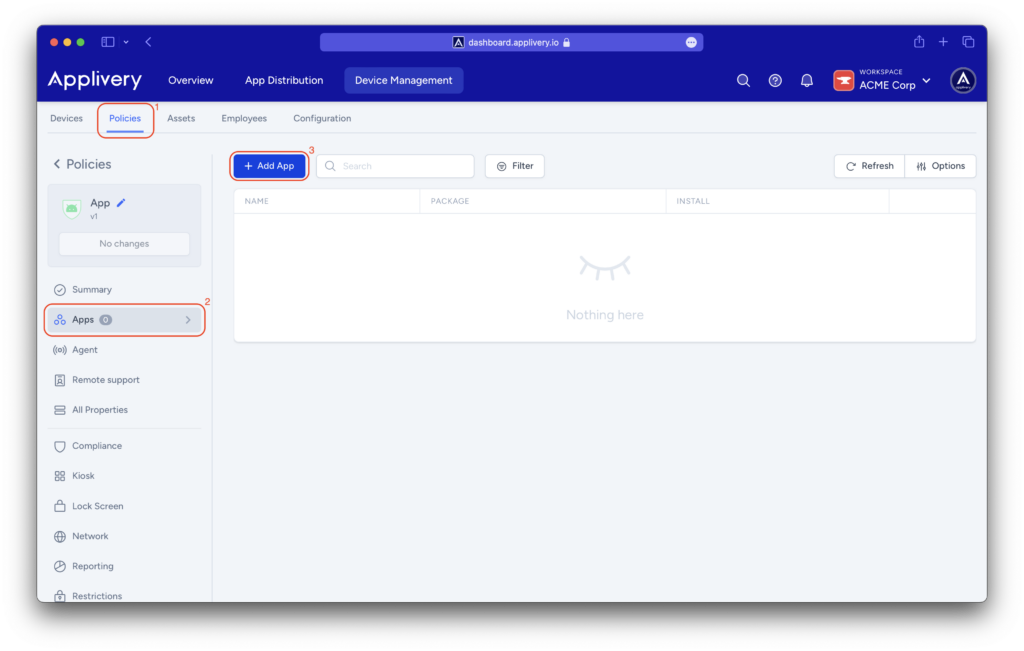
Once in the Applivery Dashboard, go to any of your Policies (1) (under Device Management > Policies). From the left side menu, go to Apps (2) and click the + Add App button (3).
Search for the BOS™ OEMConfig app and select the one from Bluebird Inc. (package name: com.bluebird.android.oemconfig).
Set the Install Type to Force Installed to ensure the app is automatically installed on any device associated with the policy.
Once the app appears in the list, click on it to expand all the managed properties and configure them according to your requirements.
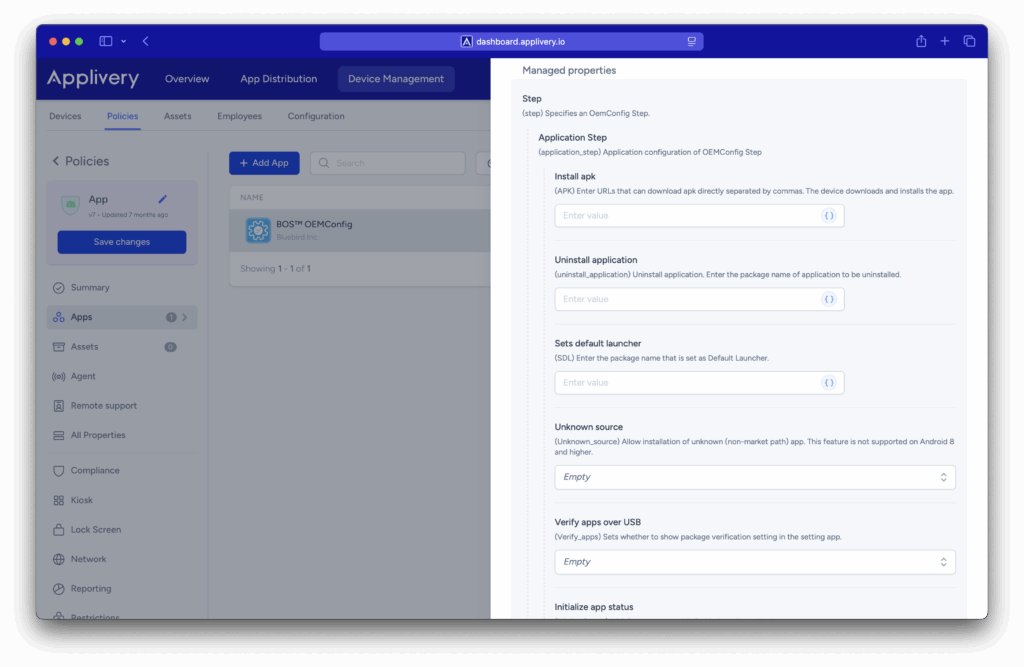
The OEM-specific settings described in this document are defined and maintained by their respective OEM vendors, and may change periodically. Since these configurations are managed externally, the options and values displayed in the Applivery dashboard may occasionally differ slightly from those shown in this documentation.
App Management
| Settings | Description