
Enrollment by link
Step 1 - Create a new enrollment
- Sign in to the Applivery Dashboard and navigate to Device Management > Devices.
- Click the + Enroll device button.
- In the modal pop-up window, make sure to choose Apple under Platform.
- Choose an Employee (or create one by typing the email address) to whom the device will be assigned once enrolled.
Optional steps:
Choose a Policy that will be applied to the device automatically when enrolling. You can also create an empty policy by typing a new name).
Click More options to pre-define a Display name for the new device, configure the expiration of this enrollment, or send the enrollment instructions to the user via email.
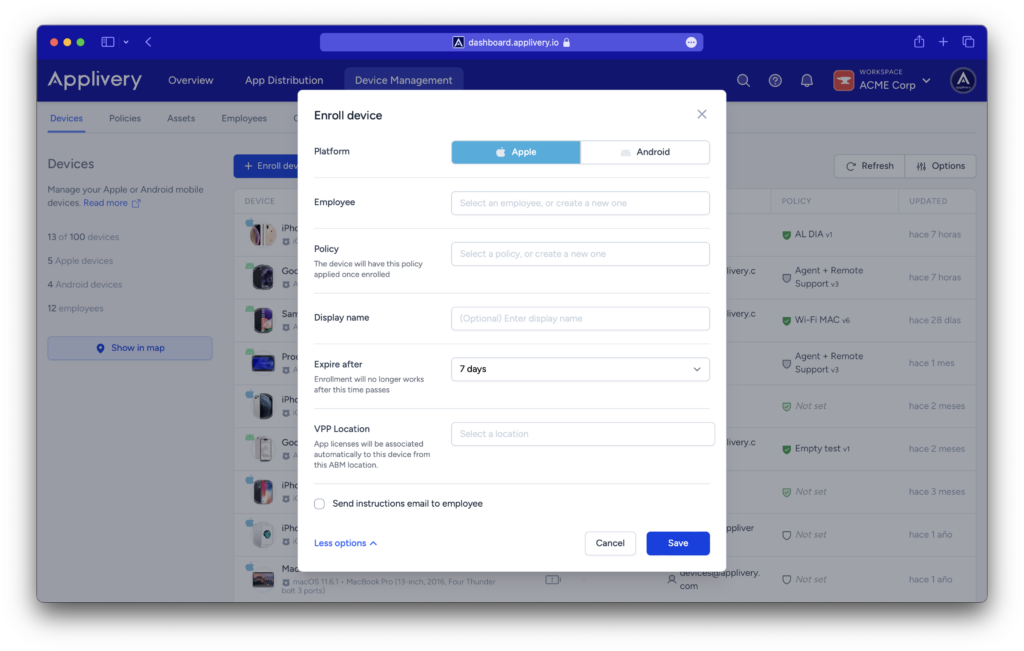
Once ready, click Save to create the new enrollment.
Step 2 - Enroll the device
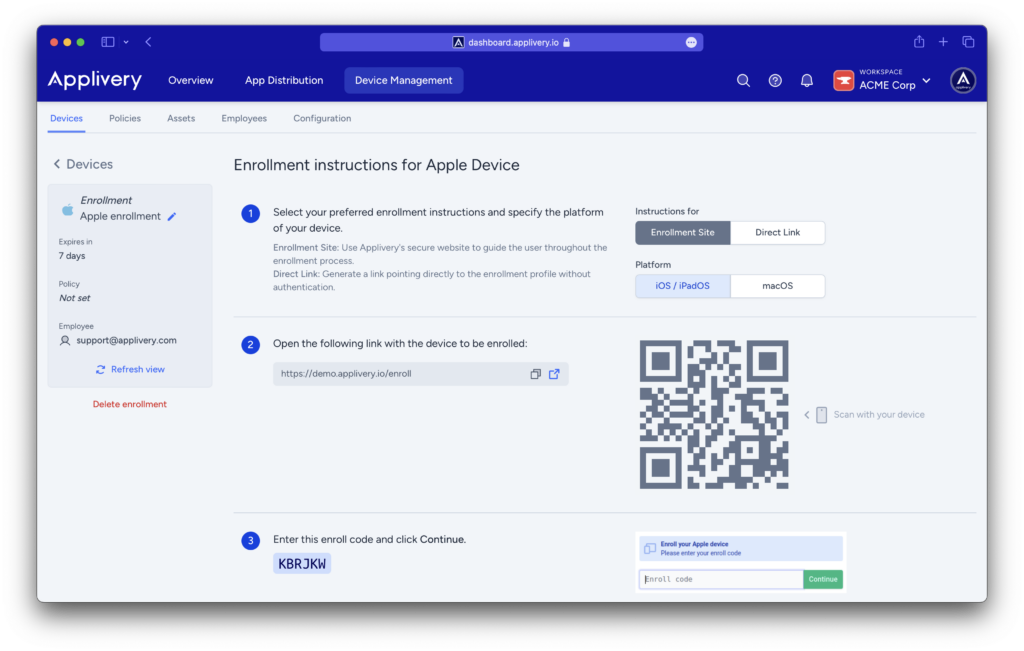
Once done, you will be redirected to the enrollment details. Note that you will find two options to enroll a new Apple Device:
User enrollment using the Applivery’s Enrollment site: a website that will request a password from the user and then will start the enrollment process, so that you can securely share the enrollment URL + Enrollment code with a user
Enrollment link: a direct link to the configuration profile
Select your preferred option, along with the device type you will be enrolling, and then proceed with the steps.
Enrollment site
- Open the provided link with the device to be enrolled (or scan the QR code).
- Enter the Enrollment code and click Continue.
- Click Enroll.
- In the device go to Settings > Management.
- Find Applivery’s profile and click Install.
- Once done, click Confirm enrollment in the Applivery dashboard to verify the correct enrollment of the device. In case it has been succesfully enrolled, you will be redirected to the device details view.
Enrollment link
- Open the provided link with the device to be enrolled (or scan the QR code). The configuration profile will be automatically downloaded.
- In the device go to Settings > Management.
- Find Applivery’s profile and click Install.
- Once done, click Confirm enrollment in the Applivery dashboard to verify the correct enrollment of the device. In case it has been successfully enrolled, you will be redirected to the device details view.
Other enrollment options
There are many other enrollment options that you can consider. Take a look at the following articles:
User enrollment (coming soon)