
Managing user permissions is a critical aspect of device security and control in enterprise environments. In certain scenarios, it’s necessary to create local administrator accounts on Windows devices—for example, to allow IT staff to perform maintenance, deploy software, or troubleshoot issues without relying on domain credentials.
With Applivery, you can automate the creation of local admin users across your fleet through policy configuration. This ensures consistent access control, simplifies device management, and reduces the risk of manual errors.
Using the Accounts CSP through Applivery’s Custom Policies configuration, you can deploy OMA-URI–based policies to create a local user and assign them administrator rights.
Step 1 - User creation
Once in the Applivery dashboard, head to the Device Management section and select Policies (1). Choose the policy where you want to create an admin user.
Next, in the left-hand menu, select + Add configuration (2), search for Custom Policies (3), and then click + Add Value to create the new configuration.
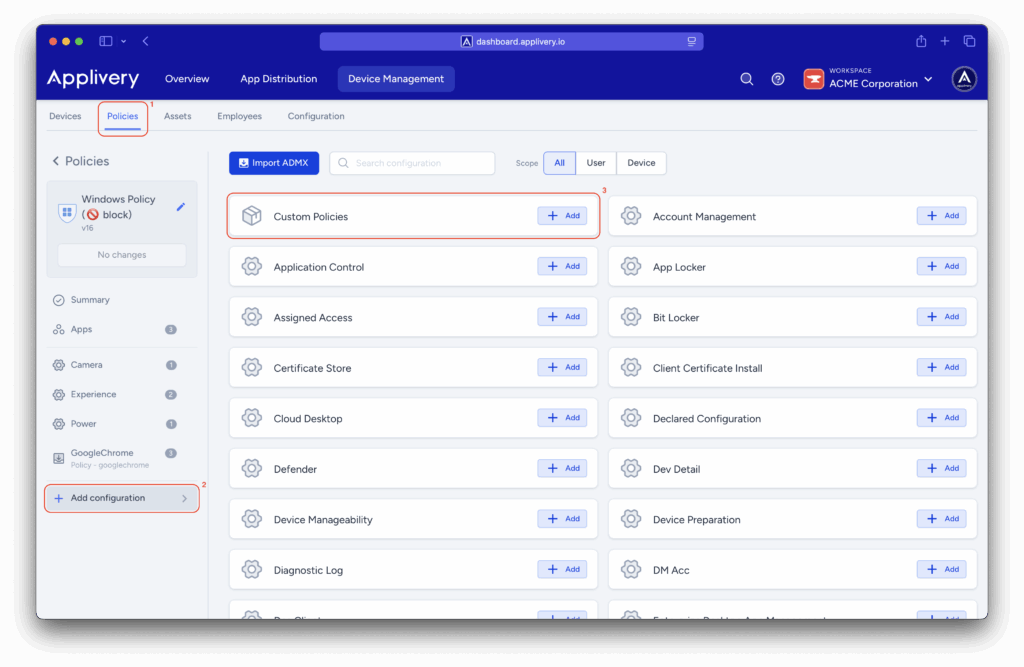
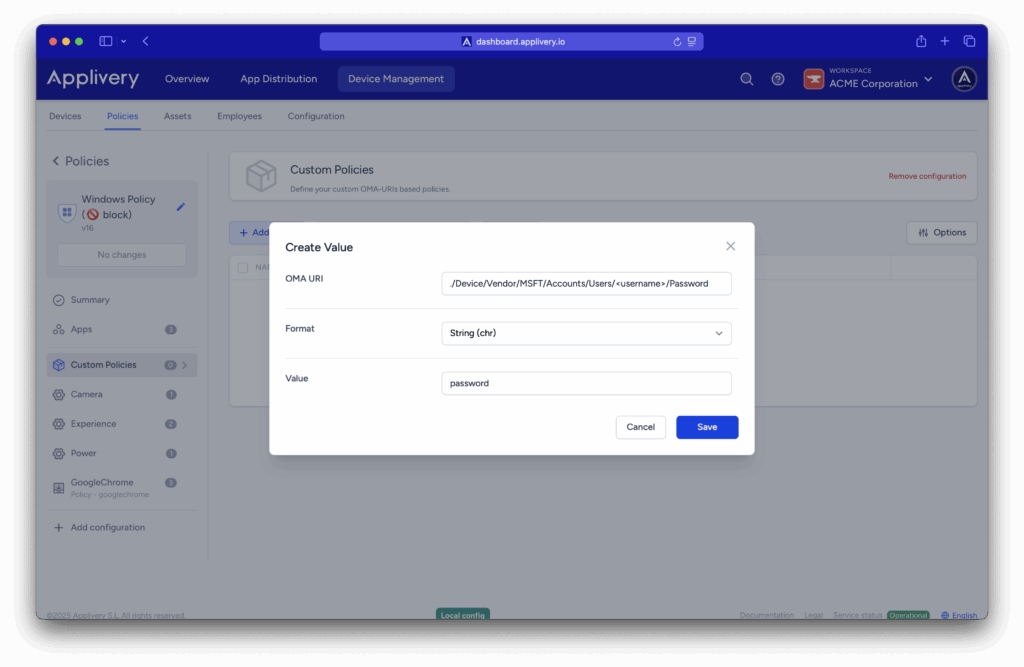
Use the following OMA-URI to create a new local user account:
OMA-URI:
./Device/Vendor/MSFT/Accounts/Users/<username>/Password.<userAdmin>represents the local username—replace it with the desired name for the new user account.Format: String (chr).
Value: This value sets the password for the local account—replace it with the password you want to assign.
Step 2 - Make the user administrator
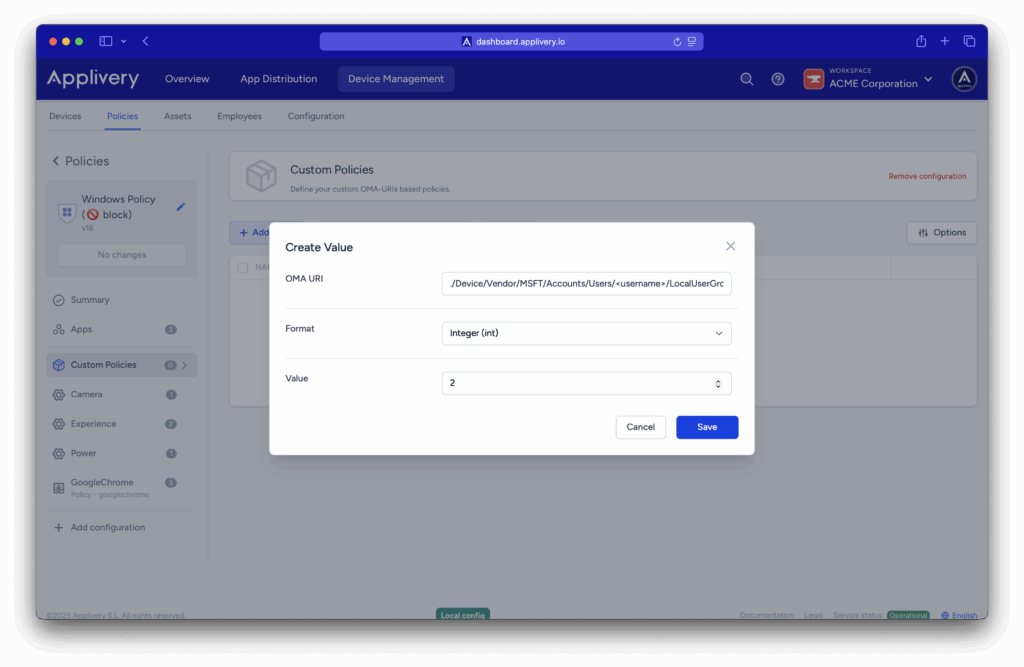
To make the newly created user a local administrator, apply this OMA-URI:
- OMA-URI:
./Device/Vendor/MSFT/Accounts/Users/<username>/LocalUserGroup. - Format: Integer (int).
- Value: 2 (this value describes the local administrators group).
If you already manage the local administrators group memberships through the “Local Users and Groups” configuration template, you must add the newly created account in the XML config, otherwise the newly created account might lose its local admin permissions.