Because any user can download and install apps from the Microsoft Store, it can become a security risk for company-owned devices. Unauthorized apps may introduce vulnerabilities, violate compliance policies, or interfere with enterprise configurations. To maintain a secure and controlled environment, it’s recommended to disable access to the Microsoft Store on managed Windows devices.
This can be achieved easily through Applivery by configuring the appropriate policy.
Set up your policy
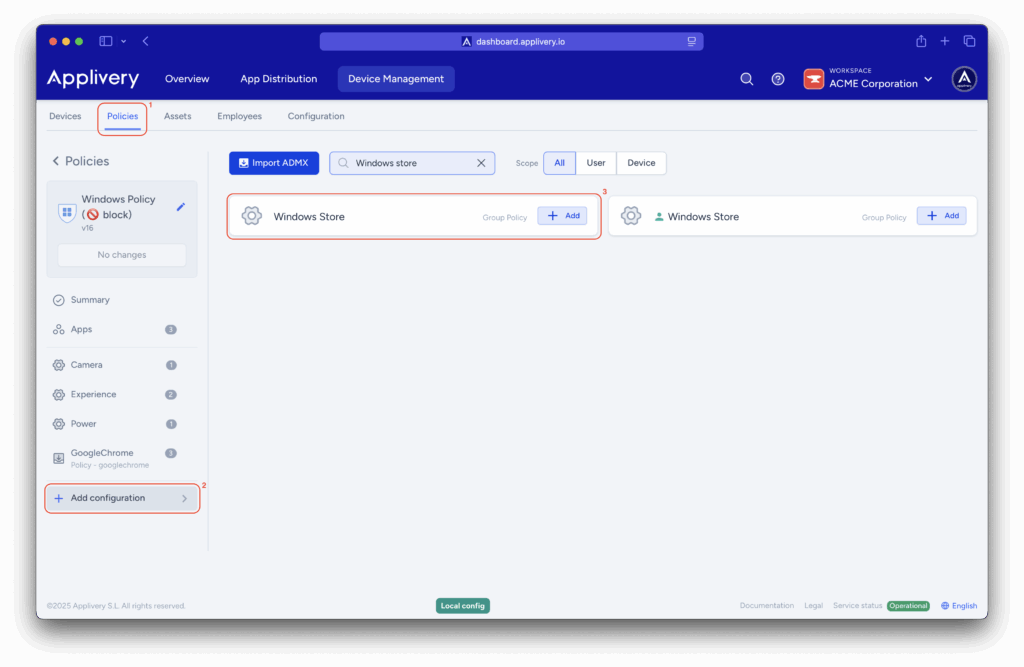
Once in the Applivery dashboard, head to the Device Management section and select Policies (1). Choose the policy where you want to block the Microsoft Store.
From the left-hand menu, click + Add configuration (2) and use the search bar to find the Windows Store (3) configuration.
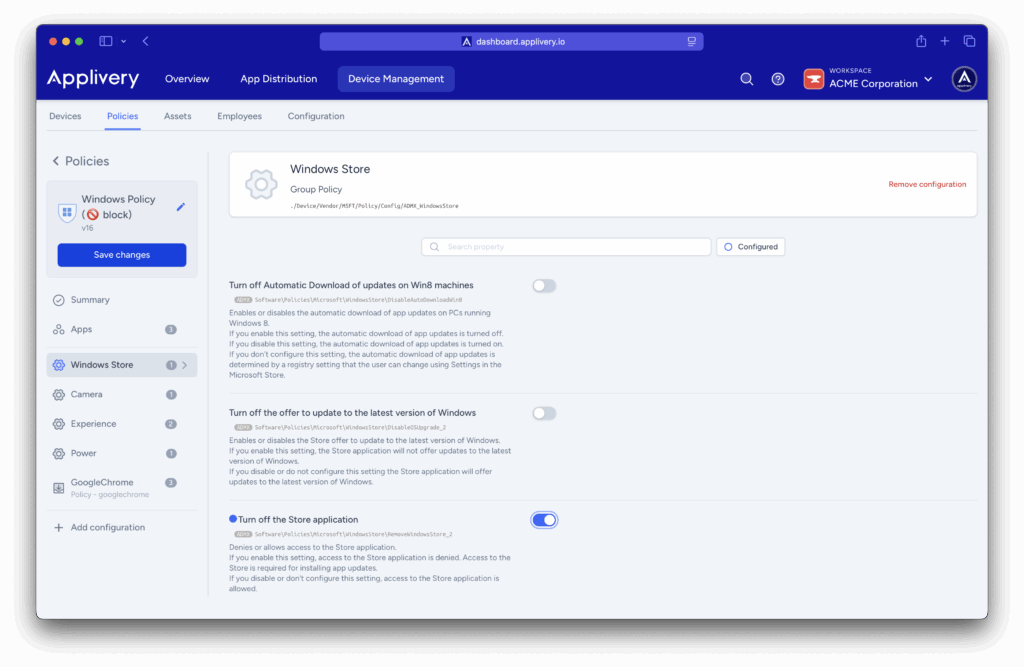
Next, enable the Turn off the Store application setting to disable the Microsoft Store on your devices.