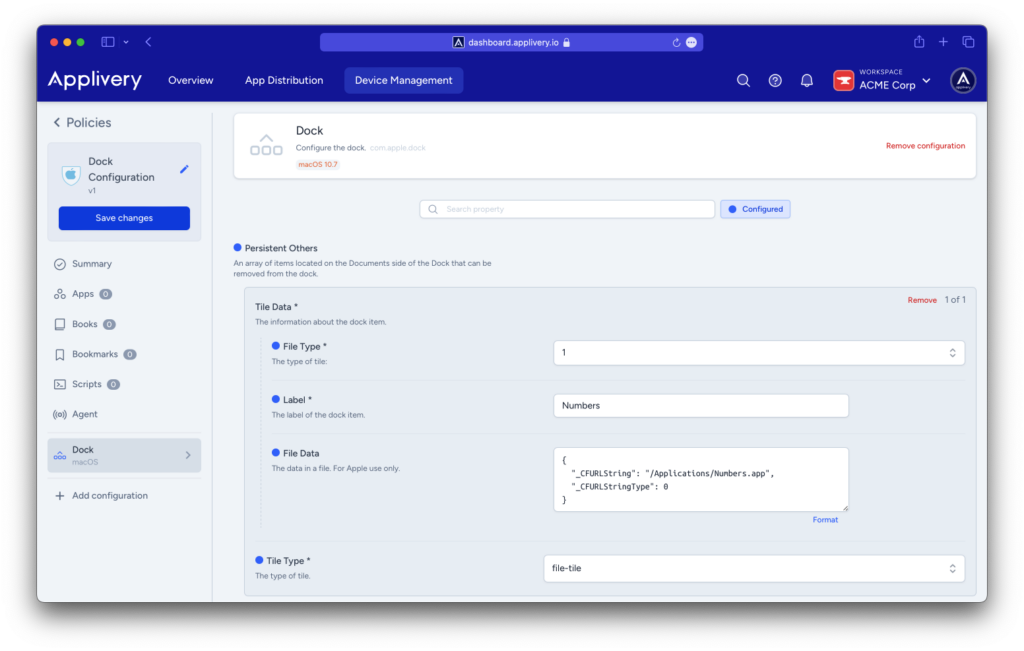
The Dock on macOS devices is a small panel that provides quick access to files, folders, and applications.
With Applivery, you have the flexibility to customize it by adding your preferred applications, placing it in different screen locations, or configuring it to disappear when not in use.
Configure the Dock
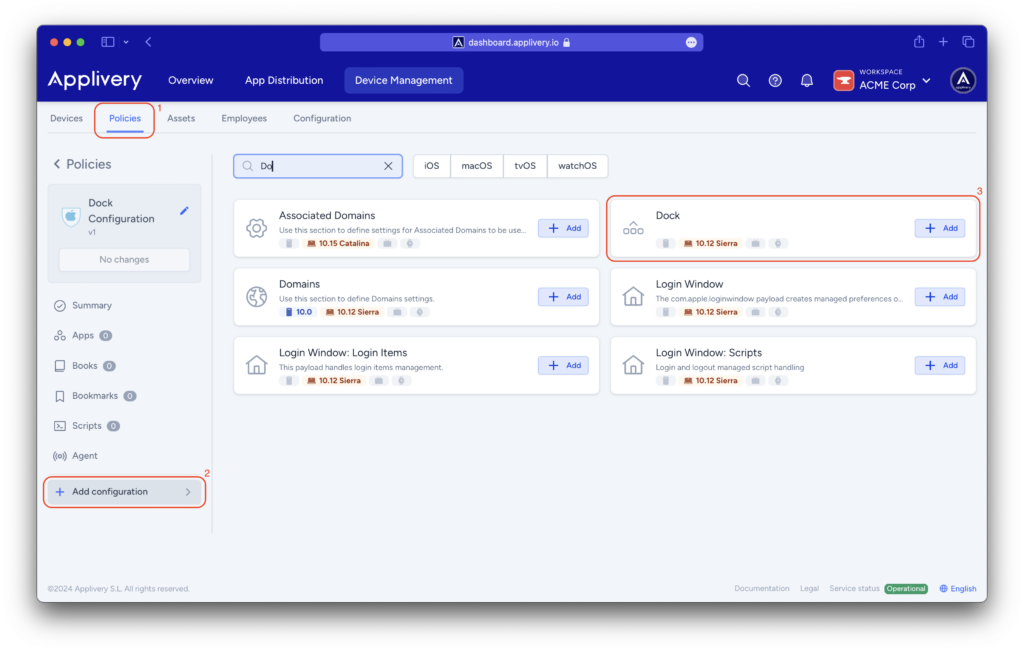
Once in the Applivery dashboard, head to the Device Management section and select Policies (1).
Choose the policy where you want to customize the Dock.
From the left-hand menu, navigate to the + Add configuration (2) option and then choose Dock (3).
Customize the dock by adjusting settings such as its size, opening animations for applications, automatic hide-and-show behavior, and orientation, among other features. When specifying which applications should appear in the dock, you will need to decide between Persistent Apps (which can be removed) or Static Apps (permanently fixed in the dock). For each application, you’ll need to define a Tile Data.