# Multi-App Kiosk Mode
> Configure Windows Multi-App Kiosk Mode in Applivery — restrict Device access to specific Apps using OMA-URI and XML configuration.
Source: https://docs.applivery.com/en/device-management/windows/policies/multi-app-kiosk-mode/ • Last updated: 2026-06-09
**Key topics:** Windows Kiosk Mode, OMA-URI Configuration, Assigned Access, Shared PC Mode, Microsoft, Windows, Applivery, OMA-URI, PowerShell, Command Prompt
---
**TL;DR:** Configure Windows Multi-App Kiosk mode to run multiple approved applications under strict control using OMA-URI settings and XML configuration.
Windows Kiosk in Multi-App mode is designed for scenarios where a Device must run more than one approved application under strict control.
Unlike traditional single-app kiosks, this configuration supports multiple Apps while enforcing restrictions that prevent unauthorized use.
Administrators can define the App set and manage user access consistently across Devices. This ensures a locked-down environment that is secure and aligned with organizational requirements.
## Configuration for a multi-app kiosk
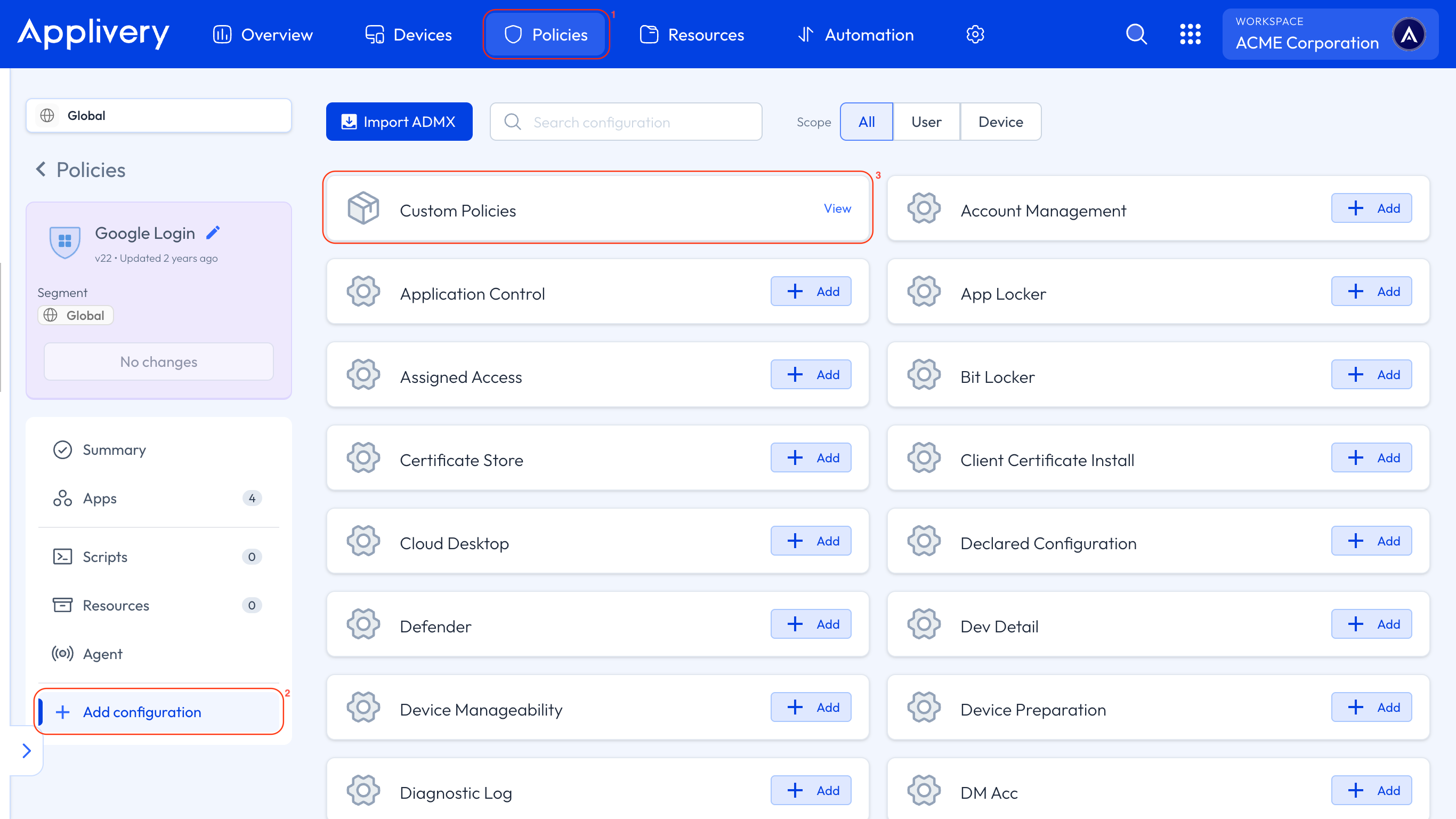
Once in the [**Applivery Dashboard**](https://dashboard.applivery.io/), head to **Policies** 1 and select the Policy you want to configure for a multi-app kiosk.
Next, in the left-hand menu, select **\+ Add configuration** 2, search for **Custom Policies** 3, and then click **\+ Add Value** to create the new configuration.
**Create a kiosk user**
Use the following OMA-URI to create a kiosk user:
- **OMA-URI**: `./Device/Vendor/MSFT/Accounts/Users/$USERNAME/Password`.
Replace the `$USERNAME` variable in the OMA-URI with the desired username.
- **Format**: String (chr).
- **Value**: This value sets the **password** for the kiosk user.
**Enable Shared PC Mode**
Use the following OMA-URI to enable Shared PC Mode:
- **OMA-URI**: `./Vendor/MSFT/SharedPC/EnableSharedPCMode`.
- **Format**: Boolean (bool).
- **Value**: `true`.
Enables Shared PC Mode, optimizing the Device for multiple users with restricted access.
**Define the account model in Shared PC Mode**
Defines the account model in Shared PC Mode:
- **OMA-URI**: `./Vendor/MSFT/SharedPC/AccountModel`.
- **Format**: Integer (int).
- **Value**: `2` (this indicates a mode with disposable or restricted accounts).
**Configure Assigned Access Mode**
Defines the account model in Shared PC Mode:
- **OMA-URI**: `./Vendor/MSFT/AssignedAccess/Configuration`.
- **Format**: String (chr).
- **Value**:
```xml
_[App]_
_[App]_
_[App]_
_[App]_
_[App]_
_[App]_
_[App]_
_[App]_
_[Taskbar]_
_[AutoLogonAccount]_
_[DefaultProfile]_
```
:::note
The **Profiles Section** defines a profile with a unique ID (`{9A2A490F-10F6-4764-974A-43B19E722C23}`) and specifies a whitelist of allowed applications under ``. This includes UWP Apps such as Microsoft Calculator, Photos, and Bing Weather, as well as desktop Apps like Command Prompt, PowerShell, and File Explorer.
**File Explorer restrictions** (`rs5:FileExplorerNamespaceRestrictions`) are applied to allow access to the Downloads folder only, while still permitting the use of removable drives. The **Start Menu** pinned Apps (`v5:StartPins`) section defines which applications appear pinned to the Start Menu, corresponding to the allowed Apps. **Taskbar** configuration is enabled (`_[Taskbar]_`), ensuring the taskbar is visible in kiosk mode.
In the **Configs Section**, **Auto Logon** automatically signs in the user, with `$USERNAME` replaced by the actual username for the kiosk. Profile assignment sets the defined profile as the default. Ensure you replace `$USERNAME` in the `` element with the username of the previously created user intended for this kiosk mode.
:::