# Safari Homepage Configuration
> Configure the Safari browser homepage on macOS Devices using a Plist file deployed via Applivery Device Management Policies.
Source: https://docs.applivery.com/en/device-management/apple/macos/policies/safari-homepage-configuration/ • Last updated: 2026-06-09
**Key topics:** Device Management, Browser Configuration, macOS Policies, Safari, Plist, Applivery
---
**TL;DR:** Configure Safari homepage on macOS using a Plist file imported into Applivery's device management policies.
Configuring the homepage allows IT admins to control the content displayed when users launch the browser.
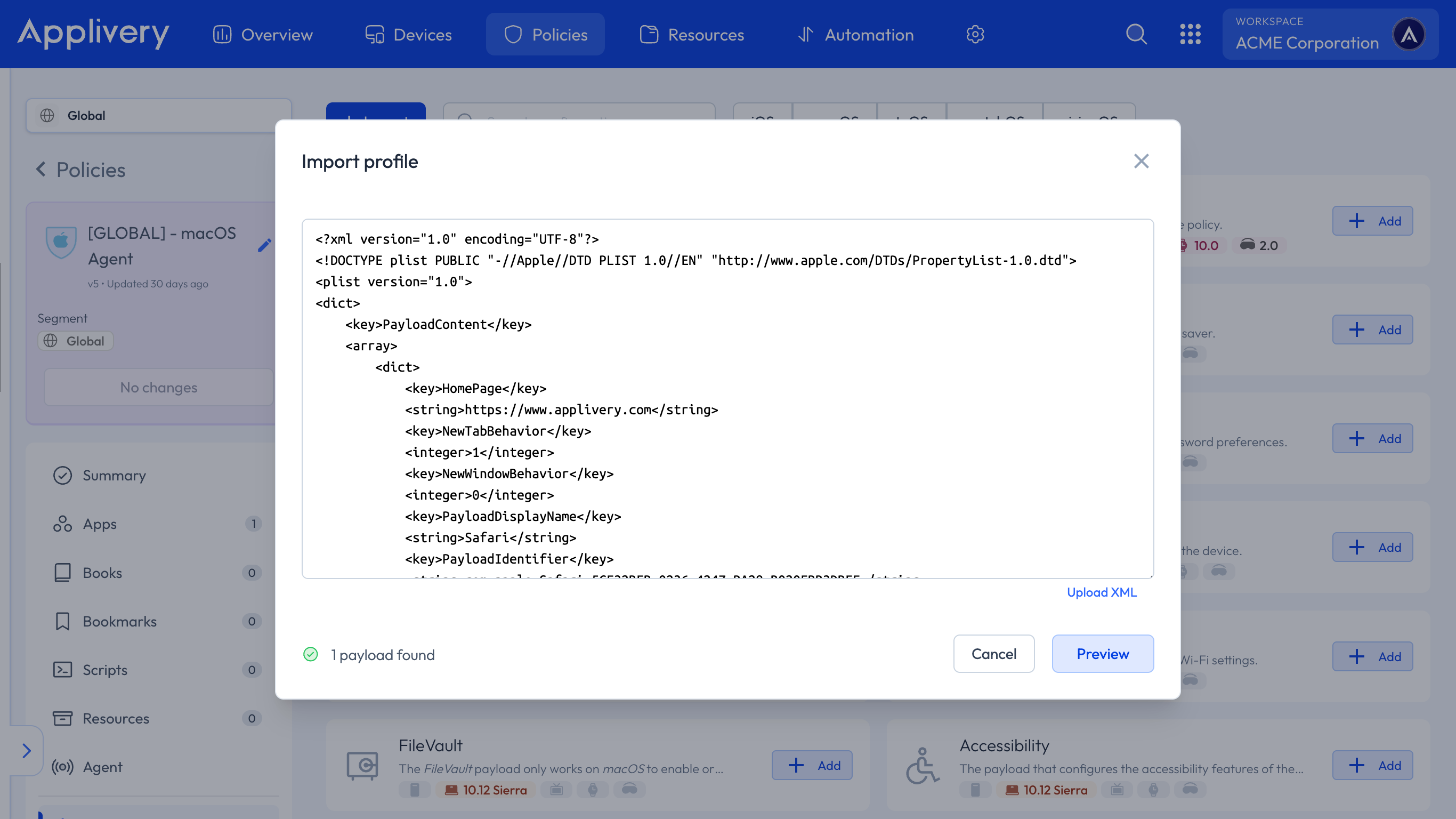
Use the following Plist to set a homepage URL for the Safari browser. Copy the contents from below and import them into the relevant macOS policy.
```html title="Safari Homepage Plist"
PayloadContent
HomePage
https://www.applivery.com
NewTabBehavior
1
NewWindowBehavior
0
PayloadDisplayName
Safari
PayloadIdentifier
com.apple.Safari.5CF32BFB-0236-4247-BA28-B020EBB3DBFF
PayloadType
com.apple.Safari
PayloadUUID
5CF32BFB-0236-4247-BA28-B020EBB3DBFF
PayloadVersion
1
```
Replace the home page URL with the URL that you would like to use in the above Payload. For example:
```xml
HomePage
https://www.applivery.io
```
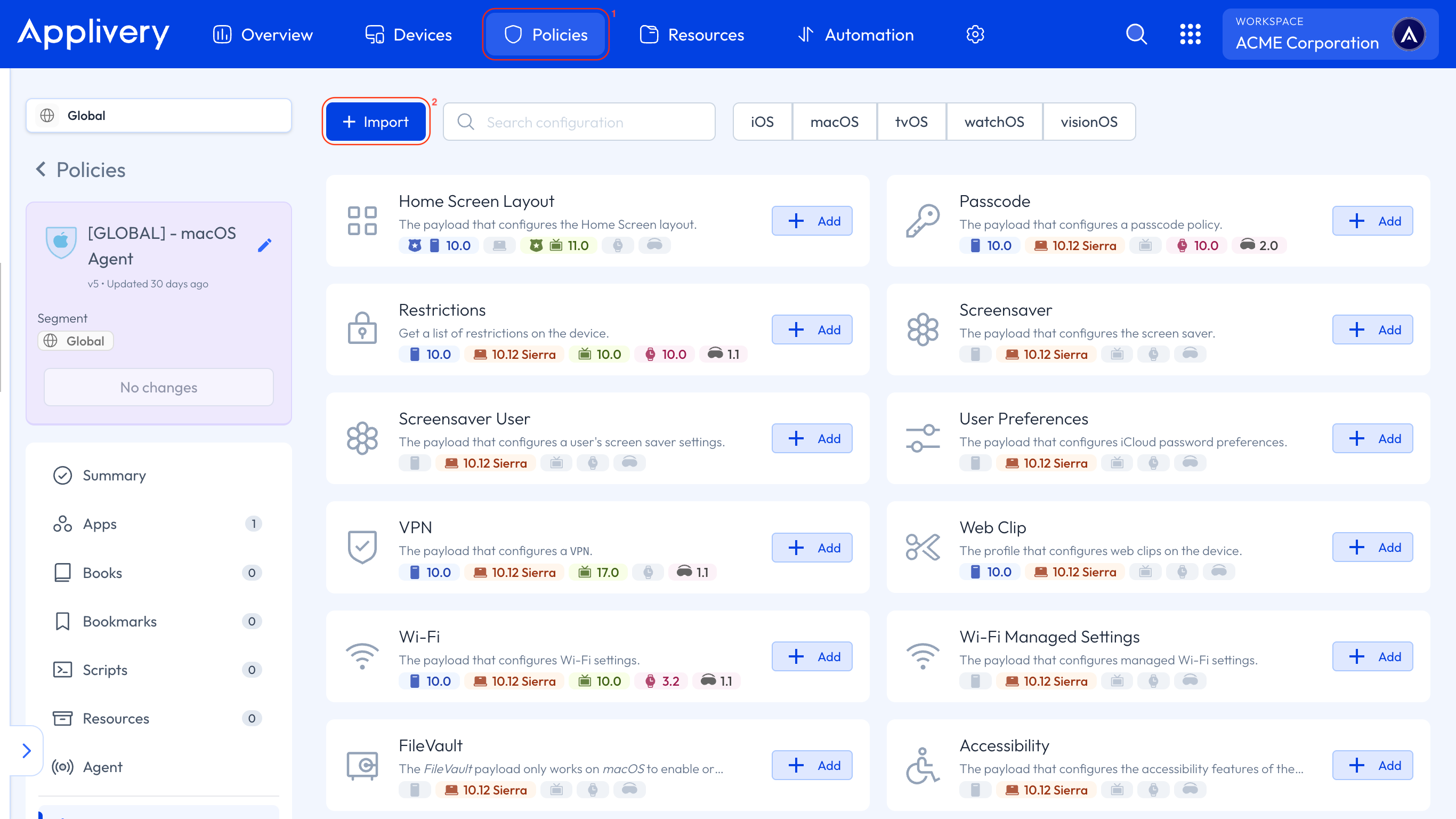
Once in the [**Applivery Dashboard**](https://dashboard.applivery.io), go to any of your **Policies** 1 or [create a new one](https://docs.applivery.com/en/device-management/general-settings/create-device-policies/).
Click the **\+ Add configuration** button on the left-hand menu, then click the **\+ Import** 2 button.
You can either copy the Plist above or use the **Upload XML** button to upload a new one.
:::info
Restart Safari to verify that the configuration has been applied correctly.
Ensure that additional settings, such as `NewTabBehavior` and `NewWindowBehavior`, are also properly configured.
:::