# Google Chrome Homepage Configuration
> Configure the Google Chrome homepage URL on macOS Devices using a Plist file deployed via Applivery Device Management Policies.
Source: https://docs.applivery.com/en/device-management/apple/macos/policies/google-chrome-homepage-configuration/ • Last updated: 2026-06-09
**Key topics:** Device Management, Browser Configuration, macOS Policies, Google Chrome, Applivery, macOS
---
**TL;DR:** Configure Chrome homepage on macOS using Plist files and Applivery policies.
Configuring the homepage allows IT admins to control the content displayed when users launch the browser.
Use the following Plist to set a homepage URL for the Google Chrome browser. Copy the contents from below and import them into the relevant macOS Policy.
```html title="Chrome Homepage Plist"
PayloadContent
HomepageLocation
https://www.applivery.com
NewTabPageLocation
https://www.applivery.com/docs
PayloadDisplayName
Google Chrome
PayloadIdentifier
com.google.Chrome.F8C05D93-31F5-416E-AF46-2E54F2578F9A
PayloadType
com.google.Chrome
PayloadUUID
B98A135C-3F21-40E9-9D0C-CD9E4A5A46A6
PayloadVersion
1
```
Replace the home page URL with the URL that you would like to use in the above Payload. For example:
```xml
HomepageLocation
https://www.applivery.com
NewTabPageLocation
https://www.applivery.com/docs
```
Once in the [**Applivery Dashboard**](https://dashboard.applivery.io), go to any of your **Policies** 1 or [create a new one](https://docs.applivery.com/en/device-management/general-settings/create-device-policies/).
Click the **\+ Add configuration** button on the left-hand menu, then click the **\+ Import** 2 button.
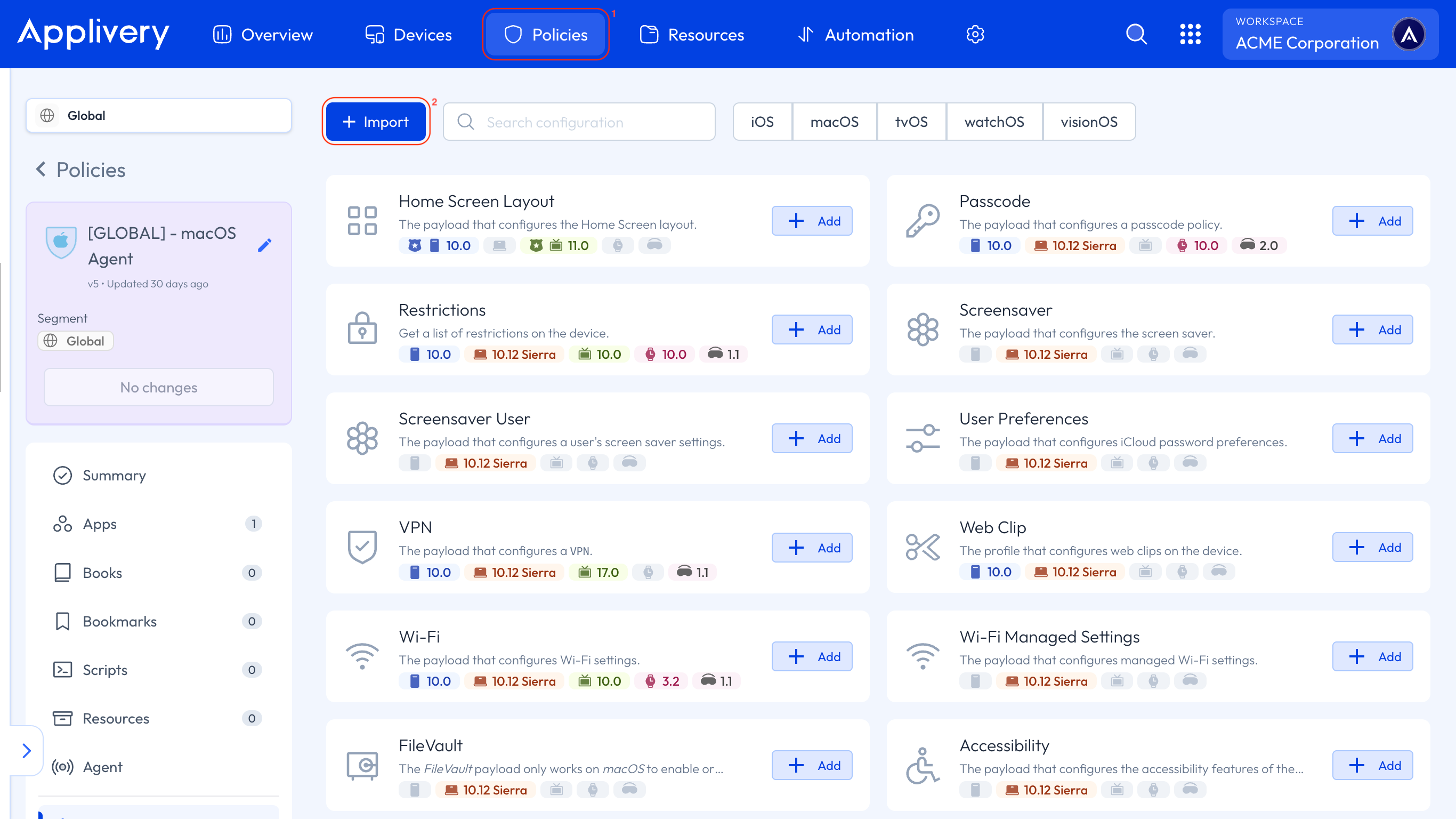
You can either copy the Plist above or use the **Upload XML** button to upload a new one.
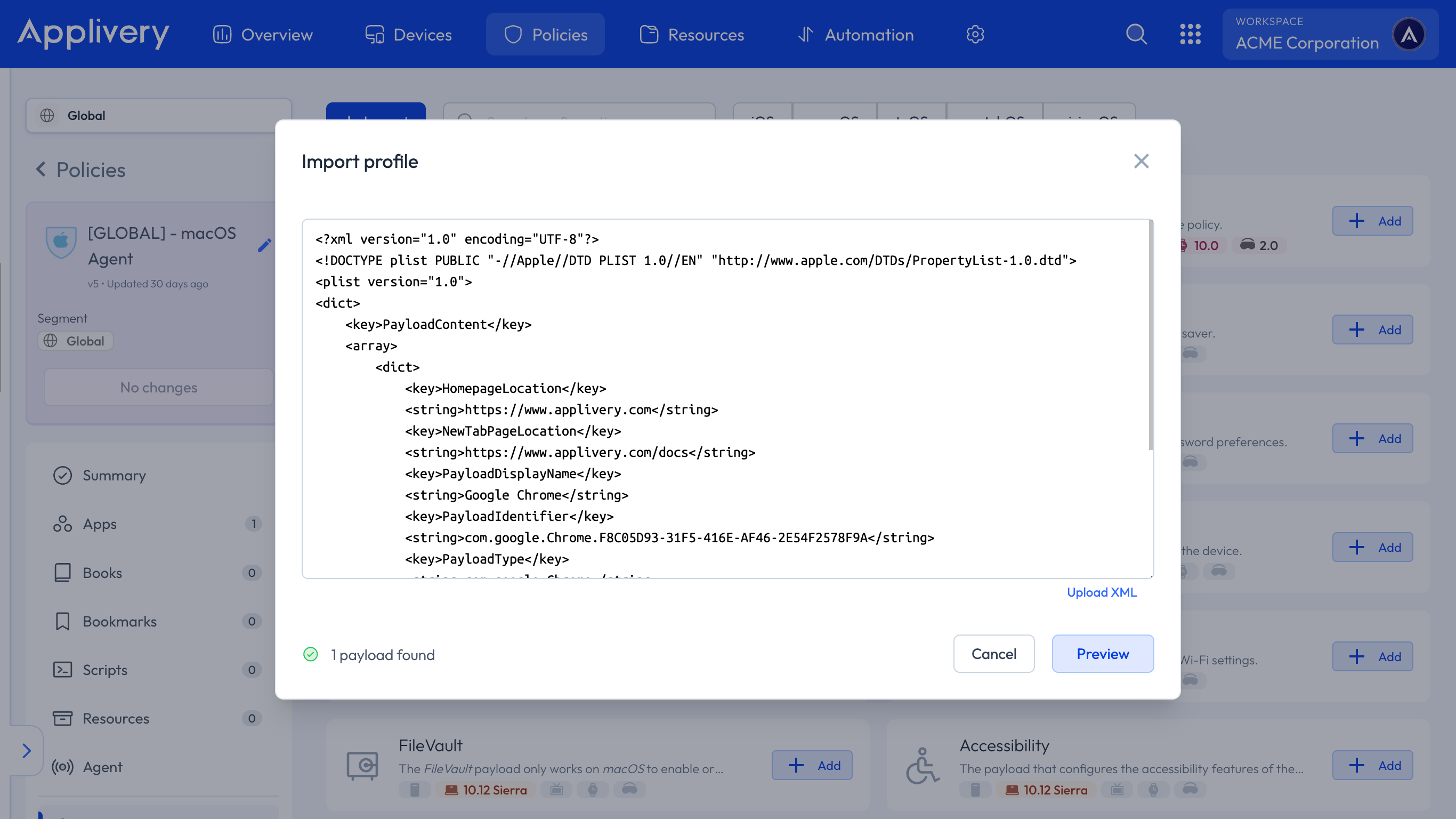
:::info
Restart Google Chrome to verify that the configuration has been applied correctly.
:::